
Everything to promote FilmScribe, from your first link to your first payout.
The program step by step, content ideas, ready-to-copy texts, advertising best practices and our press kit with logos, colors, descriptions and app screenshots.
Nothing here is mandatory. These are our recommendations and the market's: use what fits you and your audience.
Updated
From first contact to payout, in 5 steps
- 1
Join the program
Talk to us on WhatsApp. We set up your affiliate account with an easy-to-remember code, usually your name or your channel's.
- If you don't use FilmScribe yet, we'll work out with you how to get to know the product before you promote it.
- The commission is 25% of everything each customer pays in their first 6 months.
- 2
Get your link
In the app, click “My affiliate link” at the bottom of the sidebar and copy the link. The Referrals page, in your account menu, shows the same link.
- The link goes straight to sign-up and keeps your referral for 30 days after the click.
- If someone clicks links from two affiliates, the last one clicked counts.
- You can shorten the link (bit.ly and similar) as long as it still leads to your full link.
- 3
Get to know the product
People who really use it sell it better. Upload one of your videos, read the transcript, download a few clips and export to your editor. That is what your audience will want to see.
- Start with the kind of video your audience records: church service, wedding, podcast, class.
- Keep the before and after: how long it used to take and how long it takes now.
- 4
Create and publish
Show FilmScribe solving a real problem for your audience and say where the link is. The ideas and ready-to-use texts below help you start.
- A video showing it in use converts better than a post with just the link.
- Repeat the link where it is easy to find: bio, description, pinned comment.
- 5
Track and get paid
On the app's Referrals page you see who started a trial or subscribed through your link. With every payout, we send the month's summary, customer by customer.
- The commission on a payment is paid after 30 days, on the first business day of the following month. A customer who paid on May 25 goes into the payout on the first business day of July.
- We pay via Pix, with no minimum amount.
What your audience needs to know
Five points that answer almost every question your viewers will have.
- What it is
- FilmScribe turns video, audio and YouTube links into transcripts, vertical clips, captions and editor-ready timelines, built for creators, churches, podcasts and video editors.
- What it costs
- Plans from R$ 59 a month, with a 3-day free trial. The trial asks for a card or Pix at the start and becomes a subscription unless it is canceled.
- Your link's discount
- People who subscribe through your link get 30% off the first 2 months of a monthly plan, or 40% off the first year of an annual plan. The discount applies to the first subscription.
- Who it is for
- Church media teams, wedding and event videographers, podcasts, teachers and creators who record a lot and need clips, captions and transcripts.
- What comes out of a recording
- A transcript in 90+ languages, vertical clips with animated captions, chapters, a summary and a timeline ready for Premiere Pro, Final Cut Pro or DaVinci Resolve.
Avoid promising what the product doesn't do today
- A free plan or a trial without a card: the 3-day trial asks for a card or Pix.
- A trial equal to the plan: the trial has its own limits on hours and clips.
- Links from other sources: FilmScribe imports YouTube links; anything else has to be uploaded as a file.
- Posting straight to social networks: FilmScribe gives you the file to download and publish.
- A mobile app: FilmScribe runs in the browser, on computers and phones.
Formats that usually work
The content that sells software best shows the product solving a real problem. Each idea comes with an opening line for the first seconds.
Screen tutorial
Record your screen from start to finish: upload the video, open the transcript, pick a clip and download it with captions.
Open with “I'm turning this one-hour sermon into clips for the whole week.”
Before and after
Show how long a captioned clip used to take the old way and how you do it now.
Open with “Captioning one clip used to take me an afternoon. Here's how I do it today.”
Behind the scenes of your work
Use a real project of yours: Sunday's service, the weekend's wedding, the podcast episode.
Open with “Sunday night at the church media desk: the service is over and the clips are already coming out.”
One feature per video
A short series, one feature per video: animated captions, YouTube chapters, translation, export to the editor.
Open with “Did you know you can send your clips straight to the DaVinci timeline?”
Honest review
Say what worked, what didn't and who it is for. Honesty builds more trust than praise.
Open with “I used FilmScribe for a month. What worked and what I'd change.”
Class or live stream
Show the whole flow live and answer your audience's questions on the spot.
Open with “Today I'll show how I get clips from a whole service, from upload to download.”
Where to put the link
Bio
On Instagram and TikTok, the link in your bio with a spoken call to action in the video.
Description and pinned comment
On YouTube, in the first lines of the description and in a pinned comment. Links aren't clickable on Shorts: say “link in my profile”.
Stories with a link
A short sequence showing it in use, with the link sticker on the last story.
WhatsApp and email
For people who already asked you for a tool tip: media groups, broadcast lists, newsletter.
Ready-to-copy texts
Replace [your link] with your link and adjust to the way you talk.
Instagram caption
#ad I use FilmScribe to get clips from my videos: I upload the recording and get the transcript, vertical clips with captions and chapters ready. With my link you get a 3-day free trial and 30% off the first 2 months (or 40% off the first year of the annual plan). Link in bio.
YouTube description
Tool I used in this video: FilmScribe [your link] Affiliate link: if you subscribe through it, I earn a commission and you get 30% off the first 2 months of the monthly plan or 40% off the first year of the annual plan.
WhatsApp message
Remember you said clips take you forever? I use FilmScribe: you send the video and get the transcript, vertical clips with captions and chapters. With my link you get a 3-day free trial and a discount: [your link]
Story
What I use to get clips from my videos: FilmScribe. Discount in the link. #ad
Transparent advertising, the way your audience trusts
None of these practices is a program rule: they are recommendations. They follow what the market does and what the Brazilian advertising self-regulation council (CONAR) recommends in its 2026 guide for digital influencers, and they protect your credibility.
Say it is advertising
Use the network's partnership label and an #ad at the start of the caption, visible without tapping “more”. In video, say or show it right at the start; in stories, keep it on screen; in a live stream, repeat it from time to time.
Say the link is an affiliate link
One sentence is enough: “if you subscribe through my link, I earn a commission”. People who trust you like to know.
Show real use
Use your own video and your own results. Someone else's screenshots and numbers don't convince anyone and can mislead.
Speak as a creator, not on FilmScribe's behalf
You are recommending a tool you use. Avoid profile or page names that look like official FilmScribe accounts.
Only what the product does today
Overpromising turns into cancellations and refund requests. If you are unsure about a feature, ask us.
No made-up discounts
Your audience's discount is the one in the link. Avoid announcing coupons, deadlines or conditions that don't exist.
No spam
Send the link to people who are interested. Mass messages in groups and DMs to strangers burn your name.
Paid ads using the FilmScribe name
If you plan to advertise on Google or Meta using the FilmScribe name, talk to us first, so we don't bid against each other for the same click.
The partnership label on each network
When posting, turn on the “Paid partnership” label in the advanced settings and tag @filmscribe.ai.
YouTube
In the video details, check “My video contains paid promotion”. YouTube shows a notice in the first seconds.
TikTok
Before posting, turn on the branded content disclosure in the post settings.
Logos, colors, descriptions and screenshots
Everything you need to talk about FilmScribe with our look. The files are free to use in your content about FilmScribe.
Logos






How to use the logo
- Dark logo on light backgrounds, light logo on dark or indigo backgrounds.
- Clear space around it of at least the height of the letter F.
- At least 100 px wide for the logo and 32 px for the icon.
- Stretching, squashing or rotating it.
- Changing its color or adding shadows, outlines or gradients.
- Redrawing the name in another font.
- Placing it on photos or backgrounds without contrast.
How to write the name
FilmScribe, one word, capital F and S. Avoid “Film Scribe”, “Filmscribe” or “FILMSCRIBE”. The website is filmscribe.ai.
Typography
The website and the app use Geist, free on Google Fonts. The logo is a drawing: always use the file, never the name typed in a font.
Colors
Ready-made descriptions
In one sentence
FilmScribe turns video, audio and YouTube links into transcripts, vertical clips, captions and editor-ready timelines, built for creators, churches, podcasts and video editors.
Short
FilmScribe turns a recording into ready-to-publish content. You upload a video, an audio file or a YouTube link and get a transcript in 90+ languages, vertical clips with animated captions, chapters and a timeline for Premiere Pro, Final Cut Pro or DaVinci Resolve. Built for creators, churches, podcasts and video editors.
Full
FilmScribe is a Brazilian tool that turns a recording into content ready to publish. You upload a video, an audio file or a YouTube link and get a transcript in 90+ languages, with every speaker identified, vertical clips with animated captions in 235 styles, chapters, a summary and a timeline ready for Premiere Pro, Final Cut Pro or DaVinci Resolve. It is used by church media teams, wedding and event videographers, podcasts and creators who record a lot. Plans start at R$ 59 a month, with a 3-day free trial. Learn more at filmscribe.ai.
Quick facts
- Plans
- Pro, Studio and Agency, from R$ 59 a month
- Trial
- 3 days free, with a card or Pix
- Transcription
- 90+ languages
- Upload
- Files up to 10 GB and YouTube links
- Captions
- 235 animated styles
- Exports to
- Premiere Pro, Final Cut Pro and DaVinci Resolve
- Website
- filmscribe.ai
- Social
- Instagram @filmscribe.ai, YouTube @filmscribe-ai
App screenshots
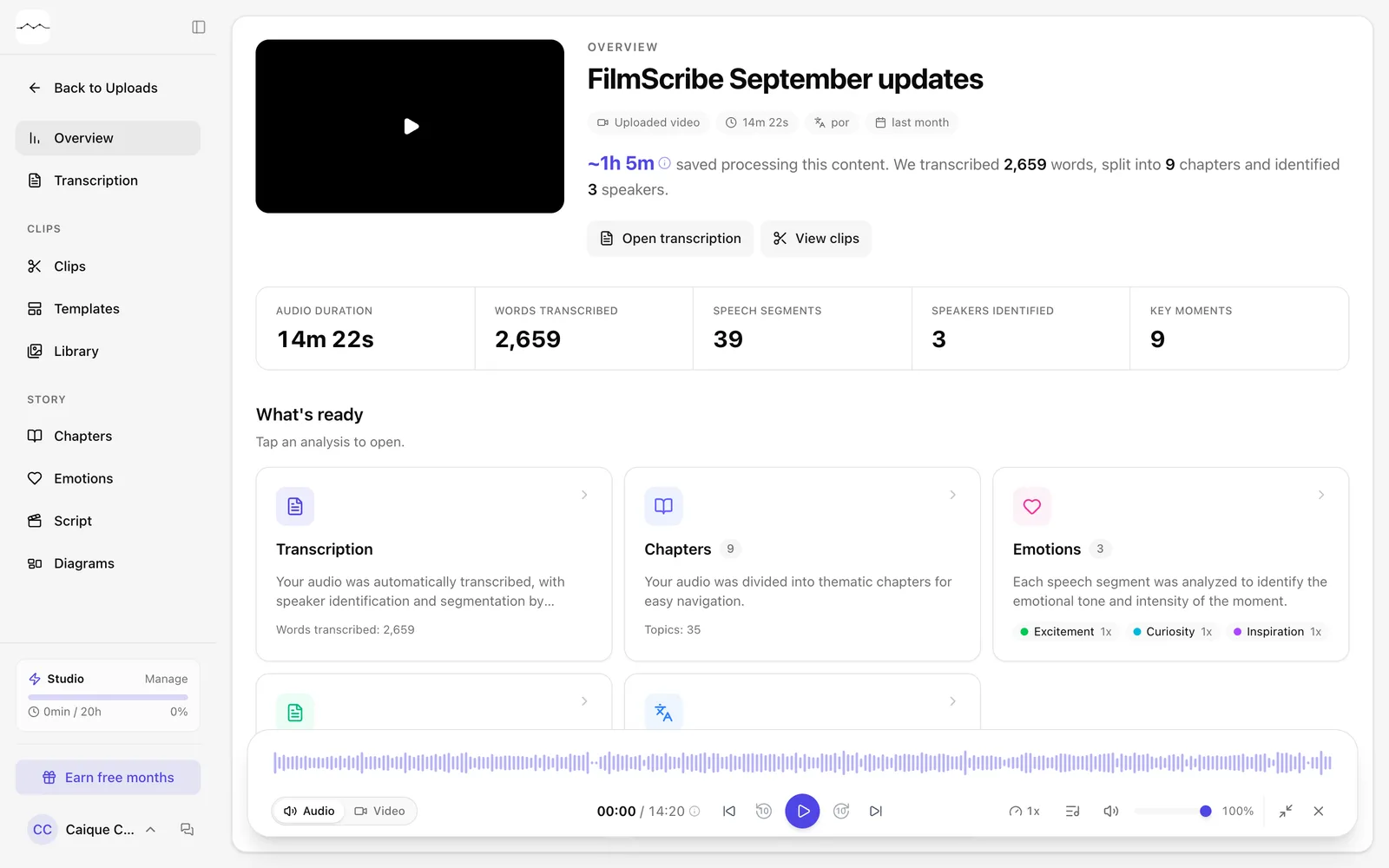
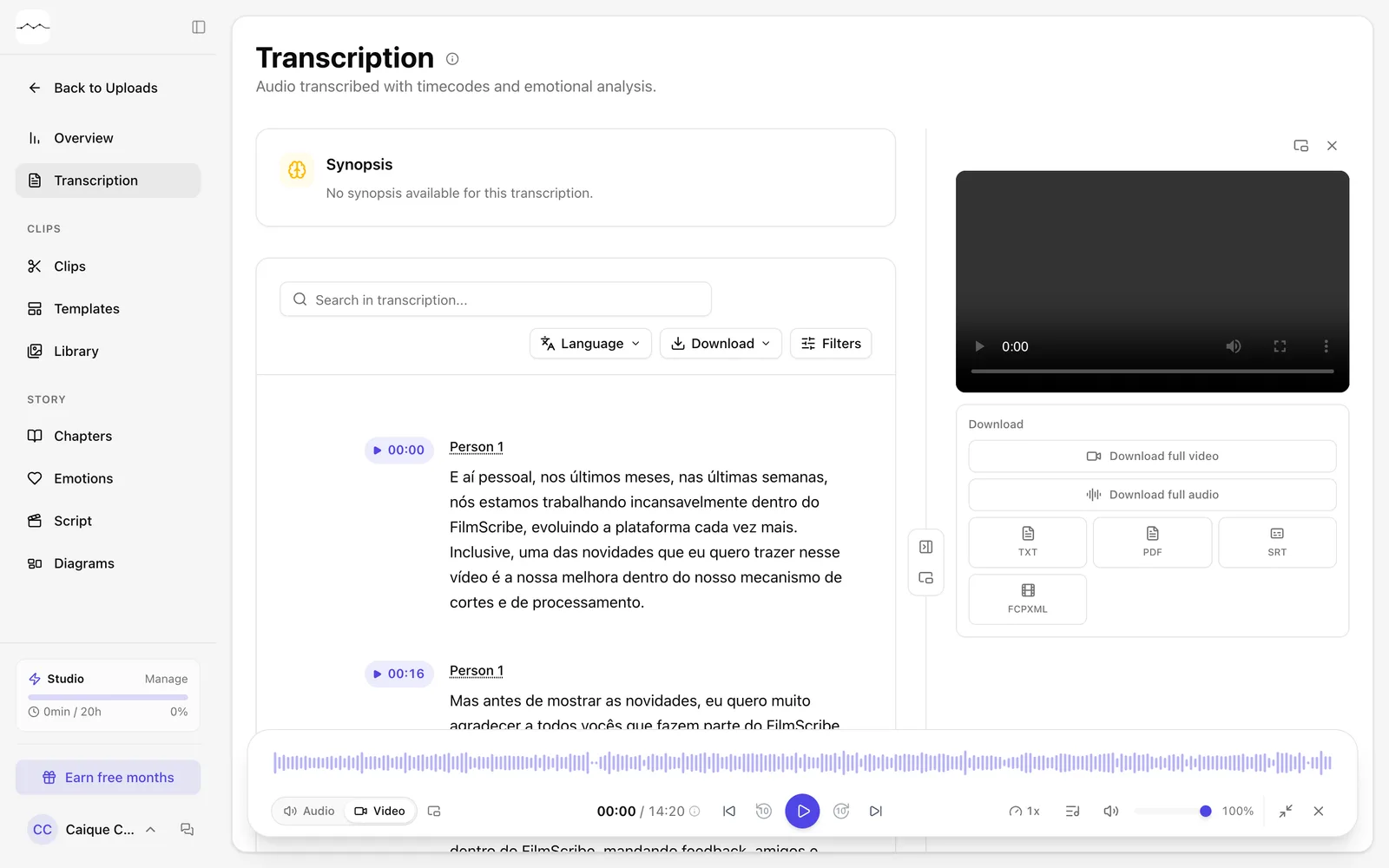
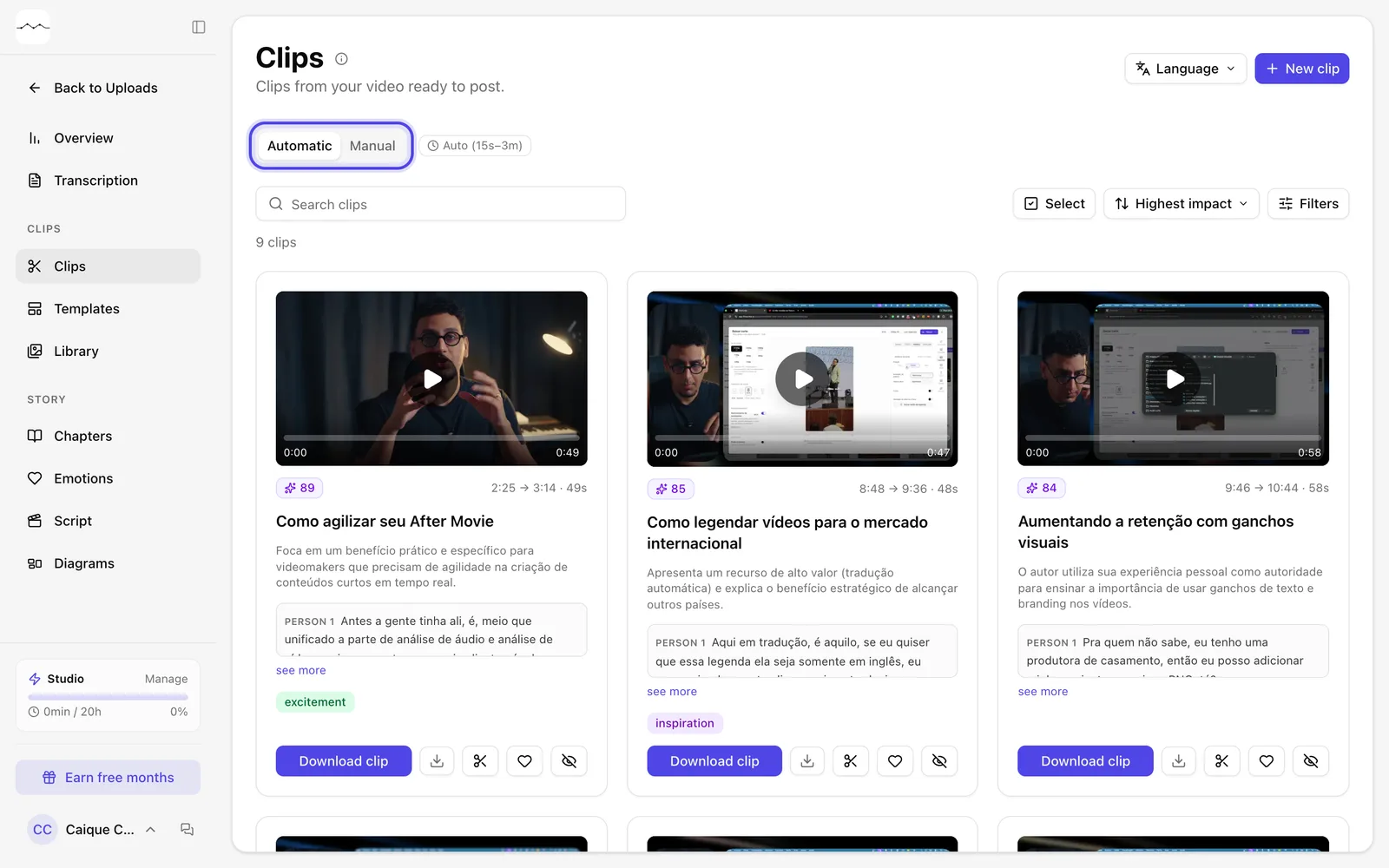
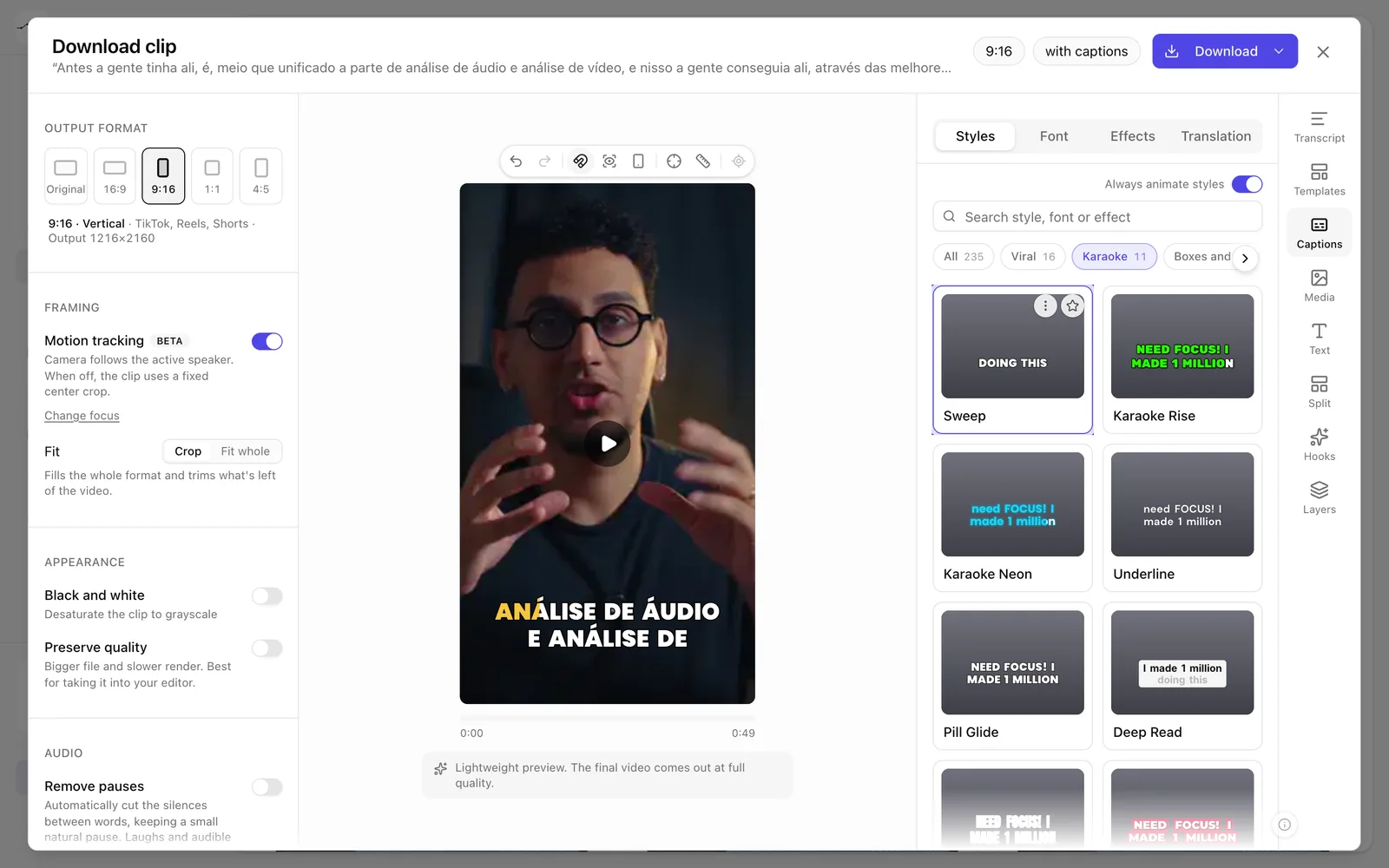
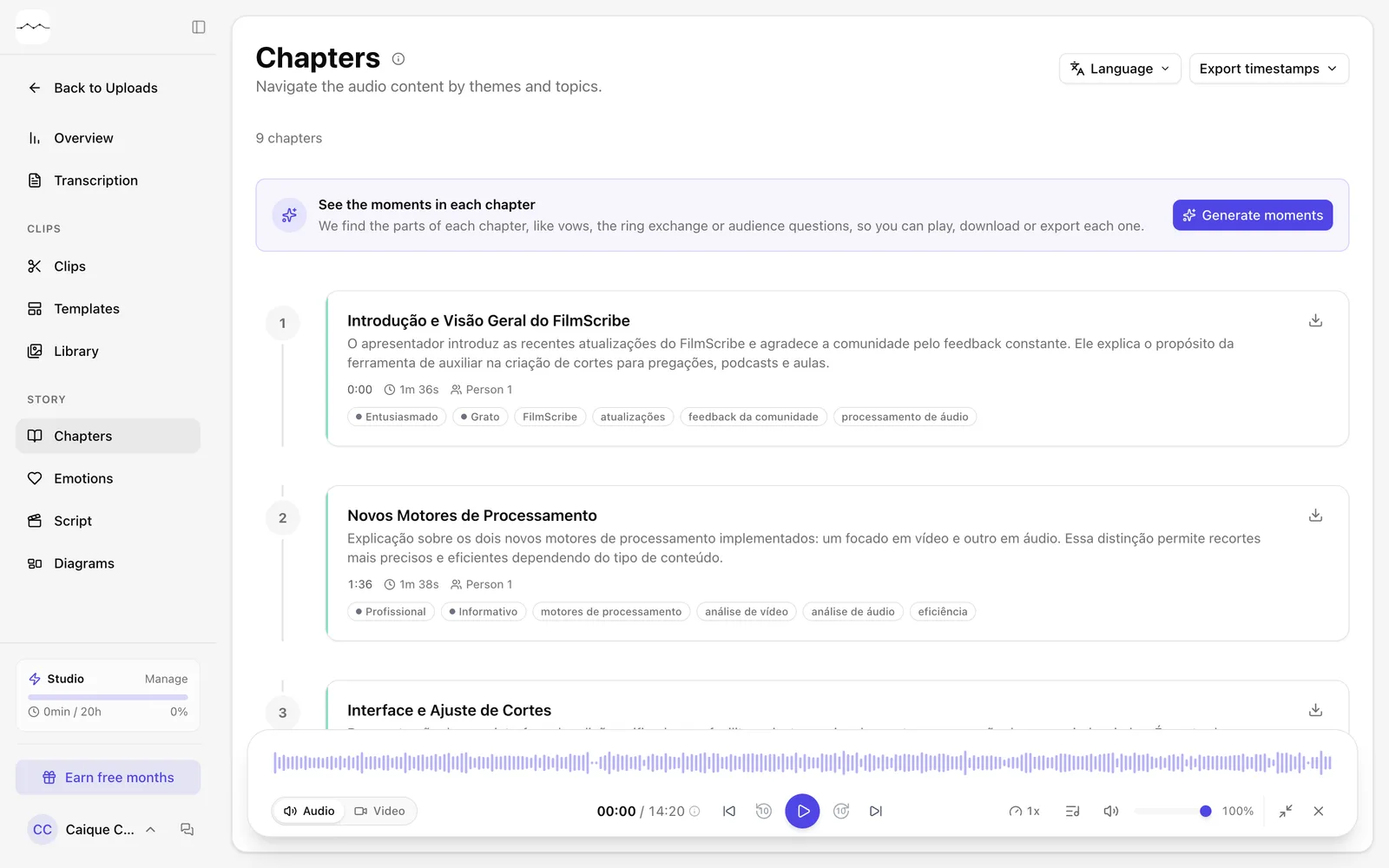
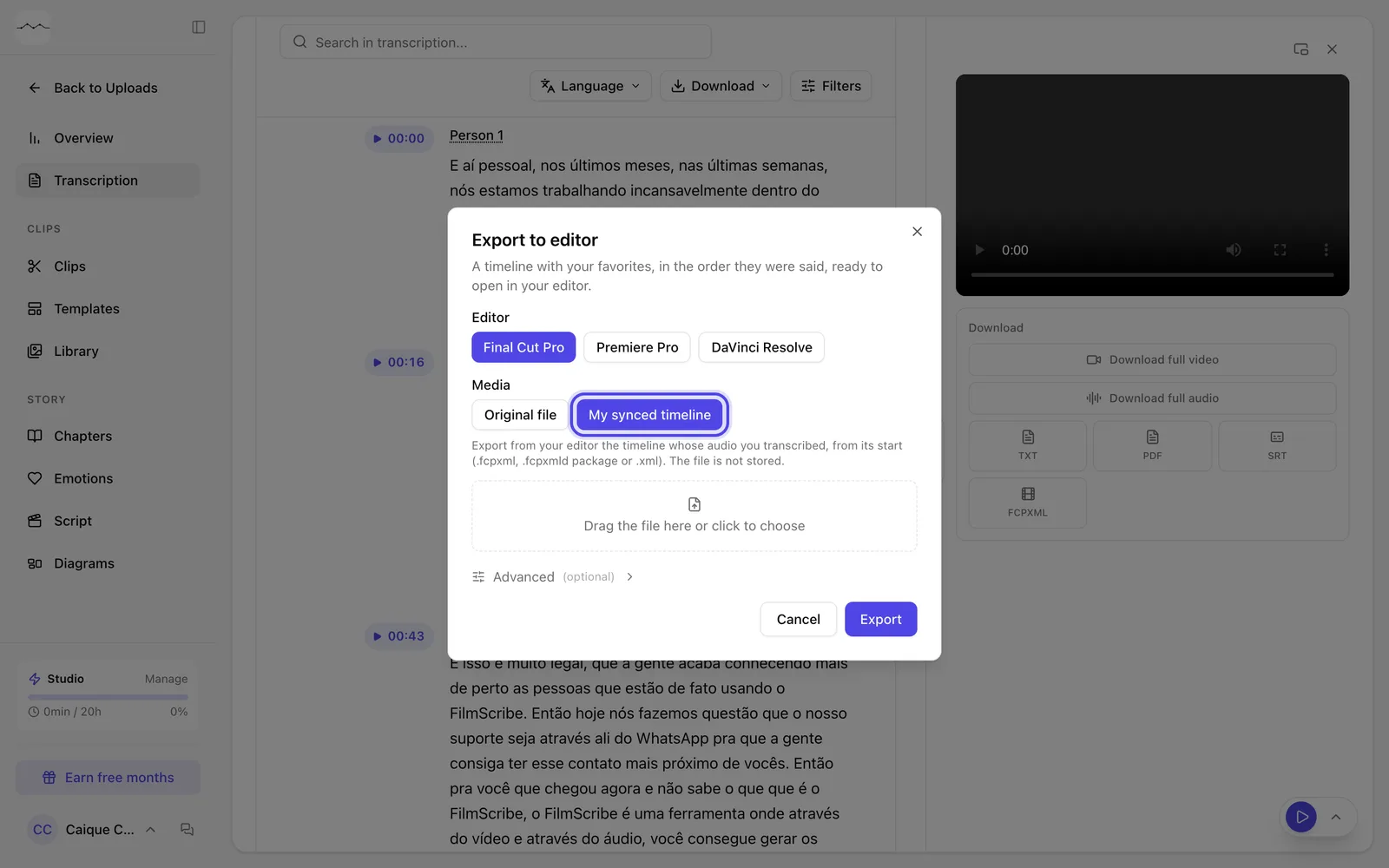
Real captures of the app, the same ones as in our help center. Click to download at 1600 px.
Questions about the guide
Do I have to follow everything in this guide?
No. Everything here is a recommendation. The guide gathers what usually works for people who promote software, and you choose what fits your content.
Can I use the logo and screenshots in my videos and thumbnails?
Yes. The logos, colors, descriptions and screenshots on this page are for you to use in your content about FilmScribe.
Is there a coupon I can promote?
You don't need one: the discount comes through your link. People who sign up through it see the discounted price when they subscribe.
Can the link point to another page of the website?
The affiliate link goes to sign-up, where the referral is recorded. If you want to show a page of the website, like pricing, show it in your video and leave your link for sign-up.
What if someone clicked on their phone and subscribed on their computer?
The link is kept in the browser where it was clicked. If someone you referred signed up on another device, send us their name and email on WhatsApp and we'll check.
I need material that isn't here. What now?
Talk to us on WhatsApp. If it helps other affiliates too, we'll add it here.