
FilmScribe inside DaVinci Resolve Studio. Clips, captions and markers right on your timeline.
The FilmScribe Plugin for DaVinci Resolve opens inside DaVinci Resolve Studio on a Mac. It sends only your timeline's audio and brings back, inside DaVinci, every clip as a timeline, markers for chapters, emotions and hooks, a caption track, animated captions with a transparent background, templates and translations. It is in closed beta, on the Agency plan.
Updated
Send the audio once, use it as often as you like
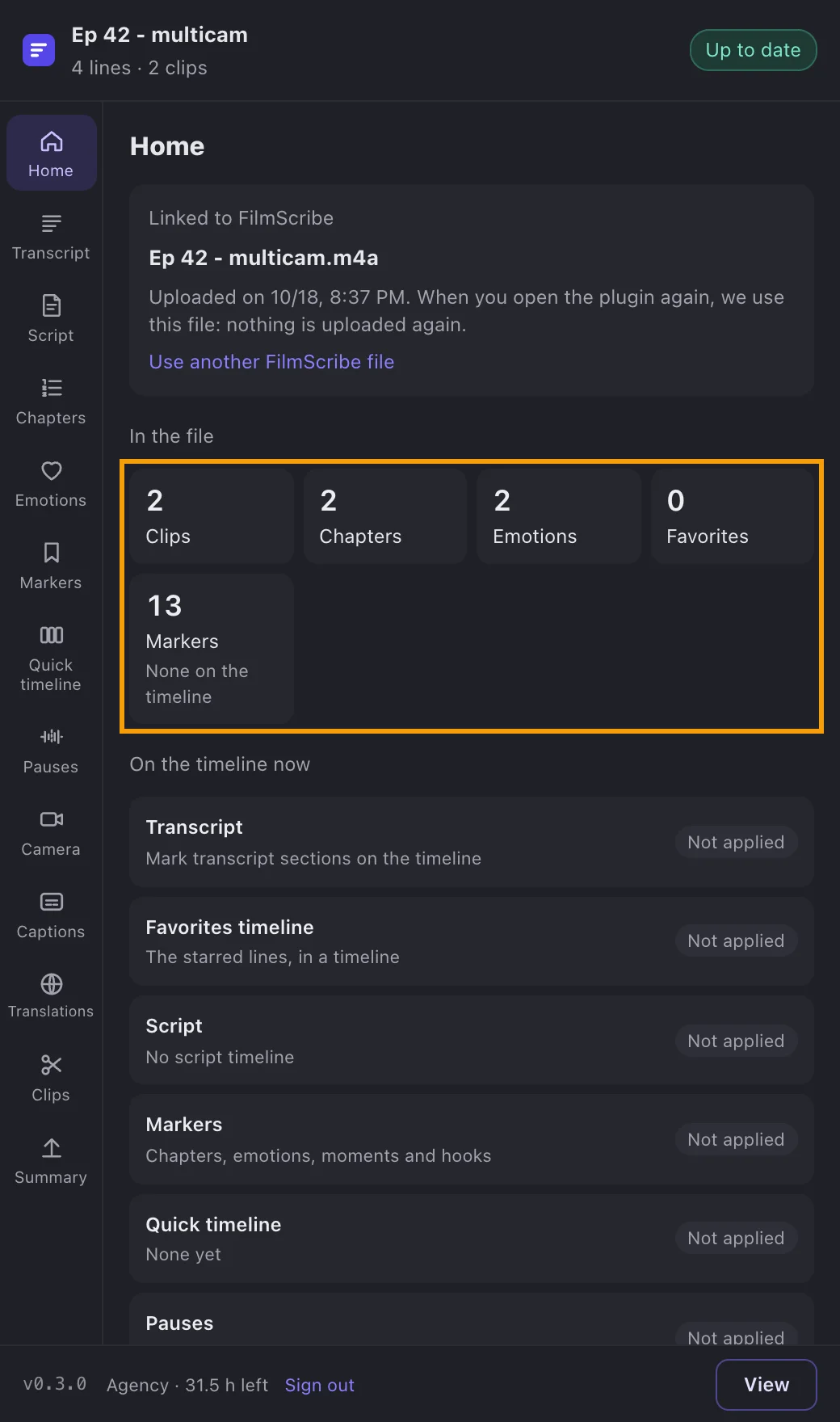
With the timeline open, the plugin asks DaVinci for its audio only and we upload it; the video stays on your computer. The timeline is linked to its FilmScribe file: opening the plugin again, or a copy of the timeline with the same audio, uses the same file and sends nothing. If you already uploaded the footage in the app, pick that file and say where its audio starts on the timeline.
- Only the audio leaves your computer; it uses your plan's hours
- The same timeline is never sent twice
- Use a file that's already in FilmScribe, without sending anything
- Each module brings to the timeline only what you want
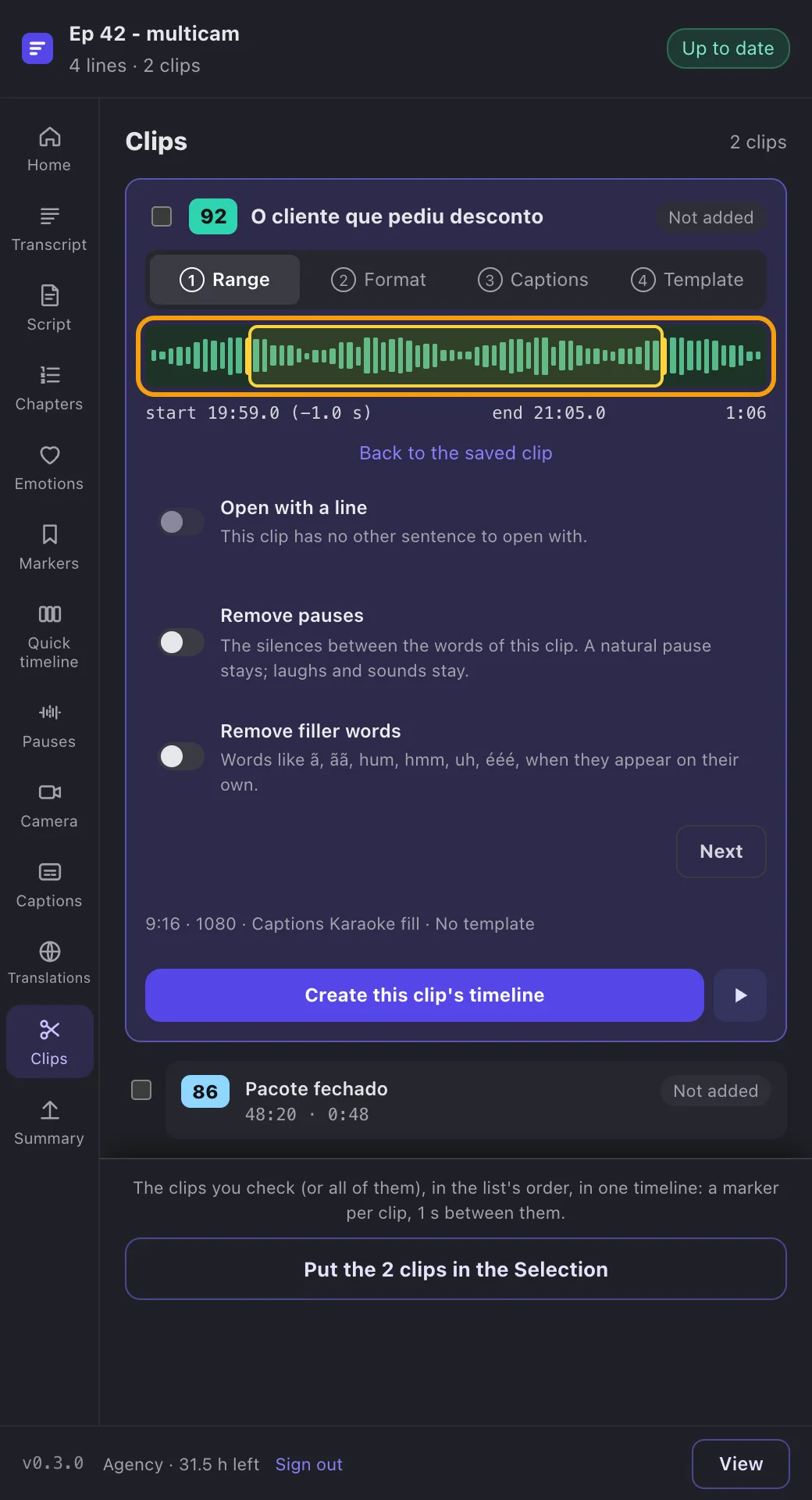
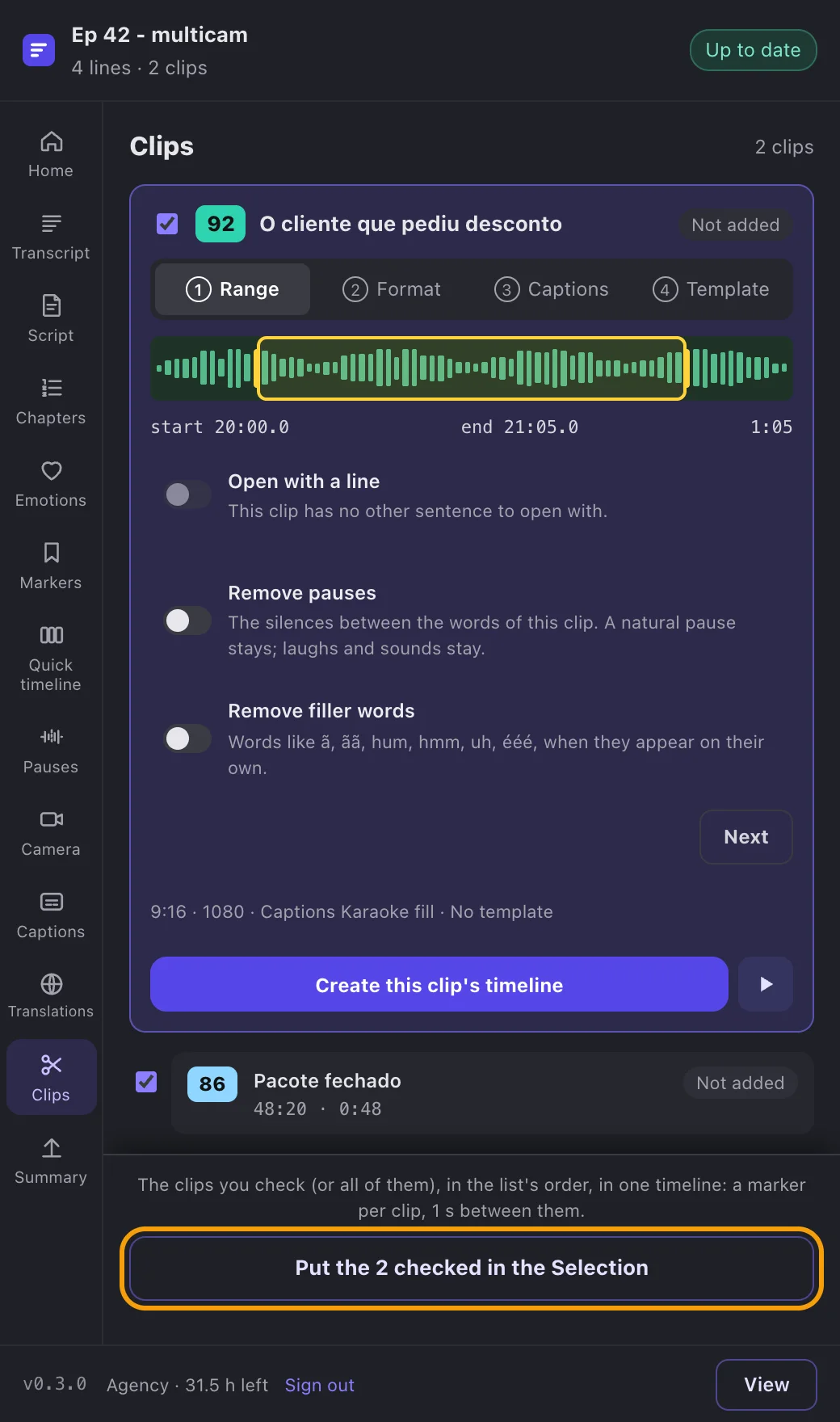
Every clip becomes a timeline cut from yours
FilmScribe clips arrive in DaVinci as timelines, one per clip, named after the clip, in the FilmScribe folder of the Media Pool. They are cut from your own timeline, with your cameras, and use the media already in the project, without copies. Adjust the start and end with the handles over the waveform: the change is saved in FilmScribe and only that clip's timeline is replaced.
- One timeline per clip, with your cameras and tracks
- Start and end handles, saved in the app too
- One marker per clip, with the hook and emotions in its note
- Bring them all at once or one by one
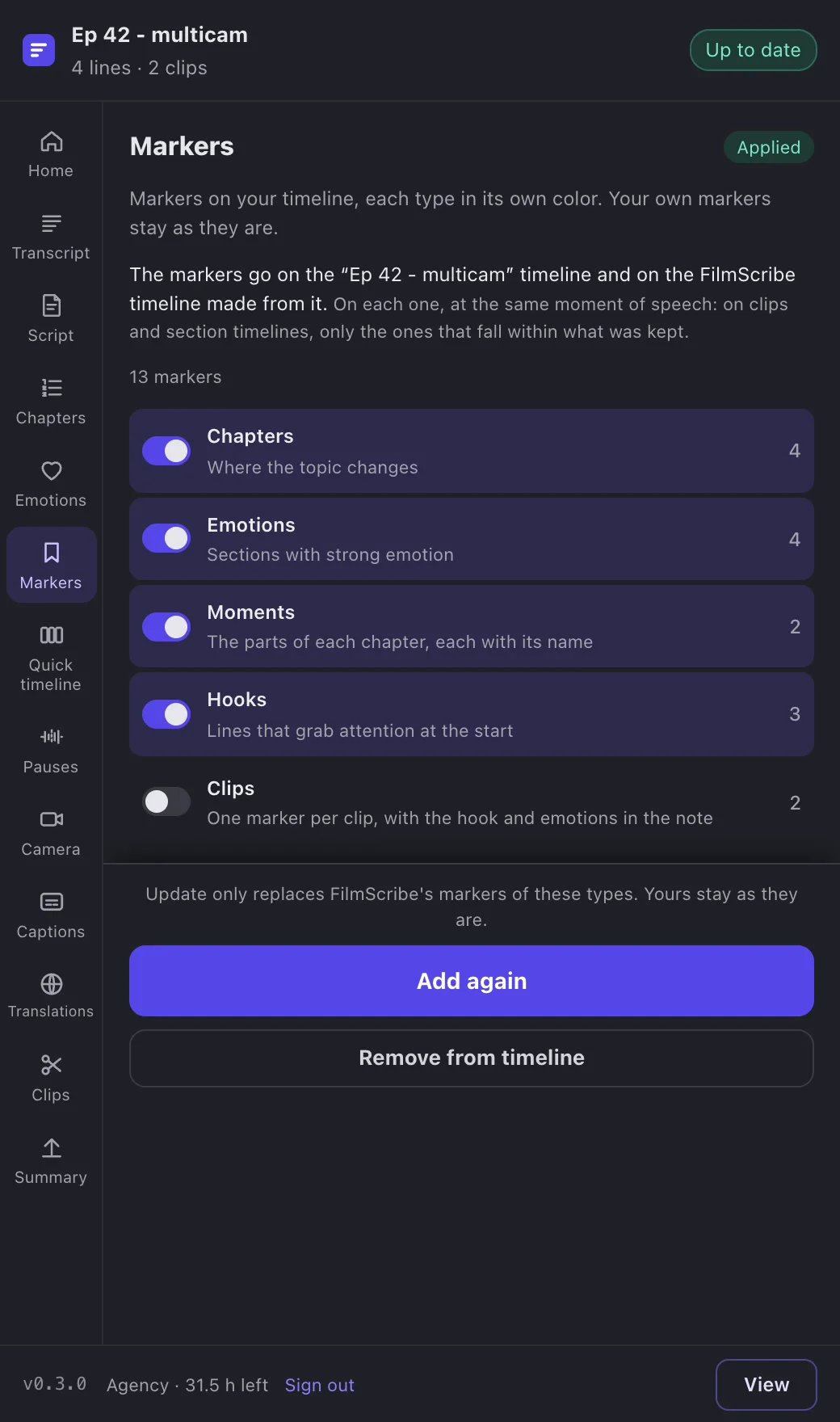
Chapters, emotions and hooks marked on the timeline
Turn on the types you want and bring the markers to your timeline, each type in its own color: chapters, emotions, moments and hooks. They also go on every FilmScribe timeline made from it, for clips, captions, the quick timeline and the script, at the same moment of speech. Your own markers stay as they are.
- Chapters, emotions, moments and hooks, each in its own color
- The same markers on every timeline the plugin made
- Updating replaces only FilmScribe's markers
- Your own markers are never touched
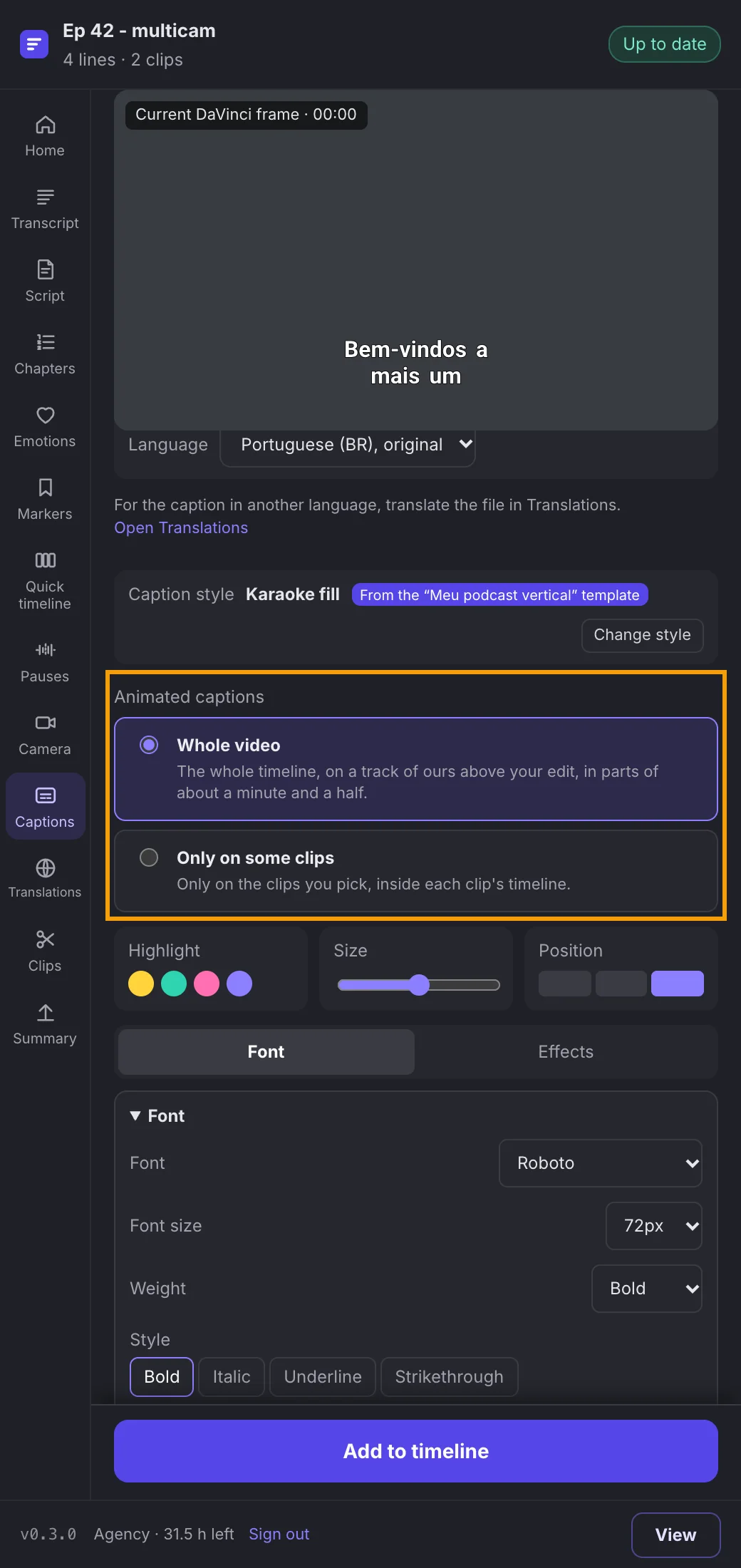
Animated captions with a transparent background, on the whole video or some clips
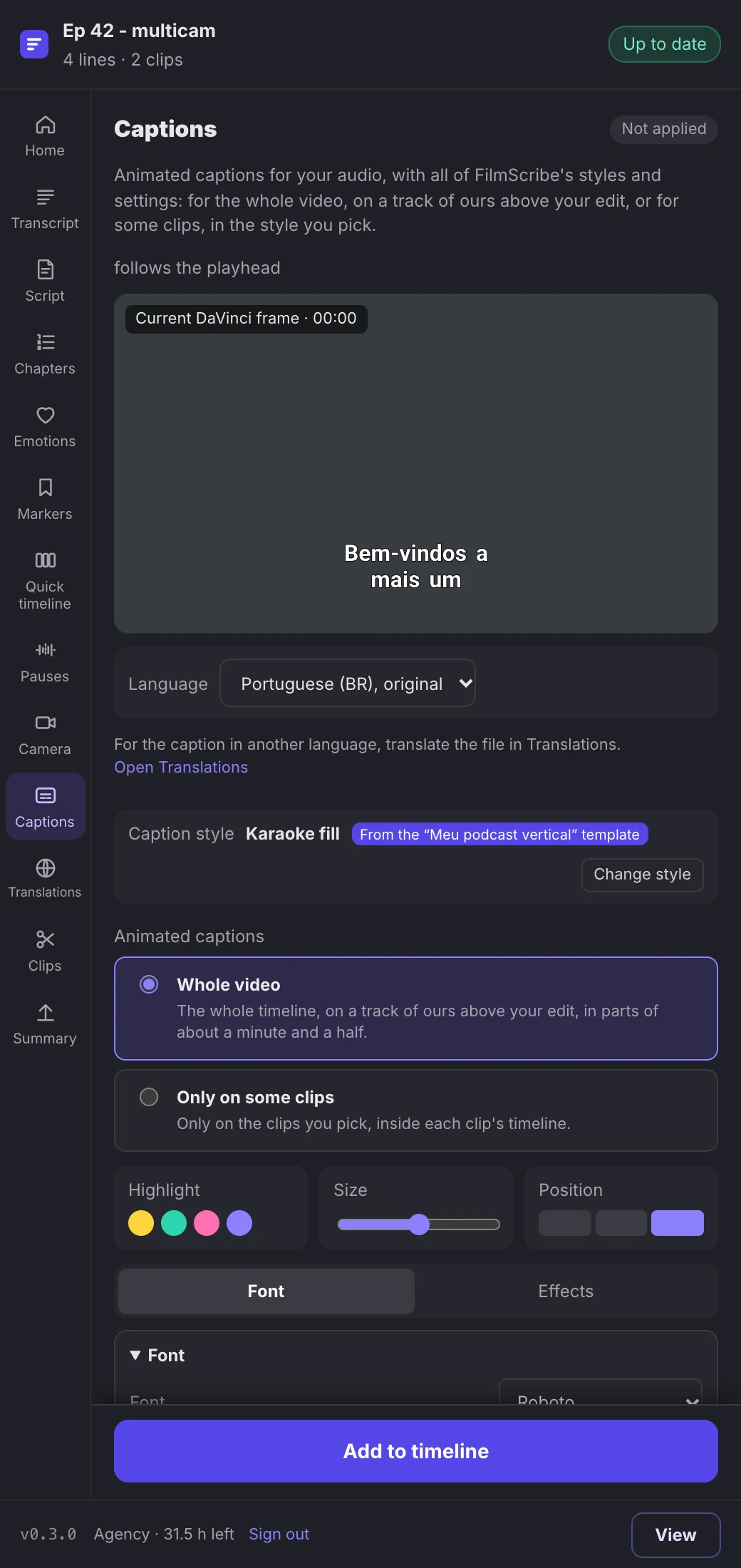
In Captions you get the same 235 styles and the same settings as the app, with a preview over DaVinci's frame. The caption track goes on a new timeline, with your edit inside. We make the animated caption, and it comes in as video with a transparent background on a track above the picture, on the whole video or only on the clips you pick. In Templates, a template's whole look goes on each clip timeline.
- The app's caption styles and settings, with a preview
- A caption track on a new timeline, with your edit inside
- Animated captions with transparency, whole video or some clips
- Templates with frame, backgrounds and text on your clips
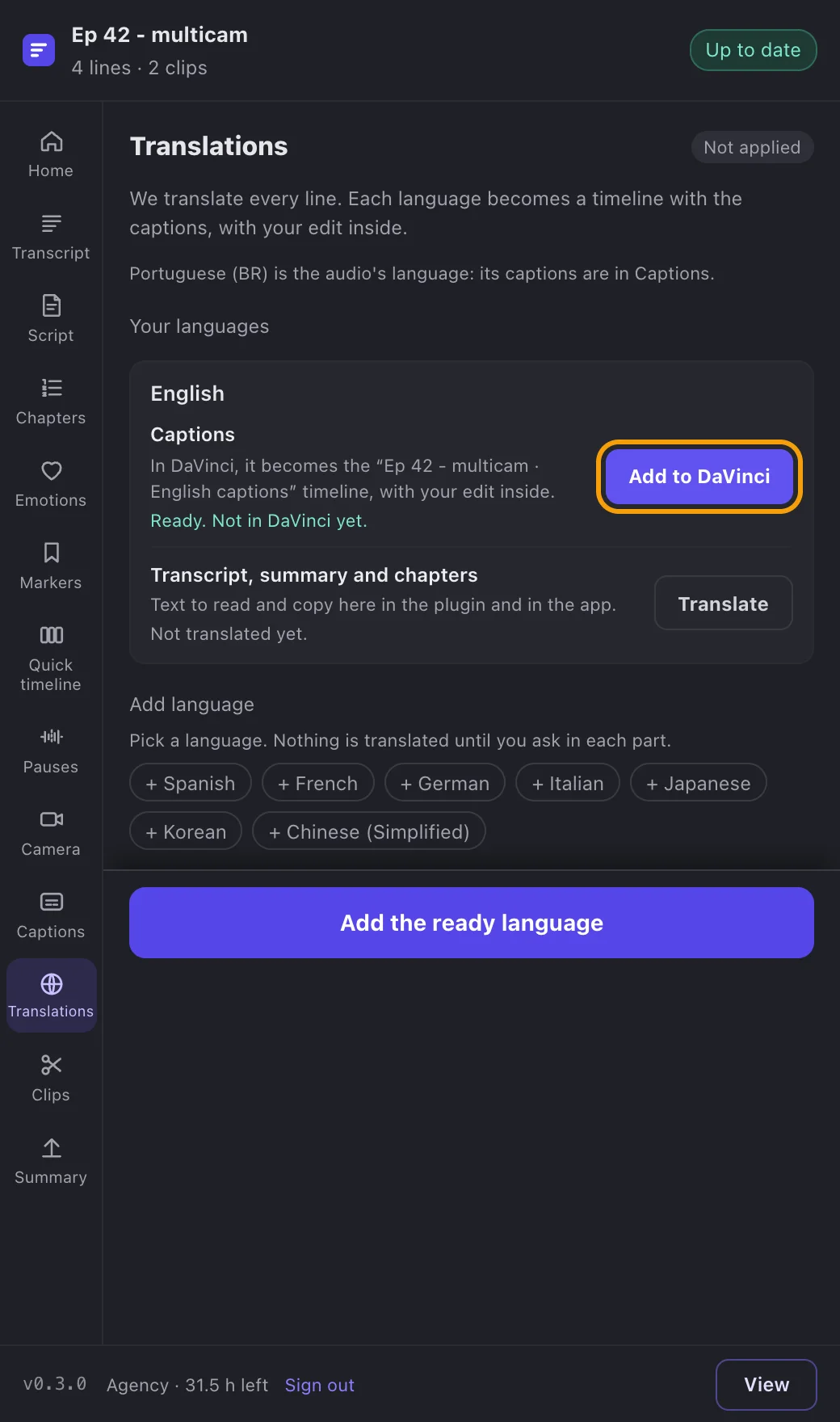
One caption timeline per language
Add a language, ask for the caption translation and bring it to DaVinci: we create a timeline with the caption in that language and your edit inside. There are 9 languages, one at a time, and each one is removed or updated on its own. The transcript, summary and chapters can be translated too, to read and copy in the plugin and in the app.
- 9 languages, one caption timeline per language
- Removing or updating one language leaves the others alone
- Translated summary and YouTube chapters, ready to copy
The transcript follows DaVinci's playhead
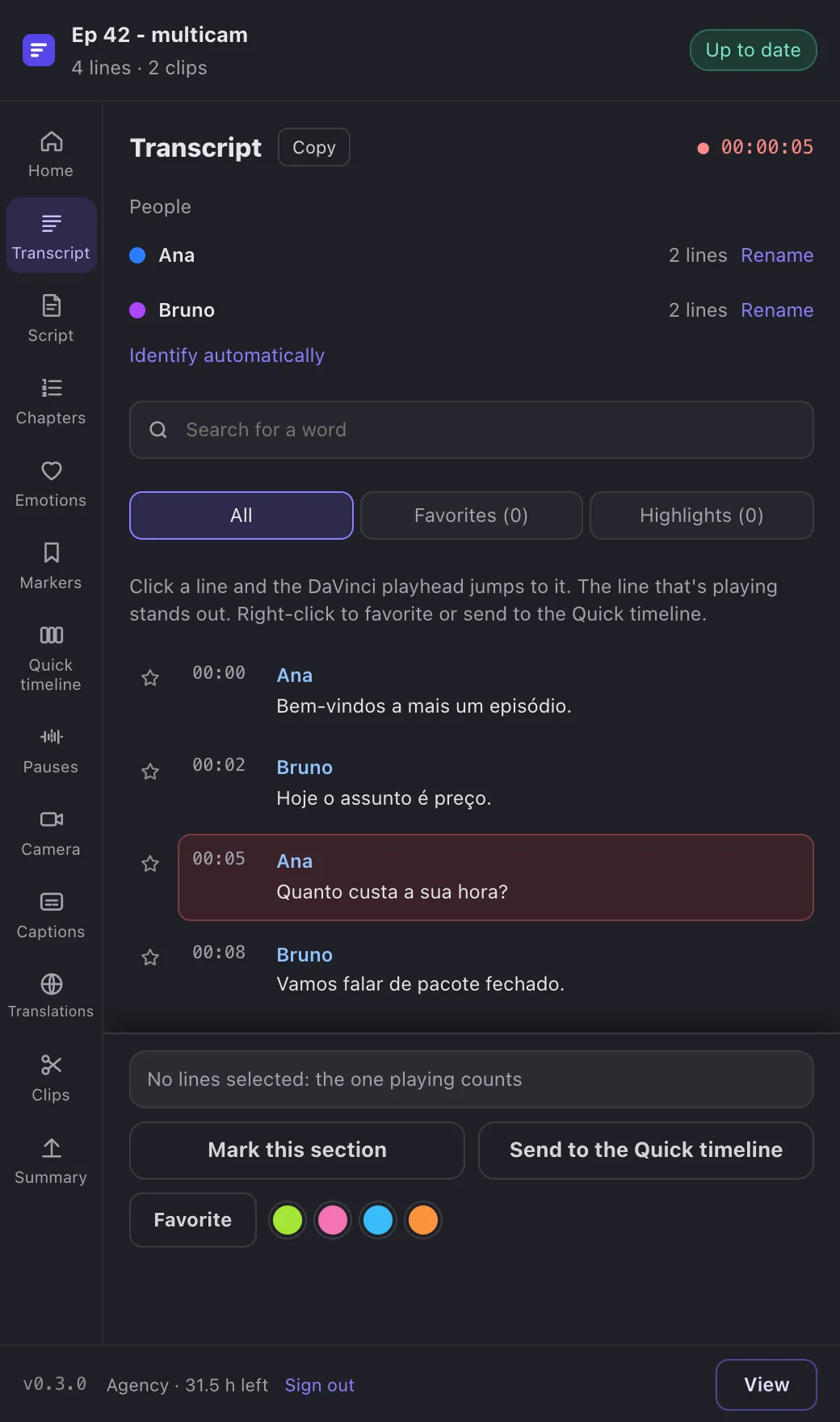
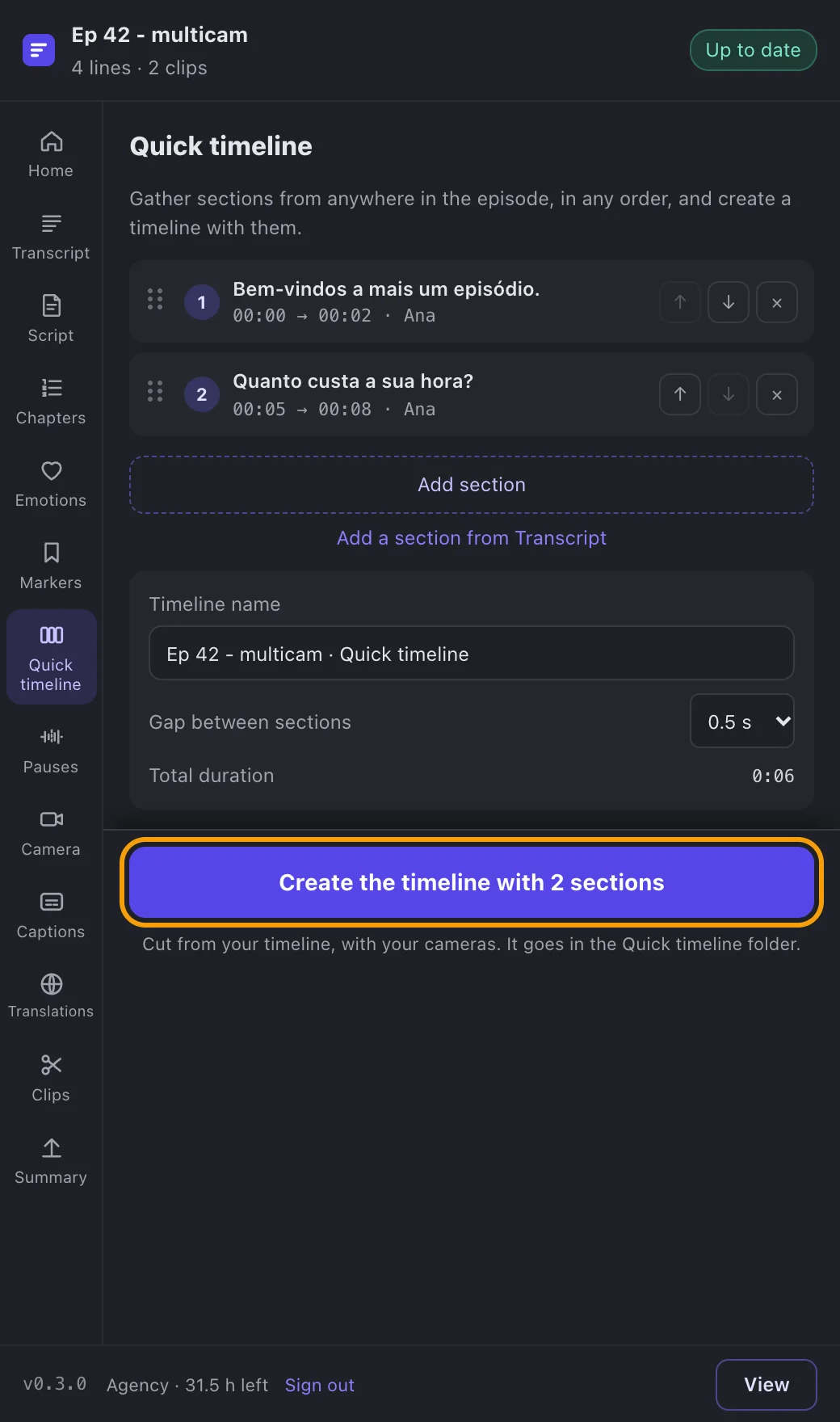
The line playing in DaVinci is highlighted in the transcript, and clicking a line moves the playhead there. Mark a passage as a marker, put lines from anywhere into a quick timeline in any order, or ask for a script and bring its timeline, cut from yours. The summary and the YouTube chapters are ready to copy.
- The playhead's line highlighted, one click to jump to any line
- Mark a passage as a marker on the timeline
- A quick timeline with passages in the order you choose
- A script timeline, cut on the lines it quotes
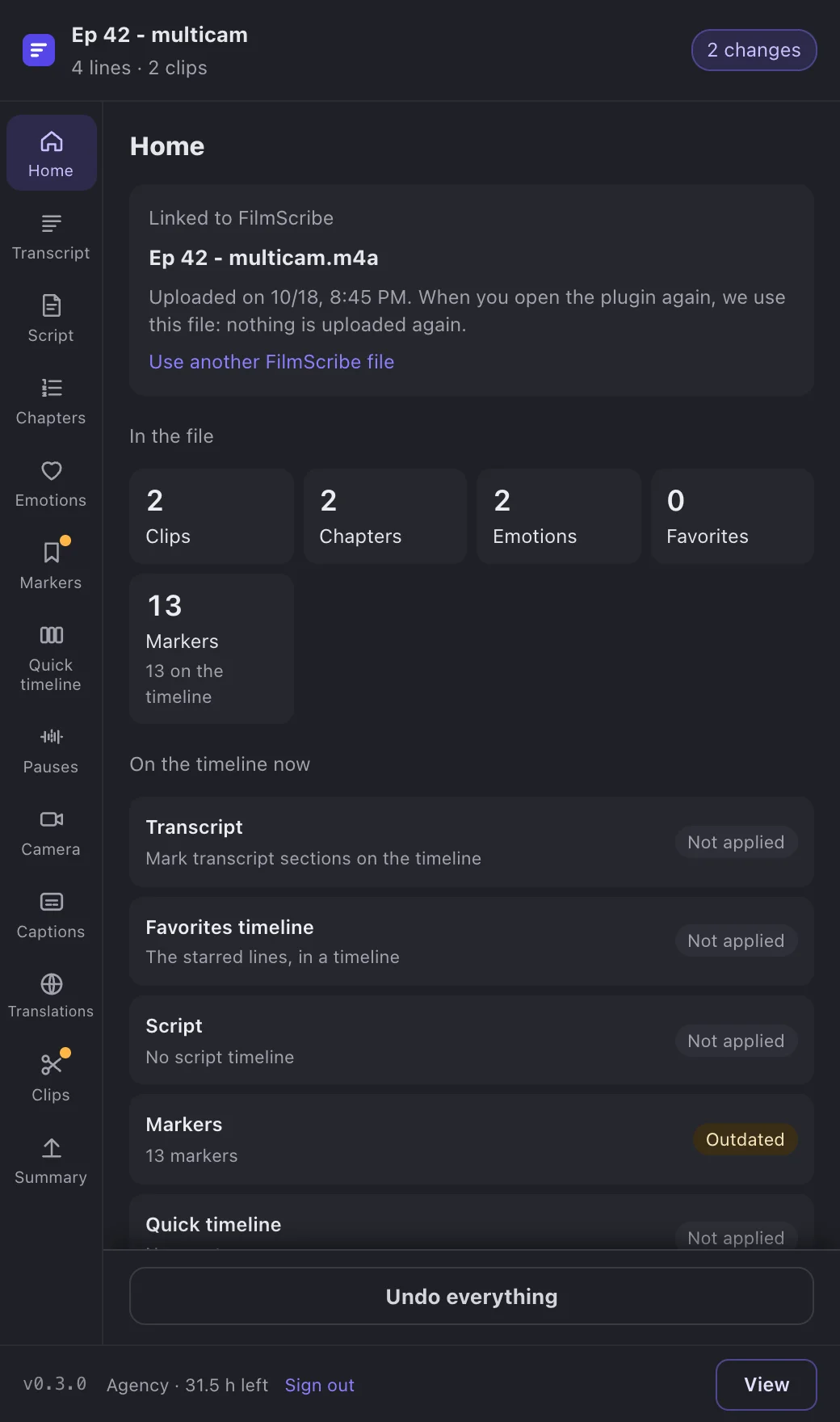
Updating redoes only what changed
Each module shows whether it is applied, outdated or not applied. Changed a chapter in the app, or the timeline's audio? The plugin tells you, and updating replaces only what that module brought. Every module has its own undo, undoing everything leaves the project as it was, and a running job can be cancelled without leaving anything half done.
- Applied, outdated or not applied, module by module
- Updating replaces only what changed
- Undo one module or everything at once
- Cancelling halfway leaves the timeline as it was
How FilmScribe gets into your DaVinci
- 01
Install and connect
With DaVinci Resolve Studio on a Mac, install the plugin and open it under Workspace, Workflow Integrations, FilmScribe. Connect your Agency account by approving a code in your browser.
- 02
Send the timeline
On the home page, send the open timeline. Only the audio goes to FilmScribe; we transcribe it and find the chapters, emotions and clips.
- 03
Bring what you want
Bring everything at once or module by module: clips, markers, captions, templates and translations. Update or undo whenever you like.
What the beta has today
- Status
- Closed beta
- Editor
- DaVinci Resolve Studio, the paid version (checked on version 21). The free version of DaVinci does not open integration plugins.
- System
- macOS
- Plan
- Agency
- Upload
- Only the timeline's audio, using your plan's hours
- Modules
- Transcript, Script, Markers, Quick timeline, Captions, Templates, Translations, Clips and Summary
- Animated captions
- ProRes 4444 video with transparency, on a track above the picture
- Undo
- Per module or everything at once
- Plugin language
- Your account's: pt-BR, English or Español
Also without the plugin. The same FilmScribe, in the app.
See also
The FilmScribe Plugin comes with the Agency plan.
Compare plans →- Everything in Studio
- FilmScribe Plugin for DaVinci Resolve Studio (beta)
- Team with 2 people included
- Priority support
- Extra hours at R$ 7
The plugin is part of the Agency plan and is in closed beta: members get the installer from our support team. Ask to join on WhatsApp.
Frequently asked questions
What is the FilmScribe Plugin?
It is FilmScribe inside DaVinci Resolve Studio, opened under Workspace, Workflow Integrations. It sends the timeline's audio to FilmScribe and brings into DaVinci the clips as timelines, markers, a caption track, animated captions, templates and translations.
Does it work in the free DaVinci Resolve, on Windows, in Premiere or in Final Cut?
No. During the closed beta the plugin works only in DaVinci Resolve Studio, the paid version, on a Mac. For Premiere Pro and Final Cut Pro, the XML timeline export is still in the app.
How do I join the closed beta?
The plugin is part of the Agency plan. With Agency active, ask to join on our WhatsApp: beta members get the installer and the step-by-step guides in the help center.
Does the plugin upload my video?
No. DaVinci renders only the timeline's audio and that's what we upload, using your plan's hours. The video stays on your computer, and the clips come back as timelines that use the media already in the project.
Does the plugin touch my markers and tracks?
No. Each module adds and removes only its own things. Your markers, timelines, tracks and clips are never touched, and undoing everything leaves the project as it was.
Does what I change in the plugin show in the app?
Yes. A clip's new range, a fixed line, speaker names, favorites, highlights, saved caption styles, scripts and translations are the same as in the app.
Is the plugin in English?
Yes. The plugin follows your account's language, the same as the app: English, Portuguese or Spanish. You change it in your profile in the app, and the plugin follows.