
How to connect the FilmScribe Plugin to your account

In the plugin, click Connect. It shows an eight-letter code and opens the approval page in your browser, where you are already signed in to FilmScribe. Check that the code matches and click Approve. A few seconds later the plugin opens its home page with the timeline open in DaVinci. You never type a password in the plugin.
Before you start
Install the plugin and open it in DaVinci Resolve Studio. In the browser on the same computer, stay signed in to your FilmScribe account. The plugin uses your account's language (English, Português or Español), set in your profile in the app.
Step by step
-
Step 1: Click Connect
In the plugin, click Connect.
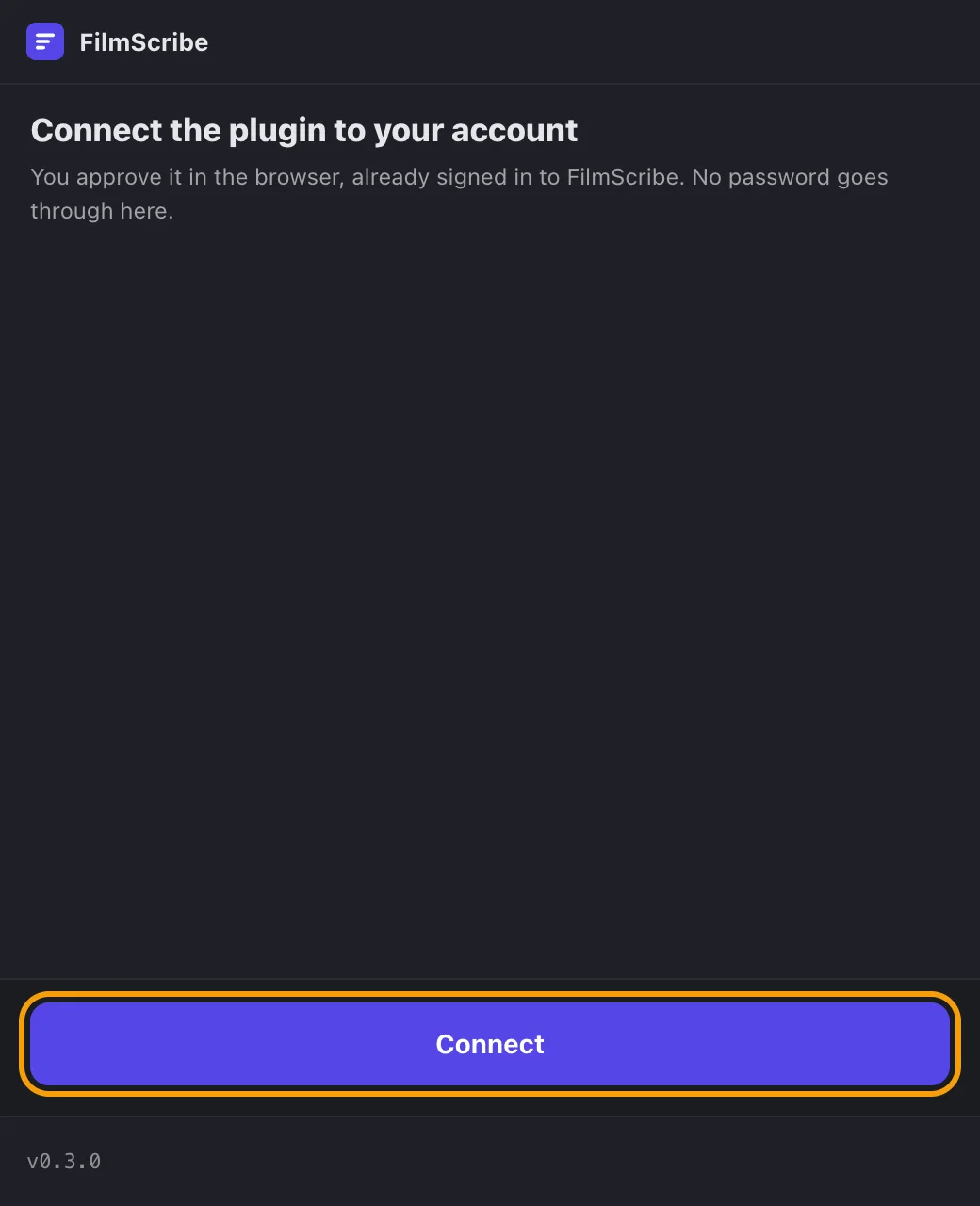
App screenshot The plugin's sign-in screen, with the Connect button. -
Step 2: Check the code
The plugin shows an eight-letter code and opens the approval page in your browser. If it doesn't open, click Open in browser. The code is valid for 10 minutes.
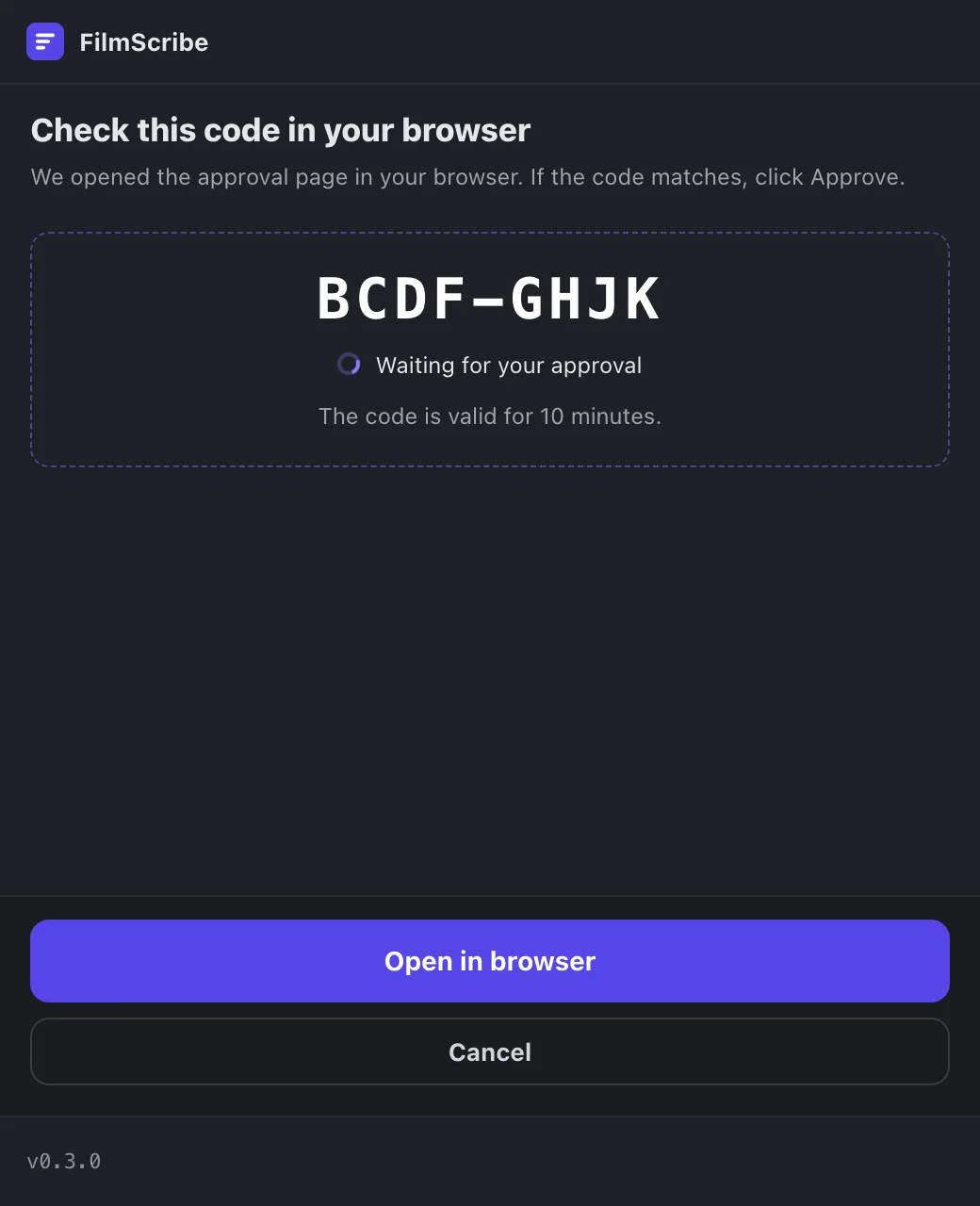
App screenshot The eight-letter code in the plugin, waiting for approval. -
Step 3: Click Approve in your browser
On the Connect the FilmScribe Plugin page, check that the code matches the plugin and click Approve. If you didn't ask for it, click Decline.
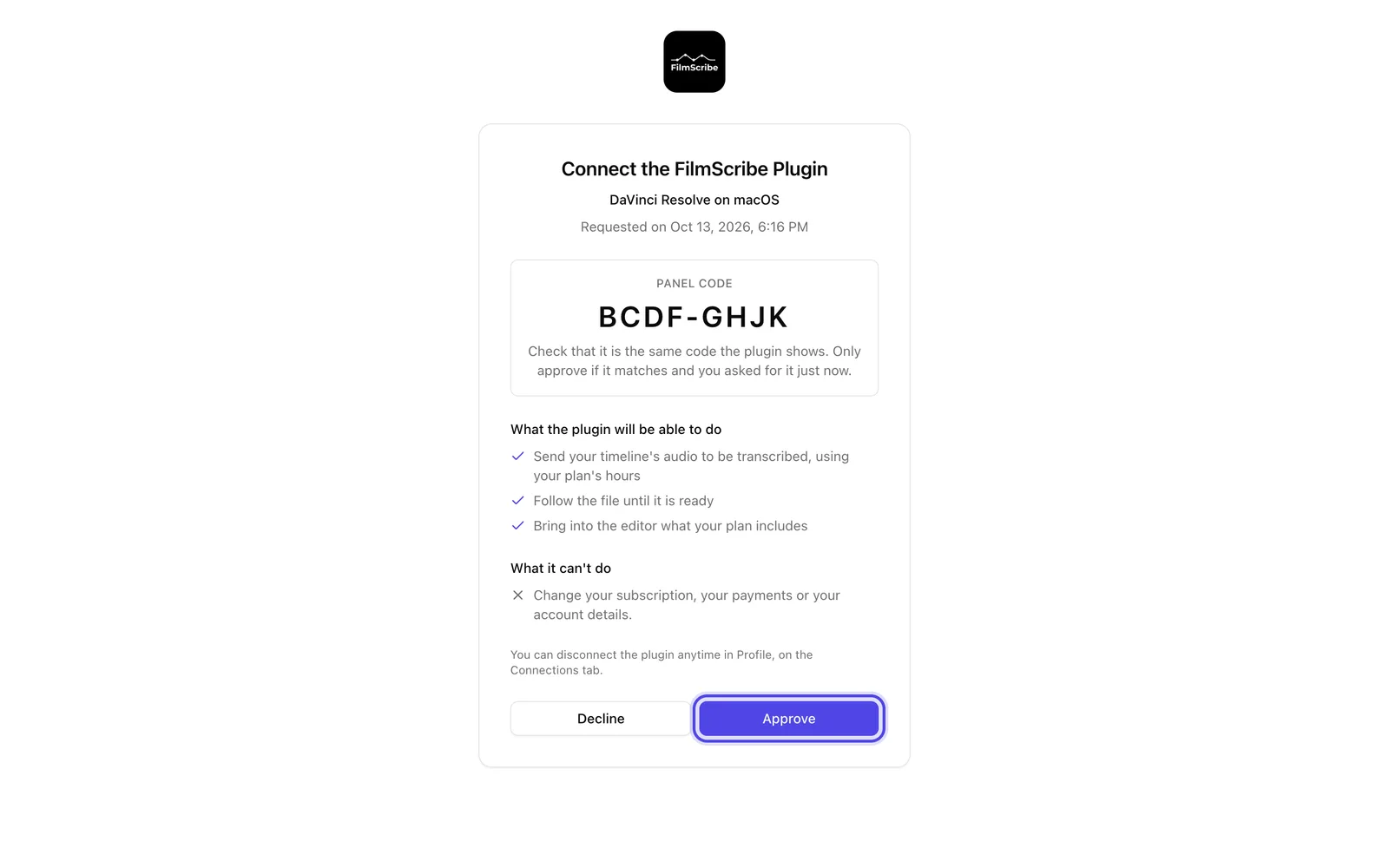
App screenshot The approval page in FilmScribe, with the code, what the plugin can do and the Approve button. -
Step 4: Go back to DaVinci
Within 5 seconds the plugin opens Home, with the timeline open in DaVinci at the top and, at the bottom, your plan and the hours you have left.
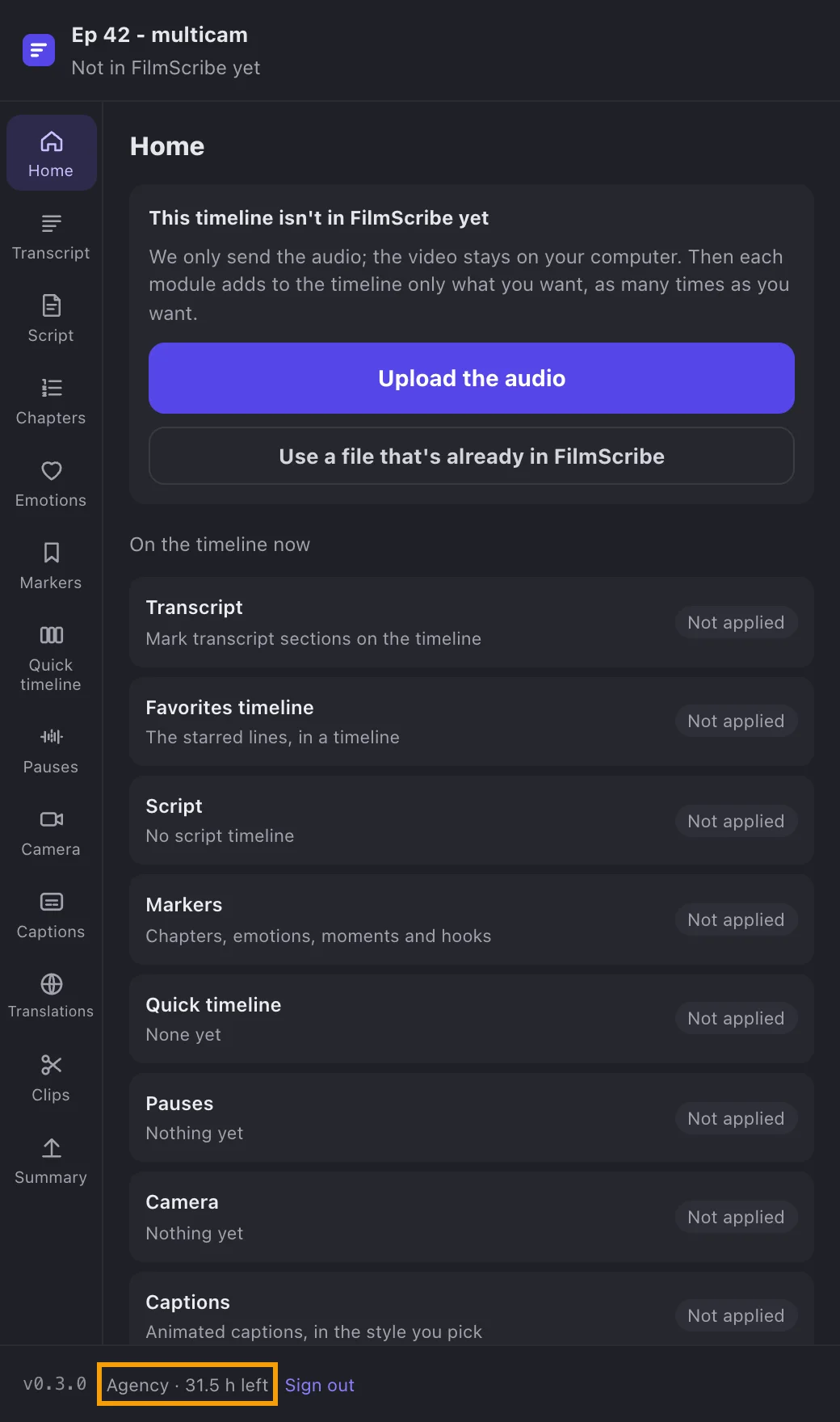
App screenshot The connected plugin's home page, with the plan and hours at the bottom.
Optional steps
You don't need these steps to finish the task. Use them if you want.
-
OptionalDisconnect whenever you want
At the bottom of the plugin, Sign out disconnects this computer. In the app, the Connections tab of your profile also shows the plugin and disconnects it.
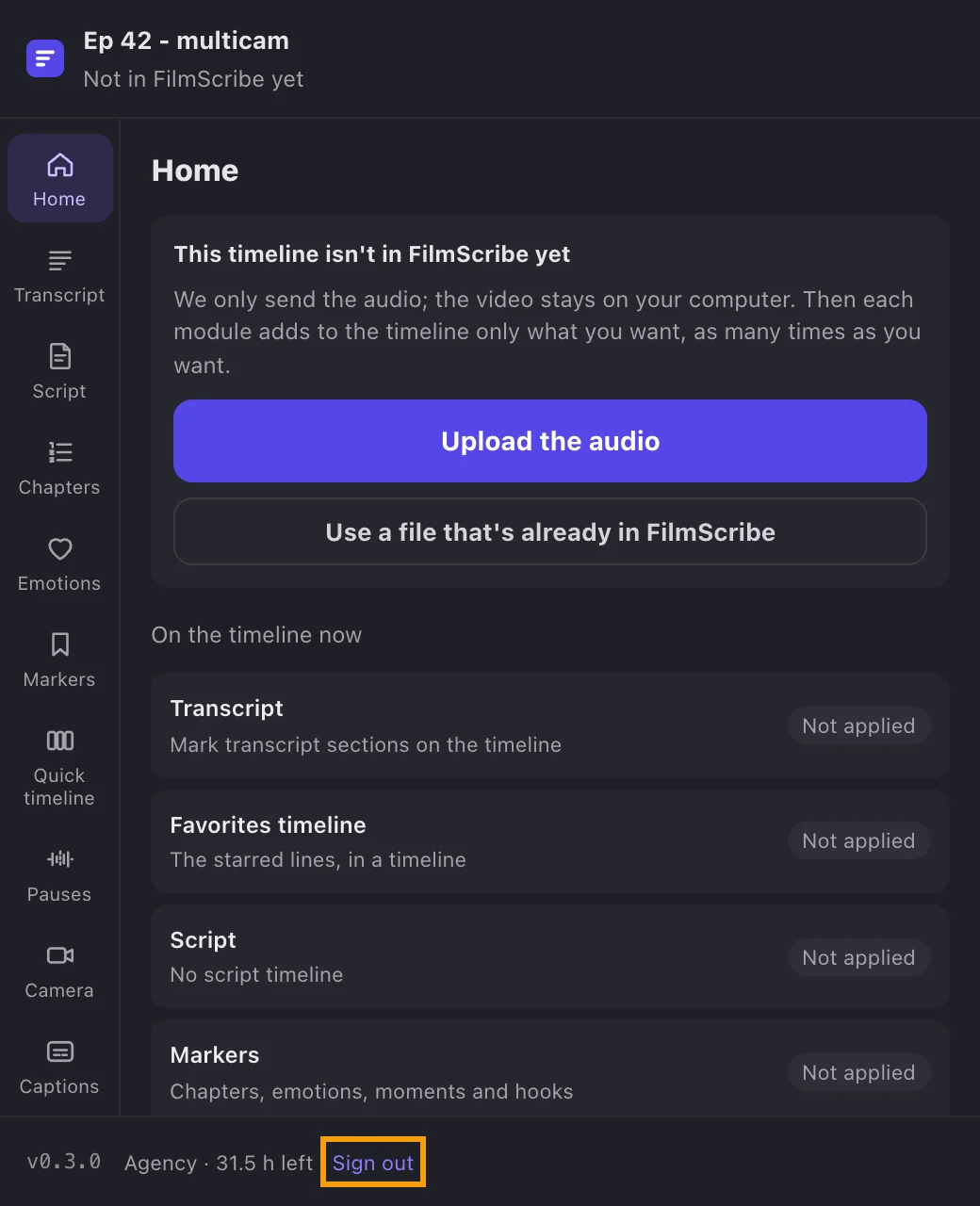
App screenshot Sign out, at the bottom of the plugin.