
How to edit podcasts and long videos in DaVinci Resolve: clips, captions and markers right on the timeline

In DaVinci Resolve Studio, open the FilmScribe Plugin, send the timeline's audio once and bring what you need onto it: chapter and hook markers, every clip as a timeline, a caption track, animated captions with a transparent background and translations. You finish the edit in DaVinci itself, and update or undo each part whenever you like.
Step by step
- 01 Send the audio once On the plugin's home page, send the open timeline. Only the audio leaves your computer.
- 02 Read the transcript on the playhead The line playing in DaVinci is highlighted; one click moves the playhead there.
- 03 Bring the markers Chapters, emotions, moments and hooks, each type in its own color.
- 04 Bring the clips Every clip becomes a timeline cut from yours, with your own cameras.
- 05 Caption A caption track on a new timeline, and animated captions on the whole video or only some clips.
- 06 Translate and finish One caption timeline per language; update or undo what changes and finish in DaVinci.
In this guide
- Before you start
- 1. Send the timeline’s audio once
- 2. Read the transcript on the playhead
- 3. Bring the markers
- 4. Bring the clips as timelines
- 5. Caption track and animated captions
- 6. Templates on your clips
- 7. Translated captions, one timeline per language
- 8. Update what changed, undo what you don’t want
- Where DaVinci comes in
- When to use the plugin and when to use the app’s XML export
- Tips that save time
- Frequently asked questions
- Sources
Editing a one-hour podcast, a long interview or a livestream in DaVinci Resolve always starts the same way: listen to everything, note where the topic changes, find the strong lines, cut the pieces for social and caption them. It’s the slow part of the job, and it’s the part FilmScribe does for you.
With the FilmScribe Plugin for DaVinci Resolve, that happens without leaving DaVinci Resolve Studio. You send the timeline’s audio once and, module by module, bring what you need onto it: markers, clips as timelines, a caption track, animated captions, templates and translations. This guide walks through the whole workflow, in the order that usually works best.
The plugin is in closed beta, on the Agency plan. It works in DaVinci Resolve Studio, the paid version, and for now only on a Mac. The plugin shows up in your account’s language: pt-BR, English or Español.
Before you start
You need three things:
- DaVinci Resolve Studio on a Mac, with the project and the timeline you’ll edit open. The free version of DaVinci doesn’t open integration plugins.
- An account on the Agency plan, connected to the plugin. You connect with an eight-letter code you approve in your browser, without typing a password in the plugin.
- The plugin installed. During the closed beta, the installer comes from our support team. After installing, open DaVinci again and choose Workspace, Workflow Integrations, FilmScribe.
The help center covers each step in detail: install the plugin and connect the plugin to your account.
One organizing tip: get your working timeline to a base edit (cameras synced, audio cleaned) before you send it. The plugin follows the timeline open in DaVinci, and everything it does starts from it.
1. Send the timeline’s audio once
On the plugin’s Home, you have two options:
- Upload and add everything to the timeline: sends and immediately brings the markers, the caption track and the clips.
- Only upload the audio: sends and lets you bring each thing later, module by module.
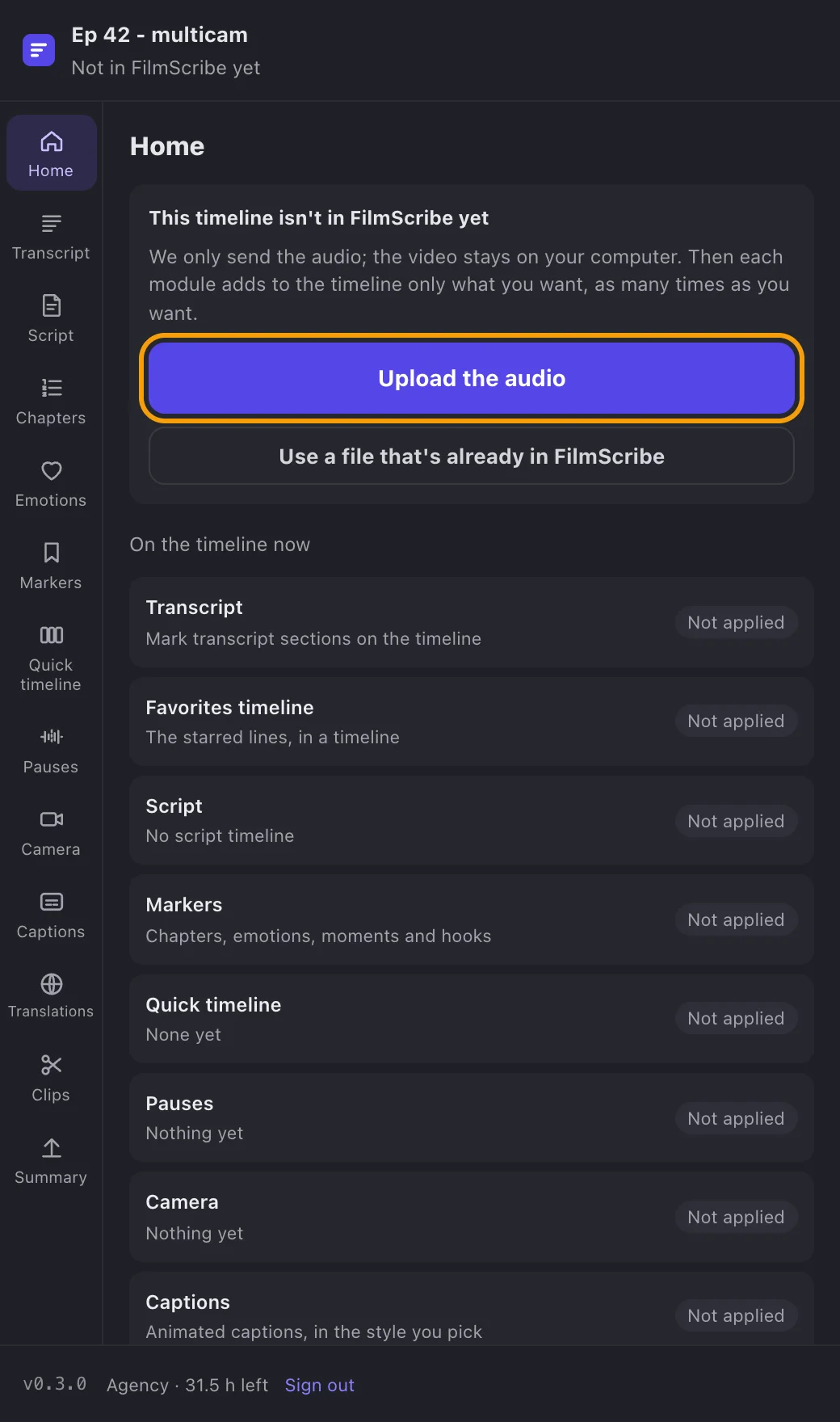
DaVinci renders only the timeline’s audio, in seconds, and we upload and process it. The video stays on your computer. The bar at the top of the plugin shows the percentage and the step, and the plugin puts your render settings on the Deliver page back the way they were.
From then on, the timeline is linked to its FilmScribe file. Opening the plugin again, or duplicating the timeline with the same audio, uses the same file: nothing is uploaded again and no hours are used again. If you already uploaded this footage in the app, use “Use a file that’s already in FilmScribe” and say where its audio starts on the timeline.
Sending uses your plan’s hours, like an upload in the app. The guide on how to make podcast clips shows what we find in the footage after processing.
2. Read the transcript on the playhead
In Transcript, each line shows its time and who said it. The line playing in DaVinci is highlighted, and clicking a line moves DaVinci’s playhead there. In a one-hour episode, it’s the fastest way to find a quote: search for the word (search ignores accents) and click.
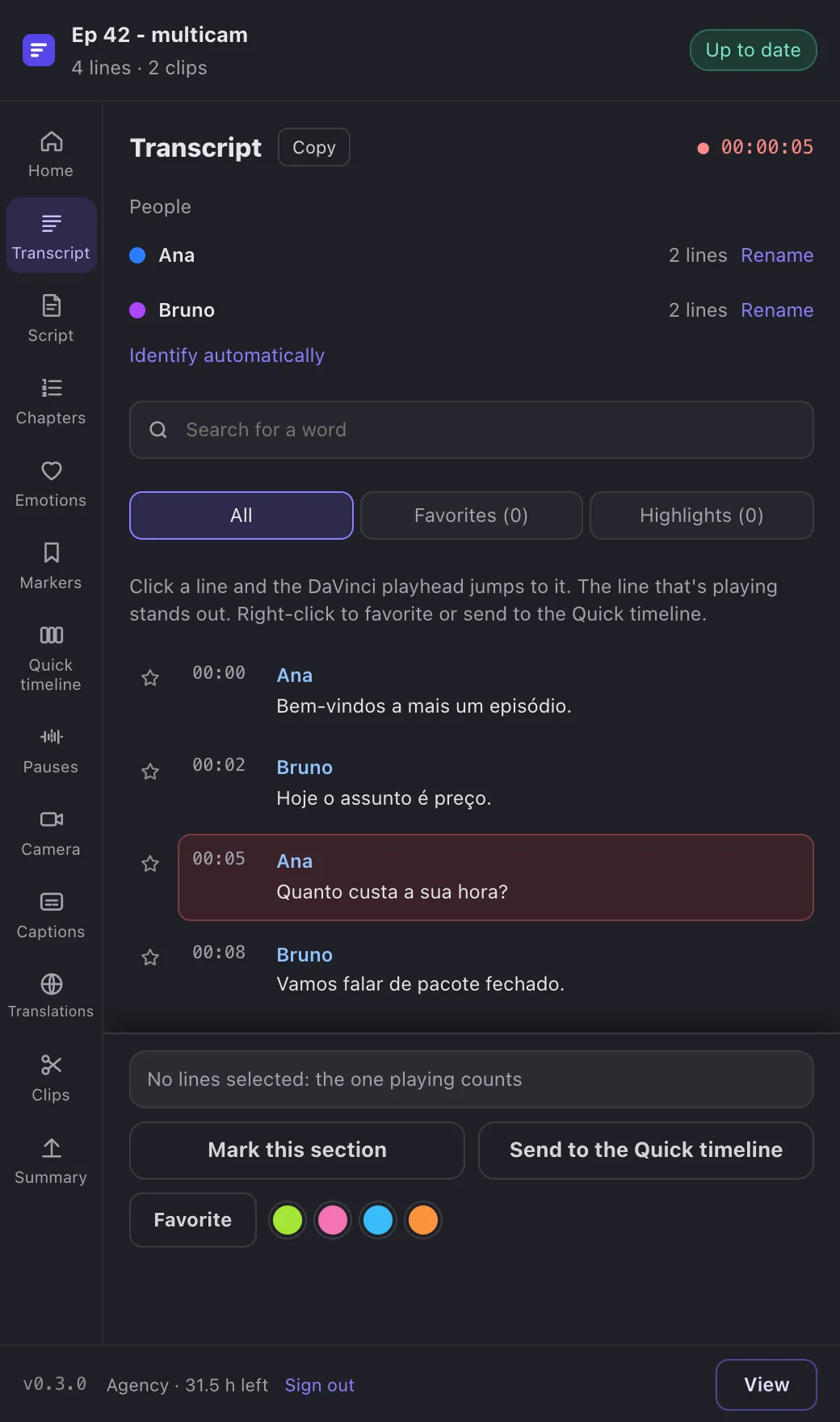
Still in the transcript:
- Mark passages. Pick lines and click “Mark this section”: a marker goes on your timeline, with the start of the line in its name and the full line in its note.
- Name the speakers. Under People, give your guest their real name. The name holds in the app and in the markers’ notes.
- Star and highlight. Stars and highlights are the same as in the app. Highlights can become markers, each in the color closest to its pen.
- Build a quick timeline. Pick lines from anywhere, send them to the quick timeline, change the order and create a timeline with them, cut from yours. It’s a fast way to put together a teaser or a recap of the episode.
3. Bring the markers
In Markers, turn on the types you want: chapters, emotions, moments and hooks, each with how many the file has. Click “Add to timeline” and each type comes in its own color: chapters in blue, clips in green.
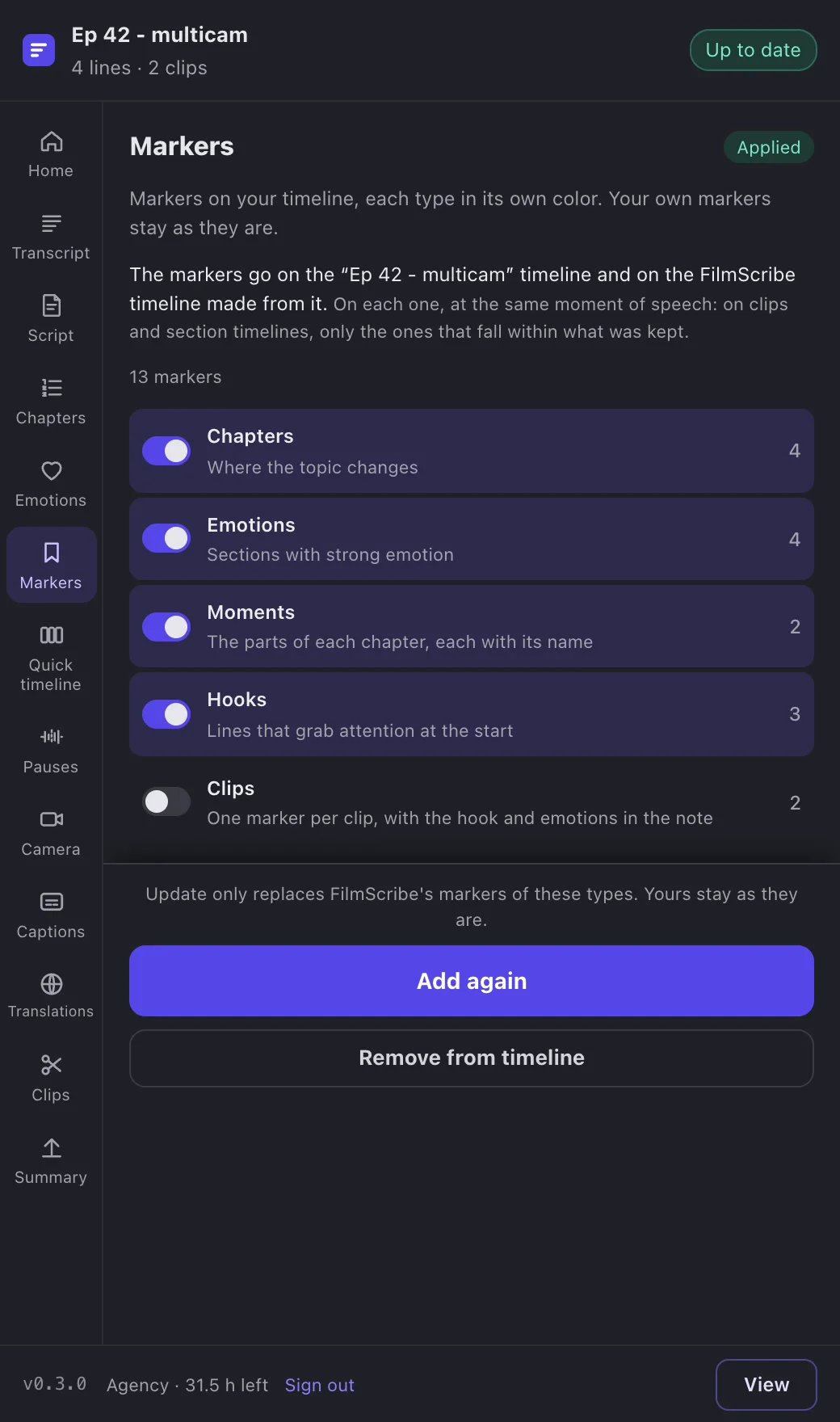
Three details that matter in the edit:
- Your markers stay. The plugin only adds and removes its own markers.
- One marker per clip. The hook and the emotions that start together with a clip go into that clip marker’s note, instead of three markers stacked on the same spot.
- On every timeline the plugin made. The same markers go on the clip, caption, quick timeline and script timelines, at the same moment of speech.
With chapters marked, moving around a long timeline feels like a book’s table of contents: you jump from topic to topic instead of scrubbing.
4. Bring the clips as timelines
In Clips, each clip we found in the footage shows its score from 0 to 100, its title, its start and its length. “Add the N missing” brings them all, or open one and bring just that one.
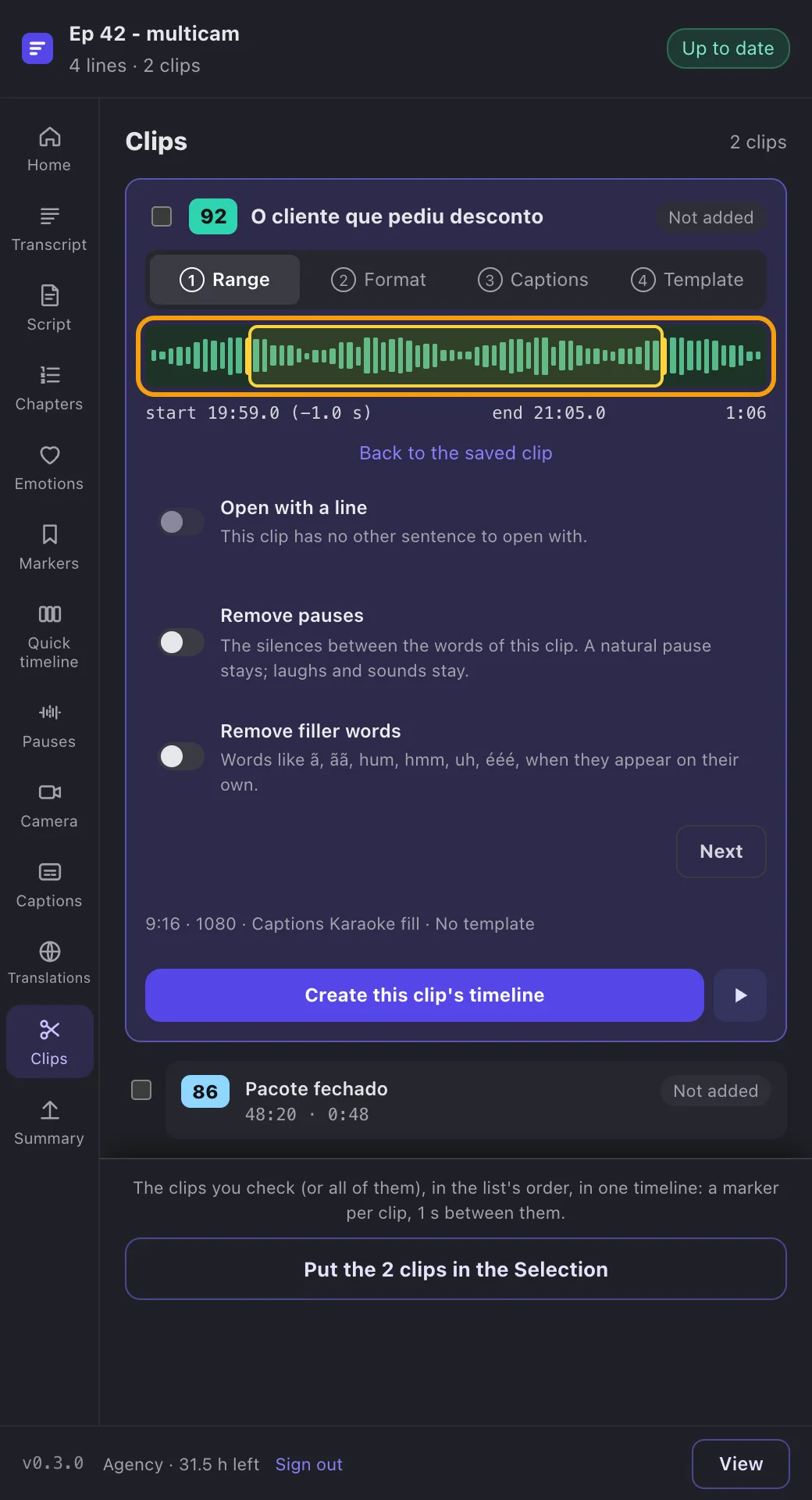
Each clip becomes a timeline cut from yours, named after the clip, in the FilmScribe folder of the Media Pool. It uses the media already in the project, with your cameras and tracks, without copying anything. If a clip needs more room, drag the yellow handles over the waveform (or use Shift and the arrow keys) and click “Update this clip”: the change is saved in FilmScribe, shows in the app, and only that clip’s timeline is replaced.
The ▶ button moves your timeline’s playhead to the start of the clip, so you can check it in DaVinci’s viewer before bringing it.
5. Caption track and animated captions
In Captions, you get the same 235 styles and the same settings as the app, with a preview over DaVinci’s current frame. Adjust highlight, size and position, or open the font and effects sections.
The caption track never goes on your timeline. It goes on a new timeline, named after yours and the language, with your whole edit inside on V1, and the caption on DaVinci’s subtitle track.
The animated caption is something else: a video with a transparent background (ProRes 4444) that we render and that goes on a new track, “FilmScribe · Animated captions”, above the picture. You choose where:
- Whole video: the entire timeline, in parts of about a minute and a half, on top of the caption timeline.
- Only on some clips: only on the clips you tick, inside each clip timeline.
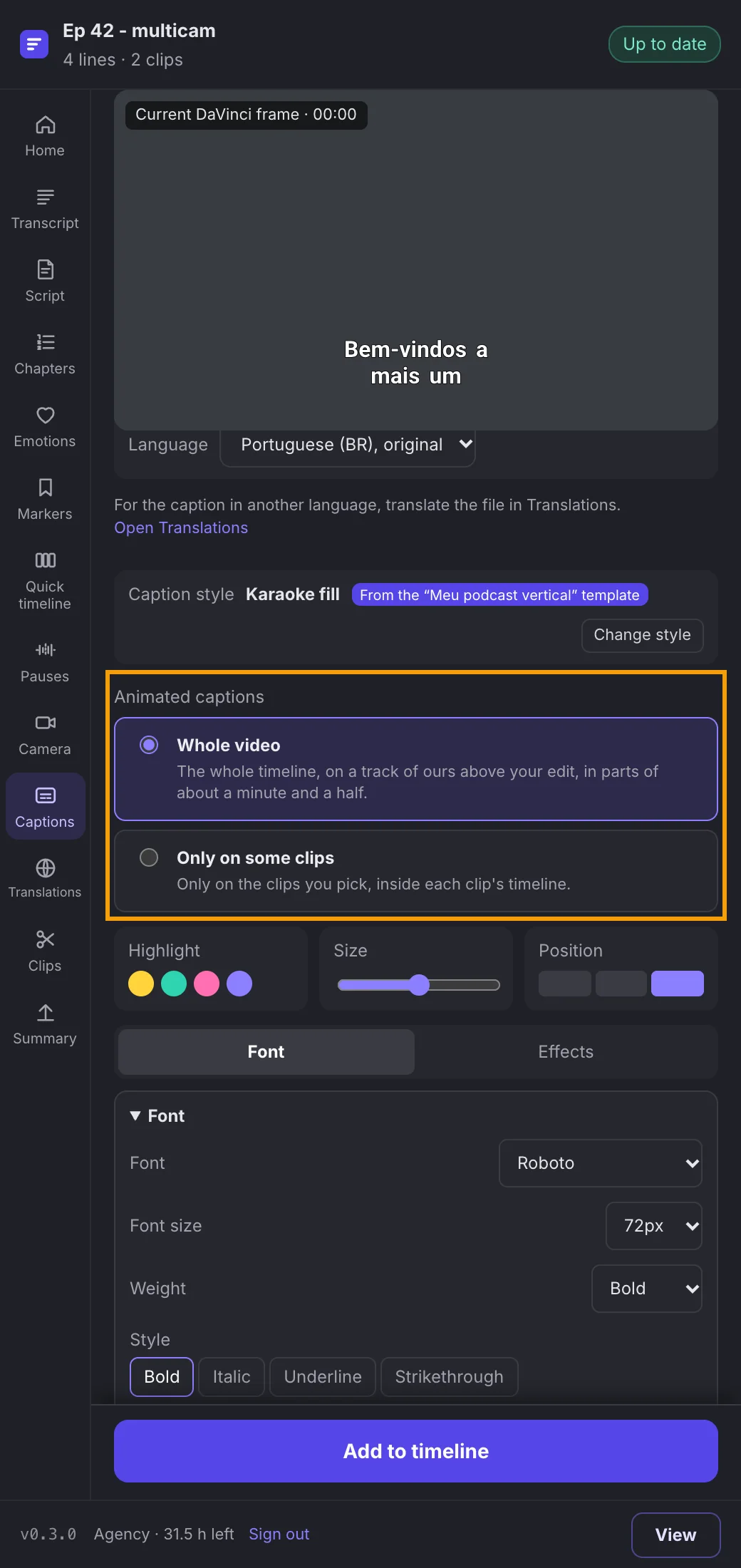
The animated caption isn’t part of “bring everything”, because it takes a while to be ready. On a long video, a good rule is to ask for it only on the clips headed to social and keep the caption track for the full episode. The bar at the top shows how many parts or clips are ready, and DaVinci only changes once all of them are.
Got a word wrong? Click the line in Captions, fix it and press Enter: the fix is saved in FilmScribe. Then “Apply” remakes the caption timeline and only the animated layers that changed.
6. Templates on your clips
In Templates, pick one of your templates or one of the 48 ready-made ones and apply the whole look to each clip timeline: frame, backgrounds, text and images on a “FilmScribe · Template” track, the clip’s video moved into its spot and the template’s caption on top. Nothing changes on your working timeline.
A template designed for 9:16 on a 16:9 timeline stays whole, upright, in the middle of the frame, as it was designed. To edit a template, use the app’s template editor: the plugin shows the same templates.
7. Translated captions, one timeline per language
In Translations, add a language, click “Translate the captions” and, when it’s ready, “Add to DaVinci”. We create a timeline with the caption in that language and your edit inside. There are 9 languages, one at a time, and each one is removed or updated on its own.
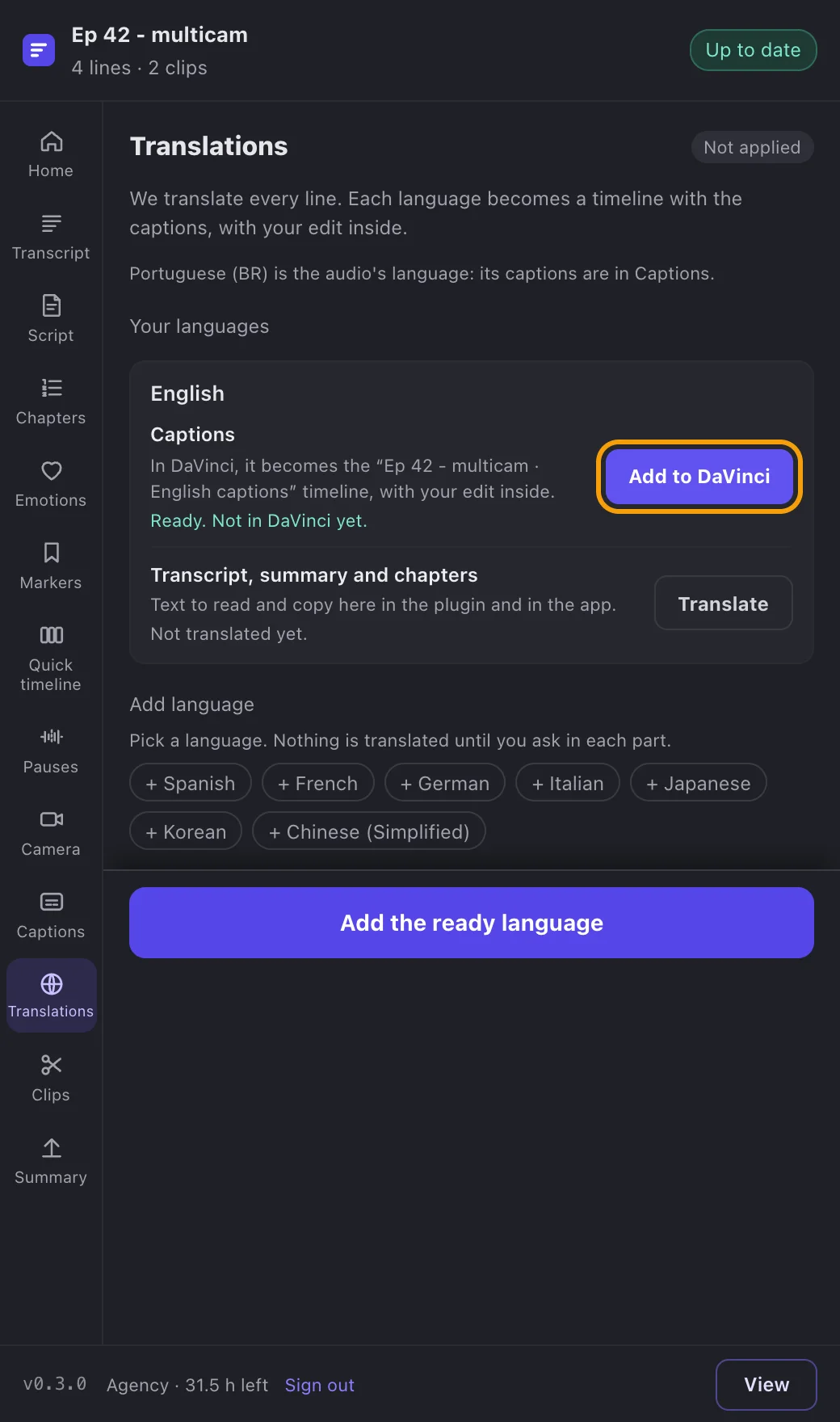
The transcript, summary and chapters can be translated too, to read and copy in the plugin and in the app. Under Summary, the chapters already come in the YouTube description format.
8. Update what changed, undo what you don’t want
Edits change. The plugin keeps up:
- The timeline changed? If you change the timeline’s audio after sending it, the plugin shows “Timeline changed” and how much audio was added or removed. You update the file or keep it as it is.
- Changed in the app? A chapter renamed in the app makes Markers outdated. The plugin checks the file every so often and whenever its window gets focus.
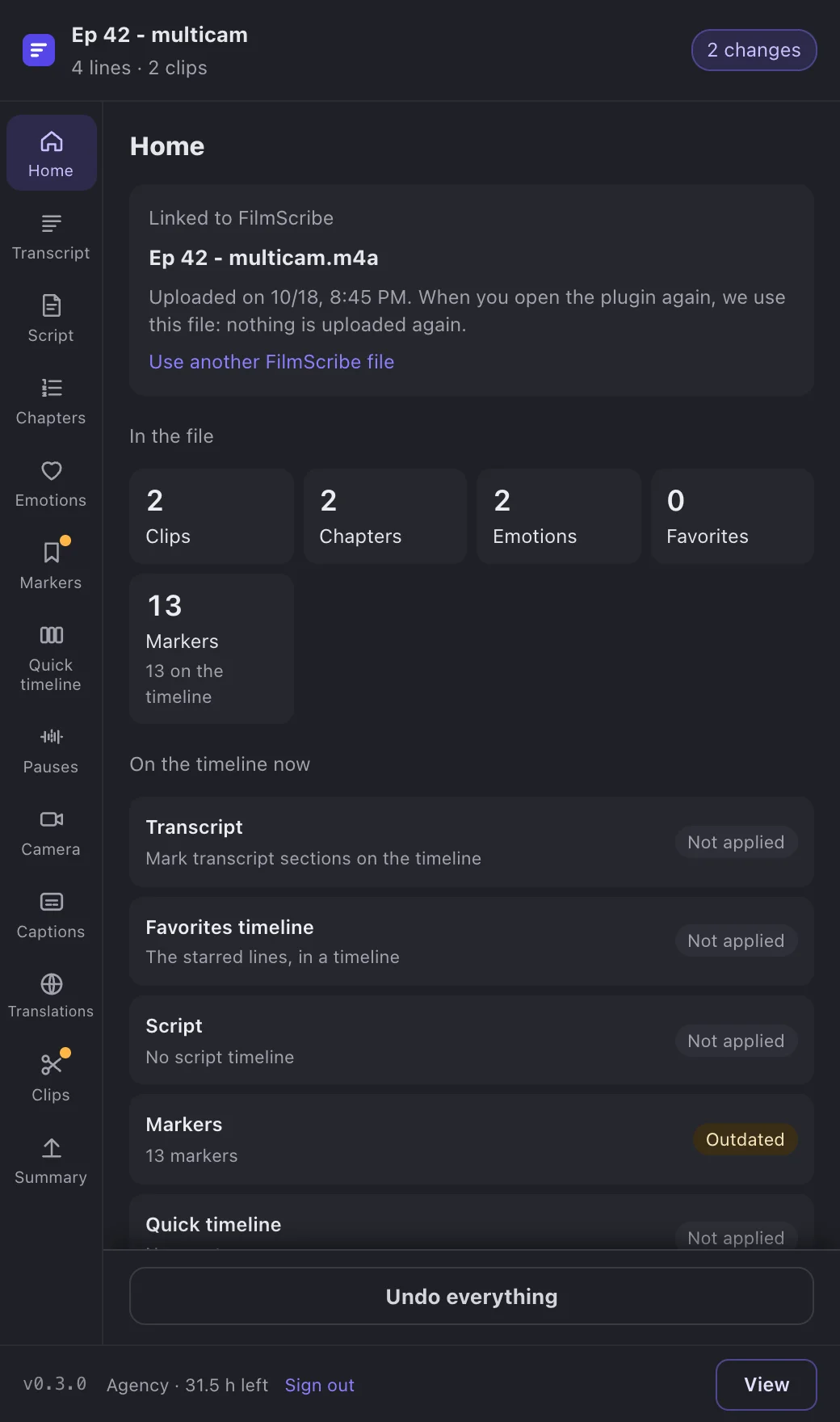
- Updating replaces only what changed. Each module shows whether it’s applied, outdated or not applied, and updating replaces only what that module brought.
- Undo one module or everything. “Remove from timeline” undoes one module; “Undo everything”, on Home, leaves the project as it was.
- Cancel halfway. A running job can be cancelled, and the timeline stays as it was. Whatever you ask for while it runs joins a queue.
Where DaVinci comes in
The plugin prepares the material; the edit is still yours, in DaVinci:
- Media Pool. Everything the plugin brings goes into FilmScribe, in a folder named after the timeline, with one folder per module: Clips, Captions, Translations, Quick timeline, Script. Easy to find and to archive.
- Edit page. Clip, caption and translation timelines are regular timelines: open them, adjust them, combine them with others.
- Color and audio. Since the clips use the project’s media, your grade and your audio work still apply.
- Deliver page. The final render is DaVinci’s, with your settings. The plugin only uses Deliver to render the audio it sends, and puts everything back as it was.
When to use the plugin and when to use the app’s XML export
| Situation | Best path |
|---|---|
| You edit in DaVinci Resolve Studio on a Mac | FilmScribe Plugin |
| You want markers, animated captions and translations on the timeline | FilmScribe Plugin |
| You want to update and undo each part without redoing it all | FilmScribe Plugin |
| You edit in Premiere Pro or Final Cut Pro | The app’s XML export |
| You only want the cut timeline, as a file | The app’s XML export |
The app’s export (Export to editor) downloads a cut timeline as .xml or .fcpxml, from favorites, the script, selected passages or clips, on the Studio and Agency plans. The paper edit guide covers that path in detail. The plugin is the path from inside DaVinci: on the Agency plan, in closed beta.
Tips that save time
- Bring the markers before the clips. With chapters and hooks on the timeline, you see the whole episode before deciding what to cut.
- Duplicate the timeline to experiment. A copy with the same audio uses the same file, with no extra hours, and what the plugin brings to it doesn’t touch the original.
- Fix the text once. A fix in Captions holds for the caption track, the animated caption and the app.
- Ask for the animated caption last. It’s the slowest part; leave it for when the clips are decided.
- Use the queue. You can ask for Markers while a clip is updating: the request waits its turn and runs right after.
- If the audio render fails, check that no other render is running on the Deliver page and try again. The common problems page covers the plugin’s other messages.
Frequently asked questions
Does the FilmScribe Plugin work in the free DaVinci Resolve?
No. The plugin uses the integrations of DaVinci Resolve Studio, the paid version, and for now it works only on a Mac. It is in closed beta, on the Agency plan.
Do I have to upload the whole video to FilmScribe?
No. The plugin asks DaVinci for the timeline's audio only, and that's what we upload, using your plan's hours. The video stays on your computer, and the clips come back as timelines that use the media already in the project.
If I change the edit later, do I lose what the plugin did?
No. The plugin tells you when the timeline changed and which modules are outdated. Updating replaces only what that module brought, and your own markers, tracks and clips are never touched.
Can I edit the animated caption in DaVinci?
It comes in as a video with a transparent background, on a track above the picture, so you move, trim and adjust it like any other clip. To change the text or the style, change it in the plugin's Captions and apply: only the layers that changed are made again.
What's the difference between the plugin and the app's XML export?
The app's export downloads a cut timeline as a file, for Premiere Pro, DaVinci Resolve and Final Cut Pro, on the Studio and Agency plans. The plugin works inside DaVinci Resolve Studio, brings markers, captions and translations, and lets you update and undo each part.
Is the plugin in English?
Yes. The plugin follows your account's language, the same as the app: English, Portuguese or Spanish. You change it in your profile in the app, and the plugin follows.
How do I join the plugin's closed beta?
The plugin is part of the Agency plan. With Agency active, ask to join on our WhatsApp: beta members get the installer and the step-by-step guides in the help center.
Sources
The official documentation behind the numbers and rules in this guide.
- 01DaVinci Resolve Studio(opens in a new tab) · Blackmagic Design
- 02About Apple ProRes(opens in a new tab) · Apple
- 03Video chapters(opens in a new tab) · YouTube Help