
How to bring clips and markers into DaVinci

In Clips, check the clips and put them all in the Selection: one timeline cut from yours, with your own cameras, in the FilmScribe folder of the Media Pool. Or open a clip and build its own timeline step by step: the range, the format, the captions and the template. In Markers, bring chapters, emotions, moments, hooks and clips to your timeline, each type in its own color.
Before you start
Send the timeline from the plugin. Clips need a timeline with video.
Step by step
-
Step 1: Put the clips in the Selection
In the left column, click Clips. Each clip shows its score, title, start and length. Check the clips you want and click Put the N checked in the Selection. With none checked, Put the N clips in the Selection brings them all.
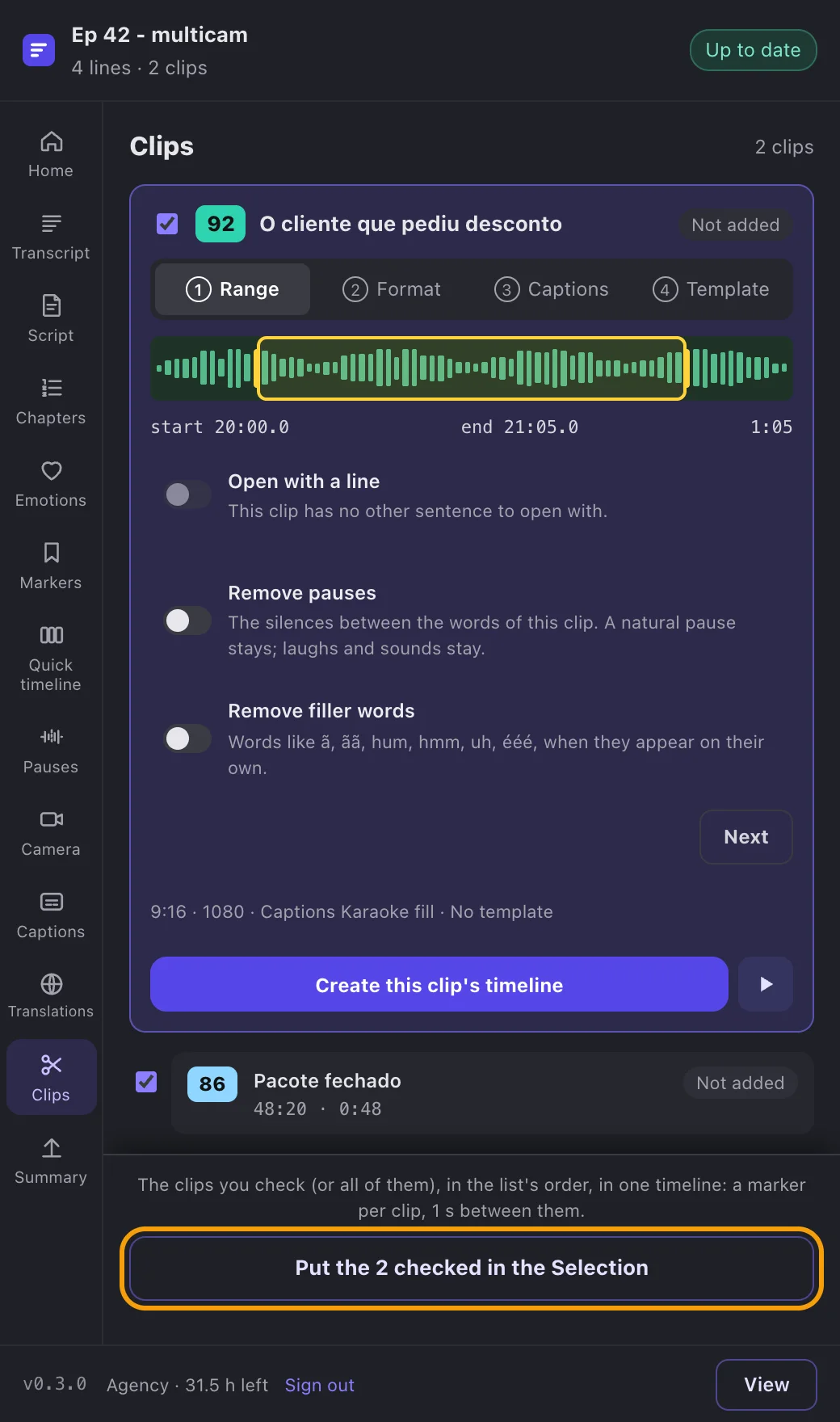
App screenshot The Clips page, with two clips checked and the button that puts both in the Selection. -
Step 2: Check it in DaVinci
In the Media Pool, under FilmScribe, in your timeline's folder, under Clips, you find the Selection: one timeline with the clips in the list's order, 1 s between them and one marker per clip with its title. It uses the media already in the project, without copies, and your timeline stays open.
-
Step 3: Adjust a clip's range
Click a clip to open it. In the Range step, drag the yellow start and end handles over the waveform (or use Shift and the arrow keys). Back to the saved clip undoes the change.
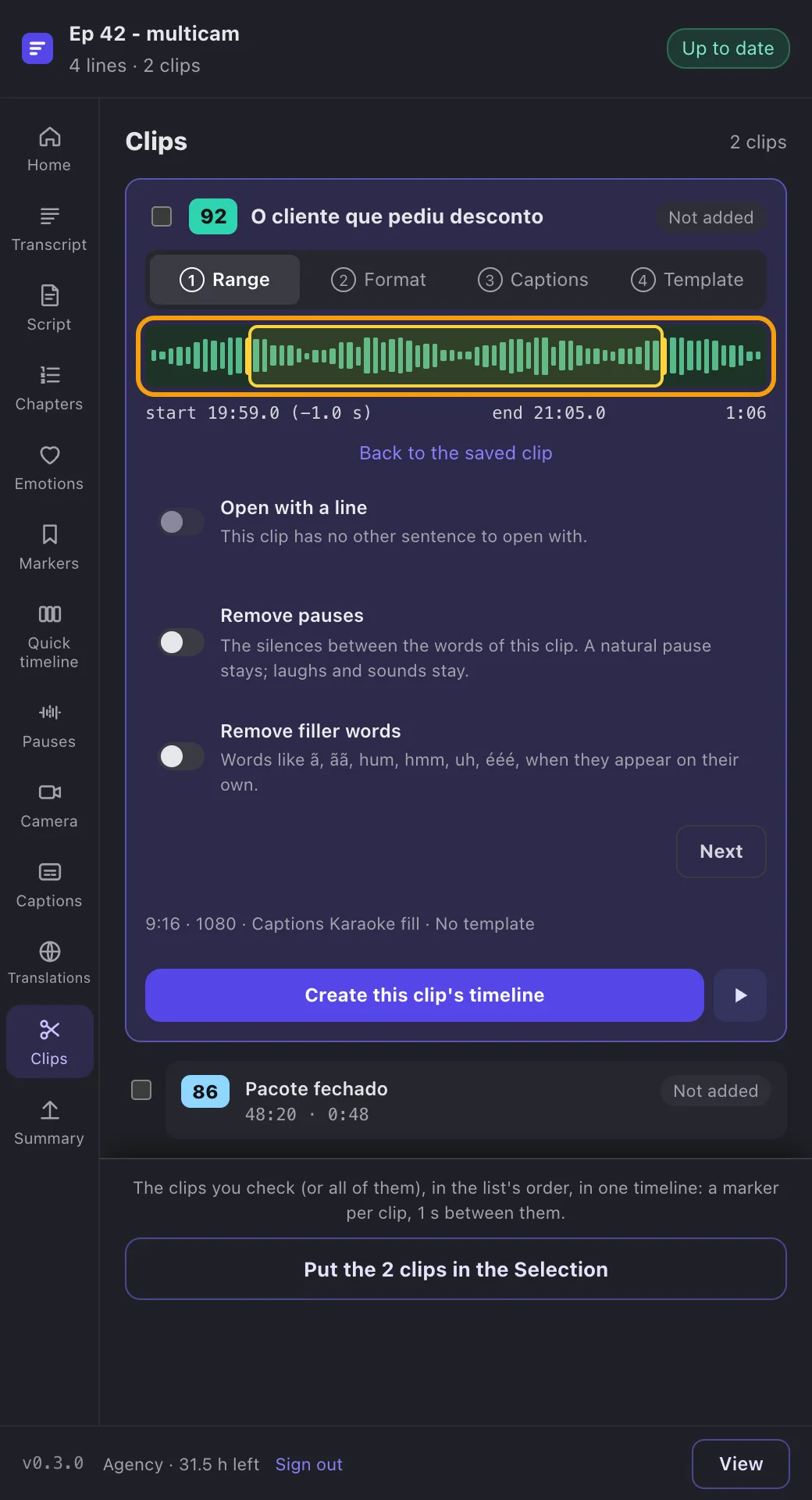
App screenshot A clip open on the Range step, with the start and end handles over the waveform. -
Step 4: Pick the format, captions and template
Click Next or the step's name. In Format, pick 9:16 vertical or 16:9 horizontal and 1080 or 4K. In Captions, pick the style of the clip's animated captions. In Template, pick a template or No template.
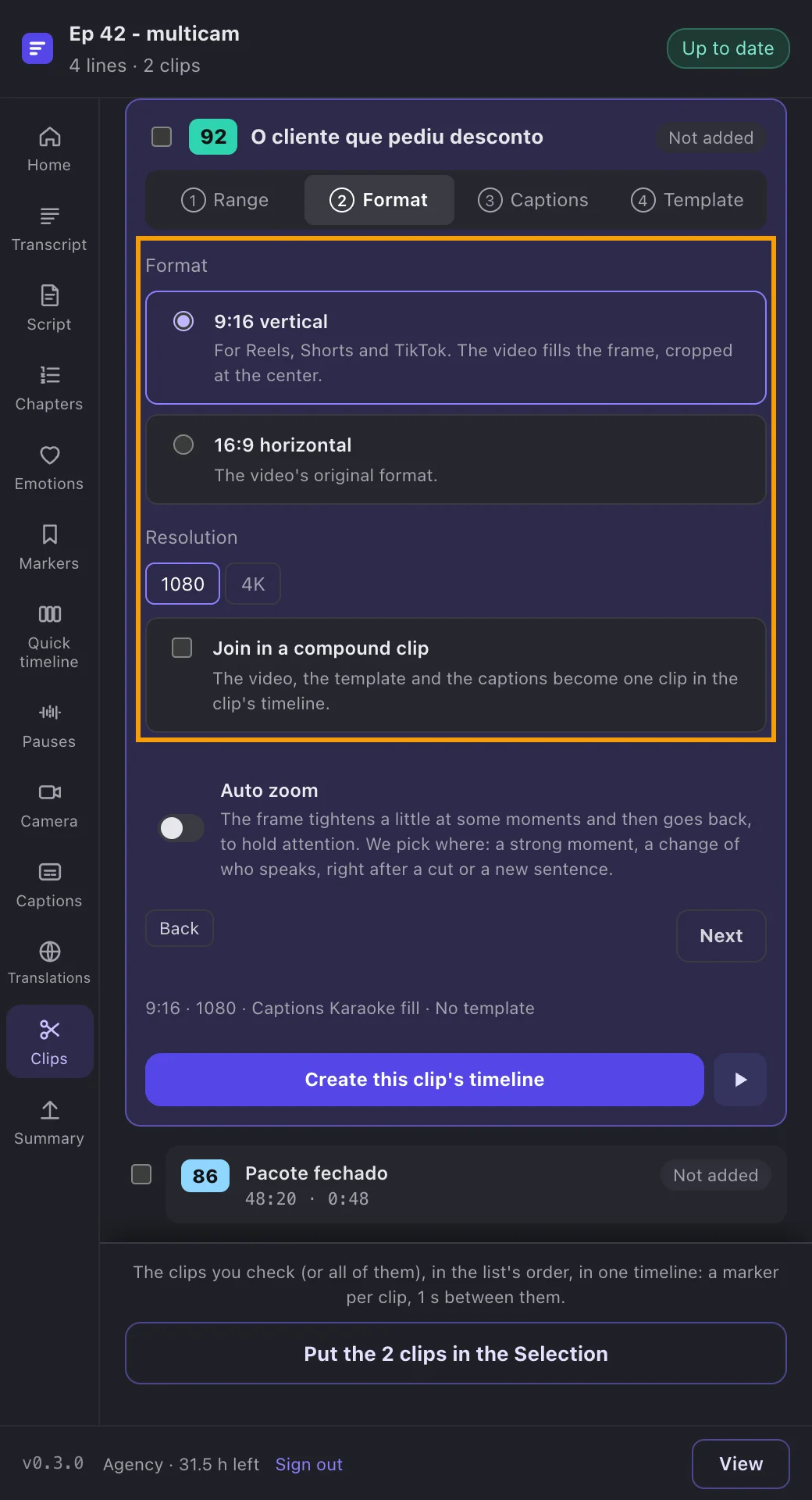
App screenshot A clip's Format step, with 9:16 vertical and 1080 picked. -
Step 5: Create the clip's timeline
Click Create this clip's timeline. The timeline goes to the Clips folder, in the format you picked, with the captions and the template on our own tracks above the video. The range is saved in FilmScribe and shows in the app. After changing something, click Update this clip's timeline.
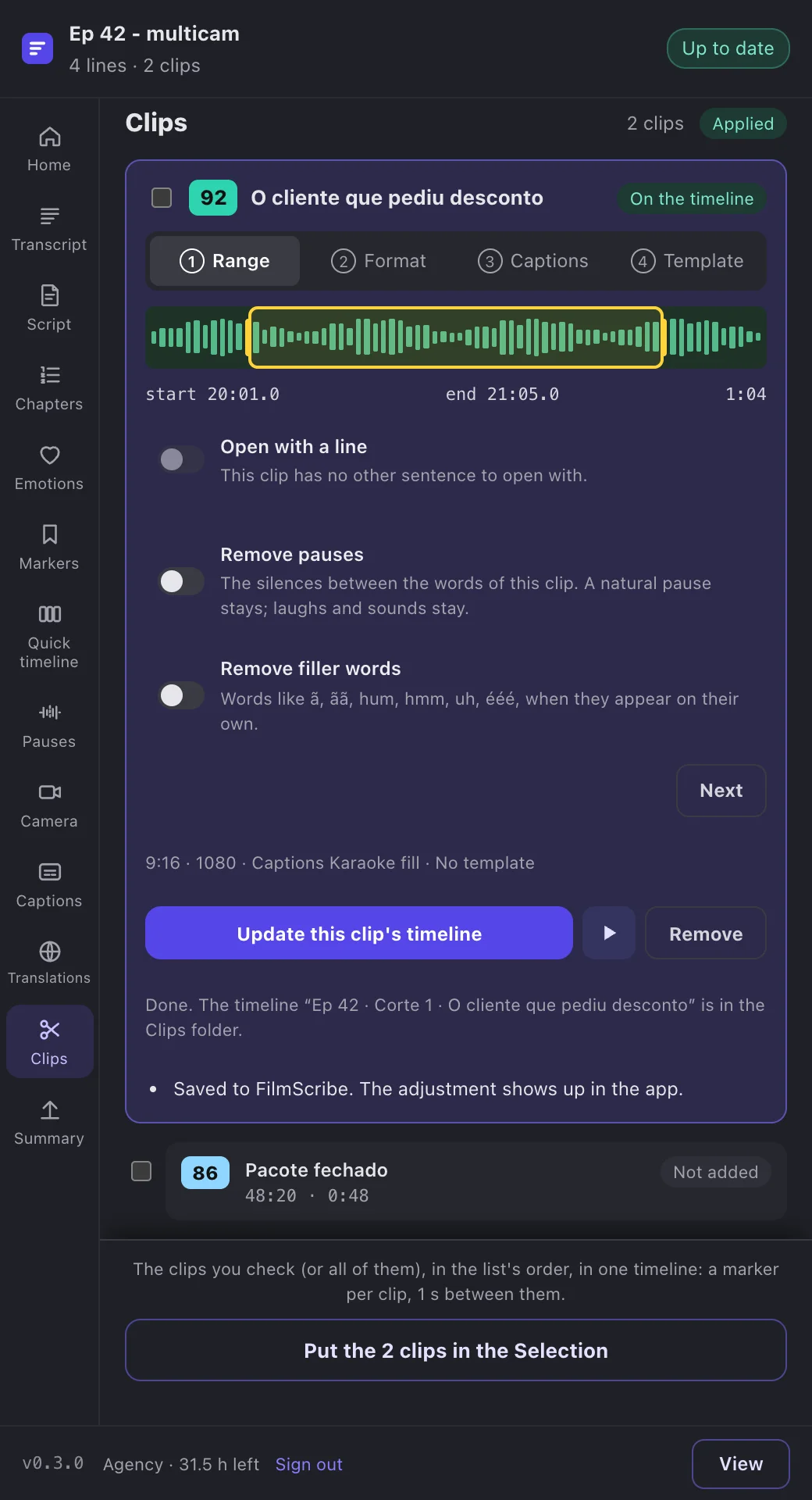
App screenshot The clip with its timeline created and saved in FilmScribe, with the button that updates the timeline. -
Step 6: Bring the markers
In Markers, turn on the types you want: Chapters, Emotions, Moments, Hooks and Clips, each with how many the file has. Click Add to timeline, or Add again after the first time. Your own markers stay as they are.
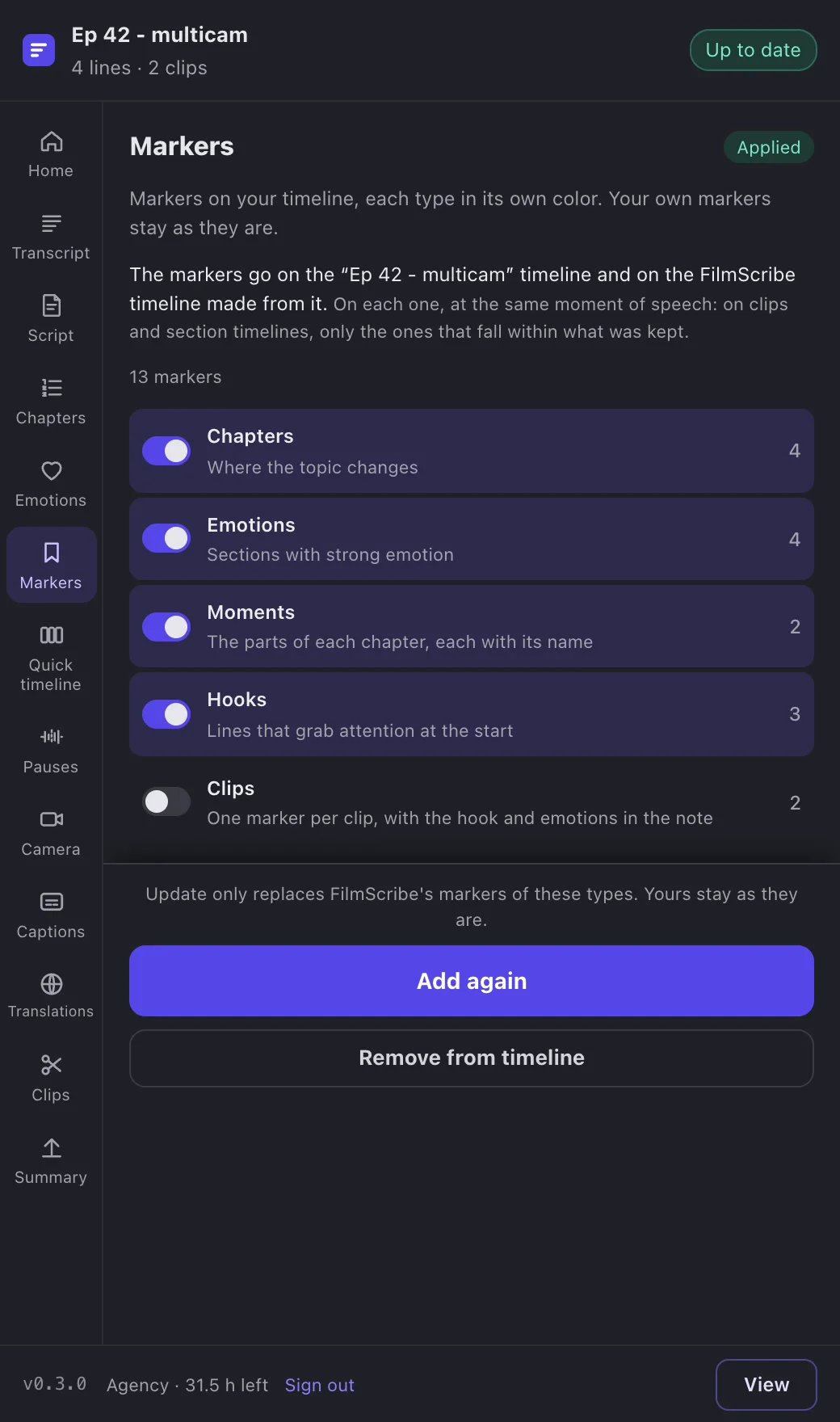
App screenshot The Markers page, with one switch per type and how many of each.