
How to use animated captions and templates in DaVinci

In Captions, pick the style with the same styles and settings as the app and bring it to the timeline: the whole video's animated captions go on your timeline, on our own track above your edit, as video with a transparent background. On a clip, the captions and the template are steps of the clip itself, in Clips.
Before you start
Send the timeline from the plugin. Animated captions and templates need a timeline with video.
Step by step
-
Step 1: Open Captions
In the left column, click Captions. The preview shows DaVinci's current frame with the caption on top and follows the playhead.
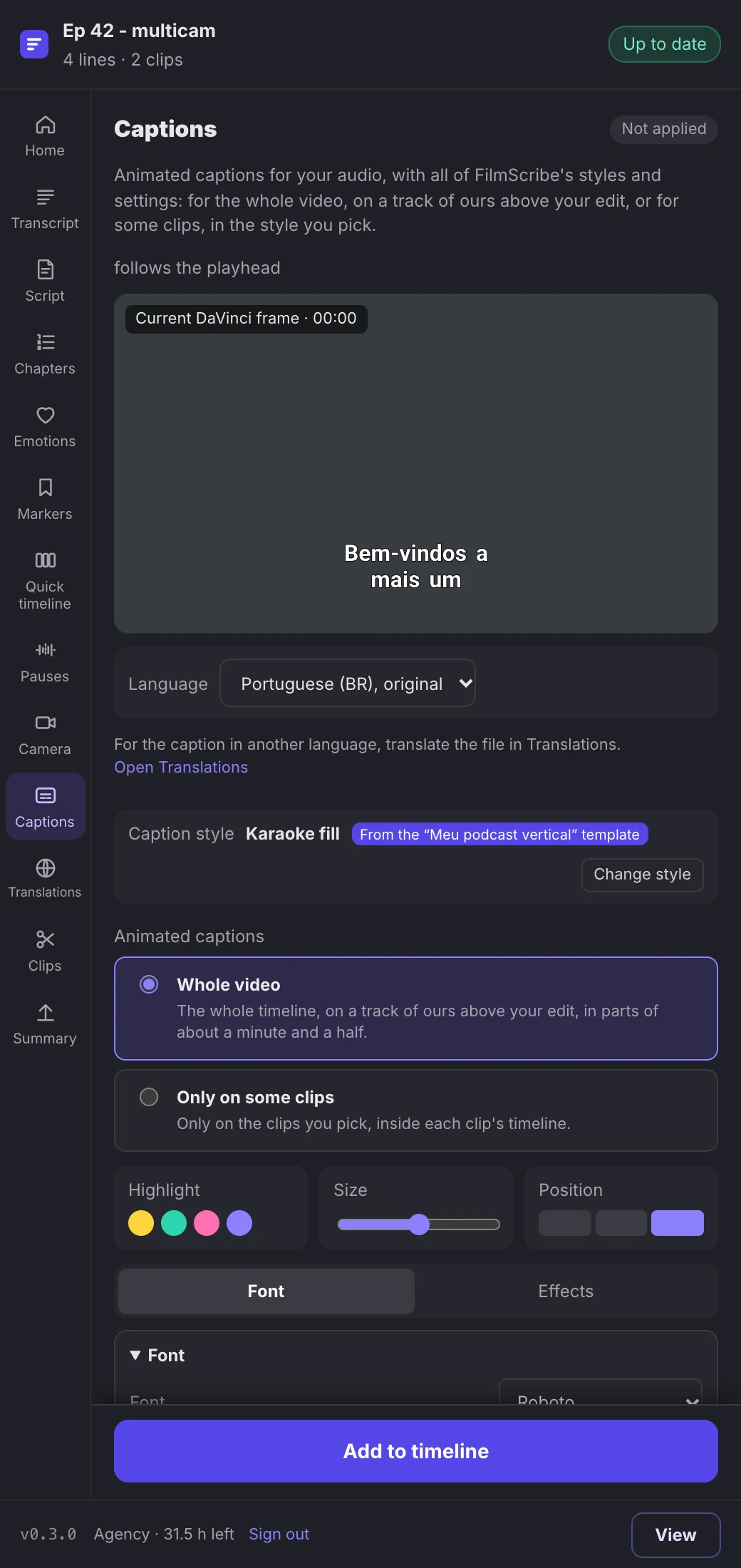
App screenshot The Captions page, with the preview over DaVinci's frame and the caption style. -
Step 2: Pick the style
Click Change style to see the gallery with the app's styles, with search and categories. Adjust Highlight, Size and Position, or the font and effects sections, and the preview follows.
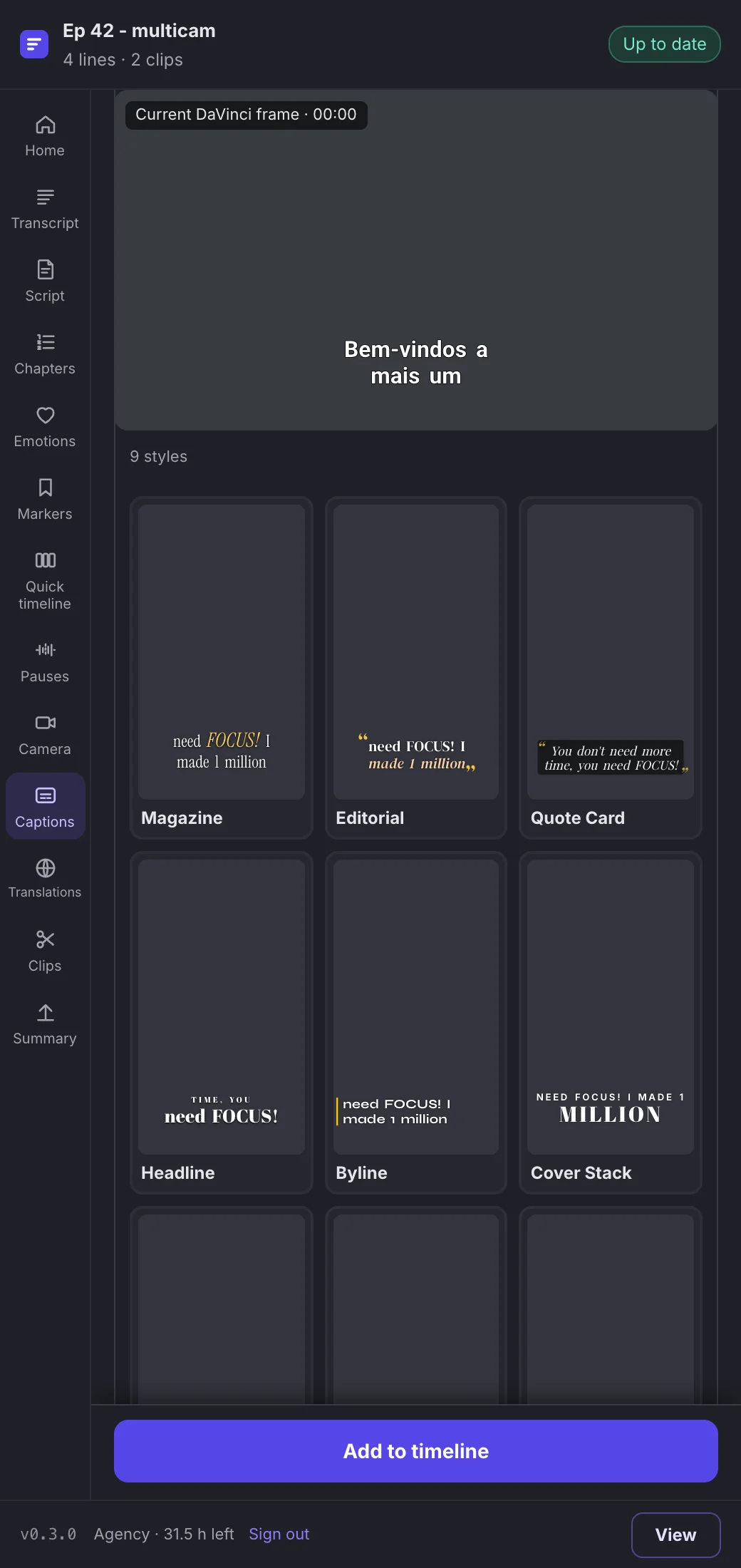
App screenshot The caption style gallery, open on one category. -
Step 3: Choose where the animated captions go
Under Animated captions, keep Whole video for the entire timeline, in parts of about a minute and a half. Only on some clips puts the captions inside the timelines of clips that already have their own timeline and no captions picked in the clip.
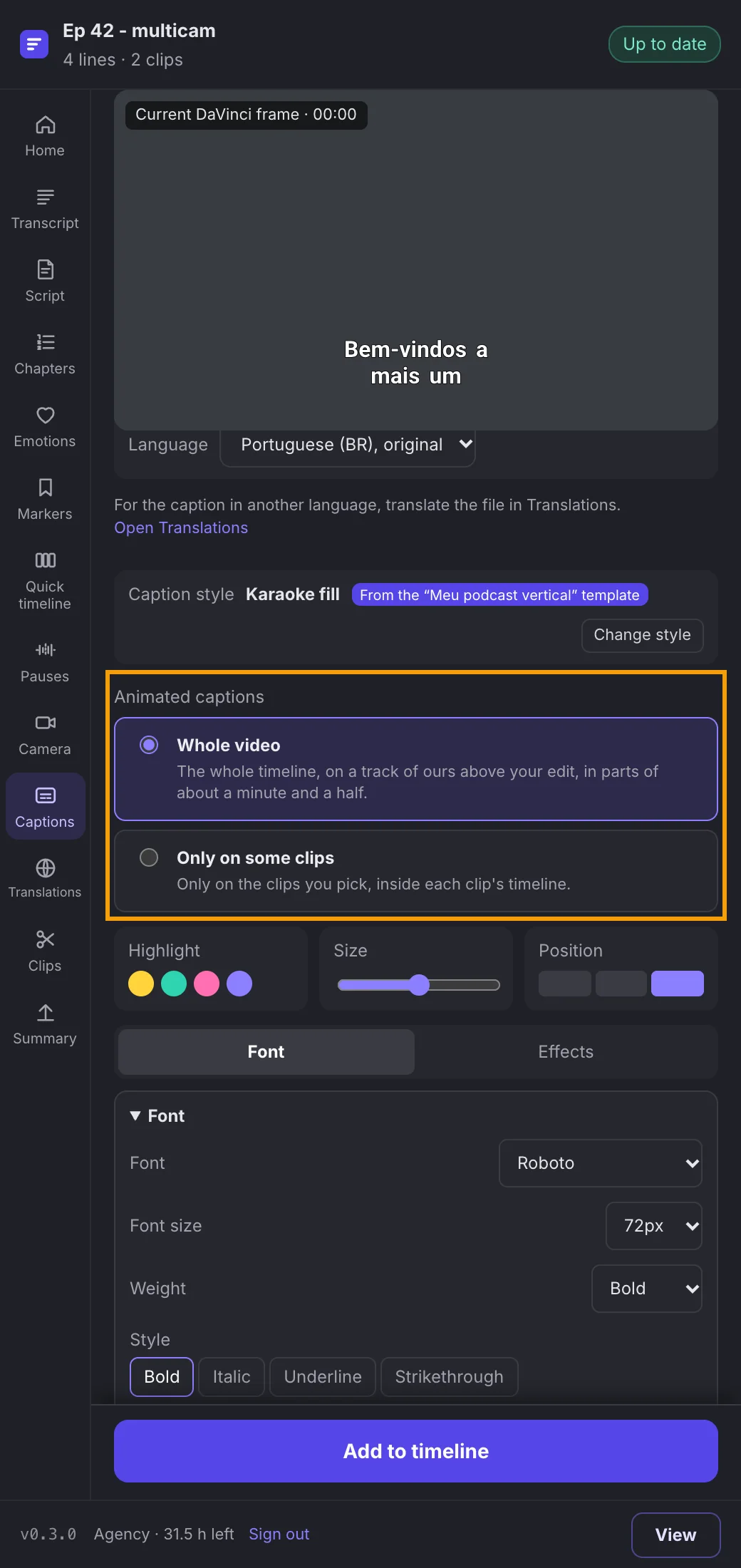
App screenshot Animated captions set to Whole video, right below the caption style. -
Step 4: Bring it to the timeline
Click Add to timeline. We make the animated captions and they go on your timeline, on the FilmScribe · Animated captions track, above your edit; nothing of yours changes. The bar at the top shows how many parts are ready.
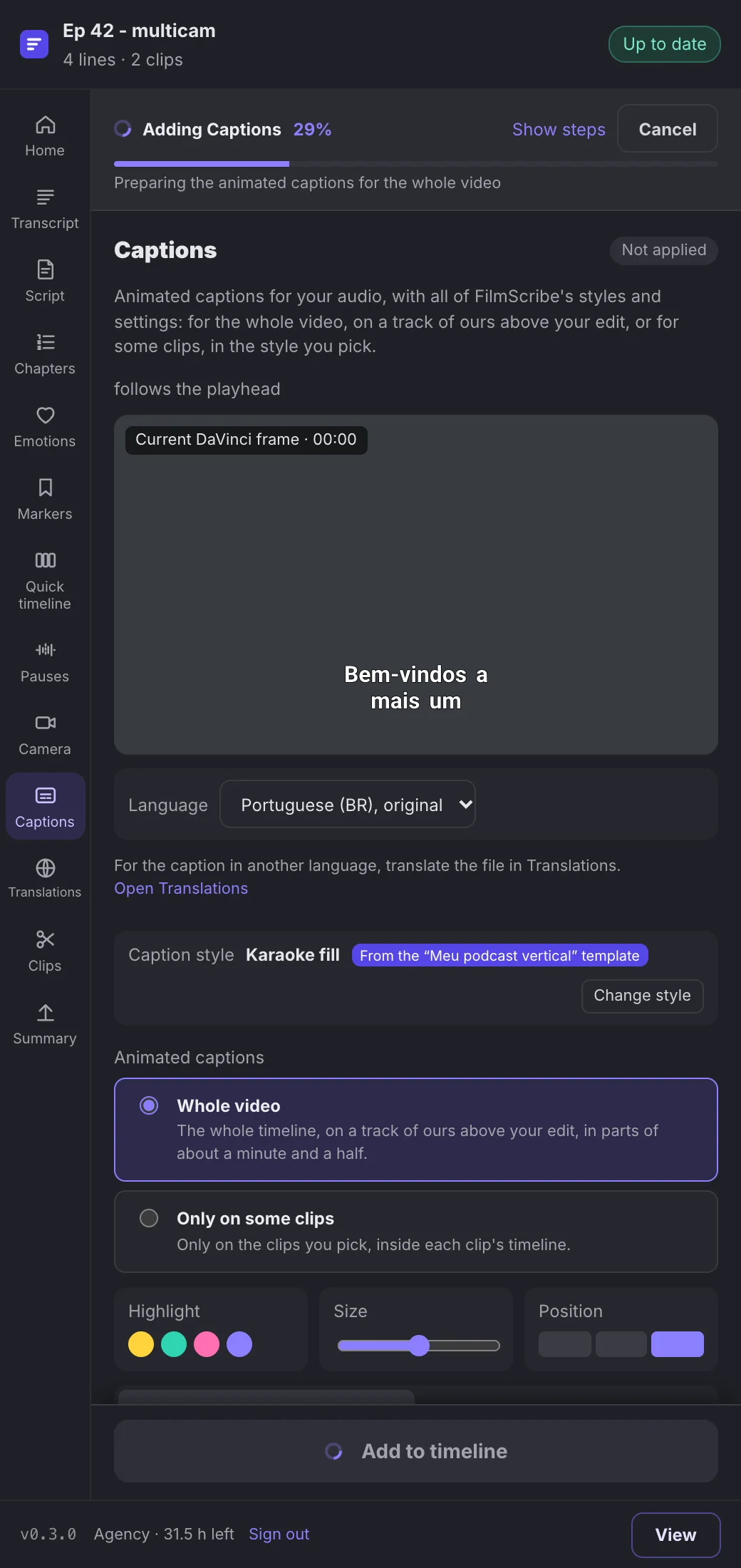
App screenshot The bar at the top preparing the animated captions for the whole video.
Optional steps
You don't need these steps to finish the task. Use them if you want.
-
OptionalFix a line
Click a line, change the text and press Enter: the fix is saved in FilmScribe. Once the captions are on the timeline, the pill at the top counts the change and Apply 1 change brings the animated captions again with the fix.
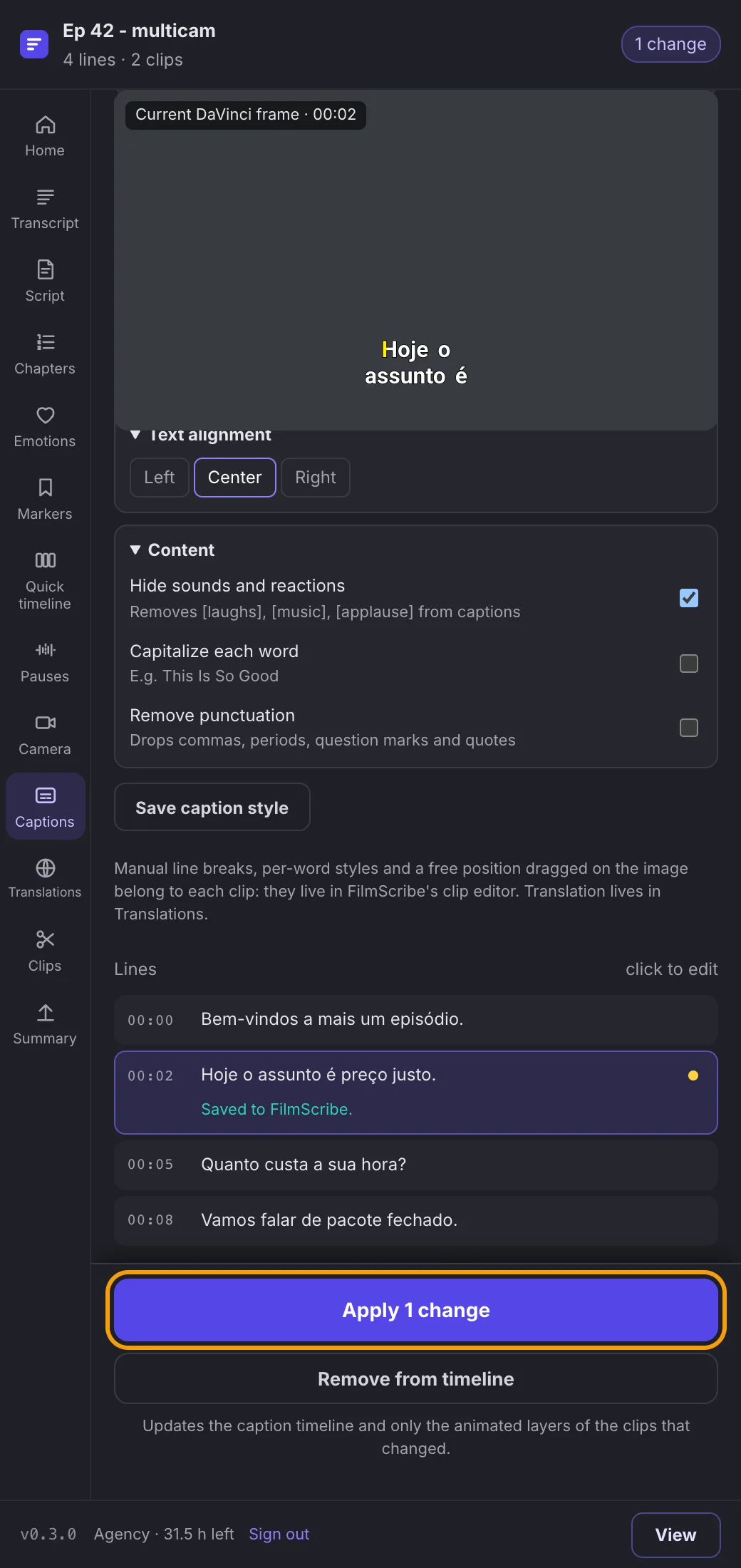
App screenshot A line fixed in Captions, ready to apply. -
OptionalUse a template on a clip
In Clips, open a clip and go to the Template step. Pick a template under My templates or Ready-made and create or update the clip's timeline. On the clip's timeline, the visuals go on the FilmScribe · Template track, the video moves into the template's spot and the template's captions become the clip's. Nothing changes on your timeline.
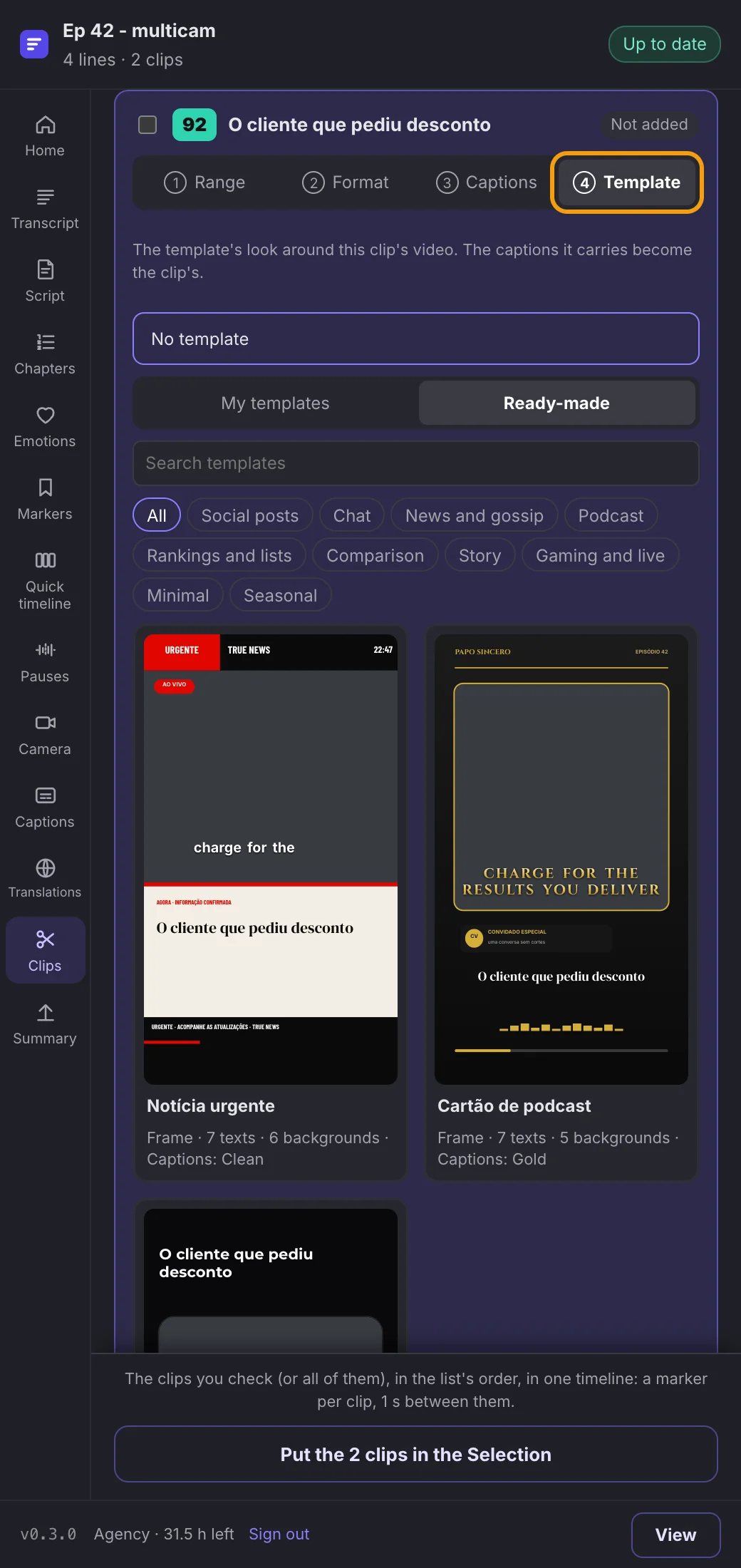
App screenshot A clip's Template step, with ready-made templates over DaVinci's frame.