
How to bring translated captions into DaVinci

In Translations, choose a language under Add language and click the button to translate the caption. When it's ready, click Add to DaVinci: we create a timeline with the caption in that language and your edit inside. For the transcript, summary and chapters, translating brings texts to read and copy in the plugin and in the app.
Before you start
Send the timeline from the plugin and wait for the file to be ready.
Step by step
-
Step 1: Add a language
In the left column, click Translations. Under Add language, click the language you want. Nothing is translated until you ask.
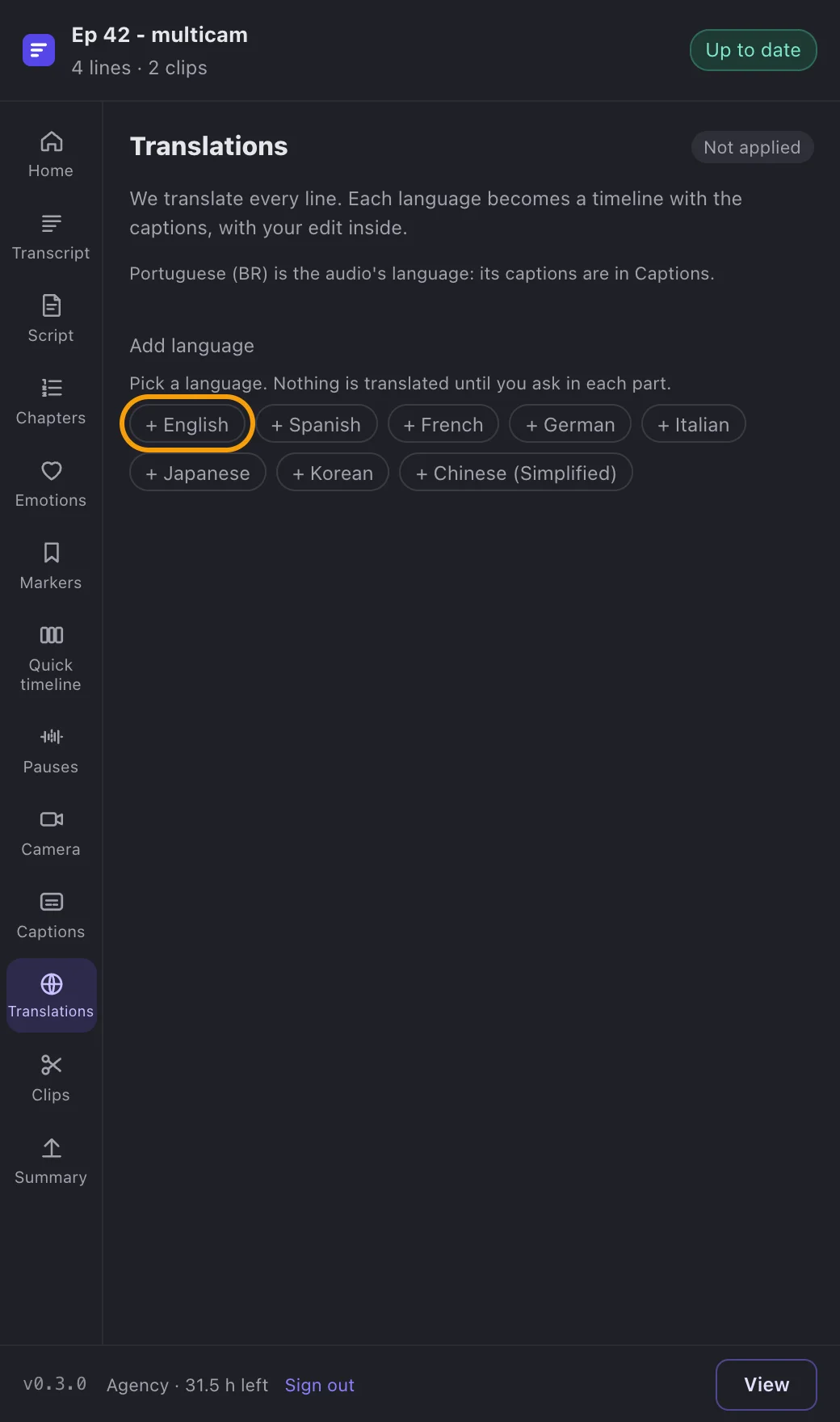
App screenshot Translations, with the languages you can add. -
Step 2: Translate the caption
On the language card, under the caption part, click Translate the captions. It can take a few minutes; the card shows when it's ready.
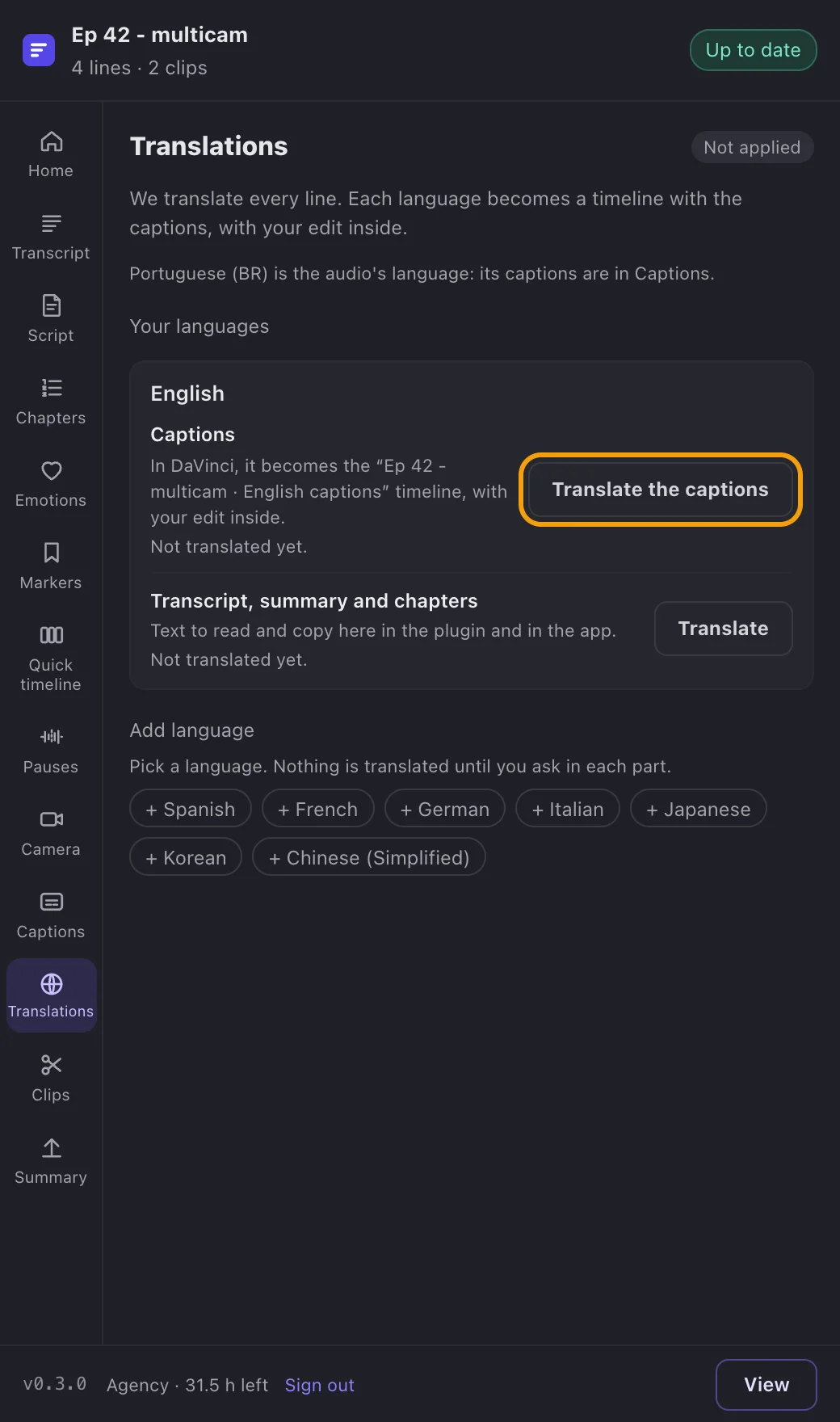
App screenshot The language card, with the Translate the caption button. -
Step 3: Bring it to DaVinci
When the caption is ready, click Add to DaVinci. We create a timeline named after yours and the language, with your edit inside and the translated caption on the subtitle track.
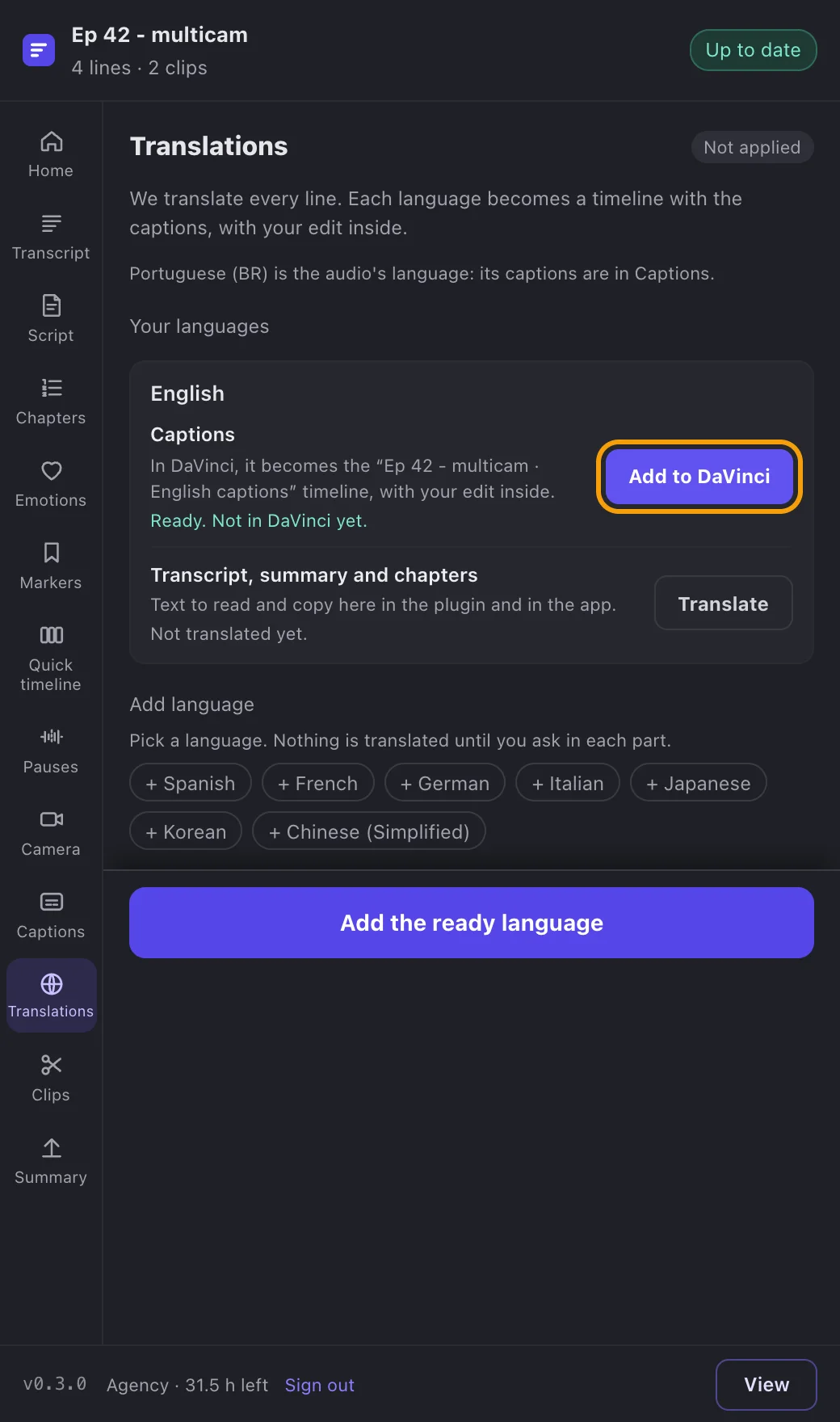
App screenshot The translated caption ready, with the Bring to DaVinci button. -
Step 4: Open the language's timeline
Click Open the timeline and DaVinci shows that language's timeline. Remove takes out only that one; the other languages stay.
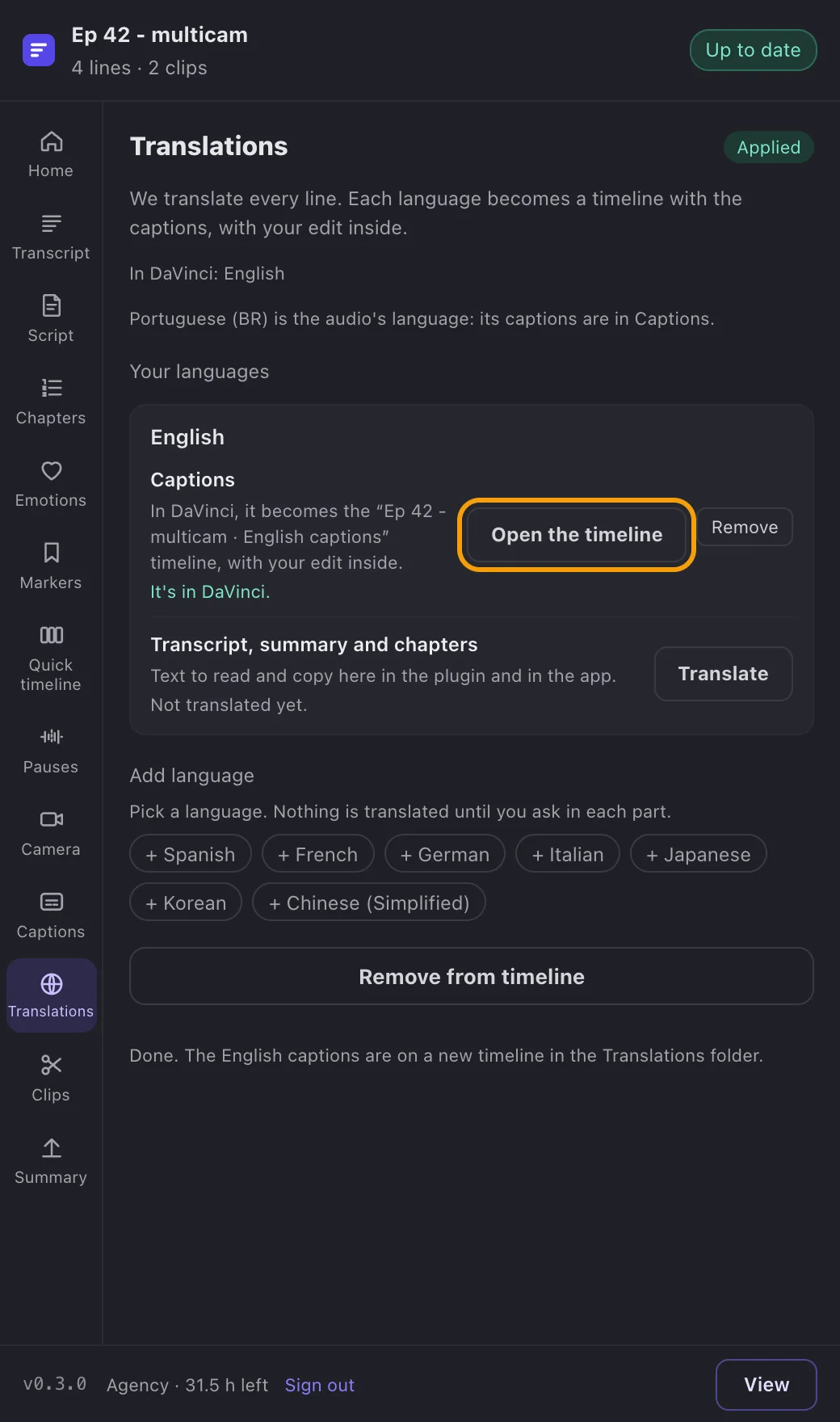
App screenshot The translated caption already in DaVinci, with Open the timeline and Remove.
Optional steps
You don't need these steps to finish the task. Use them if you want.
-
OptionalTranslate the summary and chapters
On the language card, under Transcript, summary and chapters, click Translate. When it's ready, in Summary, pick the language at the top of the page to read and copy the summary and the YouTube chapters.
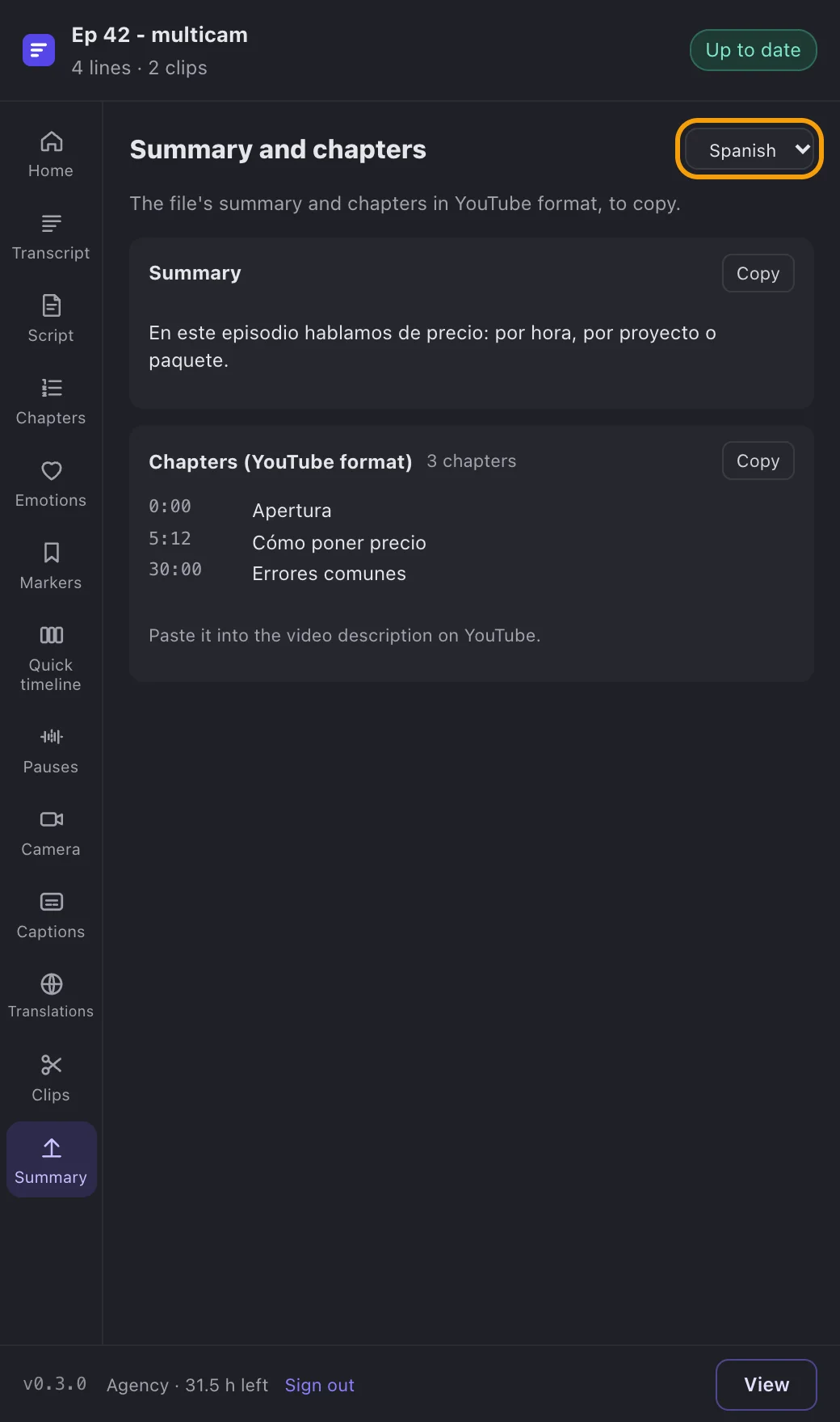
App screenshot Summary and chapters in Spanish, picked at the top of the page.