
How to send your DaVinci timeline to FilmScribe

With the timeline open in DaVinci, go to the plugin's home page and click Upload the audio. DaVinci renders just the timeline's audio and we upload it; the video stays on your computer. After that, each module brings to the timeline whatever you want. Sending uses your plan's hours, and the same timeline is never sent twice.
Before you start
Connect the plugin to your account and open the timeline you want to use in DaVinci. The plugin follows the open timeline.
Step by step
-
Step 1: Upload the audio
On Home, click Upload the audio. If you open a module first, like Markers, its Upload and add to timeline button uploads the audio and brings that module right away.
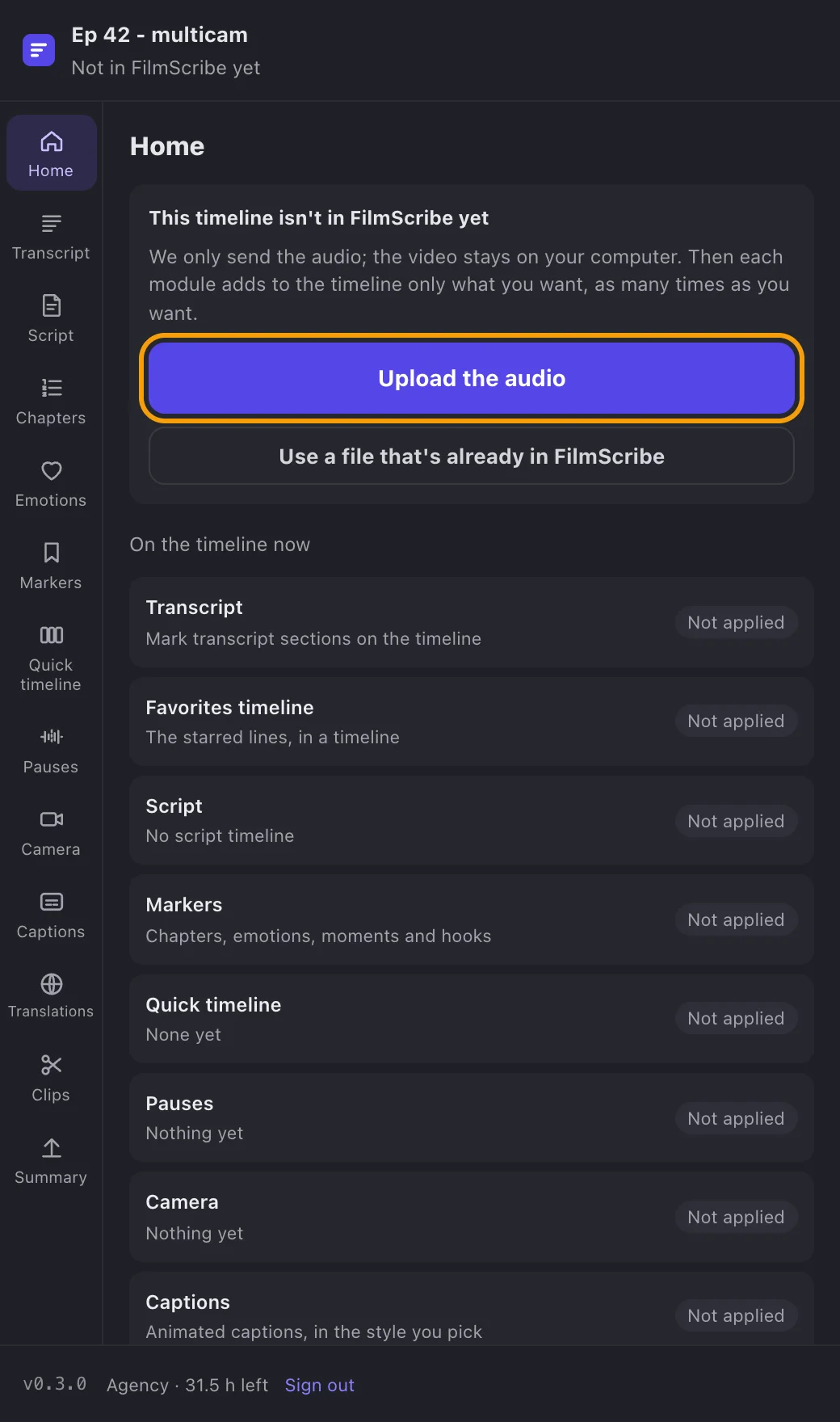
App screenshot The home page of a timeline that is not in FilmScribe yet, with the Upload the audio button. -
Step 2: Follow the bar at the top
The bar at the top of the plugin shows the percentage and the step: DaVinci renders the timeline's audio, then we upload and process it. Show steps opens the list. Keep DaVinci and the plugin open until it finishes.
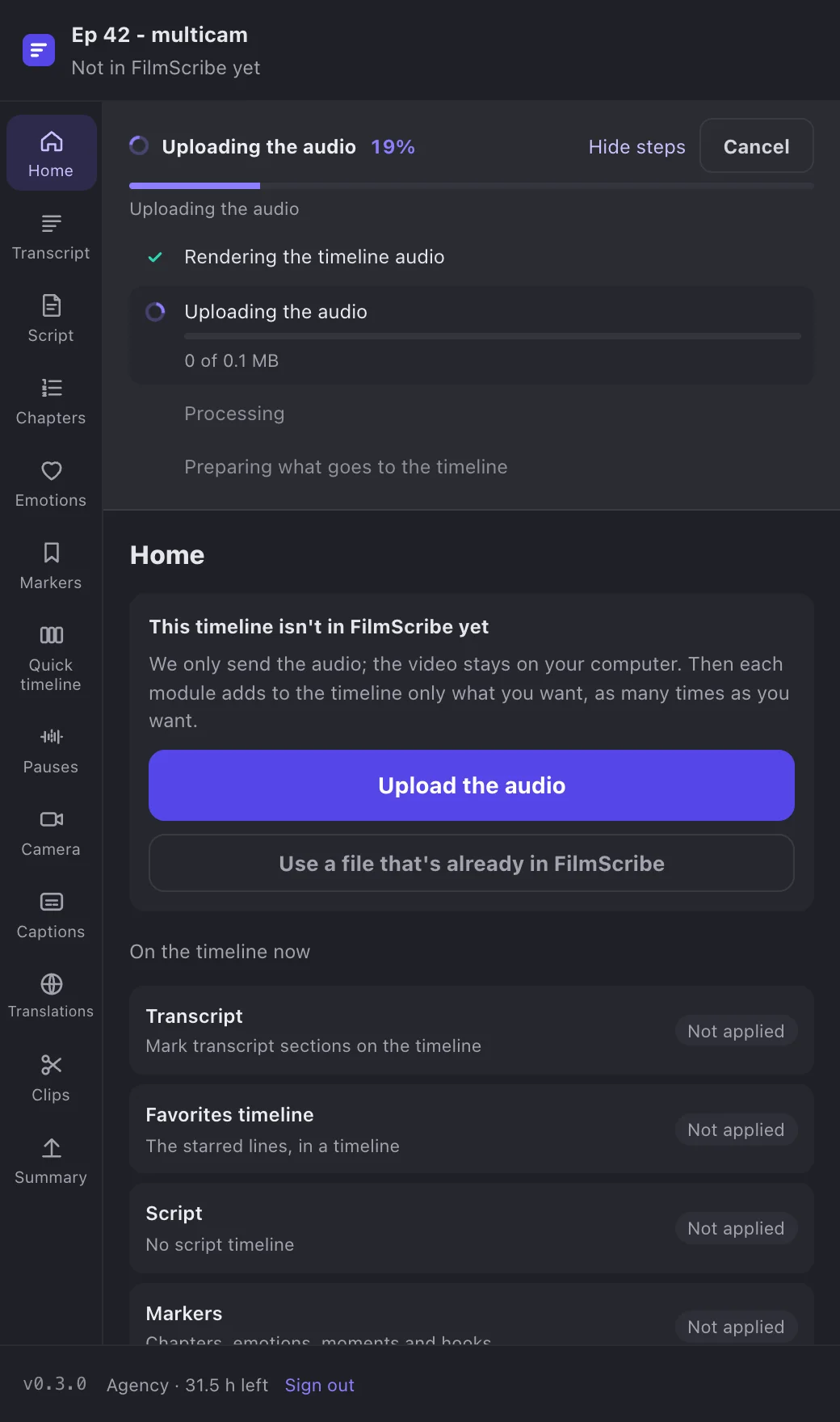
App screenshot The upload bar with the percentage and the steps open: rendering the audio, uploading and processing. -
Step 3: Done: the timeline is linked
The home page shows Linked to FilmScribe, the file and when it was sent, and In the file counts the file's clips, chapters, emotions, favorites and markers. Bring each thing from the left column, module by module. View, at the bottom, opens the file in the app.
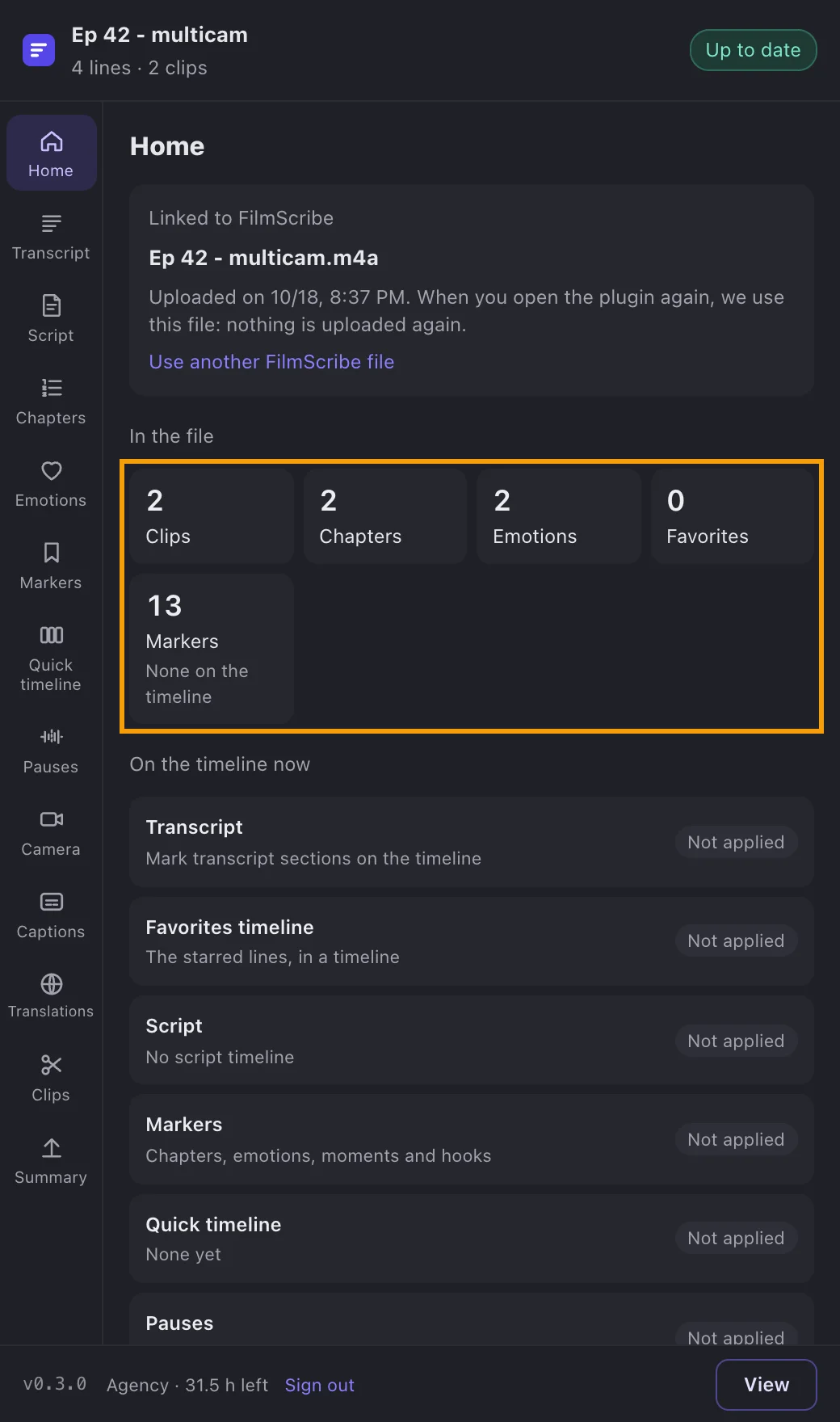
App screenshot The home page with the timeline linked to FilmScribe and what the file has.
Optional steps
You don't need these steps to finish the task. Use them if you want.
-
OptionalUse a file that's already in FilmScribe
If you already uploaded this footage in the app, click Use a file that's already in FilmScribe, pick the file and check where its audio starts on the timeline. Then click Use this file. Nothing is uploaded again.
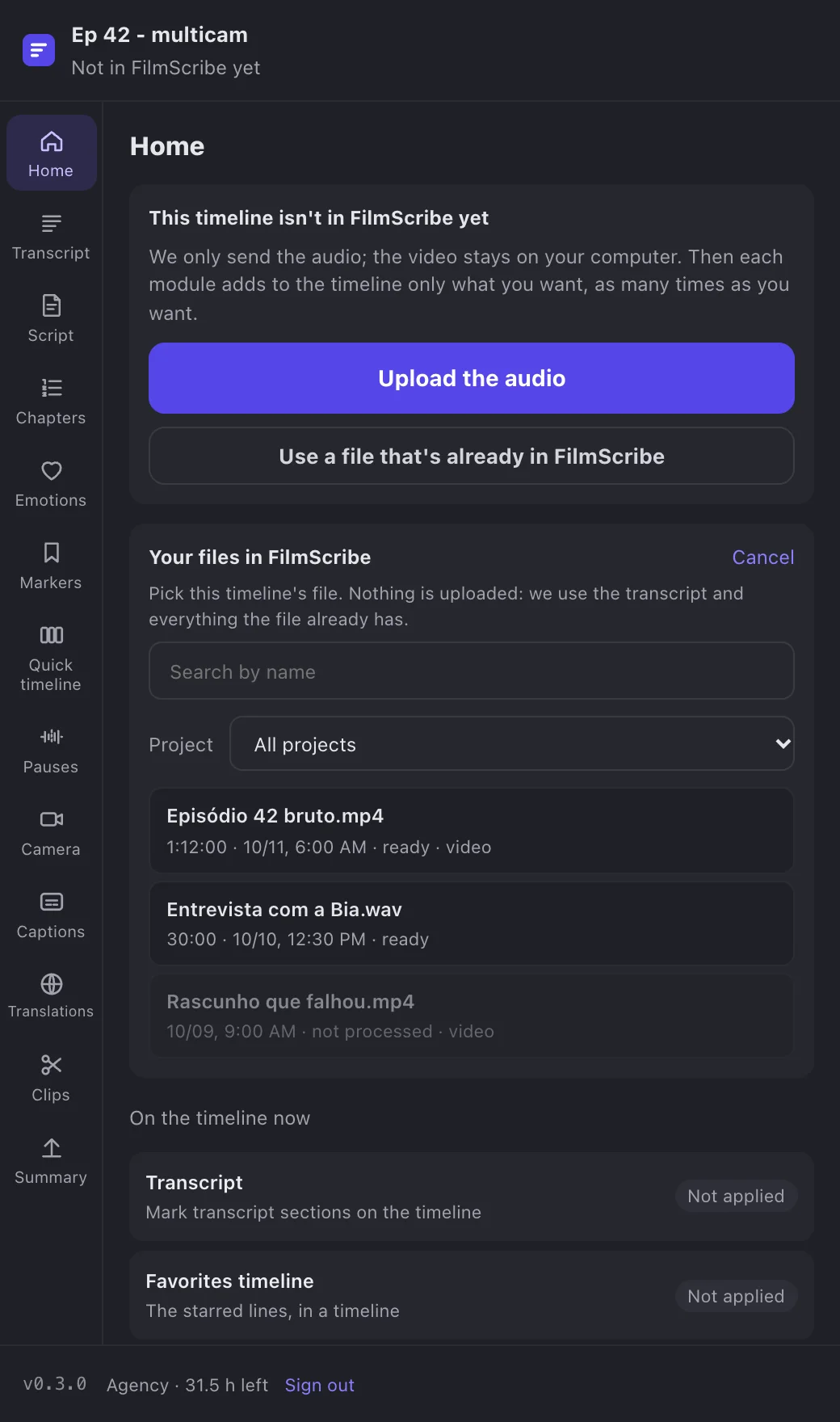
App screenshot The list of your FilmScribe files, inside the plugin.