Skip to content

Payment methods: card and Pix Automático

Updated

Short answer

You can subscribe to FilmScribe with a card or with Pix Automático. On a card, the charge goes out by itself every month or every year. On Pix Automático, you authorize once in your bank app and the next charges also go out by themselves. The plans, the hours and the rules for changing, canceling and refunds are the same either way.

Step by step

  1. Step 1: Choose Pix Automático

    On the plan choice, click the plan's button. In Choose how to pay, click Pix Automático. To pay with a card, choose Credit card.
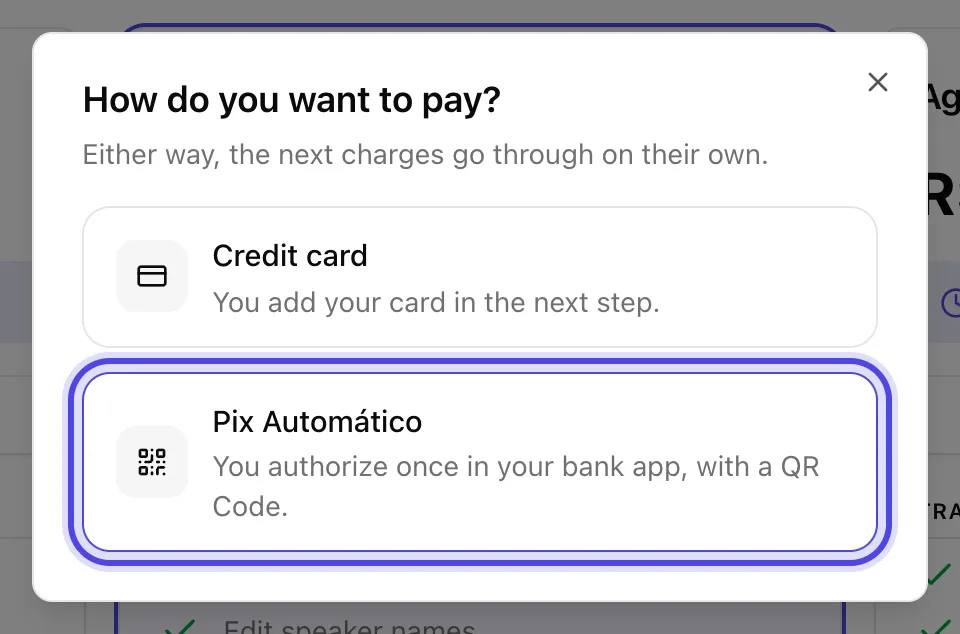
    The choice between card and Pix Automático, after the plan's button.
    App screenshot The choice between card and Pix Automático, after the plan's button.
  2. Step 2: Fill in who pays

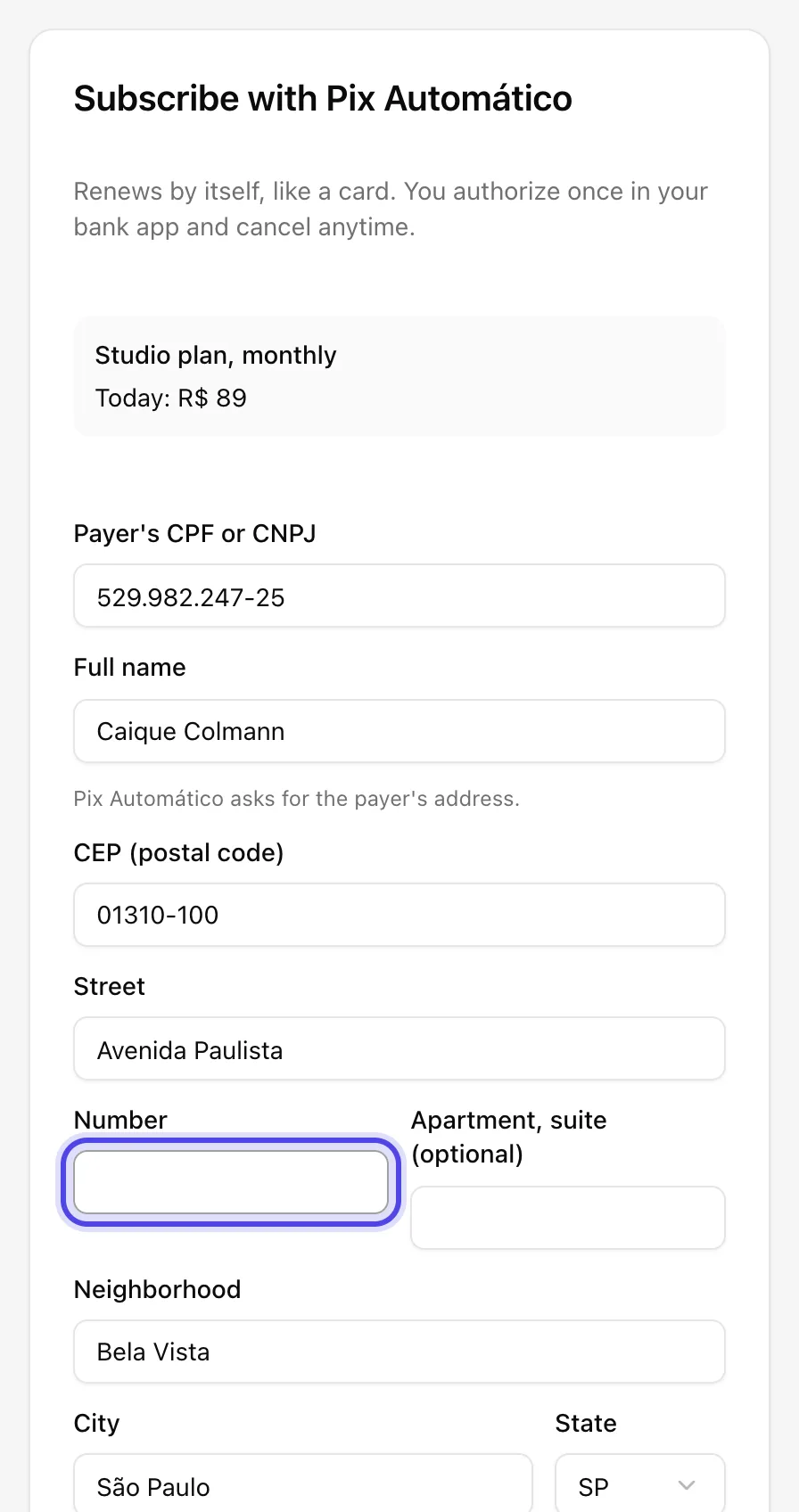
    In Subscribe with Pix Automático, fill in Payer's CPF or CNPJ, Full name and CEP (postal code). With a valid CEP, we fill in the street, neighborhood, city and state, and only the Number is left.
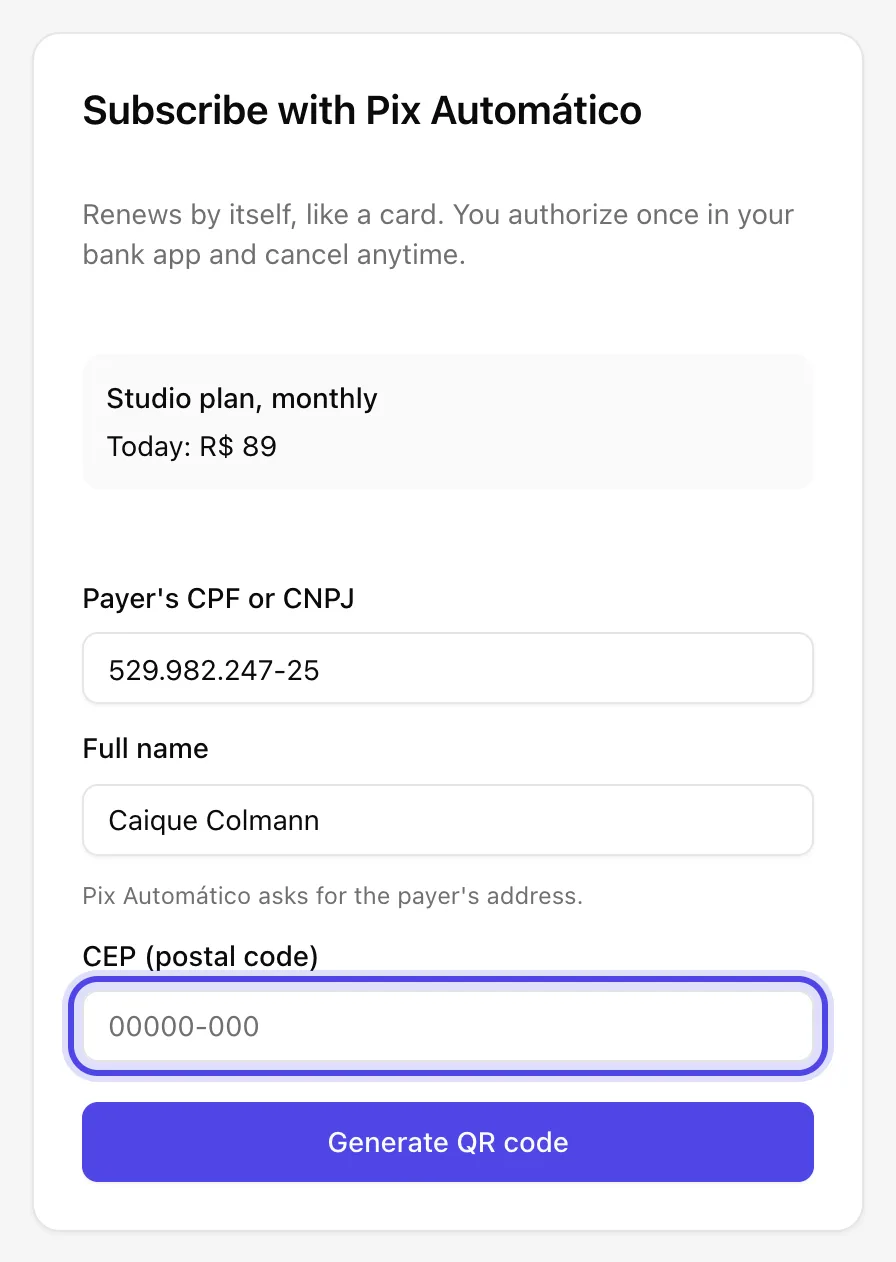
    The Pix Automático form, with the CEP first.
    App screenshot The Pix Automático form, with the CEP first.
    After the CEP, the address filled in, with only the number left.
    App screenshot After the CEP, the address filled in, with only the number left.
  3. Step 3: Click Generate QR code

    Click Generate QR code. The screen shows the QR code, Copy Pix code, today's amount and the amount of the next charge.
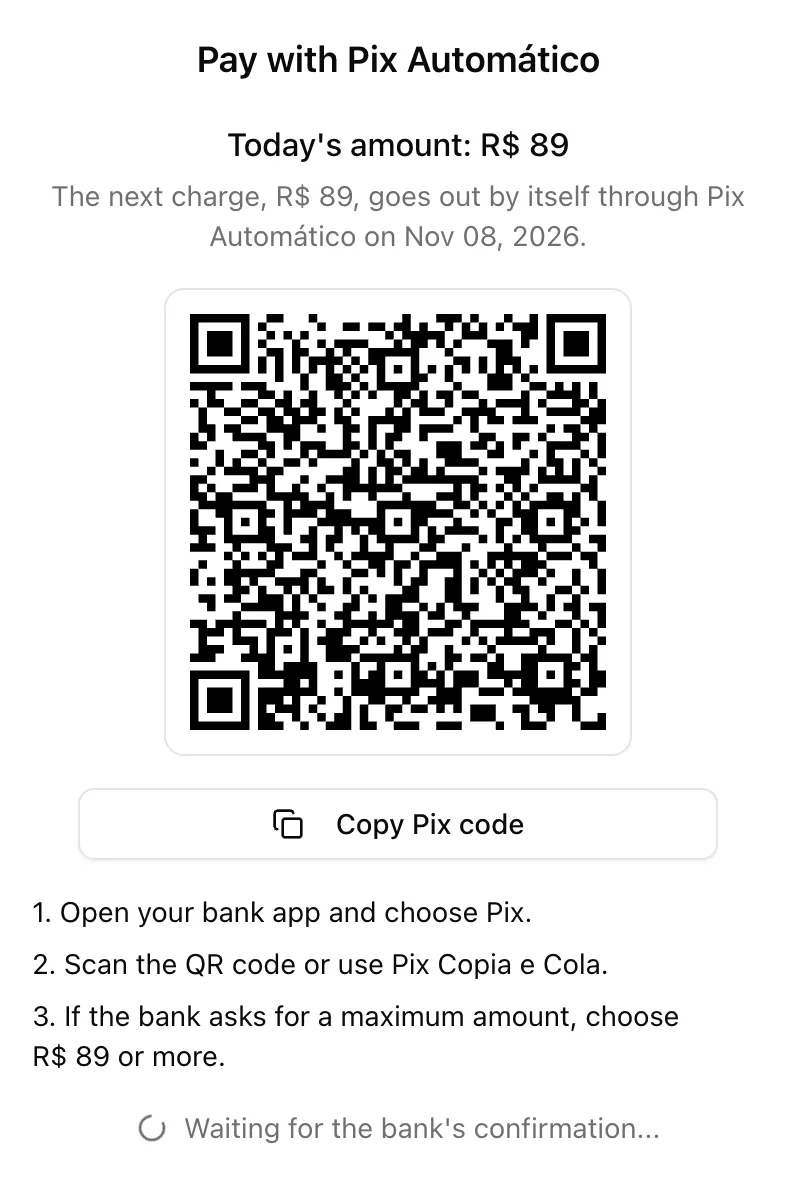
    The Pix Automático QR code, with today's amount and the next charge.
    App screenshot The Pix Automático QR code, with today's amount and the next charge.
  4. Step 4: Authorize in your bank app

    In your bank app, choose Pix and scan the QR code or use Pix Copia e Cola. If the bank asks for a maximum amount, choose the amount the screen shows or more. When the bank confirms, the screen moves on by itself.

  5. Step 5: Check the payment method

    On the Subscription page, Plan tab, the Payment method shows Pix Automático, who pays and the next charge.
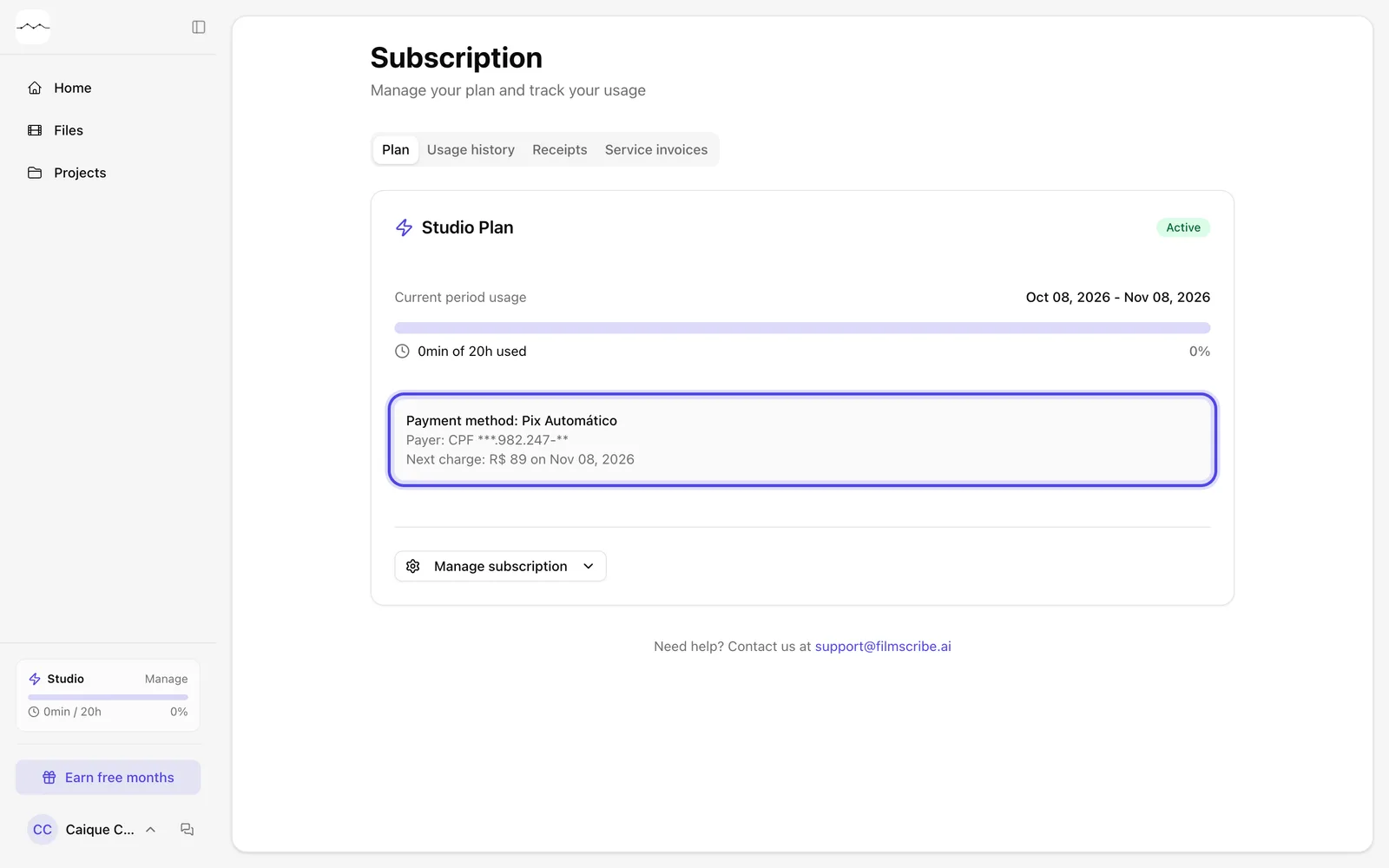
    The Pix Automático payment method, on the Subscription page.
    App screenshot The Pix Automático payment method, on the Subscription page.

Frequently asked questions

Why don't I see the Pix option?

On the plan choice, each plan's button opens the choice between card and Pix Automático. The window only shows for someone without an active subscription.

I already pay by card. Can I switch to Pix?

The Pix option shows for someone without an active subscription. If you pay by card, you switch to Pix by subscribing again, after the card subscription ends.

What happens when I change plans paying with Pix?

Moving down a plan changes right away, and what was left of the period becomes credit on the next charges. Moving up or switching between monthly and annual generates a new QR code, which pays the new plan today minus the days left on the current one.

How do I cancel Pix Automático?

From the Subscription page, as with a card. If you switch Pix Automático off in your bank app, the subscription ends at the end of the period already paid, and the Subscription page offers to authorize again.

Can I change who pays Pix Automático?

Yes. On the Subscription page, open Manage subscription and choose Change who pays. Fill in the CPF or CNPJ, name and address of whoever will pay, and that person authorizes the QR code in their bank app. If your subscription is up to date, nothing is charged right away, and nothing changes until they authorize: the next charge then goes in their name. If a charge didn't go through, the new payer's QR code pays that charge right away. In the last days before a charge, the change waits for that charge to go through, and the screen says from when you can change.

What if a Pix charge doesn't go through?

We let you know by e-mail, and the bank tries again over the next few days. If you want to sort it out sooner, the Subscription page generates a QR code to pay right away.

Still need help?

Talk to us. We answer on WhatsApp and by email.

Your next story is already waiting.

Upload a file or paste a YouTube link and see the transcript, chapters and clips from your own recording.