
How to join a project's files and see it all together

Open the project in Projects and click Join and see it all together. Say whether the same people speak in every file and click Join. The finished files become one transcript, in the project's order, with the chapters, emotions and hooks of each one. Nothing is transcribed again and no hours are used.
Before you start
The project needs at least 2 finished files. See how to create a project and move files into it in the article about projects.
Step by step
-
Step 1: Click Join and see it all together
In the menu, open Projects and go into the project. At the top, click Join and see it all together.
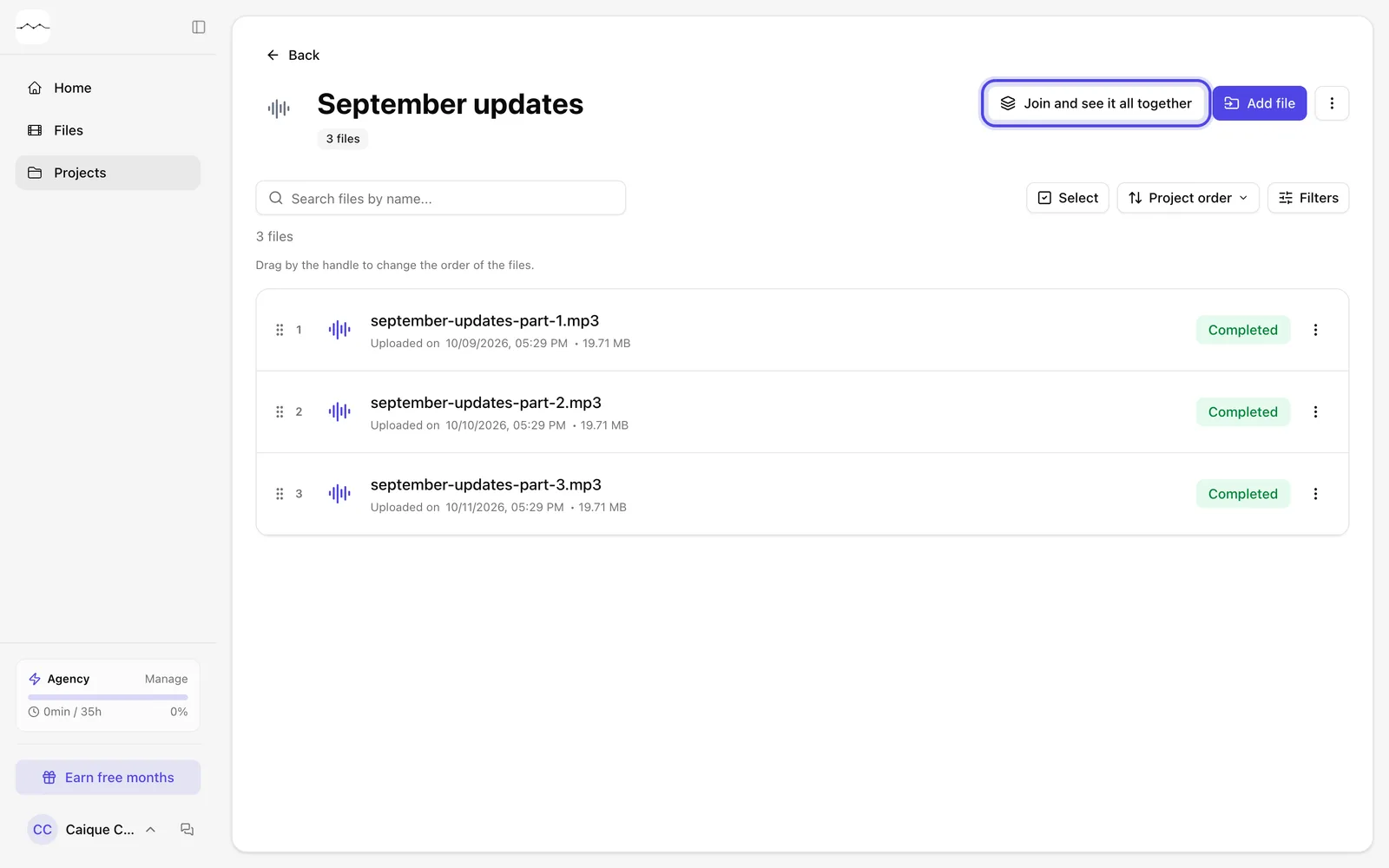
App screenshot The project page, with the Join and see it all together button. -
Step 2: Say who speaks and click Join
The first time, a window shows up. Check The same people speak in every file when each file's Person 1 is the same person. Leave it unchecked if each file has different people. Click Join. While we join the files, the page shows the progress.
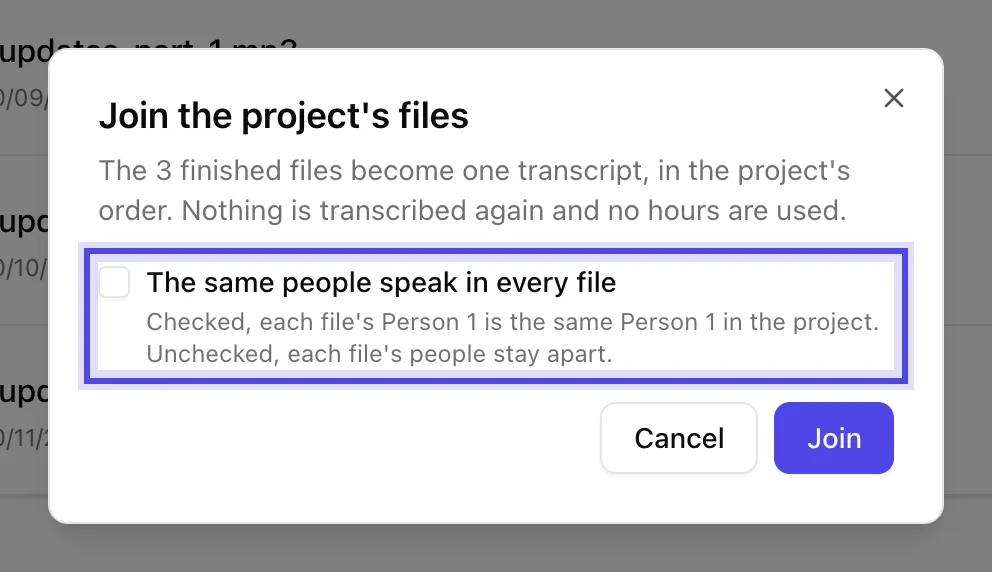
App screenshot The Join the project's files window, with the speakers choice. -
Step 3: Read it all together
The transcript shows every file in sequence, with each file's name before its lines. Each line has its time in the project and its time in the file. To open one of the files, click Open file, next to its name.
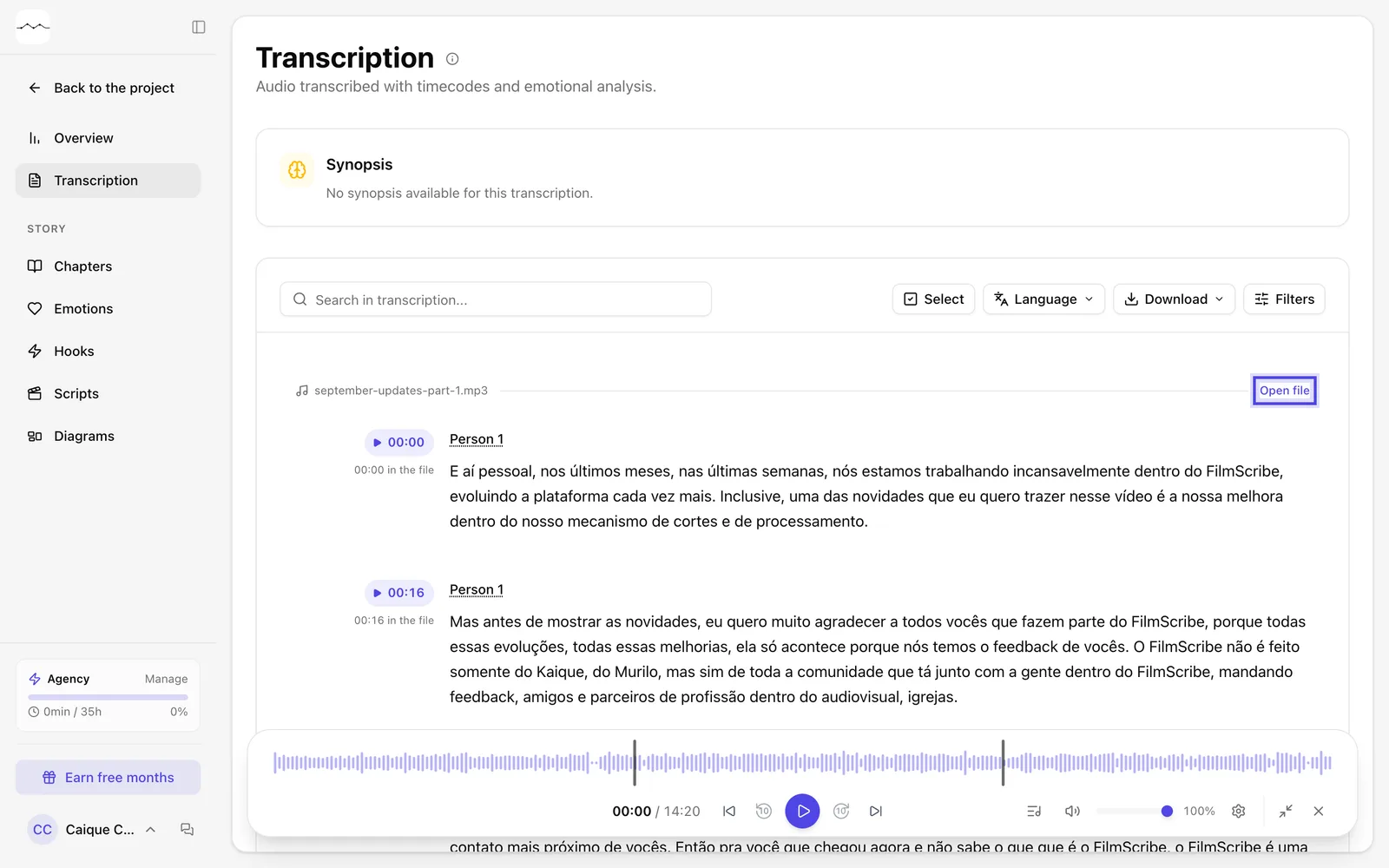
App screenshot The joined project's transcript, with each file's name and Open file.
Optional steps
You don't need these steps to finish the task. Use them if you want.
-
OptionalChange the order of the files
On the project page, with the list in Project order and no filters, drag each file by its handle (Drag by the handle to change the order of the files.). To undo it, open the project's menu (the three dots) and click Back to the order sent in.
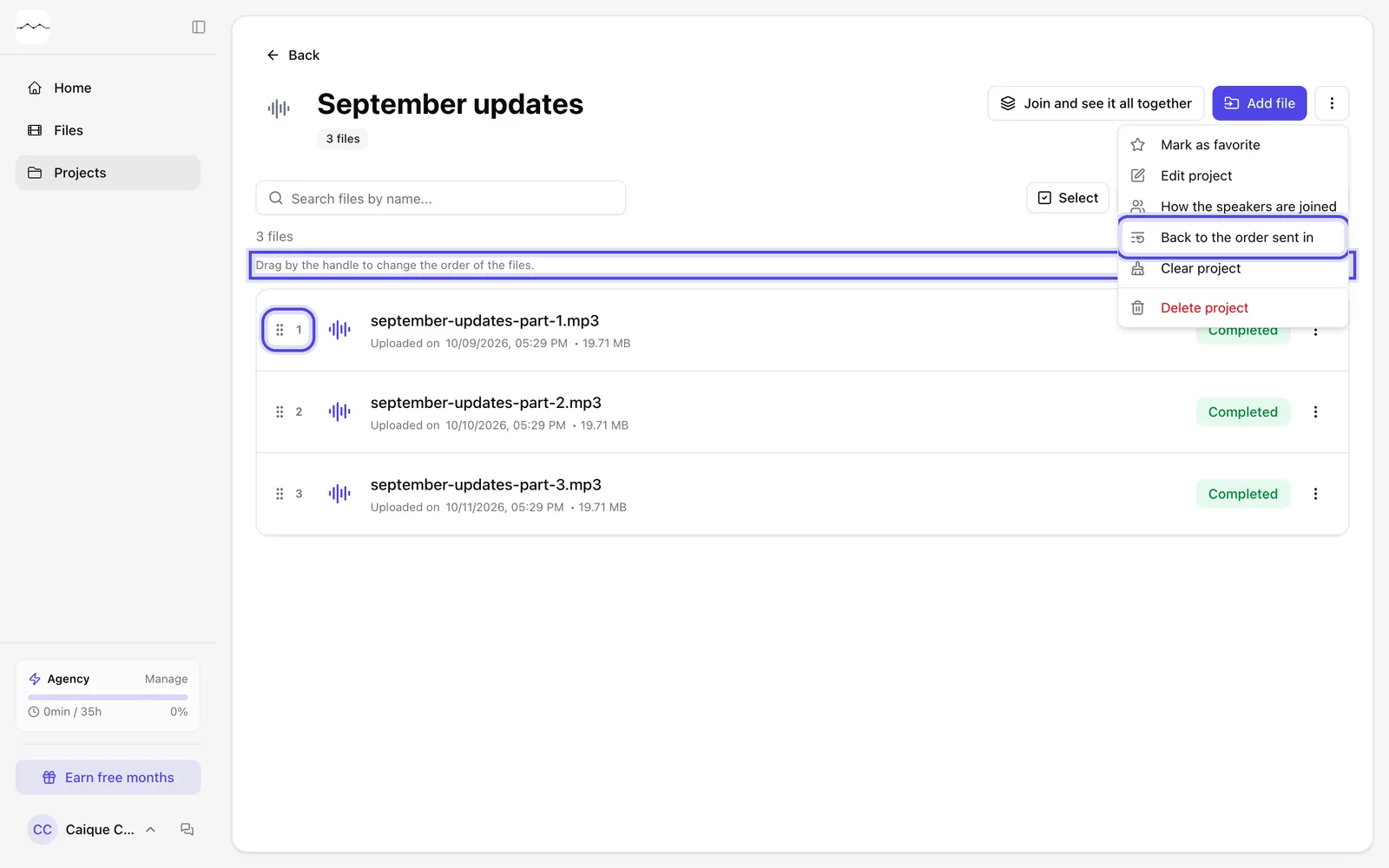
App screenshot The project's files with the handle and each one's position number. -
OptionalWrite a script from part of the project
In the joined project, create a script as you would in a file. In Where the script comes from, choose Only some files or stretches and check the files, each one whole or only a stretch.
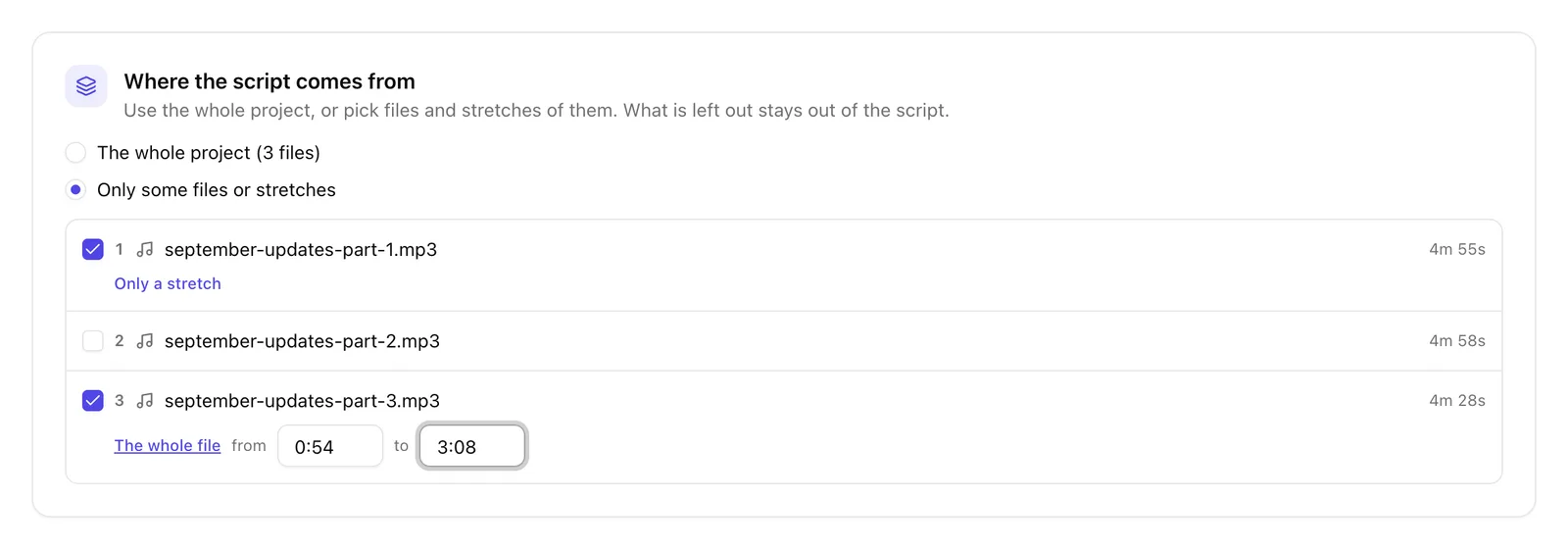
App screenshot Where the script comes from, with some files picked and a stretch of one of them.