
How to upload several audio files at once

In Upload File, drag several audio files at once or select them all together. Choose whether you want one transcription per file or to join them into one transcription, in the order you choose. Click Continue, choose the content type of each one and start processing.
Step by step
-
Step 1: Select the audio files
On the Upload File page, drag the files onto Drop your files here or click and select several.
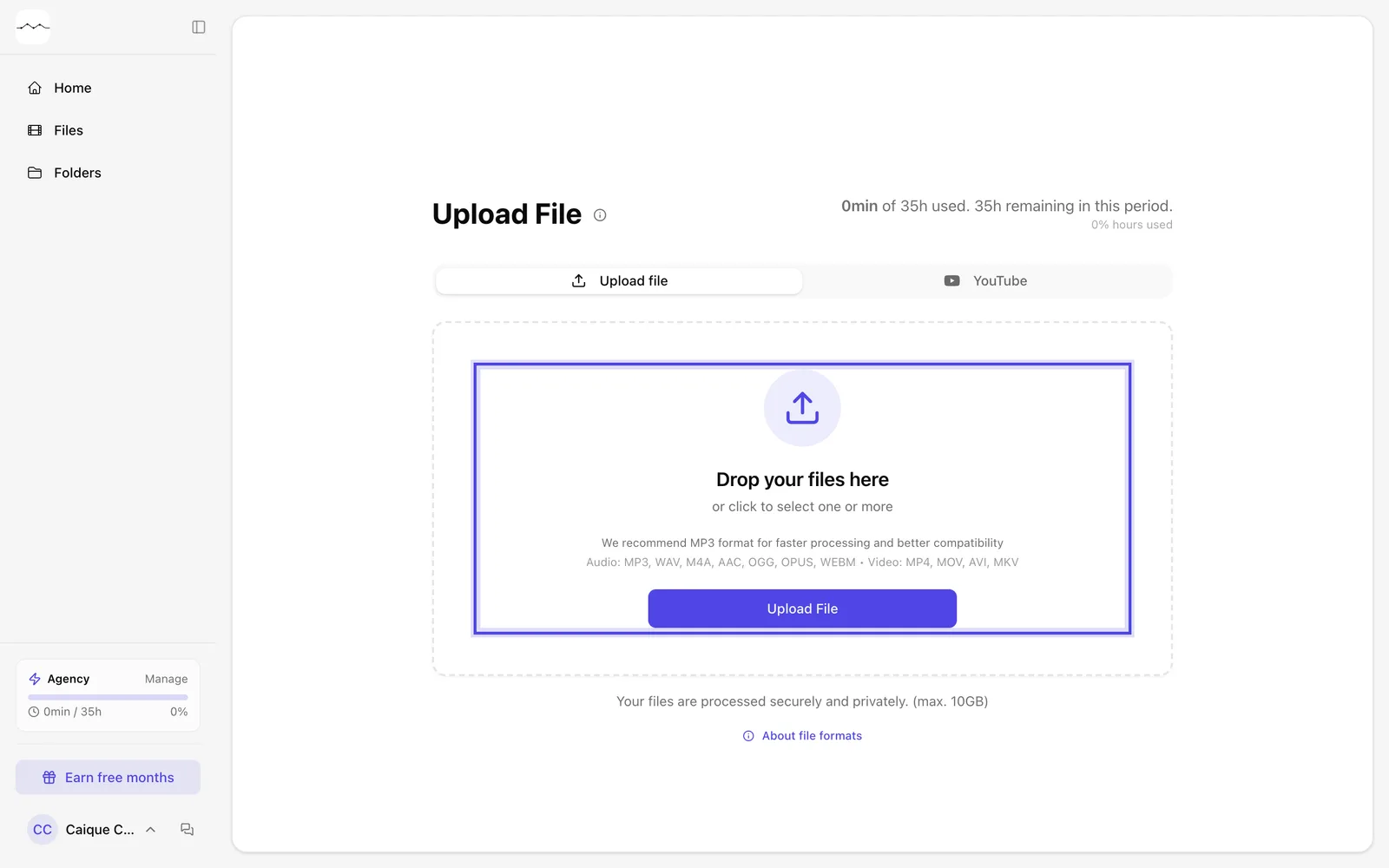
App screenshot The upload area for several files. -
Step 2: Choose how to transcribe
Choose One transcription per file, the Recommended option, or Join them into one transcription, for a recording that came split into parts. Click Continue.
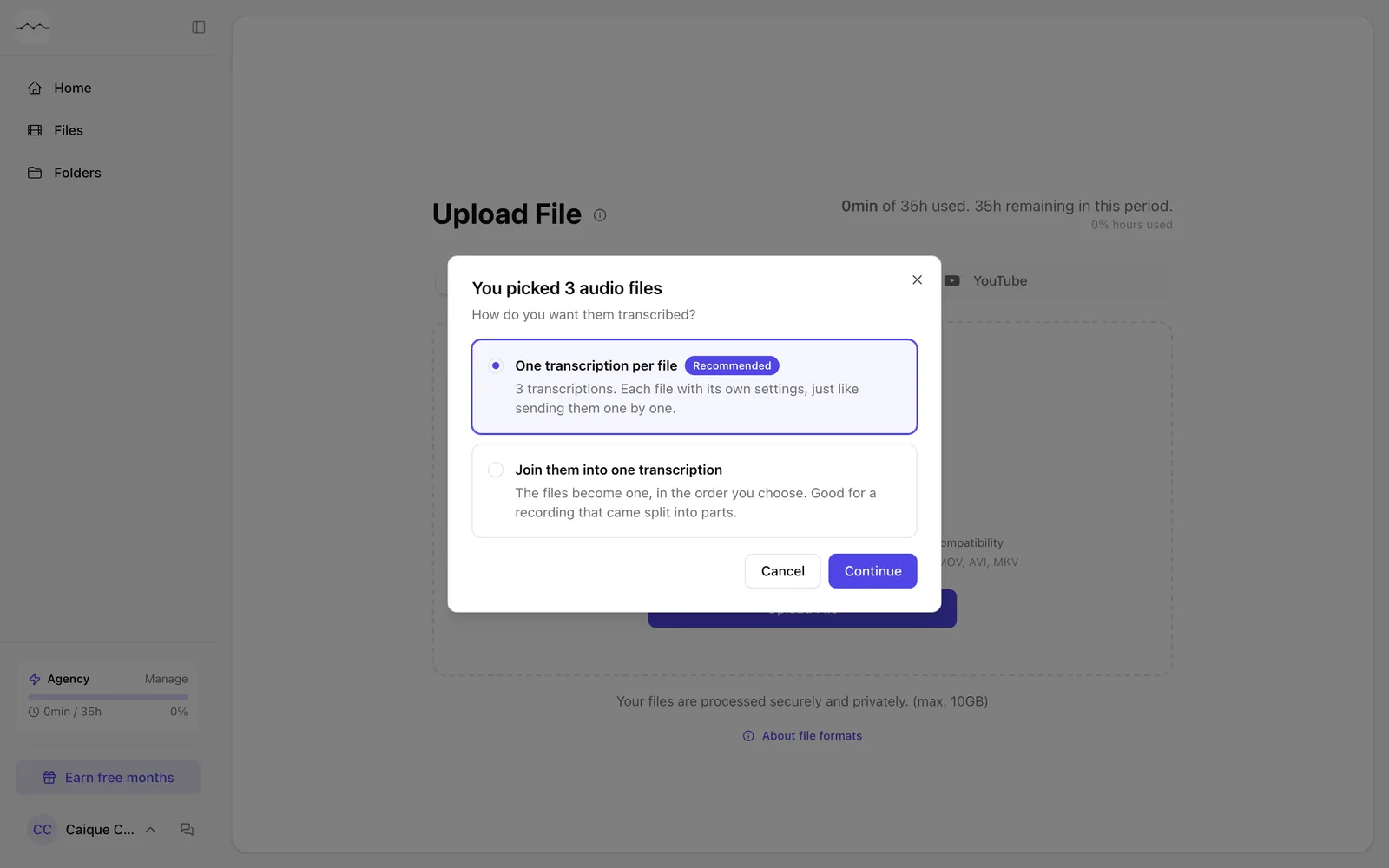
App screenshot The choice between one transcription per file or all of them together. -
Step 3: Choose the type and start
Choose the content type of each audio file and click Start Processing.
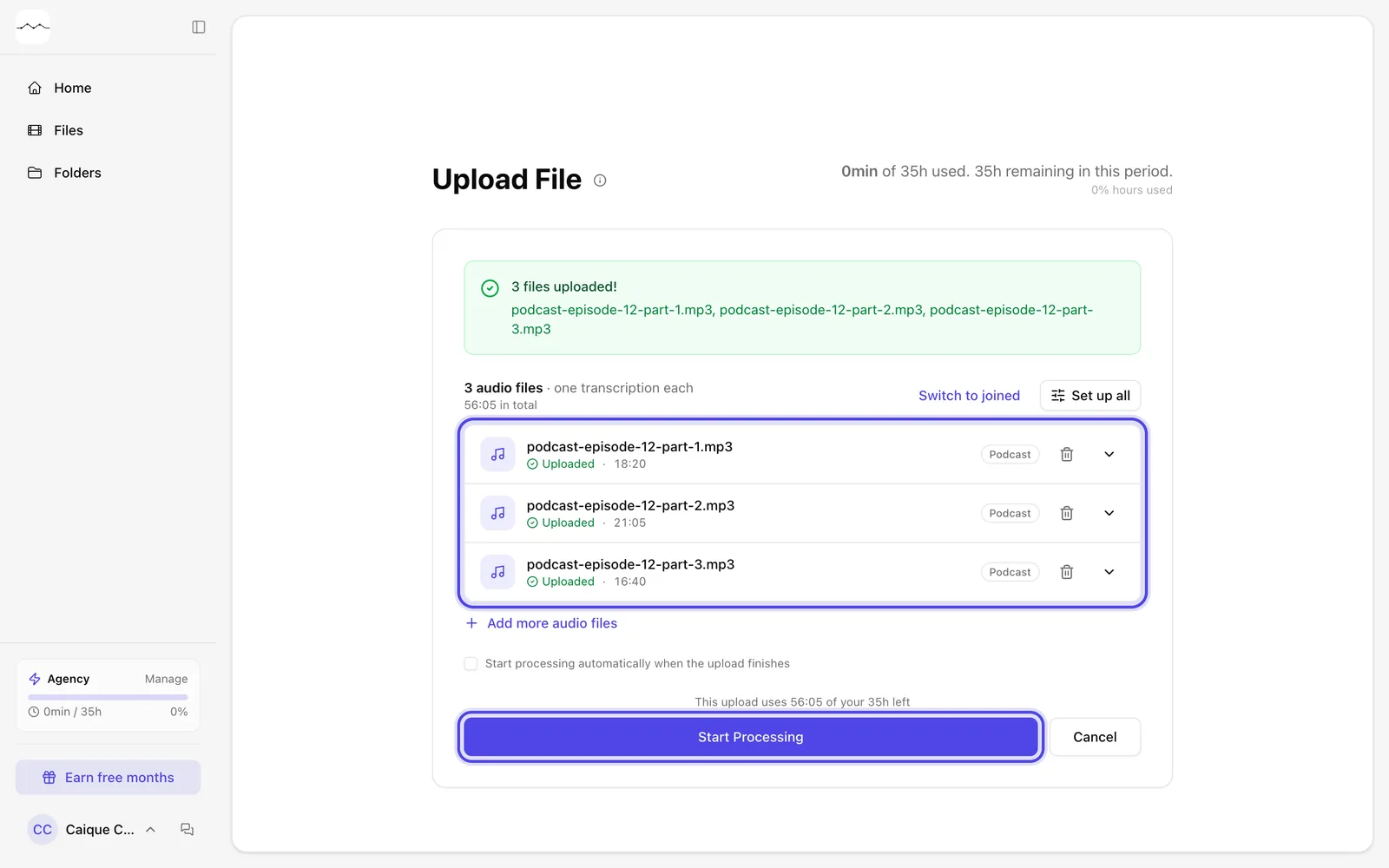
App screenshot Each audio file with its type, and the Start Processing button.
Optional steps
You don't need these steps to finish the task. Use them if you want.
-
OptionalSet up all of them at once
Set up all applies the same options to every audio file. Trimming stays per file, because each one has its own length.
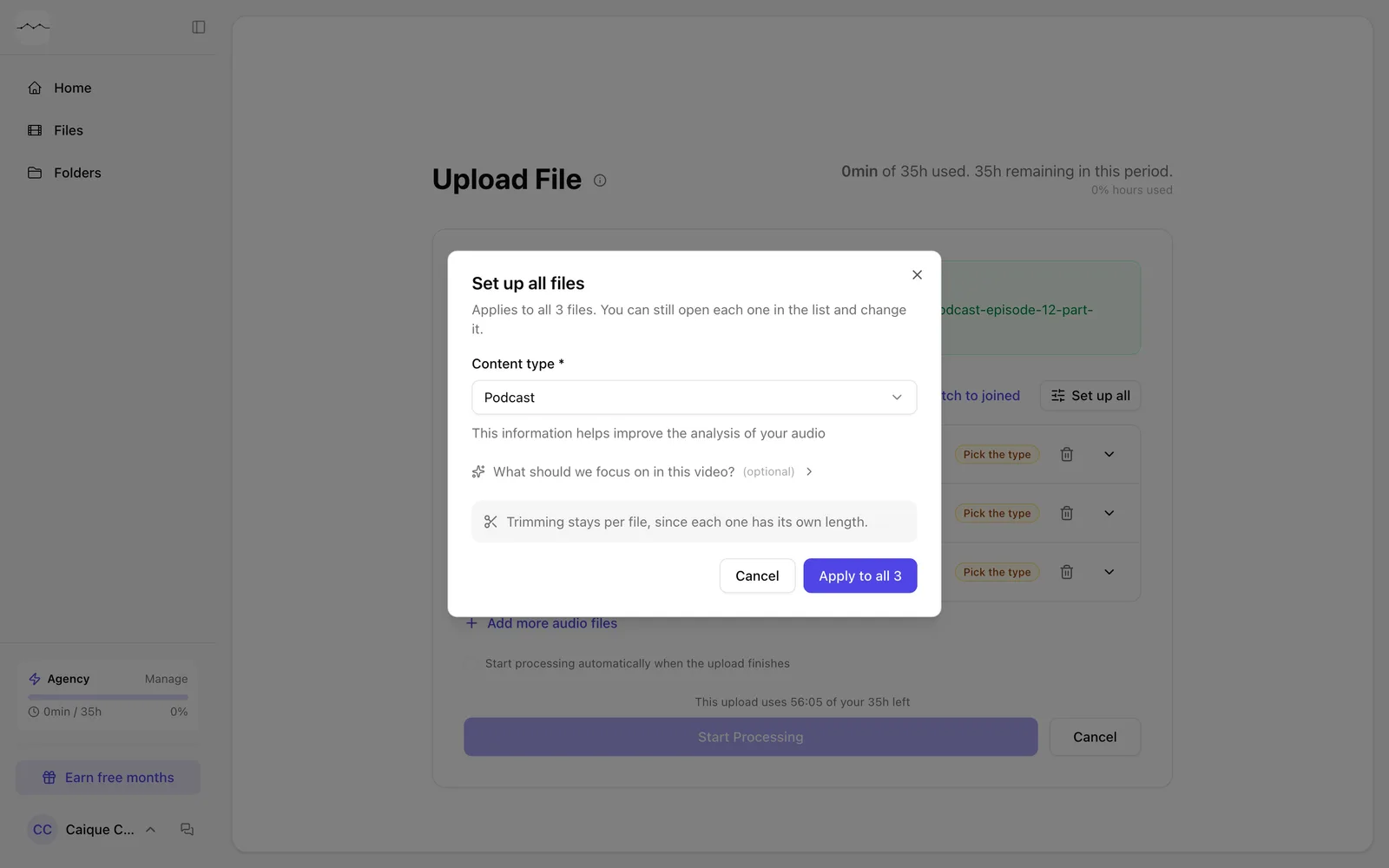
App screenshot The Set up all files window. -
OptionalAdjust the order and the speakers
When joining them, drag the files in the list to change their order (Drag to change the order). Check The same people speak in every file when that's the case.
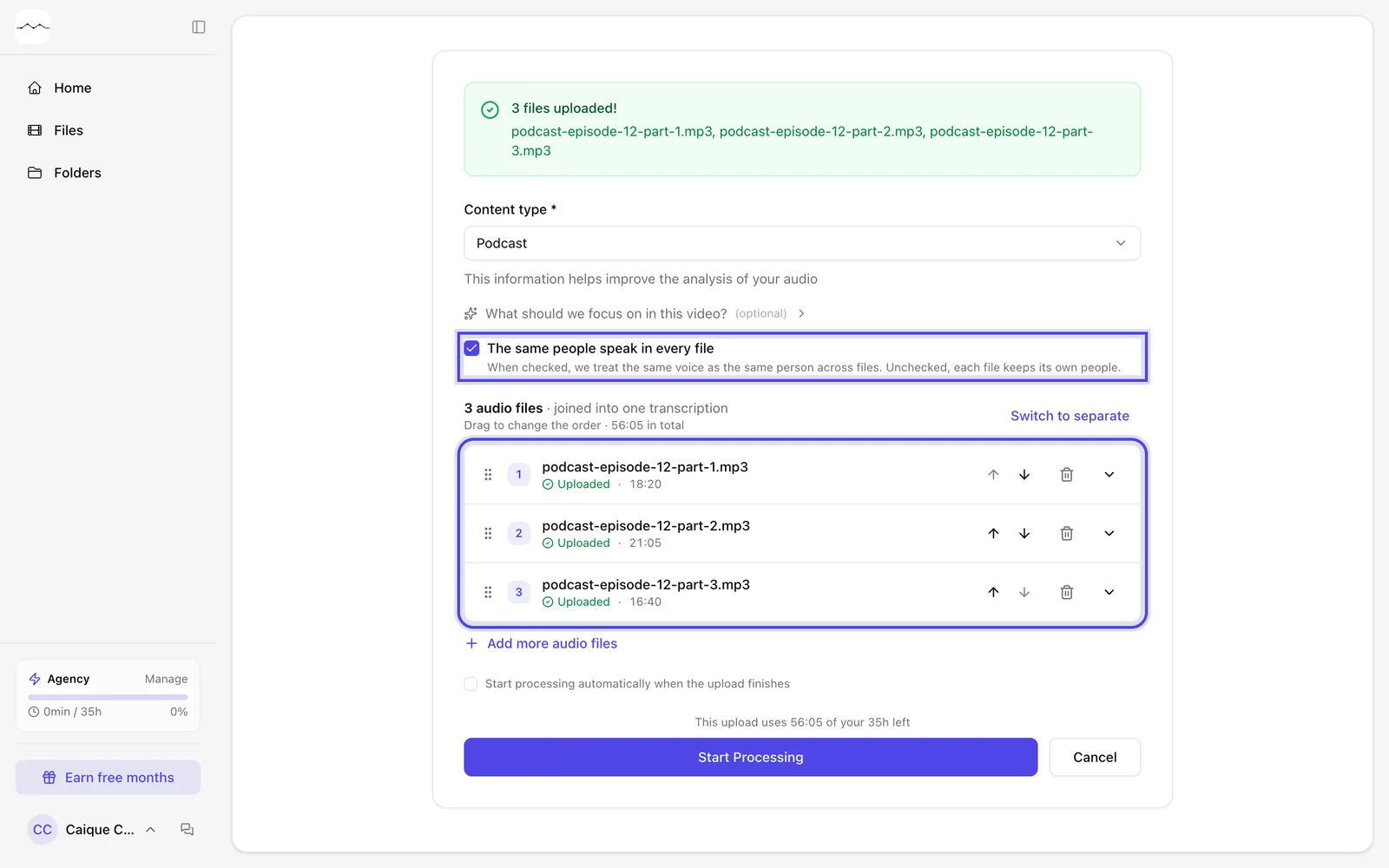
App screenshot The audio files together, in the list's order, with The same people speak in every file checked.