
How to highlight words in the transcript

On the Transcription page, select the words you want to mark with your mouse and click Highlight, in the bar that appears over the selection. The arrow next to it picks the color, and each color can get a name. Then Filters shows only the lines with a highlight, and the Download menu downloads your highlights. Highlighting is part of Studio and Agency.
Step by step
-
Step 1: Select the words
On the Transcription page, select the words you want to mark with your mouse, even across different passages. A bar appears over the selection, with Highlight first.
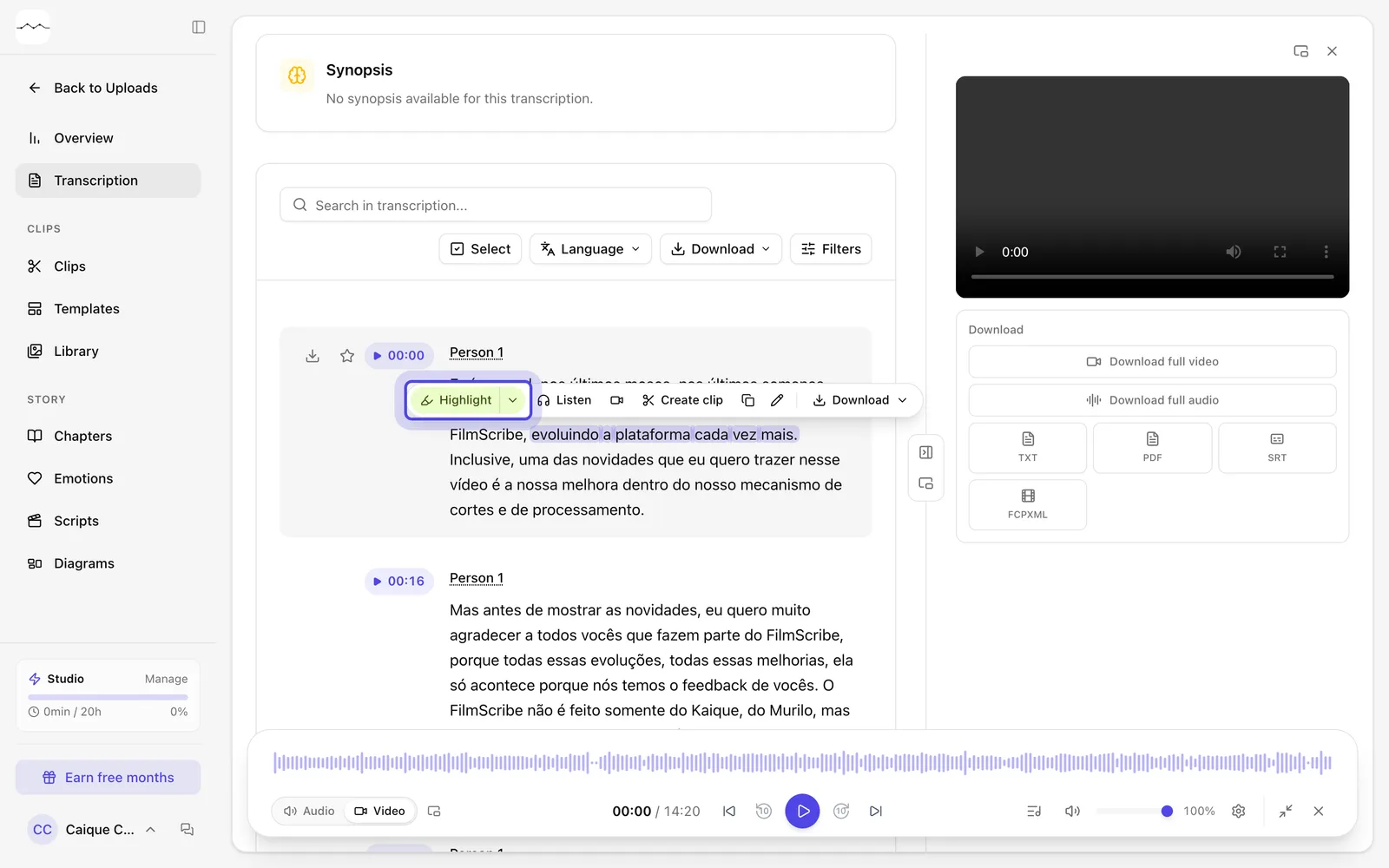
App screenshot Selected words and the Highlight button in the bar over the selection. -
Step 2: Click Highlight
Click Highlight. The words are marked in the button's color, and the highlight is saved in the file.
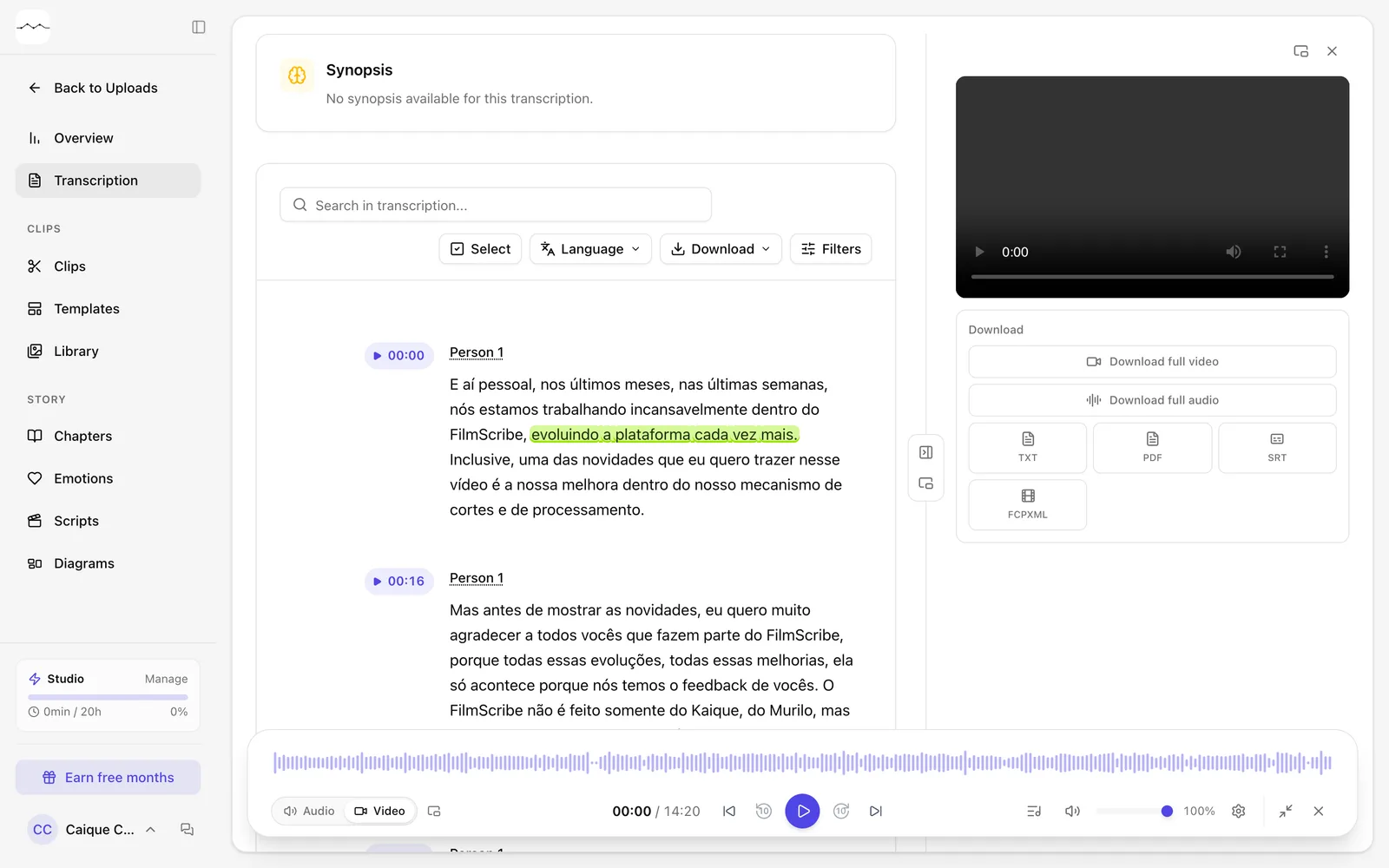
App screenshot The words highlighted in green, in the middle of the transcript.
Optional steps
You don't need these steps to finish the task. Use them if you want.
-
OptionalPick another color
Click the arrow next to Highlight (Highlight color) and choose Green, Pink, Blue or Orange. The words are highlighted in that color, and the Highlight button keeps the last color you picked.
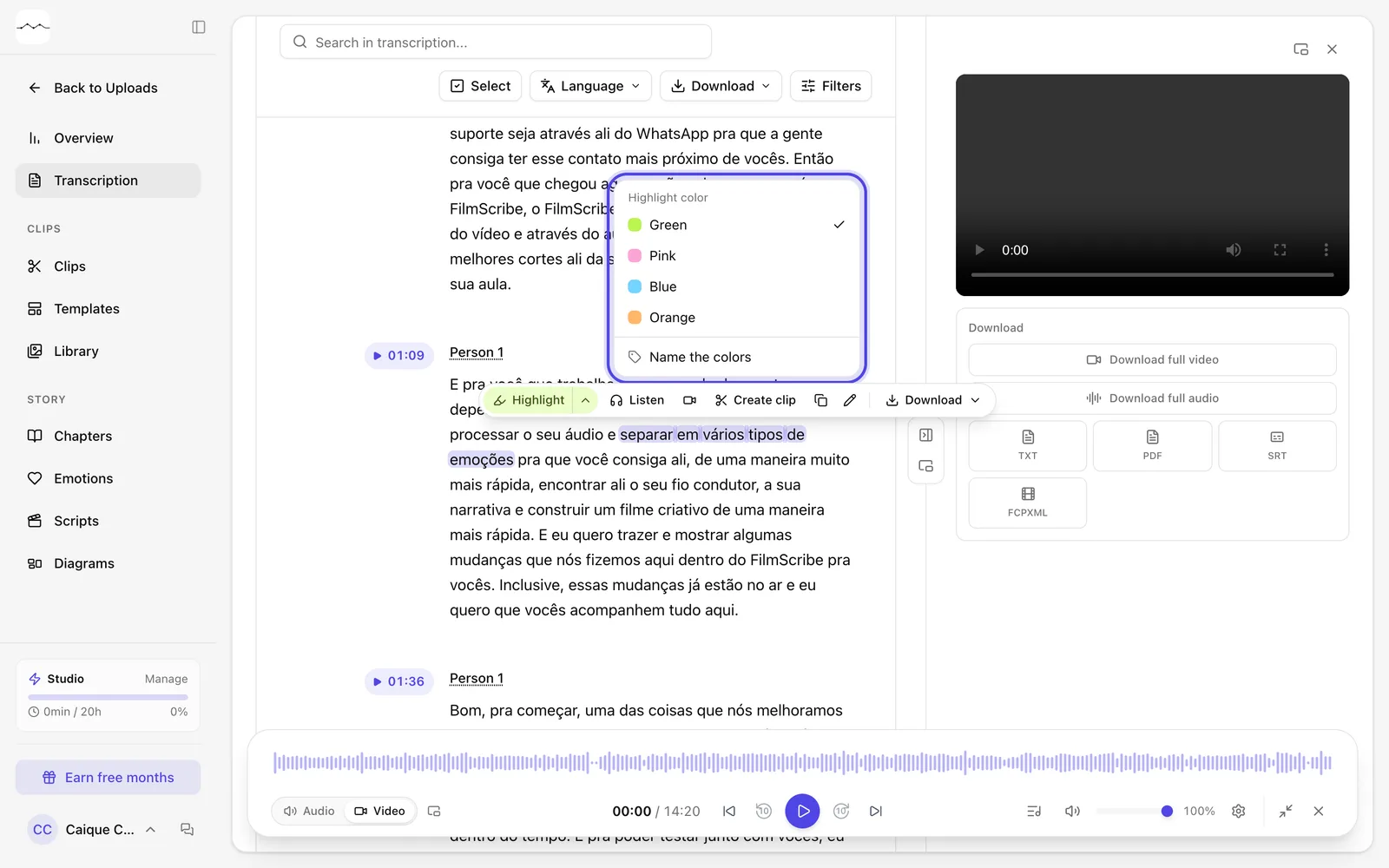
App screenshot The Highlight color list, opened by the arrow next to Highlight. -
OptionalGive each color a name
In the same list, click Name the colors. Write a name for each color, like For the clip or To review, and click Save. The name shows when you highlight, in the filter and in the Download menu, and it applies to all your files. Leave it blank to use the color's name.
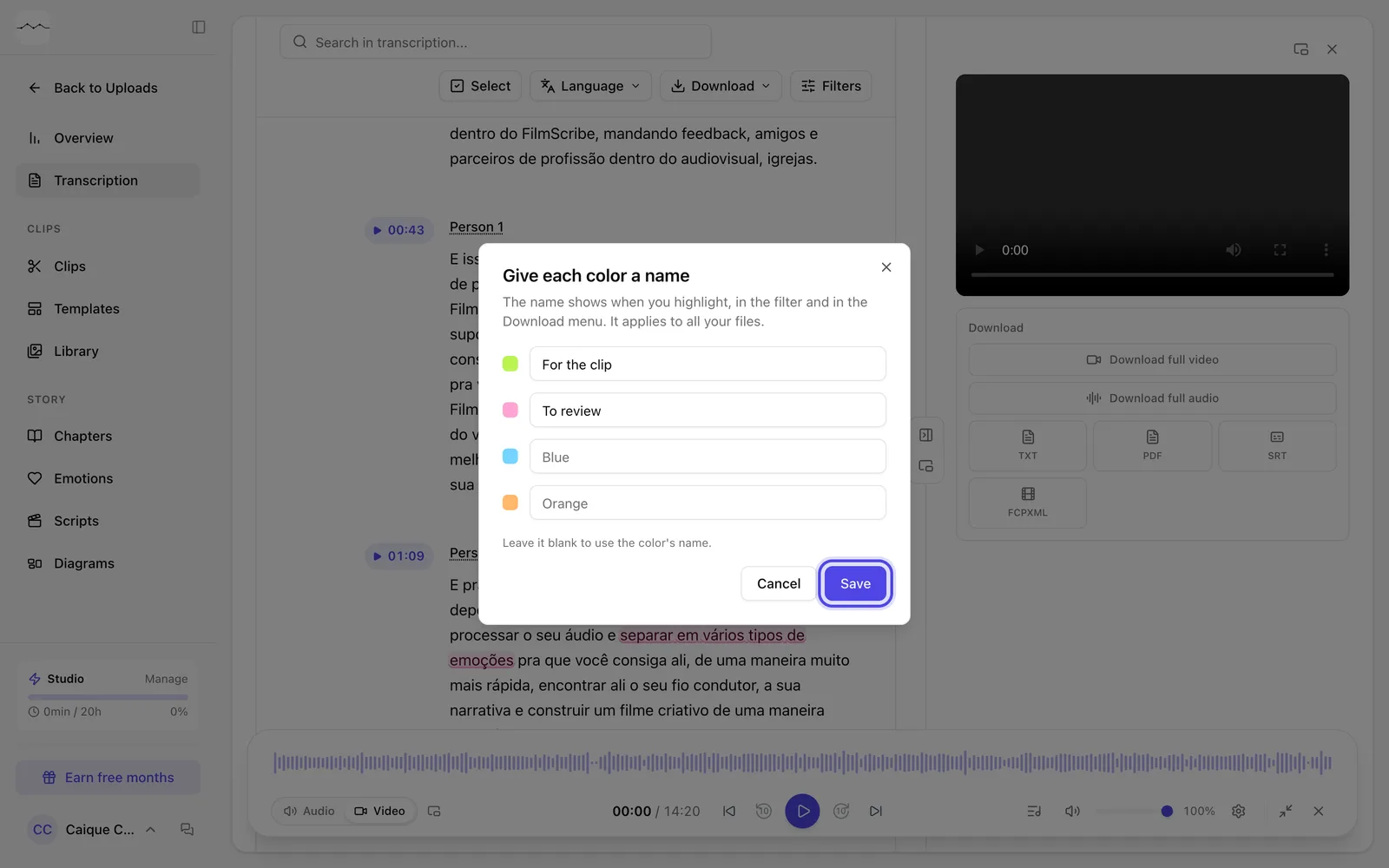
App screenshot The Give each color a name window, with the names written in. -
OptionalRemove the highlight or change its color
Select words that are already highlighted. Instead of Highlight, the bar shows Remove highlight, which erases it, and Change color, which paints the same highlight in another color. If the selection goes past the highlight, the bar shows Highlight again, and the new highlight covers the whole selection, replacing the old one.
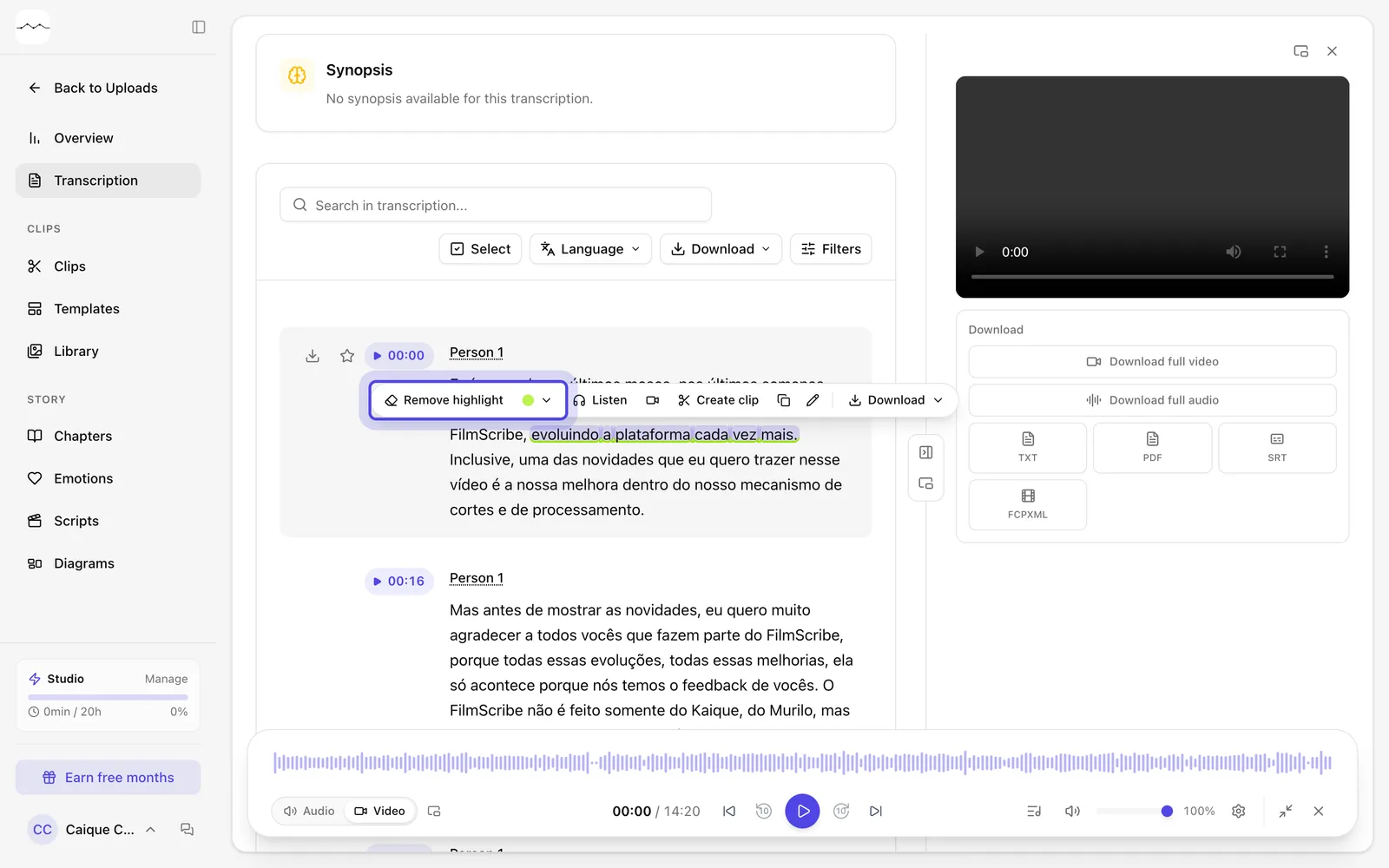
App screenshot Remove highlight and Change color, in the bar over highlighted words. -
OptionalShow only the lines with a highlight
Click Filters. Under Highlights, choose Only highlights or one color, by the name you gave it. All lines brings back the whole text.
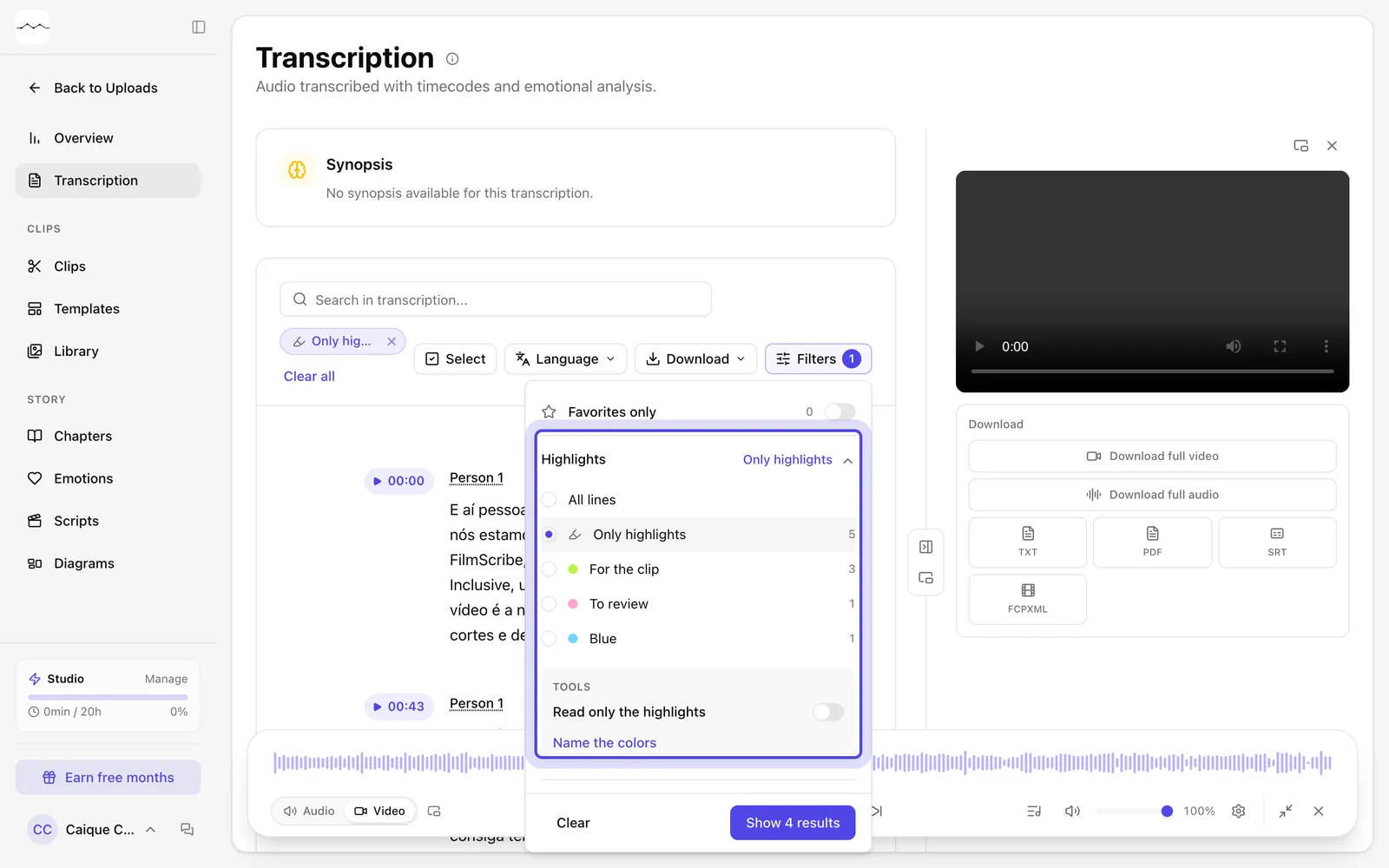
App screenshot The Highlights part of the Filters panel, with an option for each color. -
OptionalRead only the highlights
In the same panel, turn on Read only the highlights. The words without a highlight fade, and what you highlighted stands out.
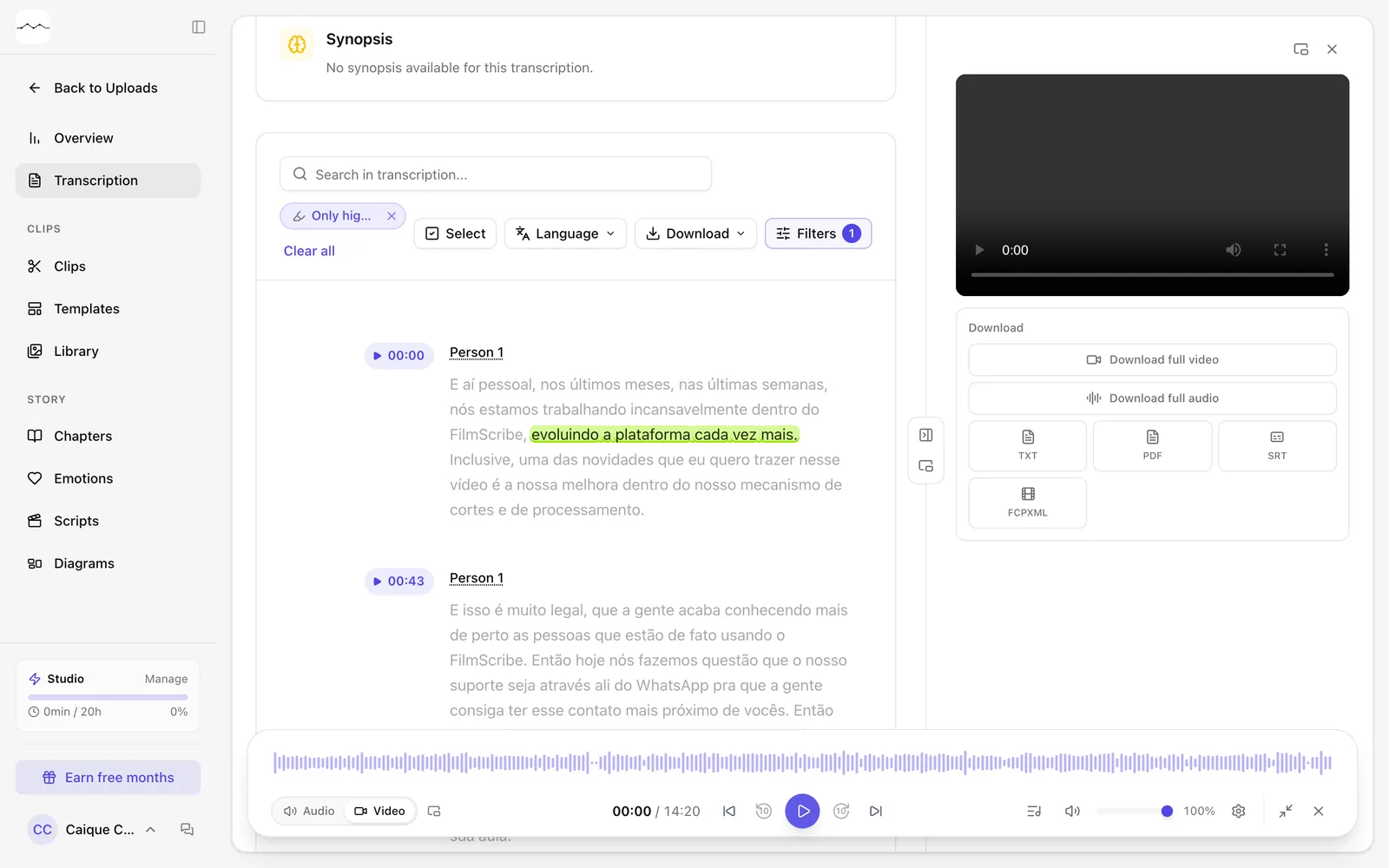
App screenshot The transcript with Read only the highlights on: only the highlighted words stay strong. -
OptionalDownload the highlights
Click Download. In the Highlights part, choose Download single audio, Download separate audios, Download as .TXT or Download as .SRT. For video, also Download separated videos. With a color picked in Filters, the menu downloads only that color's highlights.
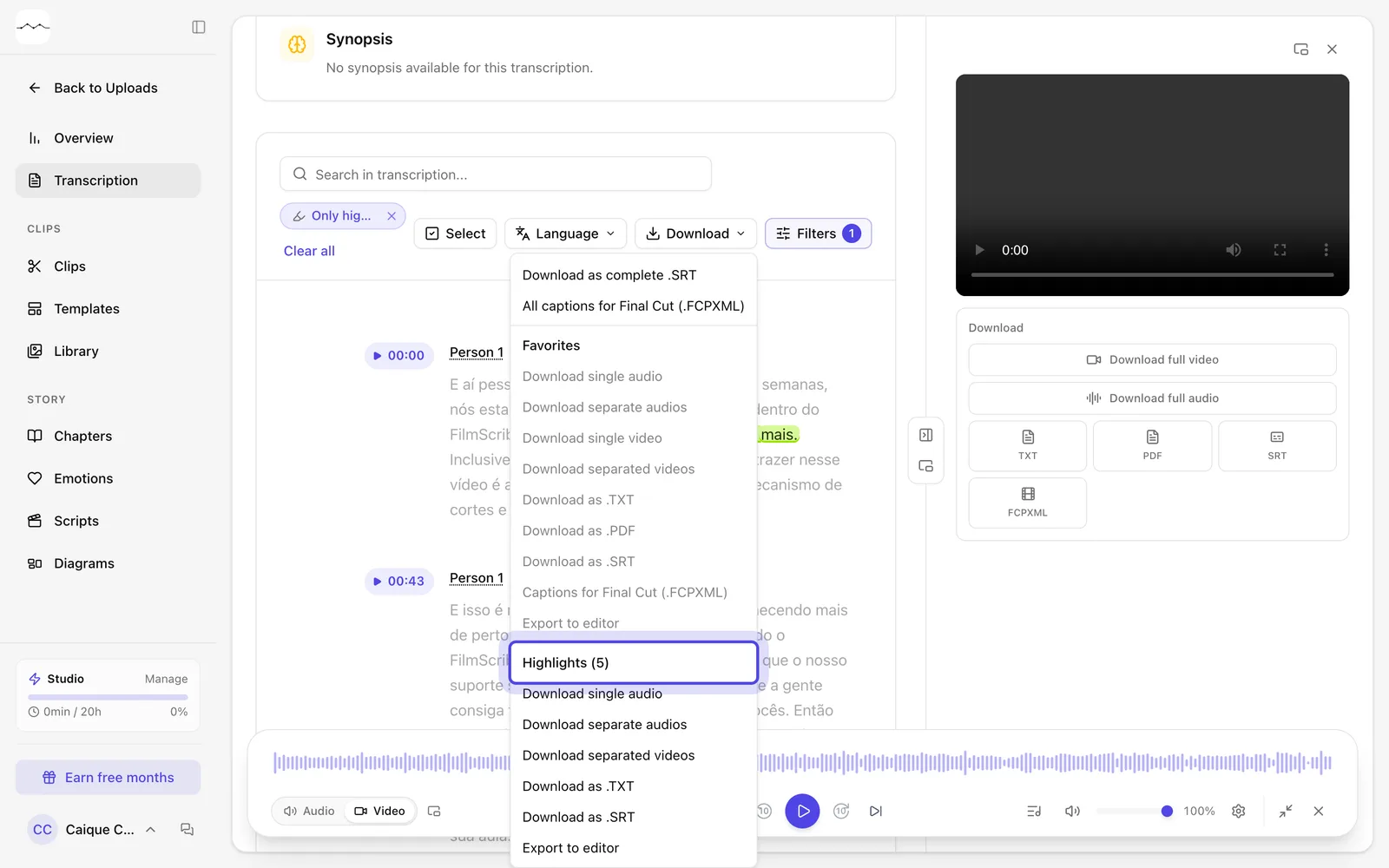
App screenshot The Highlights part of the Download menu.