
Transcription
How to favorite passages and download them all at once

Short answer
On the Transcription page, click the star on the passages you want to keep. Then click Download: the Favorites part of the menu downloads them all at once, as a single audio, separate audios, text, PDF or captions. For video, also as a single video or separate videos.
Available on Pro, Studio and Agency (every plan)
Step by step
-
Step 1: Favorite the passages
On the Transcription page, click the star next to each passage's time (Add to favorites). The star fills in.
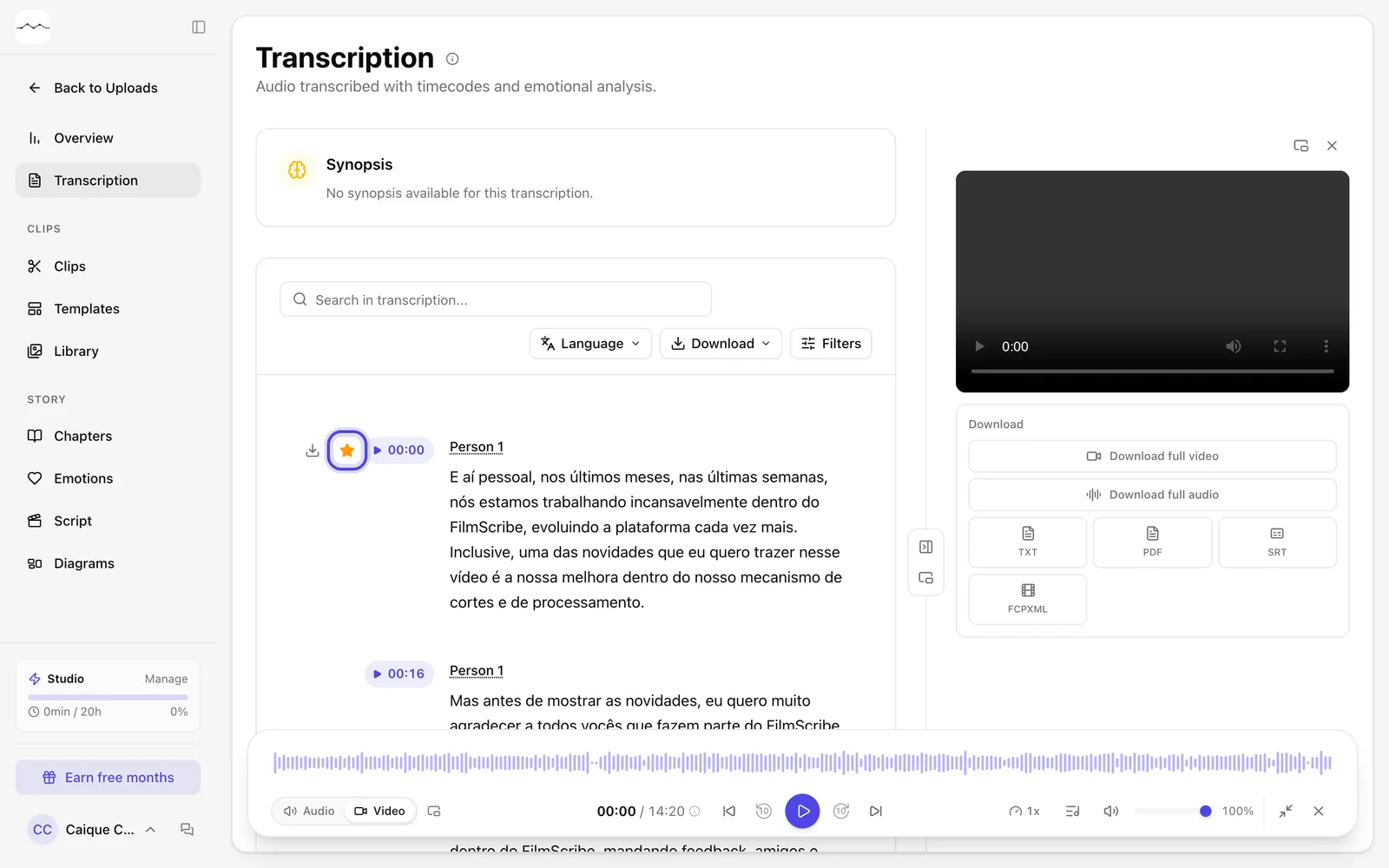
App screenshot Favorited passages, with the star filled in. -
Step 2: Download the favorites
Click Download. In the Favorites part, choose Download single audio, Download separate audios, Download as .TXT, Download as .PDF or Download as .SRT. For video, also Download single video and Download separated videos.
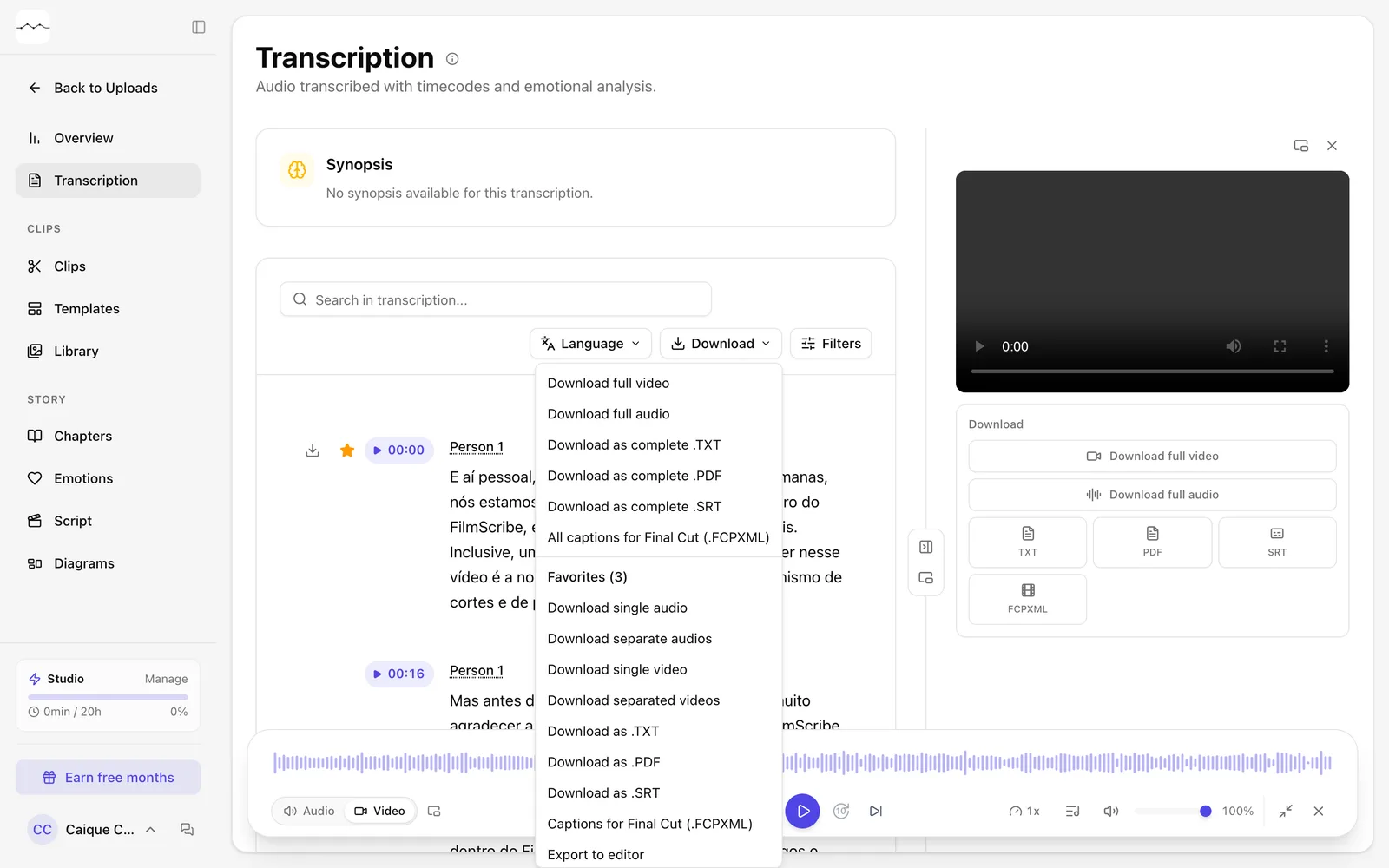
App screenshot The Favorites part of the Download menu.
Optional steps
You don't need these steps to finish the task. Use them if you want.
-
OptionalSee only the favorites
Open Filters and turn on Favorites only.
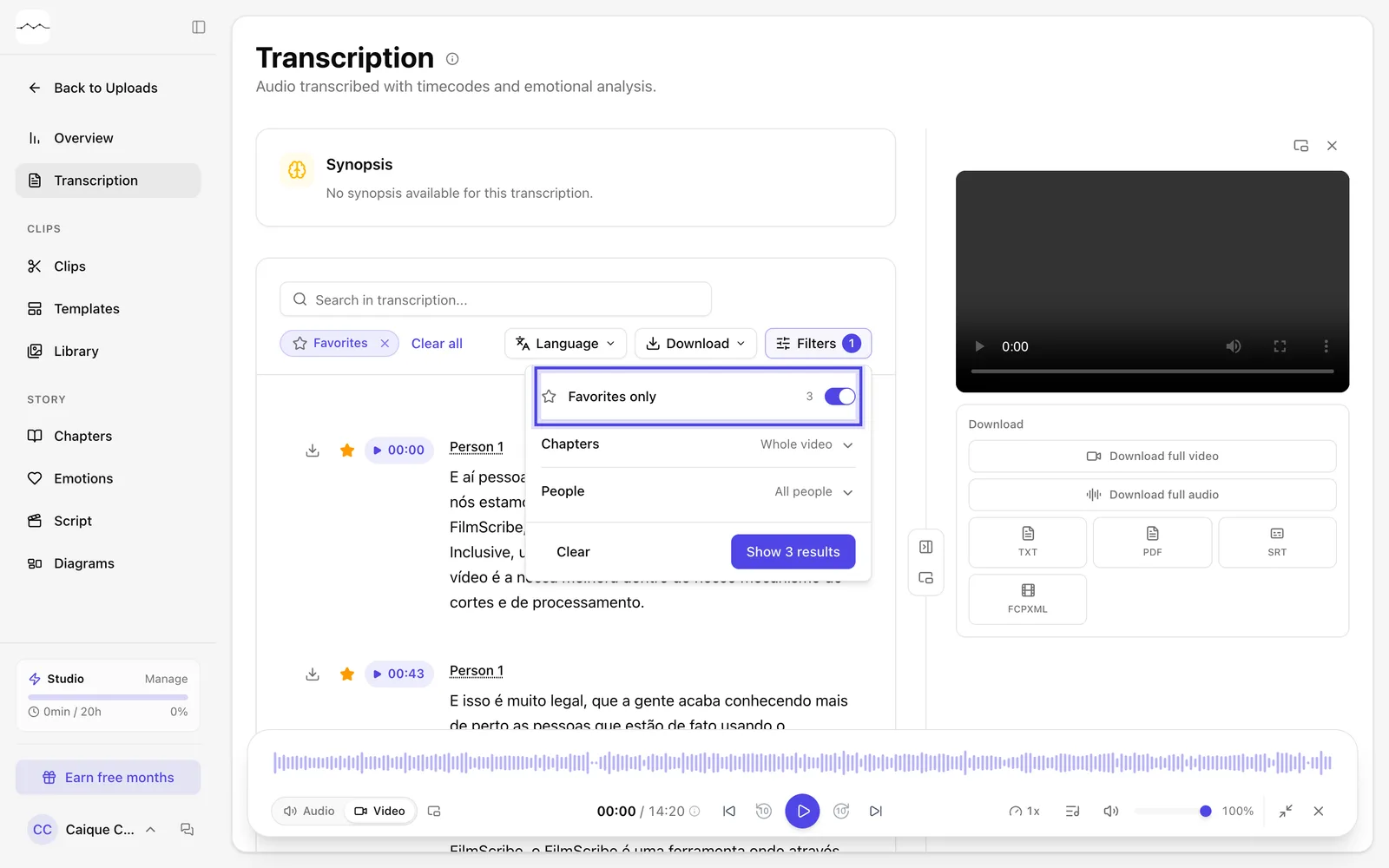
App screenshot Favorites only turned on in the Filters panel.