
What the file Overview shows

Inside a file, Overview is the first page in the menu. It shows the file's numbers, such as the audio duration, the words transcribed and the speakers identified, what's ready to open and the summary, with the chapters and, for audio files, the synopsis. The buttons take you straight to the transcription, the clips and the chapters.
Step by step
-
Step 1: Open the Overview
Inside the file, click Overview in the left menu. The numbers sit at the top: Audio duration, Words transcribed, Speech segments, Speakers identified and Key moments.
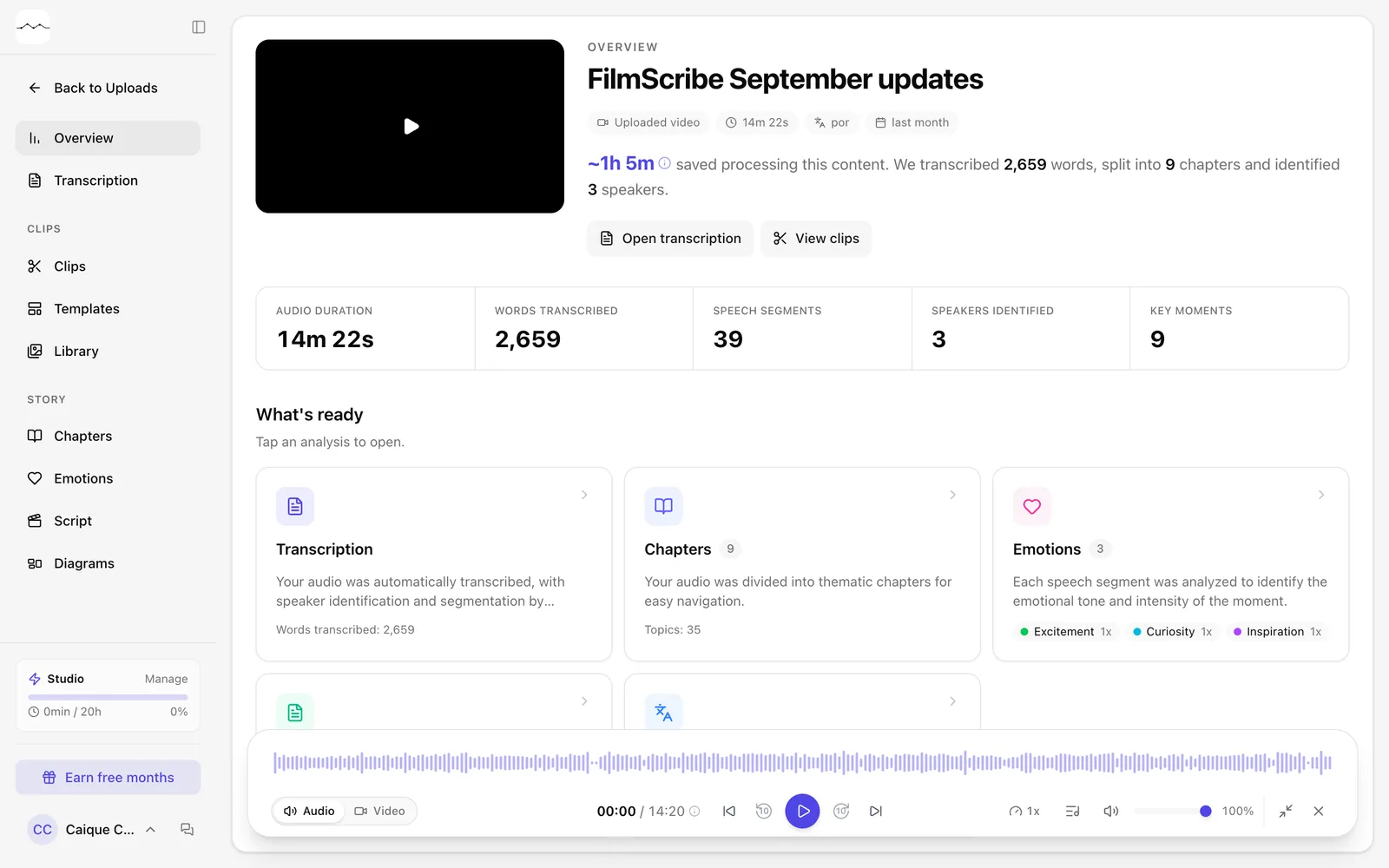
App screenshot The top of the Overview page. -
Step 2: See what's ready
In What's ready, click an analysis to open it. Summary holds the chapters and, for audio files, the synopsis; click a time to listen.
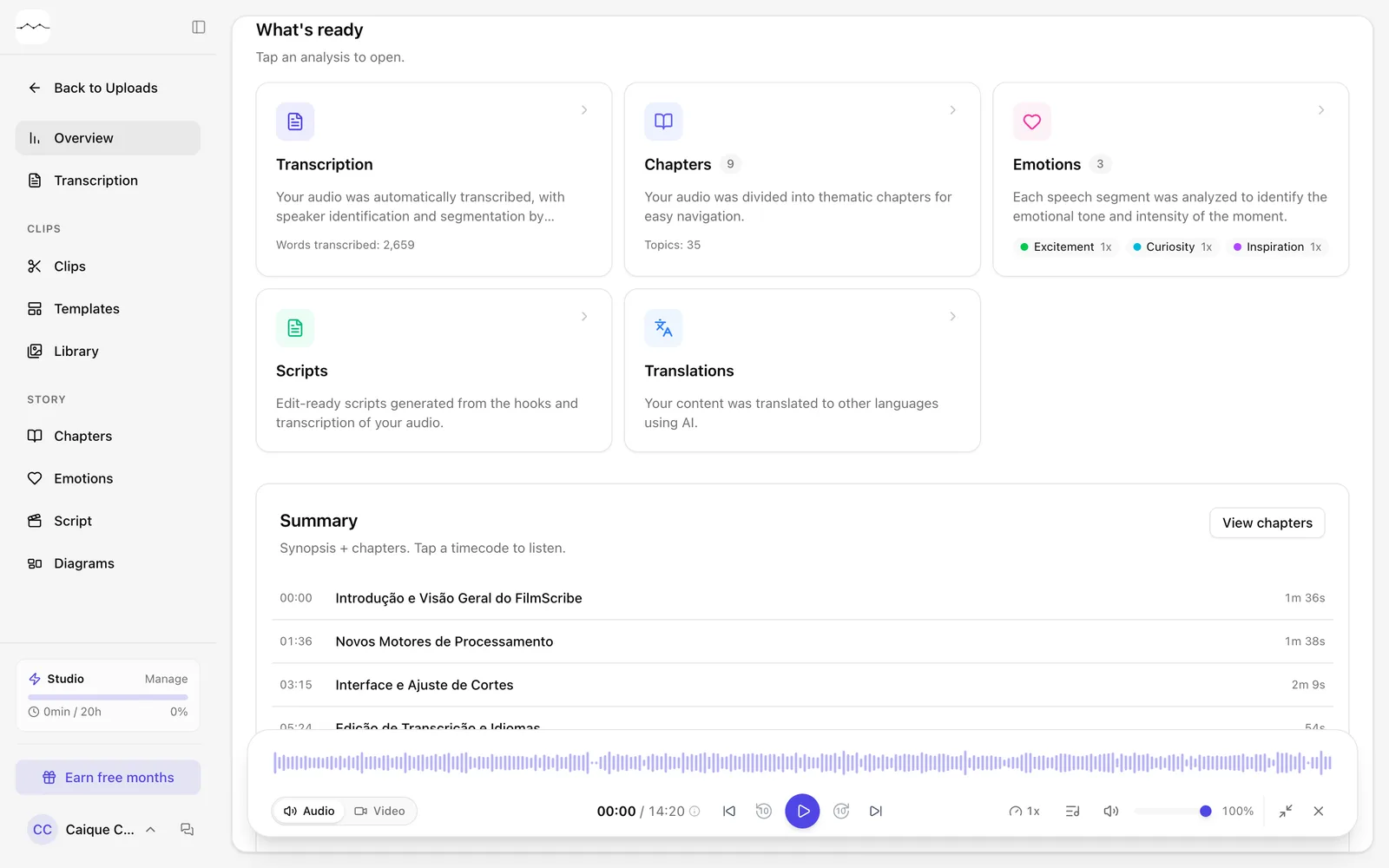
App screenshot What's ready and the summary.
Optional steps
You don't need these steps to finish the task. Use them if you want.
-
OptionalGo straight to a page
Use Open transcription, View clips or View chapters.
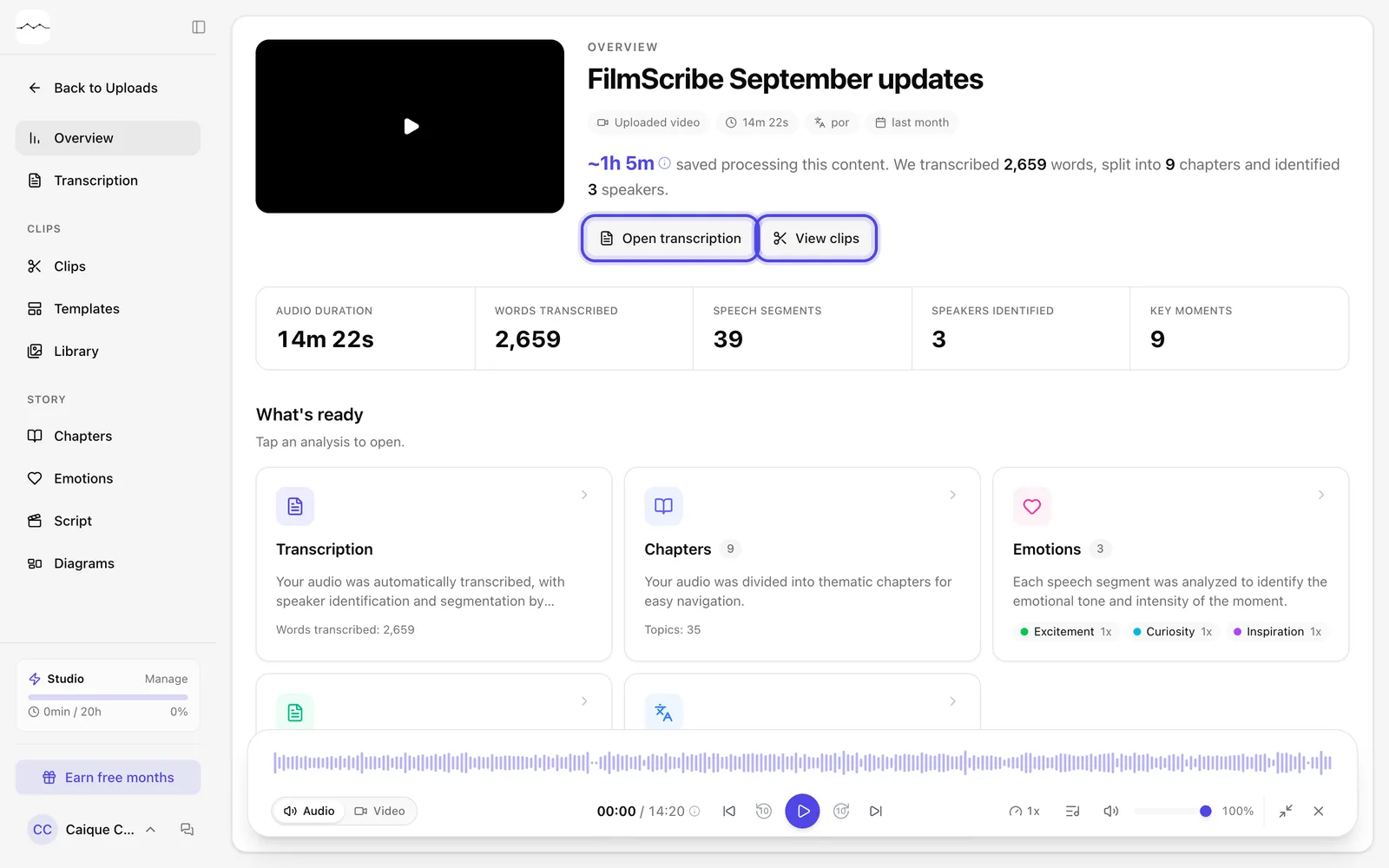
App screenshot Open transcription and View clips, at the top of the Overview. 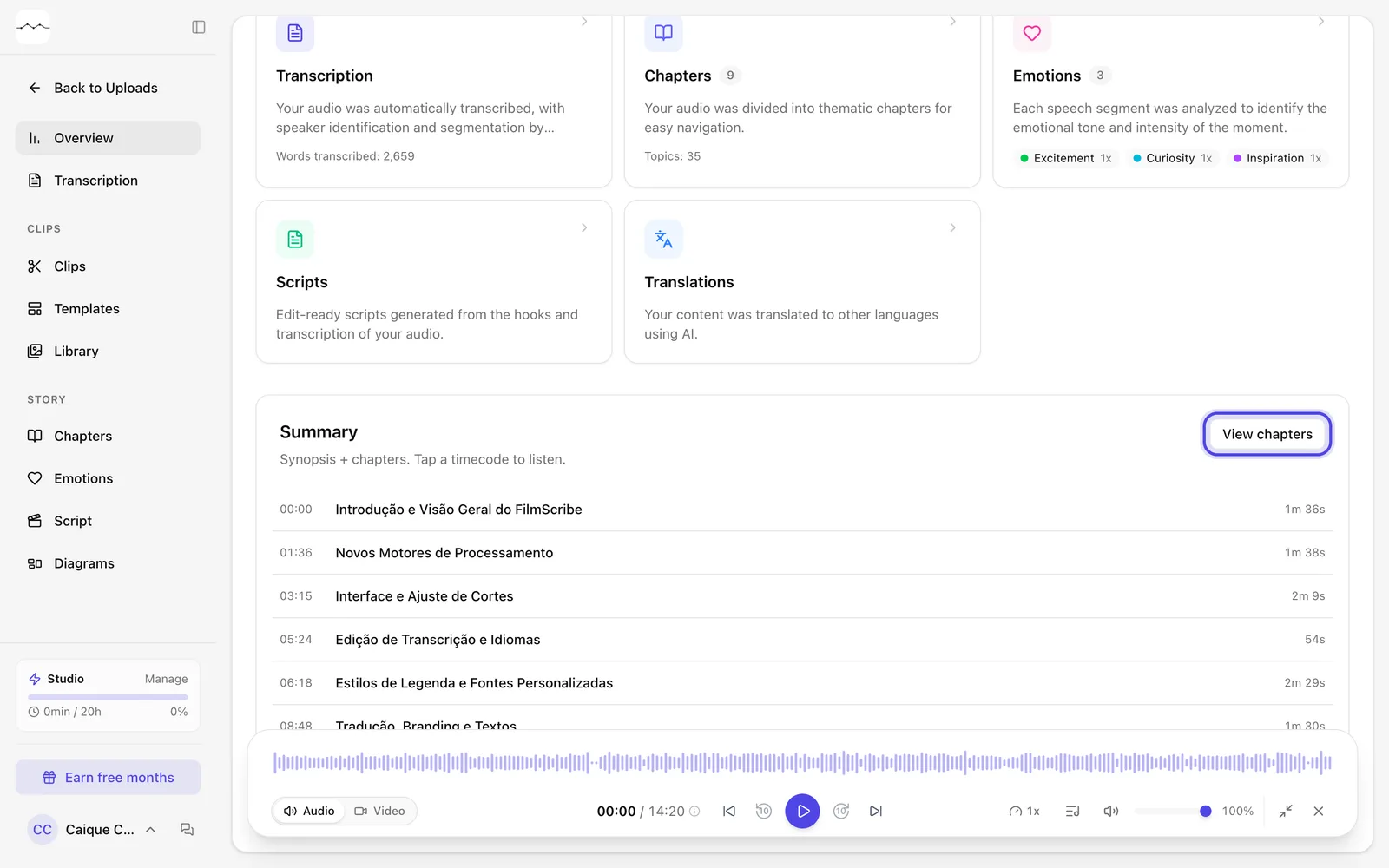
App screenshot View chapters, in the Summary.