
How to use the automatic Clips page

Open the video and click Clips in the file's menu. The automatic clips show up on the Automatic tab, each with its impact score, passage, title and reason. Use search, Filters and sorting to find the right clip and click Download clip on the card.
Before you start
Clips exist only for video, once the file has finished processing. An audio file has no Clips page in the menu.
Step by step
-
Step 1: Open the Clips page
Inside the file, click Clips in the left menu. The automatic clips sit on the Automatic tab and the ones you create sit on Manual.
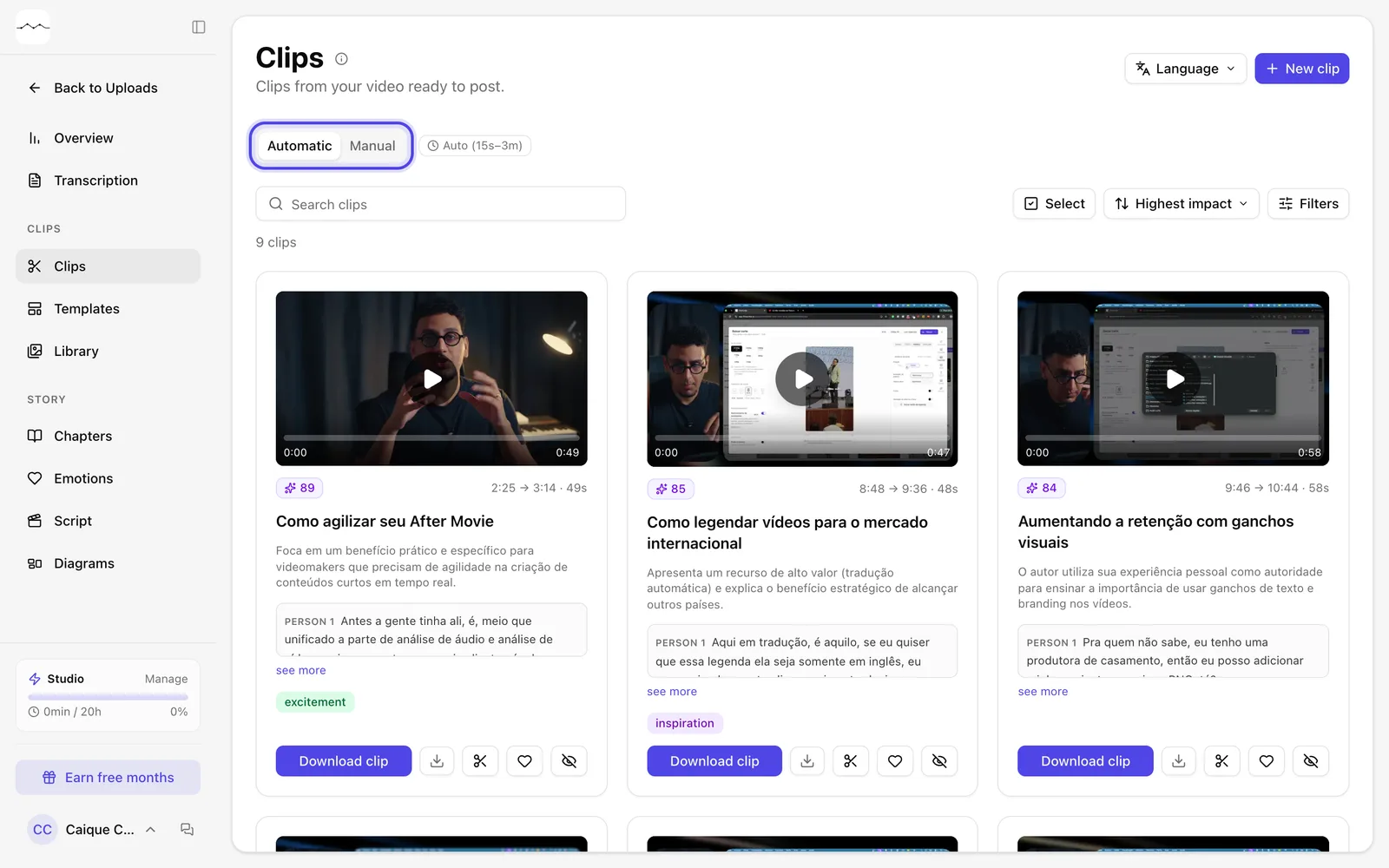
App screenshot The Clips page, with the Automatic and Manual tabs. -
Step 2: Read each clip's card
Each card shows the Impact score, the start and end in the video, the duration, the title, the reason for the clip, the spoken passage and the emotions. Click the card's video to watch the preview.
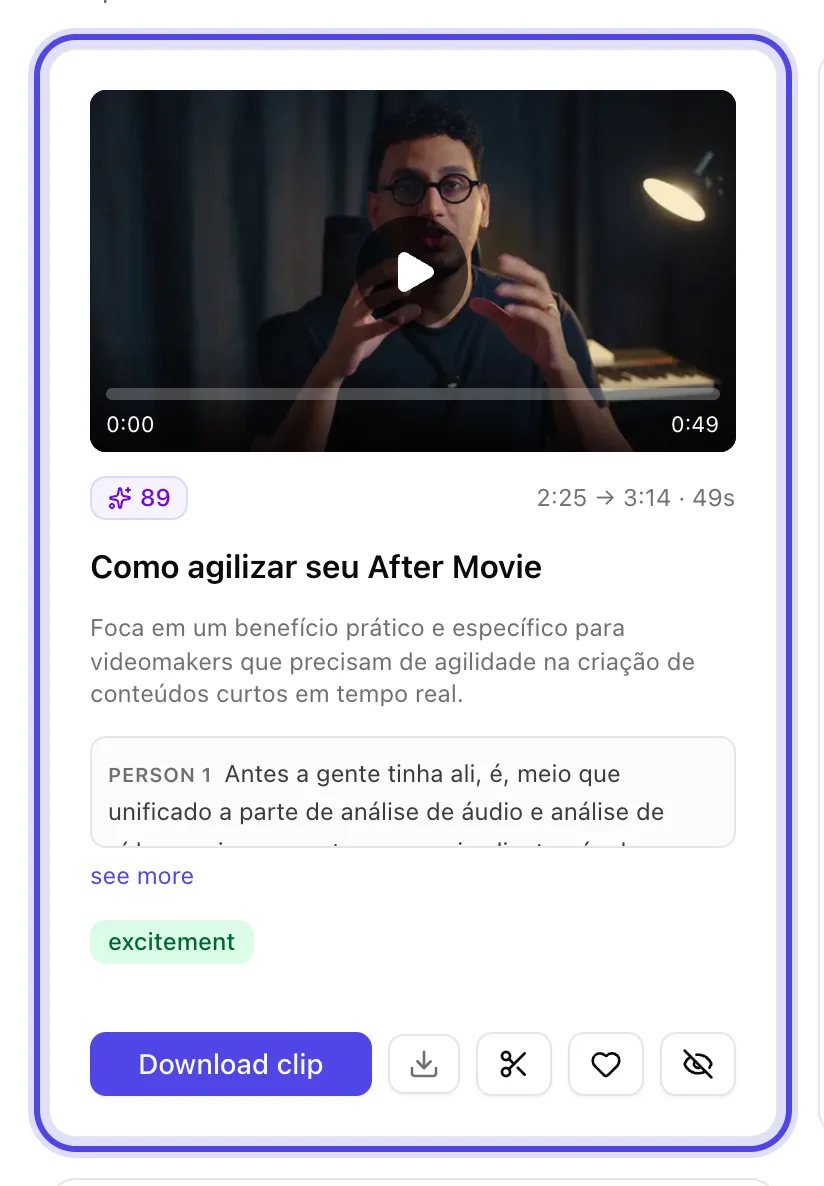
App screenshot A clip card: score, passage, title, reason and buttons. -
Step 3: Find the clip you want
Type in Search clips to search the title and the passage. In Sort by, choose Highest impact, Video order, Shortest or Longest. In Filters, filter by Clip type, Impact, Duration, Emotion and People.
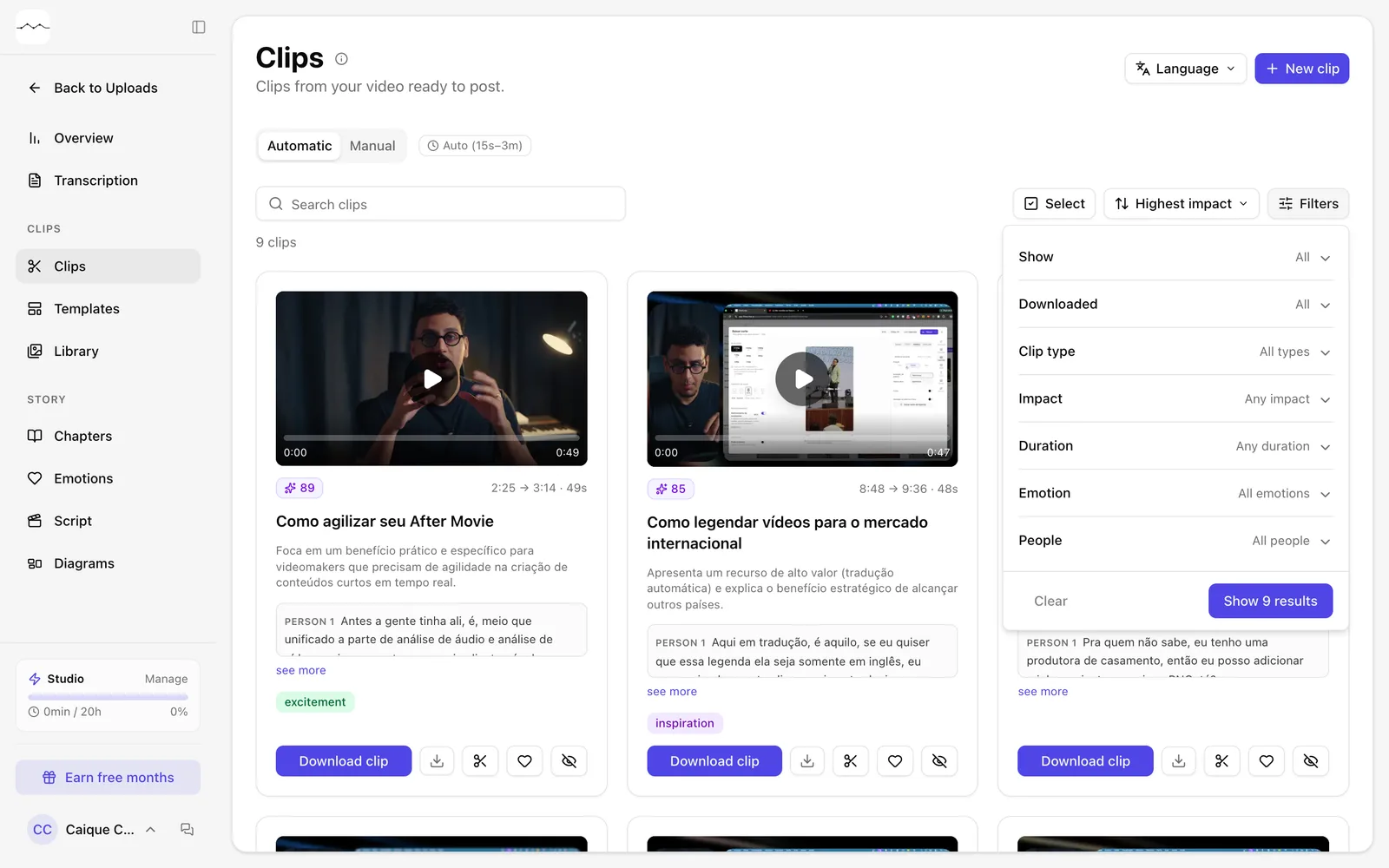
App screenshot The Filters panel of the Clips page.
Optional steps
You don't need these steps to finish the task. Use them if you want.
-
OptionalFavorite or hide clips
The heart (Favorite) saves the clip to your favorites. The crossed-out eye (Hide clip) takes the clip off the list. To see them again, open Filters and, under Show, choose Favorites or Hidden.
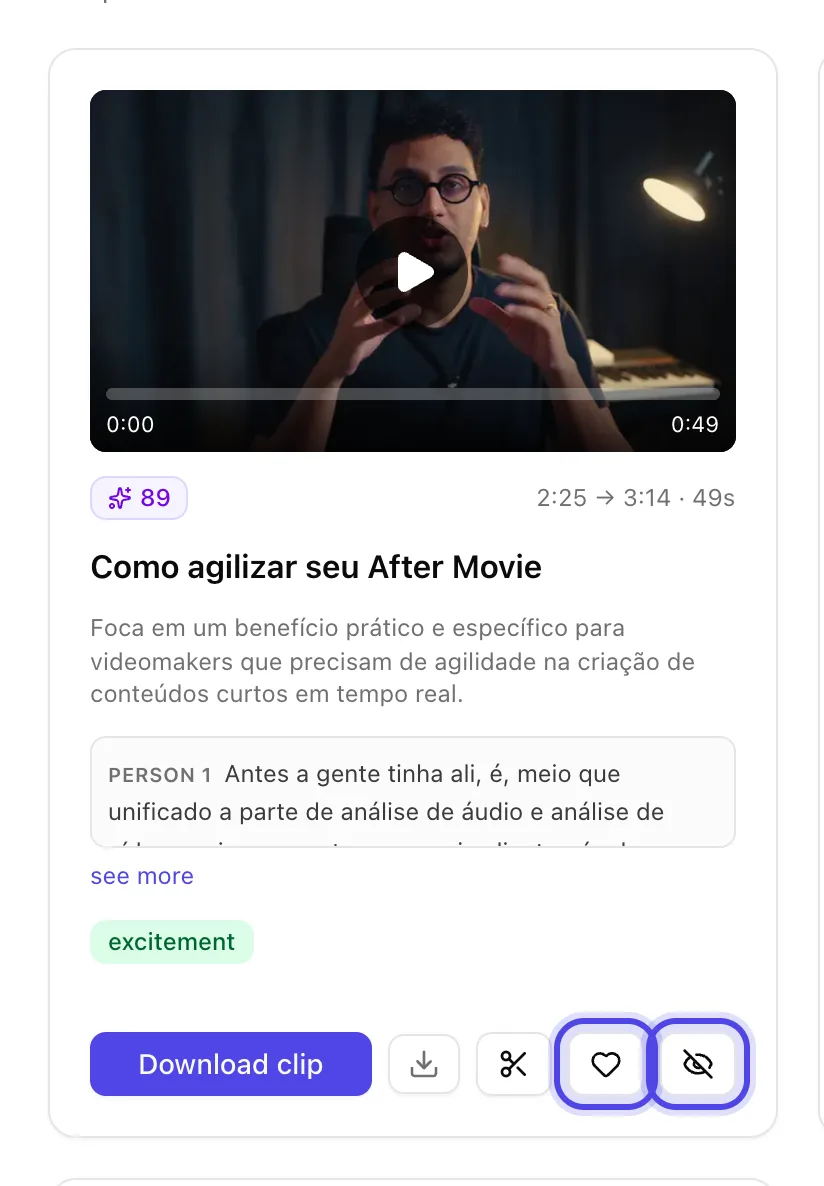
App screenshot Favorite and Hide clip, on the clip card.