
How to download a clip with captions

On the Clips page, click Download clip on the card. Choose the 9:16 format for Reels, TikTok and Shorts, open Captions in the right menu and click a style. Then click Download and Download MP4. If you like, turn on Email me the clip link before you download.
Step by step
-
Step 1: Click Download clip
On the Clips page, pick the clip and click Download clip on the card. The Download clip window opens, with the options on the left, the preview in the middle and the panels on the right.
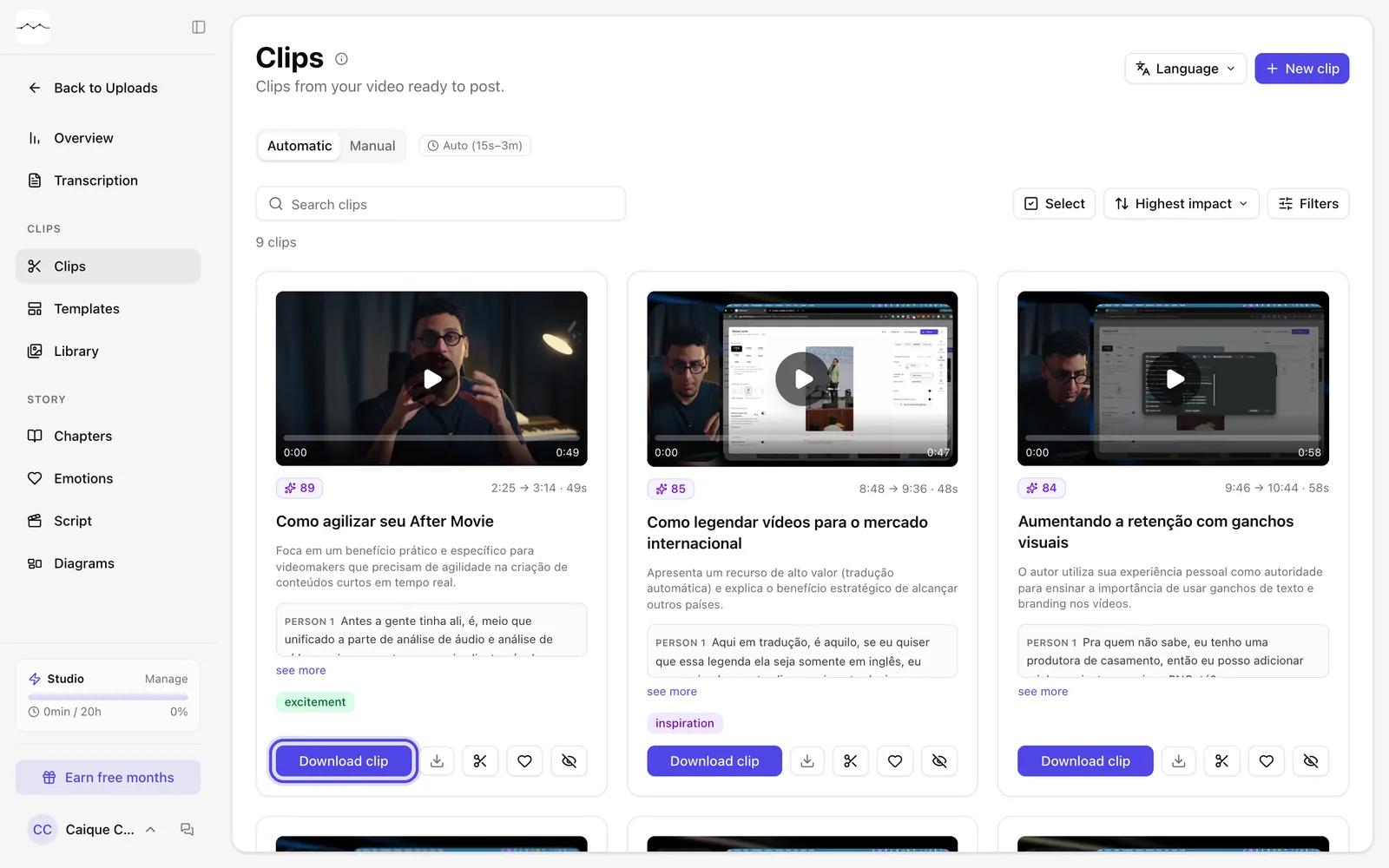
App screenshot The Download clip button on the card. -
Step 2: Choose the output format
In Output format, click 9:16 for vertical video on TikTok, Reels and Shorts. The other options are Original, which keeps the video's format, 16:9, 1:1 and 4:5. In any format other than Original, Motion tracking is already on and the camera follows whoever is speaking.
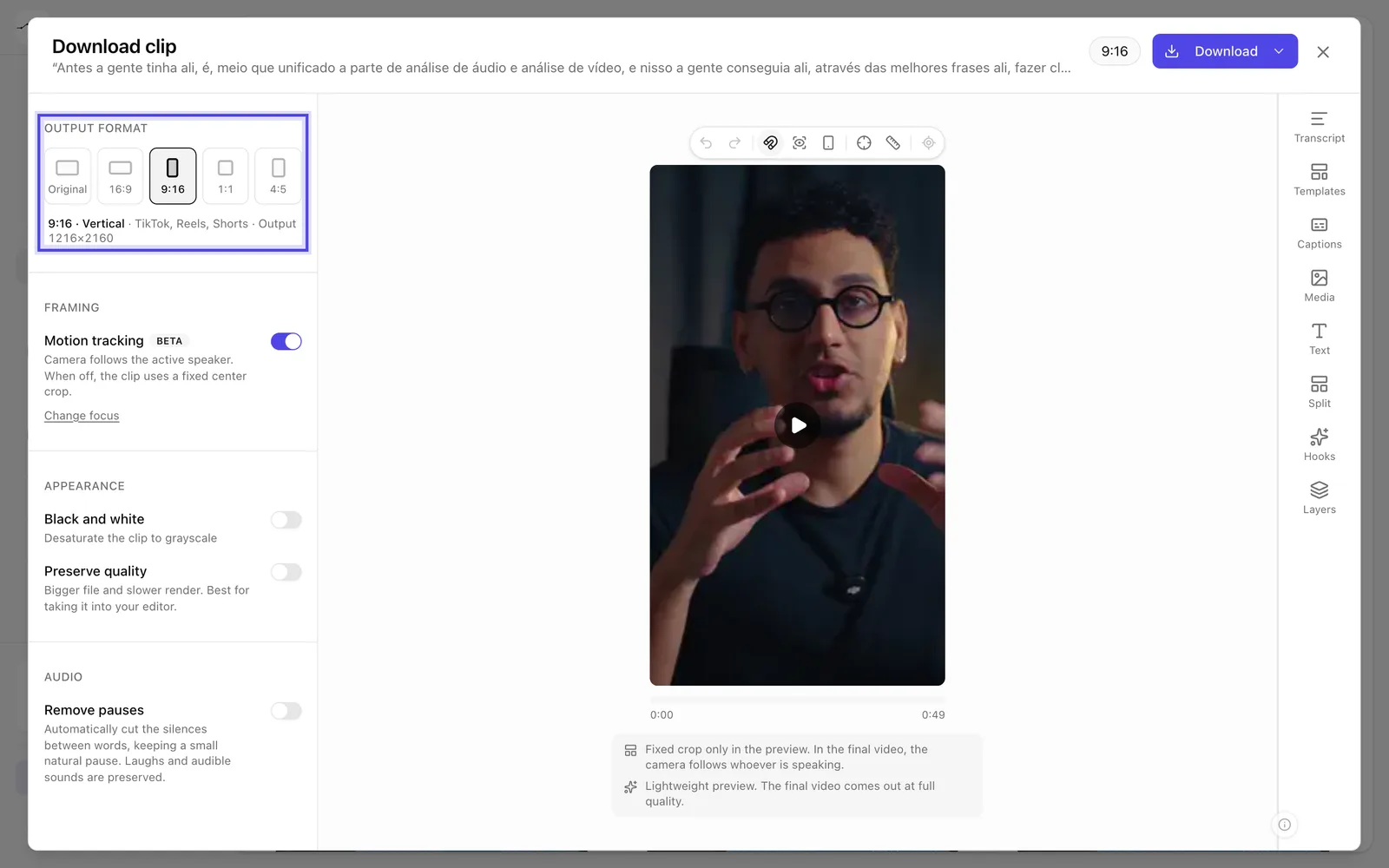
App screenshot The 9:16 format chosen; the preview already shows the vertical clip. -
Step 3: Choose a caption style
In the right menu, open Captions. On the Styles tab, filter by category or search and click a style. The caption shows up in the preview. Without a style, the clip comes out without captions (No captions).
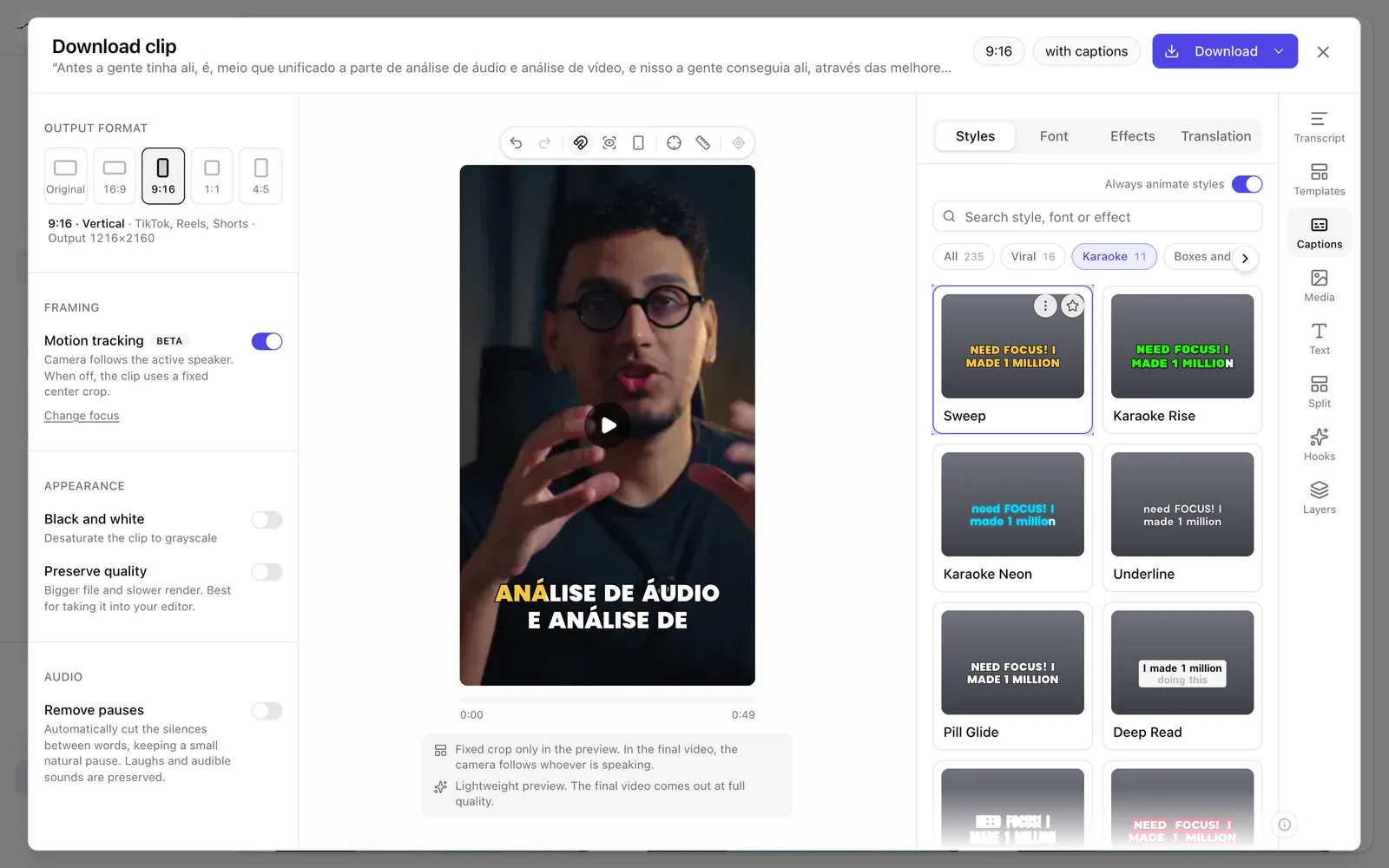
App screenshot A style from the Karaoke category applied; the caption shows up in the preview. -
Step 4: Download the MP4
Click Download, at the top of the window. In the Export MP4 box, click Download MP4. When the download finishes, the card gets the Downloaded badge.
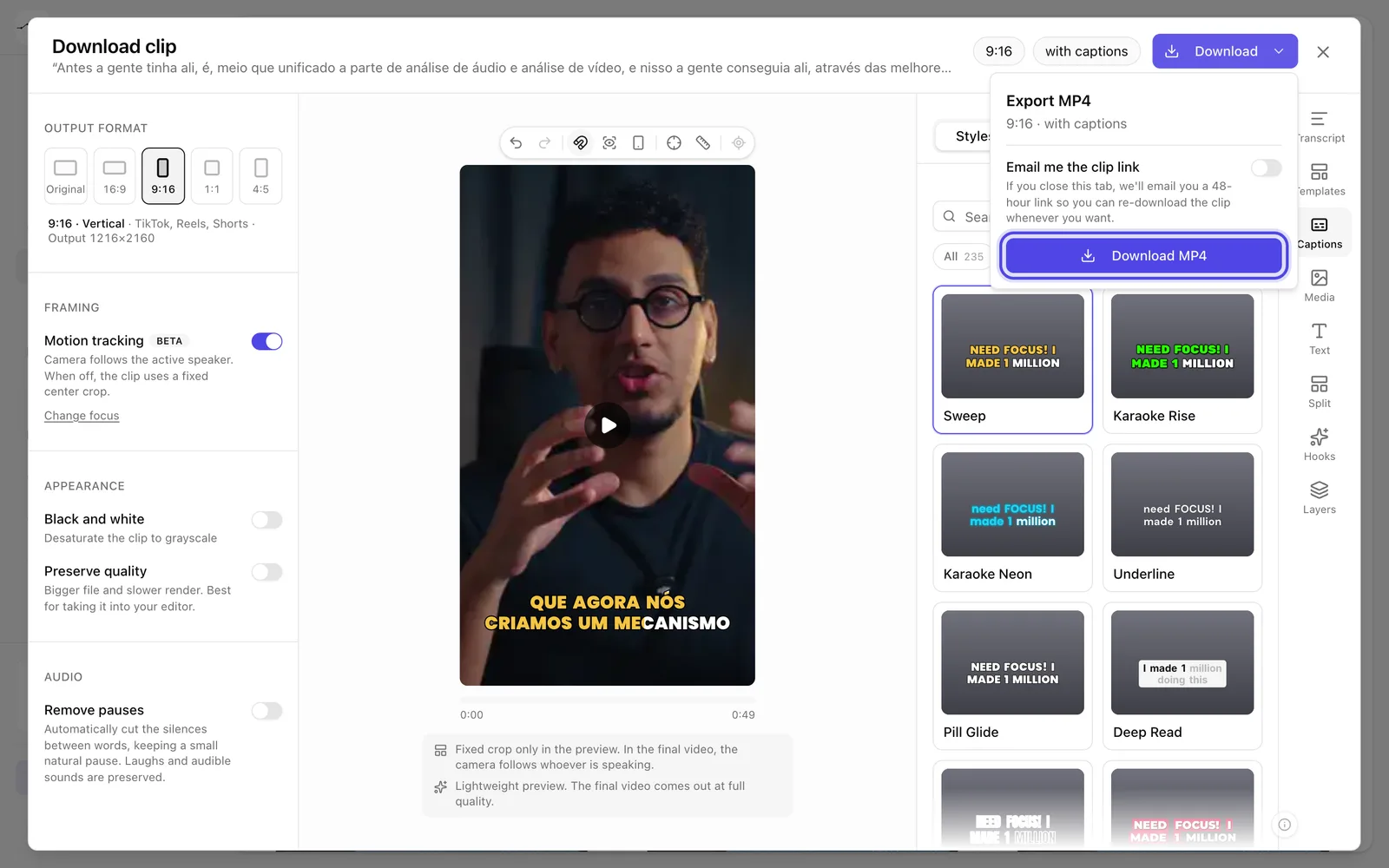
App screenshot The Export MP4 box, with the Download MP4 button and the option to get the link by email.
Optional steps
You don't need these steps to finish the task. Use them if you want.
-
OptionalGet the link by email
Before clicking Download MP4, turn on Email me the clip link. If you close the tab, we email you a link to download the clip again.
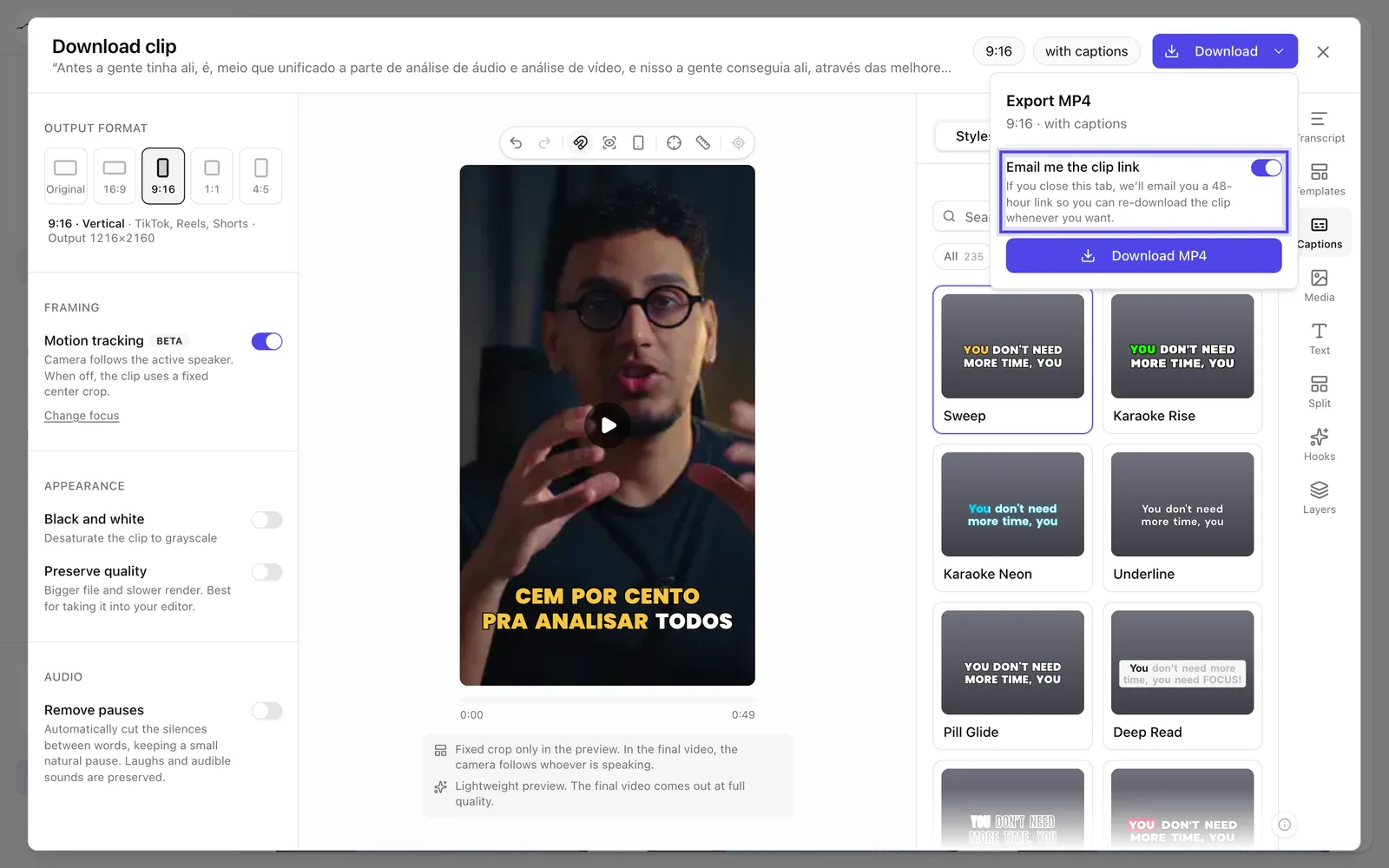
App screenshot Email me the clip link, turned on in the Export MP4 box. -
OptionalAdjust the captions
Once a style is chosen, the Font, Effects and Translation tabs unlock so you can change the caption's font, colors, position and language.
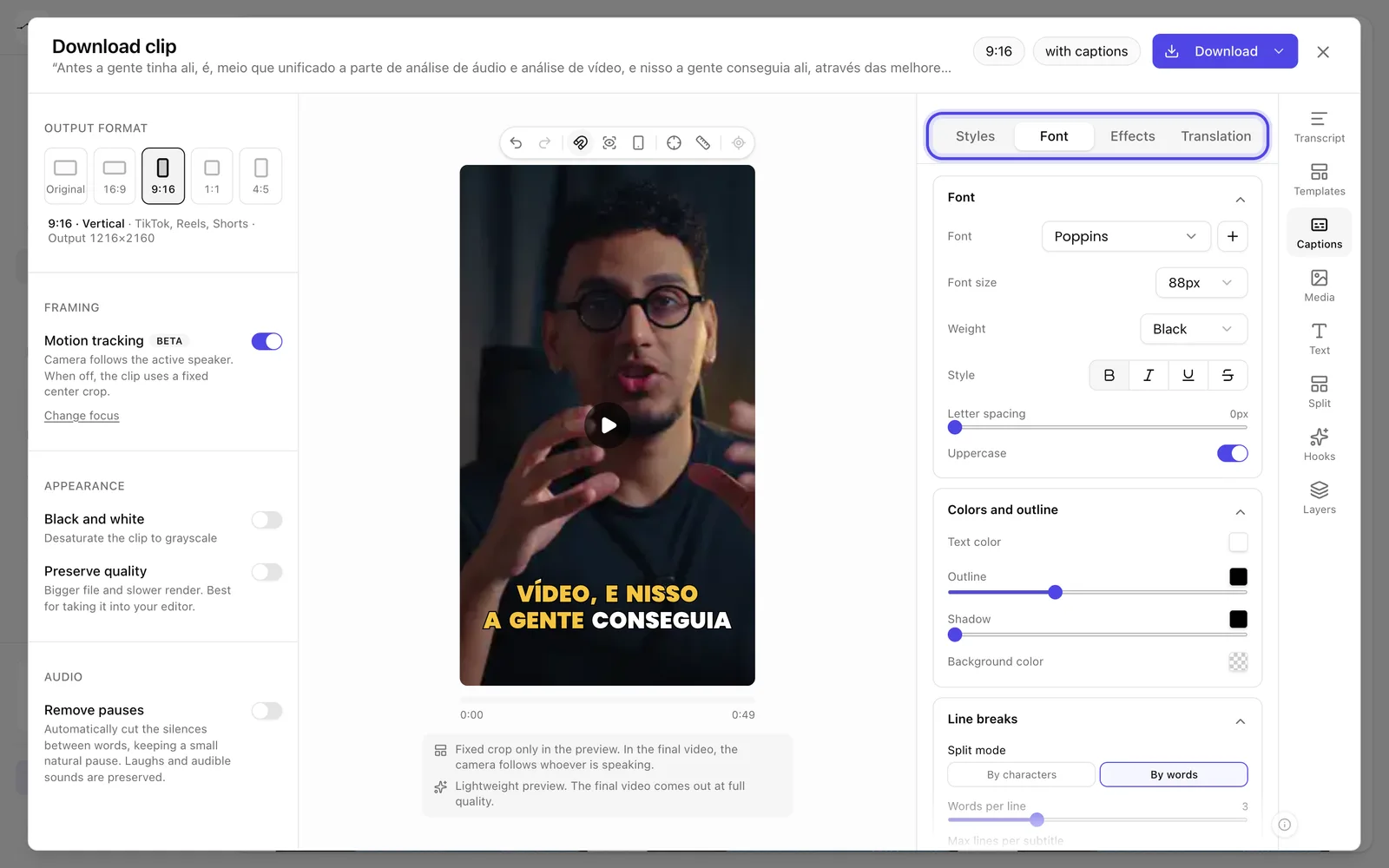
App screenshot With a style chosen, the Font tab open next to Effects and Translation. -
OptionalCut pauses and change the look
In the left panel, Remove pauses cuts the silences, Black and white changes the video's color and Preserve quality makes a bigger file, good for taking into an editor.
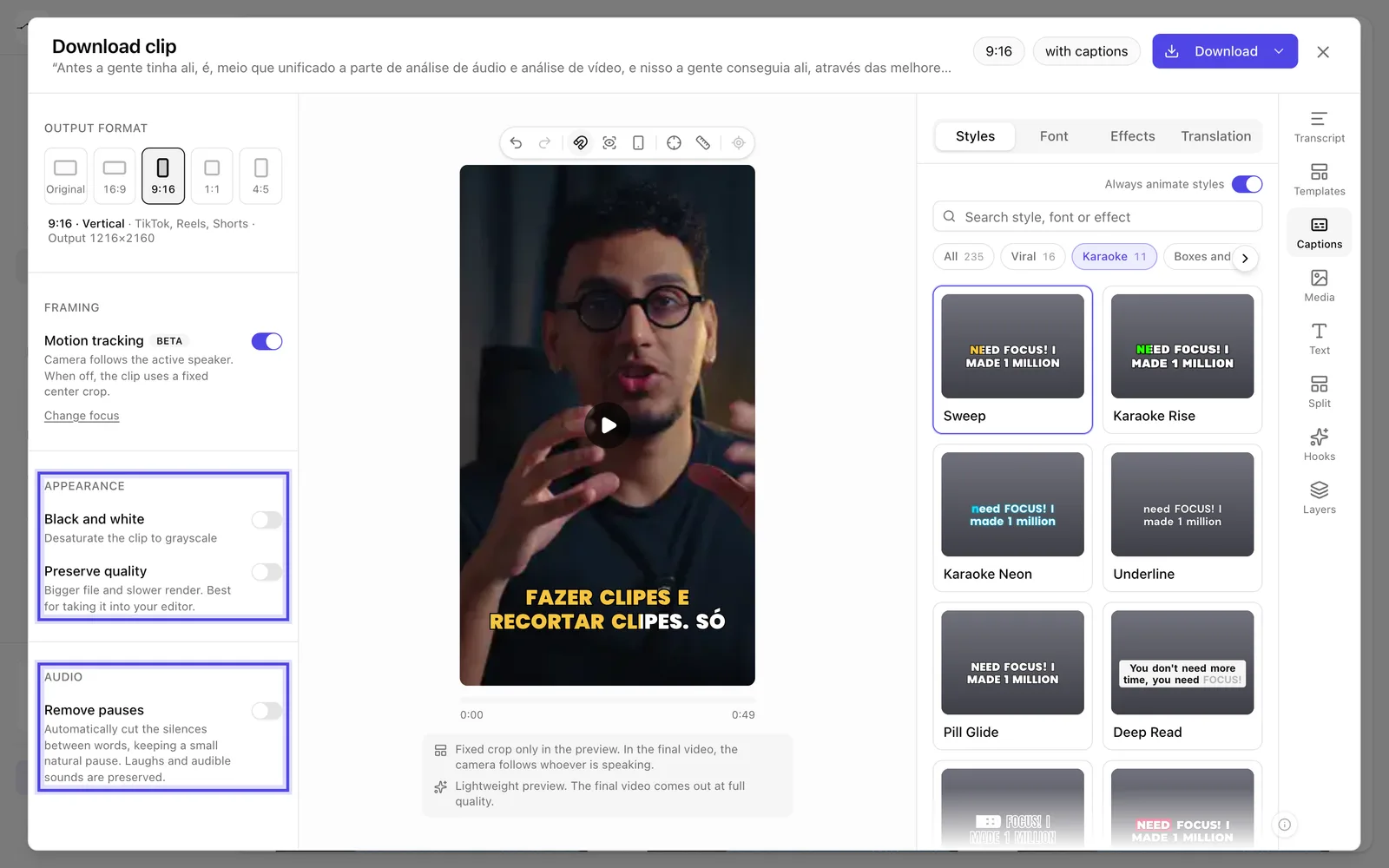
App screenshot Appearance and Audio, in the left panel.