
Transcription
How to identify speakers automatically

Short answer
On the Transcription page, open Filters, go to People and click Identify automatically. We read the transcript and look for the moments when each person introduces themselves or is called by name. Then review the suggestions, check the ones you want and click Apply names.
Available on Studio and Agency
Step by step
-
Step 1: Open Identify automatically
On the Transcription page, click Filters, open People and click Identify automatically.
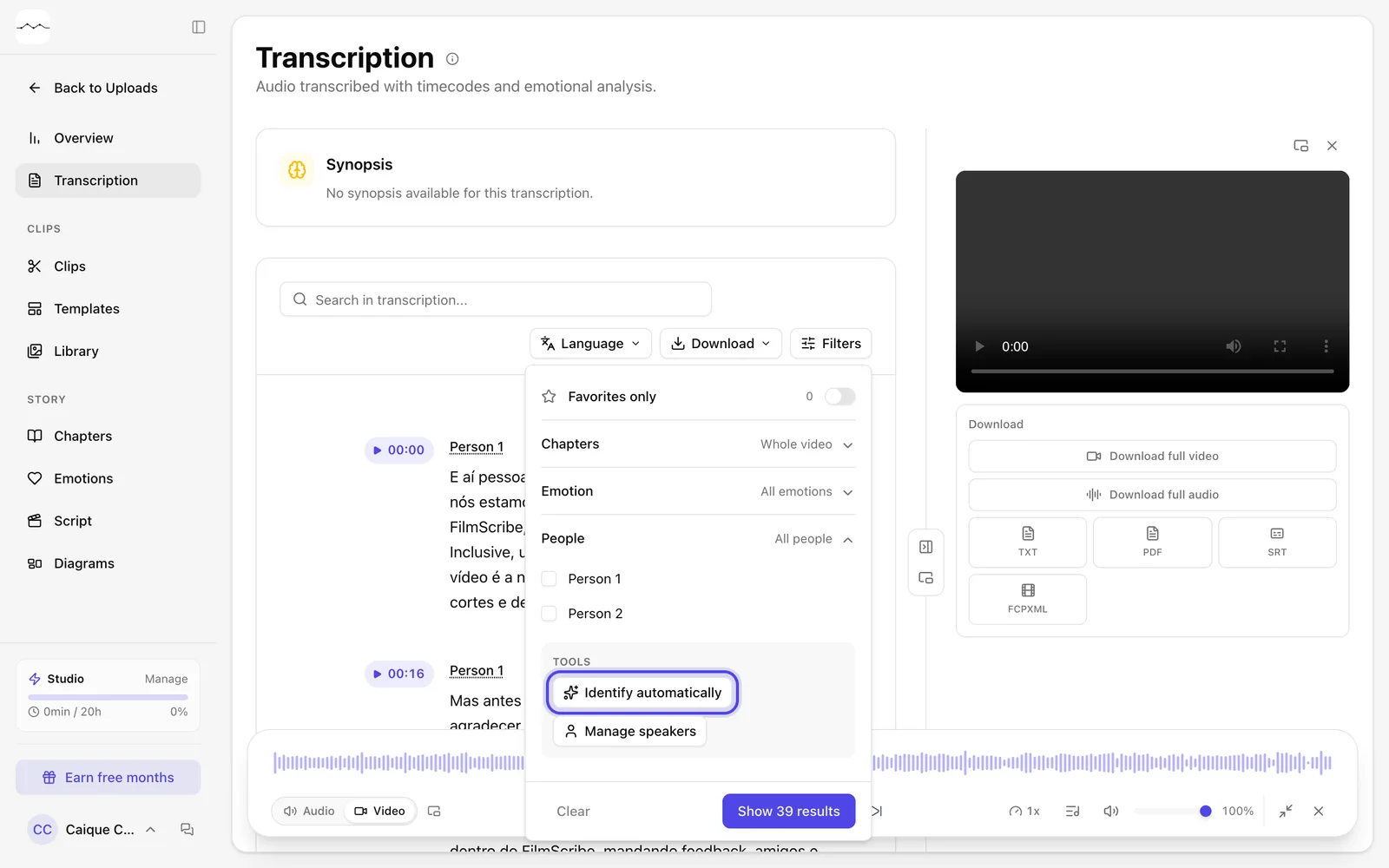
App screenshot Identify automatically, in the People section of Filters. -
Step 2: Review the suggestions
We read the transcript and look for the moments when each person introduces themselves or is called by name. Each suggestion comes with a confidence level, and Play the passage plays the moment the name comes up.
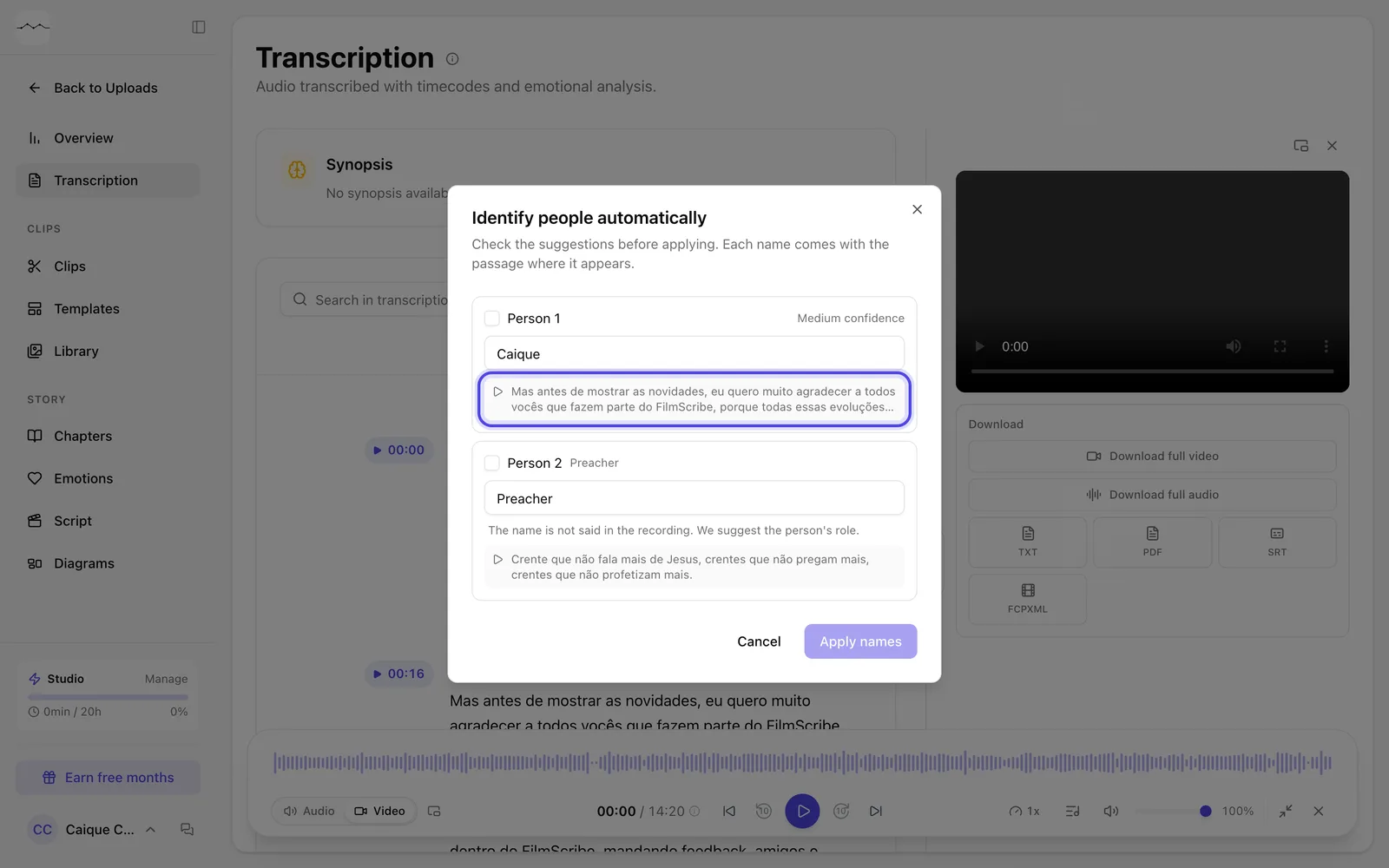
App screenshot The suggestions: a name said in the recording and, for someone who never says a name, the person's role. -
Step 3: Apply the names
Check the suggestions you want to use, fix the name if needed and click Apply names. Suggestions with High confidence come already checked.
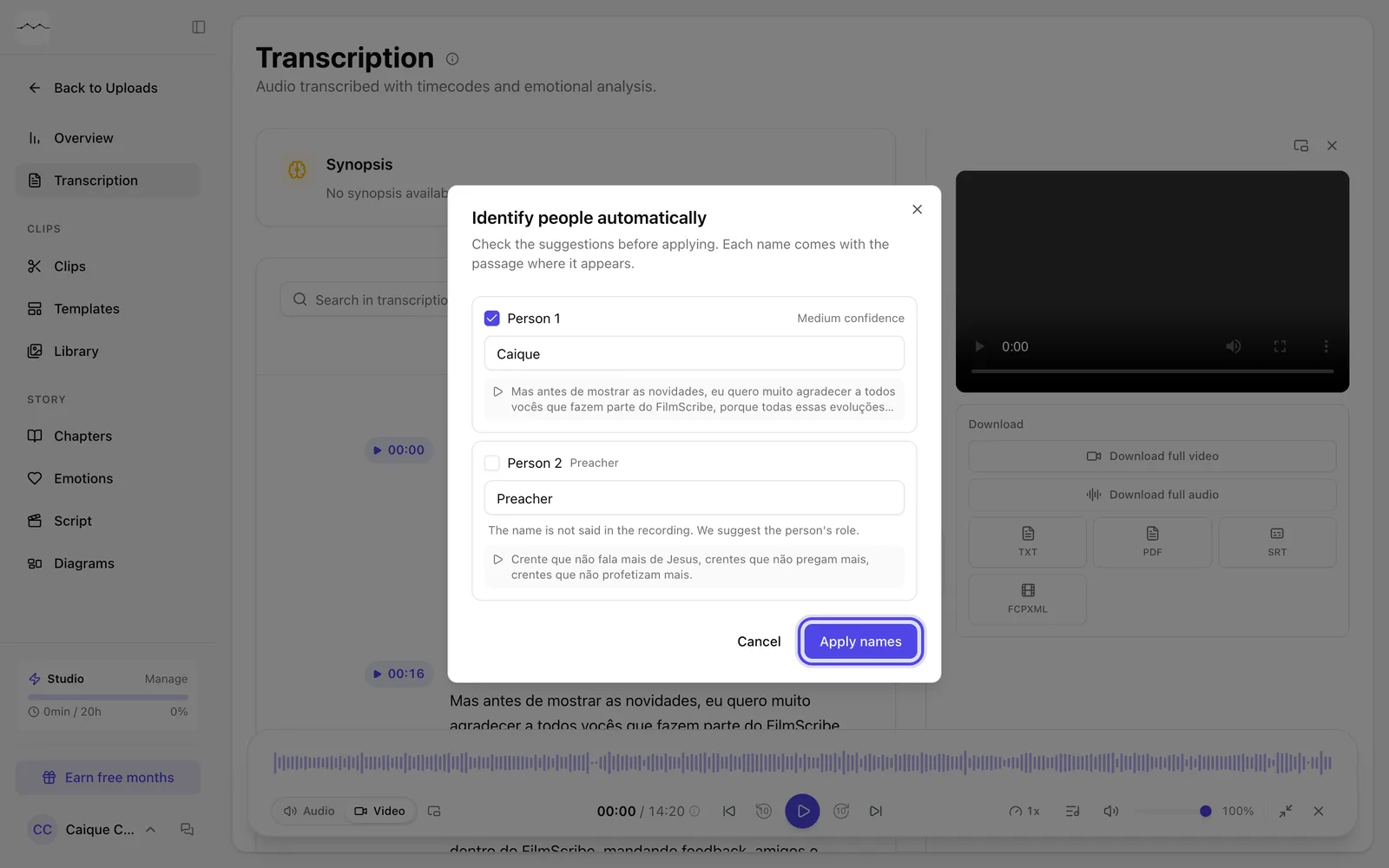
App screenshot A suggestion checked and the Apply names button.