
Transcription
How to rename speakers

Short answer
On the Transcription page, click the speaker's name, such as Person 1. In the Customize Speaker window, type the name, choose a color if you like and click Save. The name changes across the whole transcript. Renaming speakers is part of Studio and Agency.
Available on Studio and Agency
Step by step
-
Step 1: Click the speaker's name
On the Transcription page, click the name shown above a passage, such as Person 1.
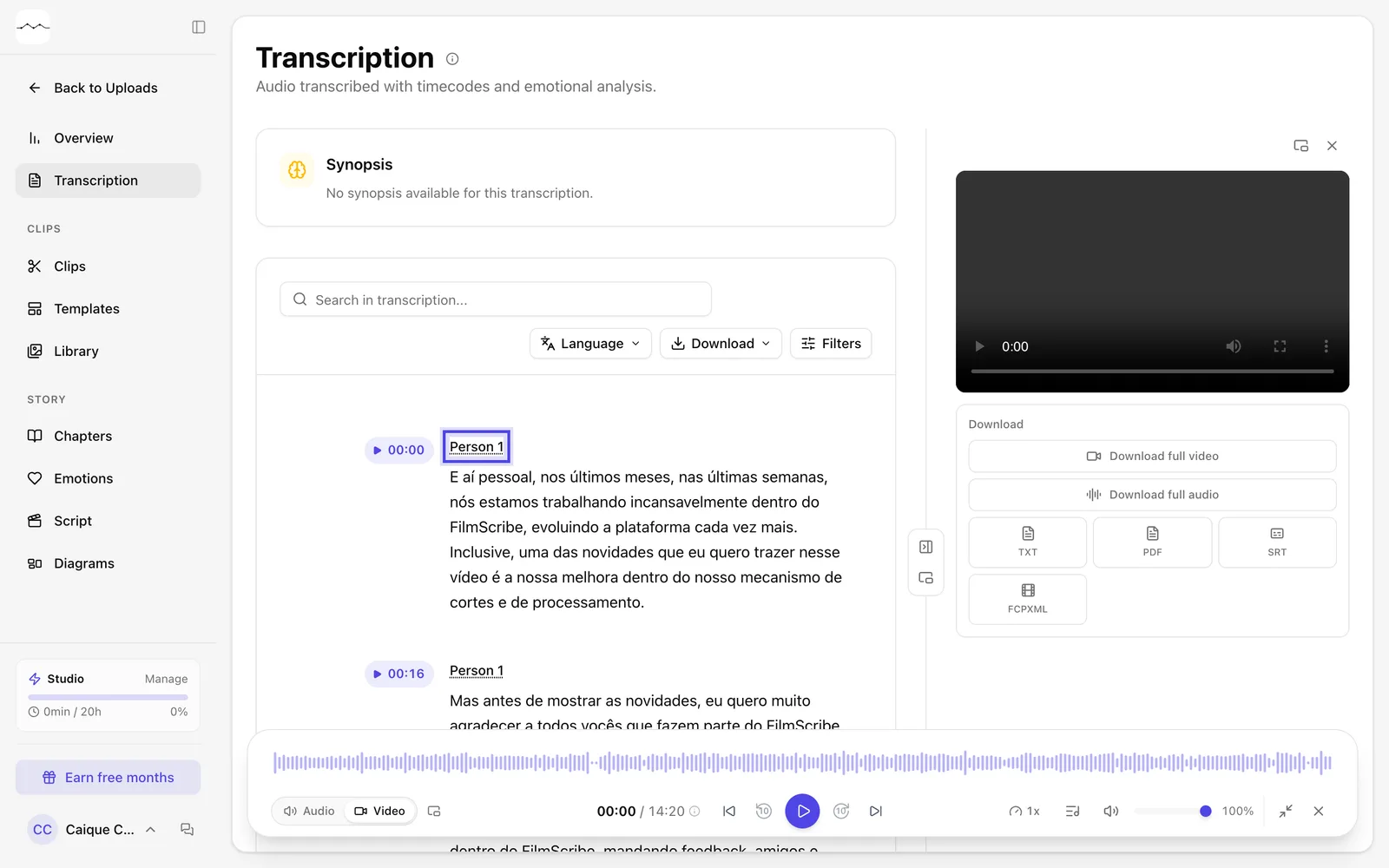
App screenshot The speaker's name, above the passage. -
Step 2: Type the name and save
In the Customize Speaker window, type in Speaker name, choose a Speaker color if you like and click Save.
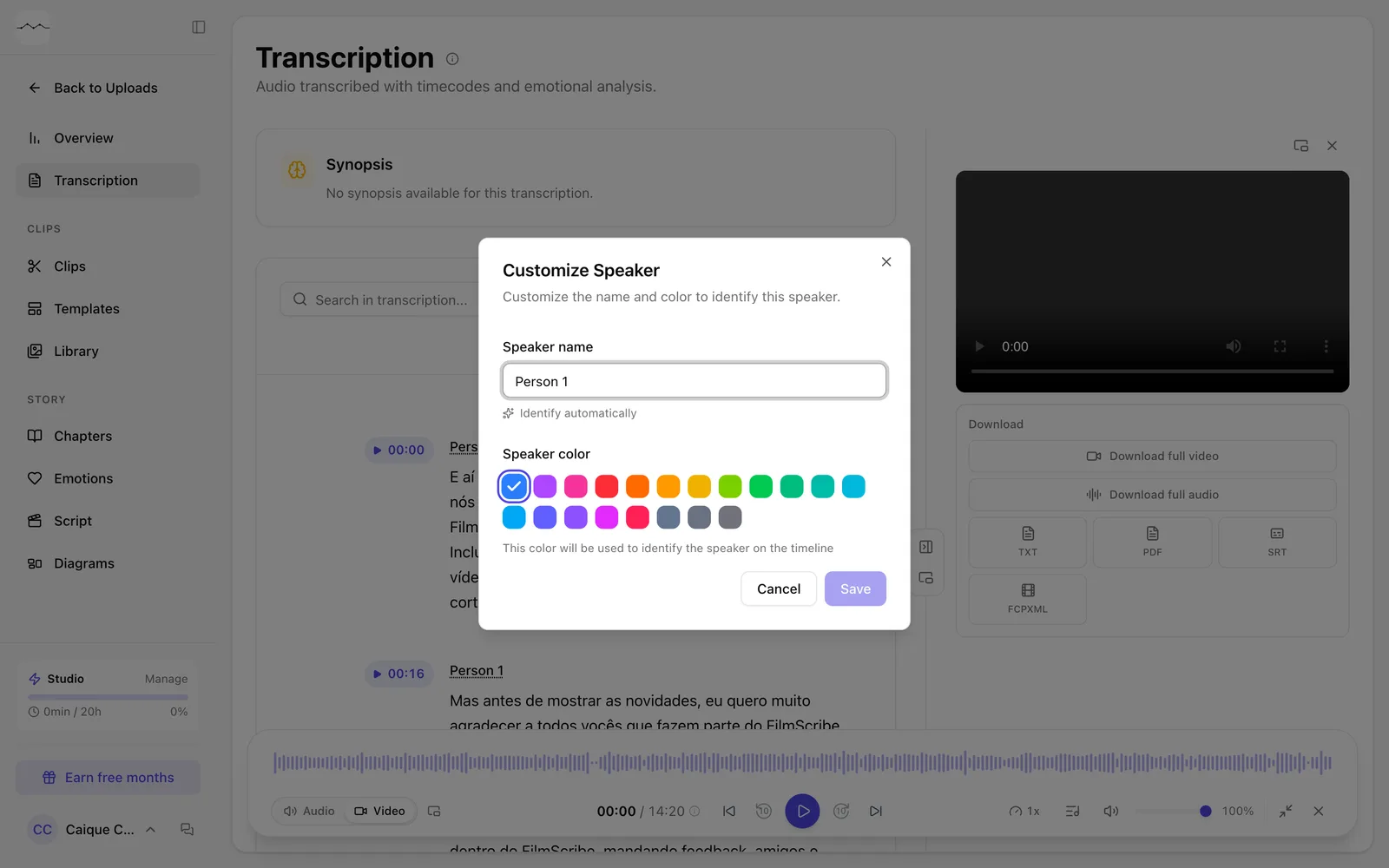
App screenshot The Customize Speaker window.
Optional steps
You don't need these steps to finish the task. Use them if you want.
-
OptionalRename everyone at once
Open Filters, go to People and click Manage speakers to edit each person's name and color in a single list.
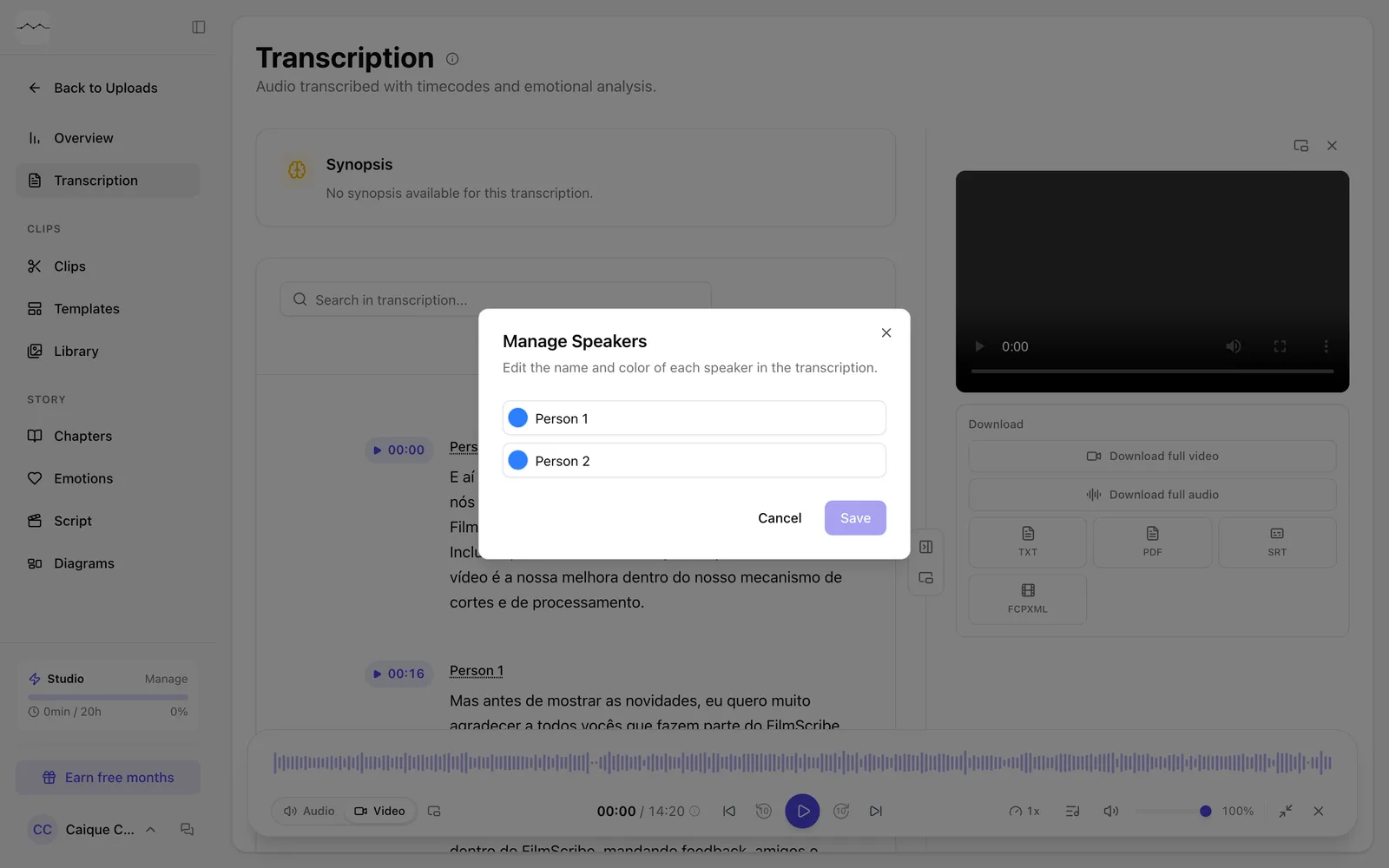
App screenshot The Manage Speakers window, with every person in the transcript.