
Transcription
How to download the transcript as TXT or PDF

Short answer
On the Transcription page, click Download and choose Download as complete .TXT or Download as complete .PDF. In the window, choose whether the file includes the speaker name, merges consecutive lines from the same person and shows the start time. The preview shows the result before you download.
Available on Pro, Studio and Agency (every plan)
Step by step
-
Step 1: Open the Download menu
On the Transcription page, click Download and choose Download as complete .TXT or Download as complete .PDF.
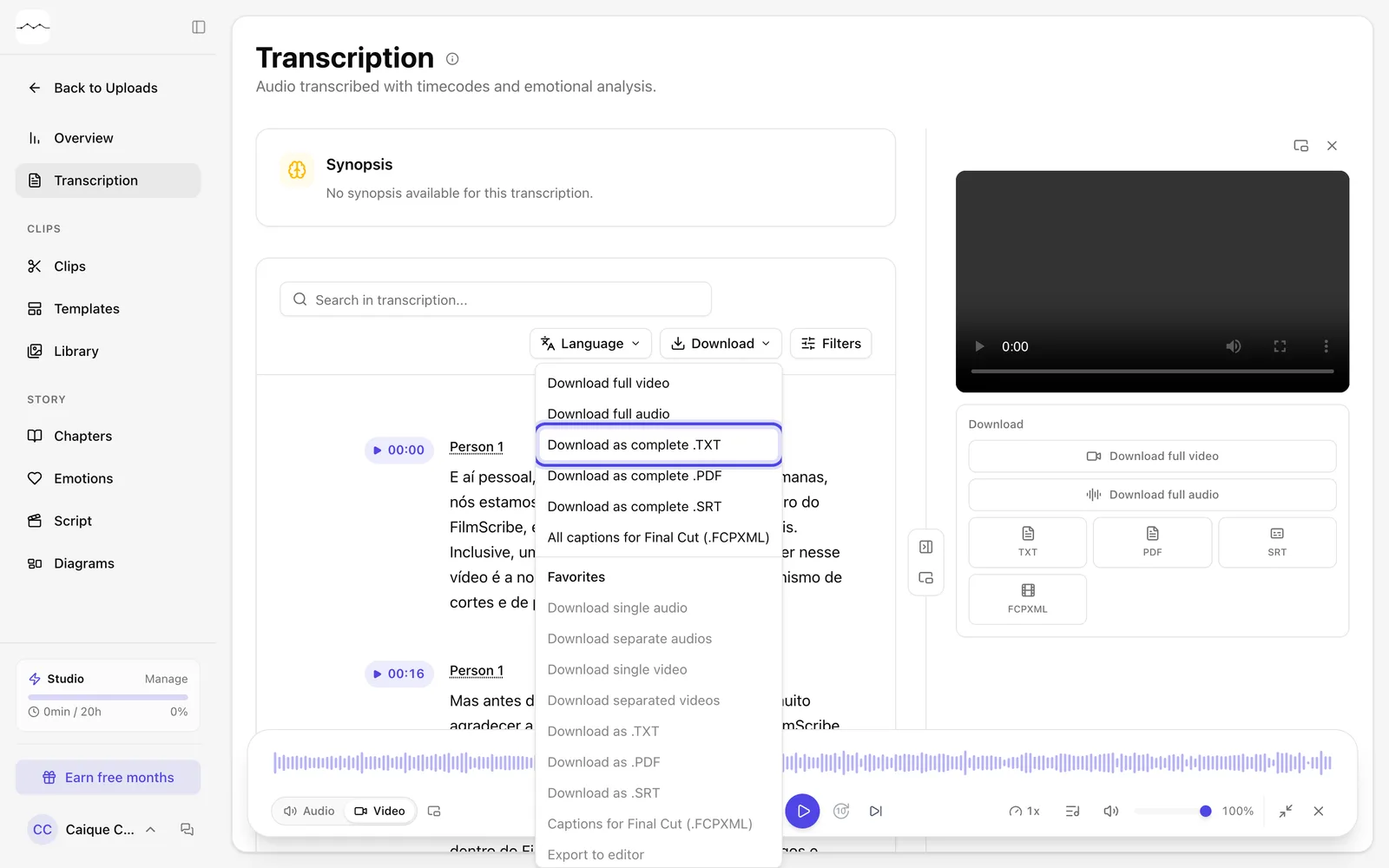
App screenshot The transcript's Download menu. -
Step 2: Choose what goes in the file
In the window, check what you want: Speaker name and Start time. With the name on, Merge consecutive lines shows up. The Preview shows what the file will look like. Then confirm the download.
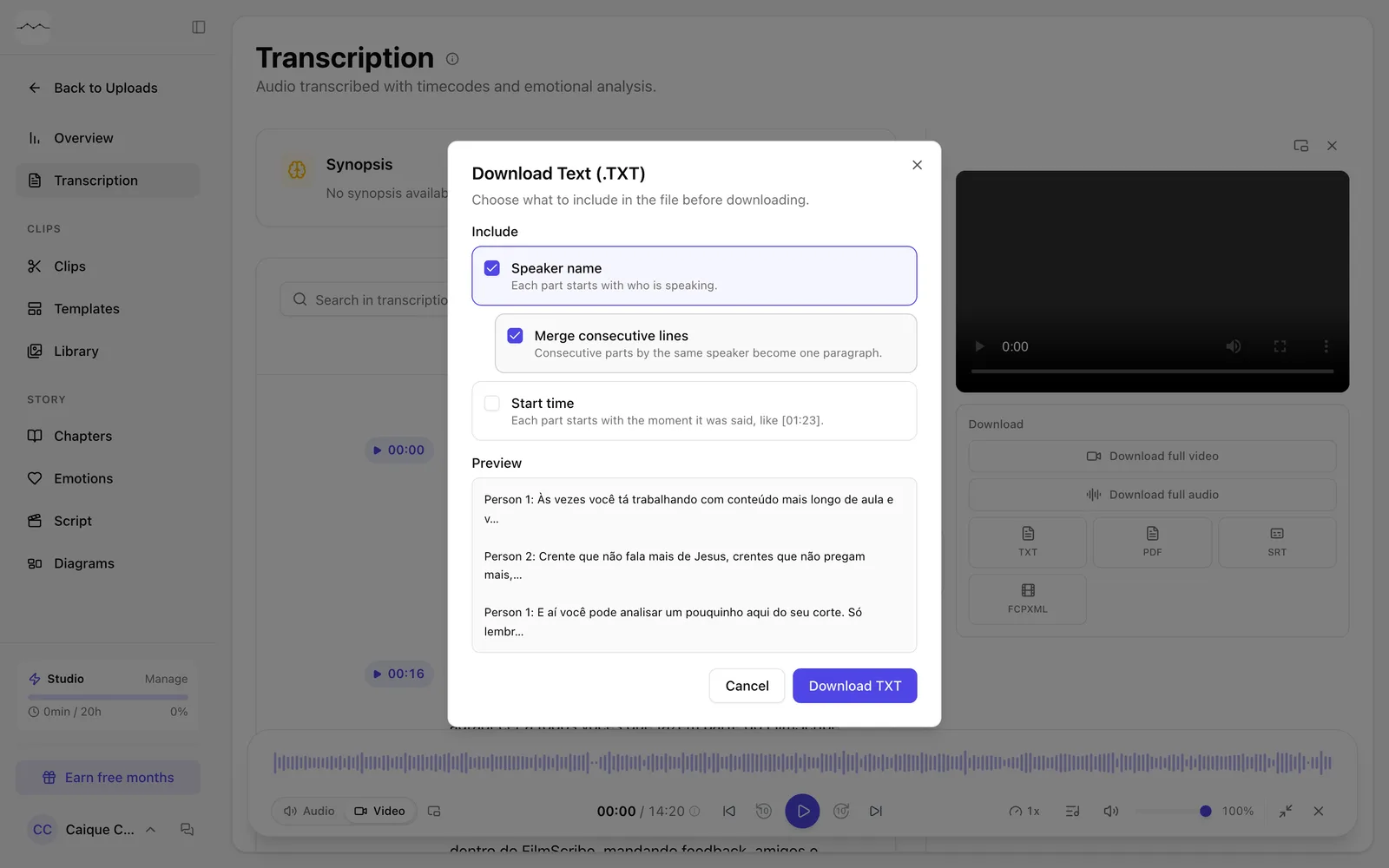
App screenshot The Download Text (.TXT) window, with Speaker name checked and the preview.