
How to download SRT captions

On the Transcription page, click Download and then Download as complete .SRT. In the window, choose the split mode, a TV, Netflix or YouTube preset, the maximum lines per caption and the frames per second. The preview shows the result; then just download it and take it to your editor or platform.
Step by step
-
Step 1: Open the Download menu
On the Transcription page, click Download and then Download as complete .SRT.
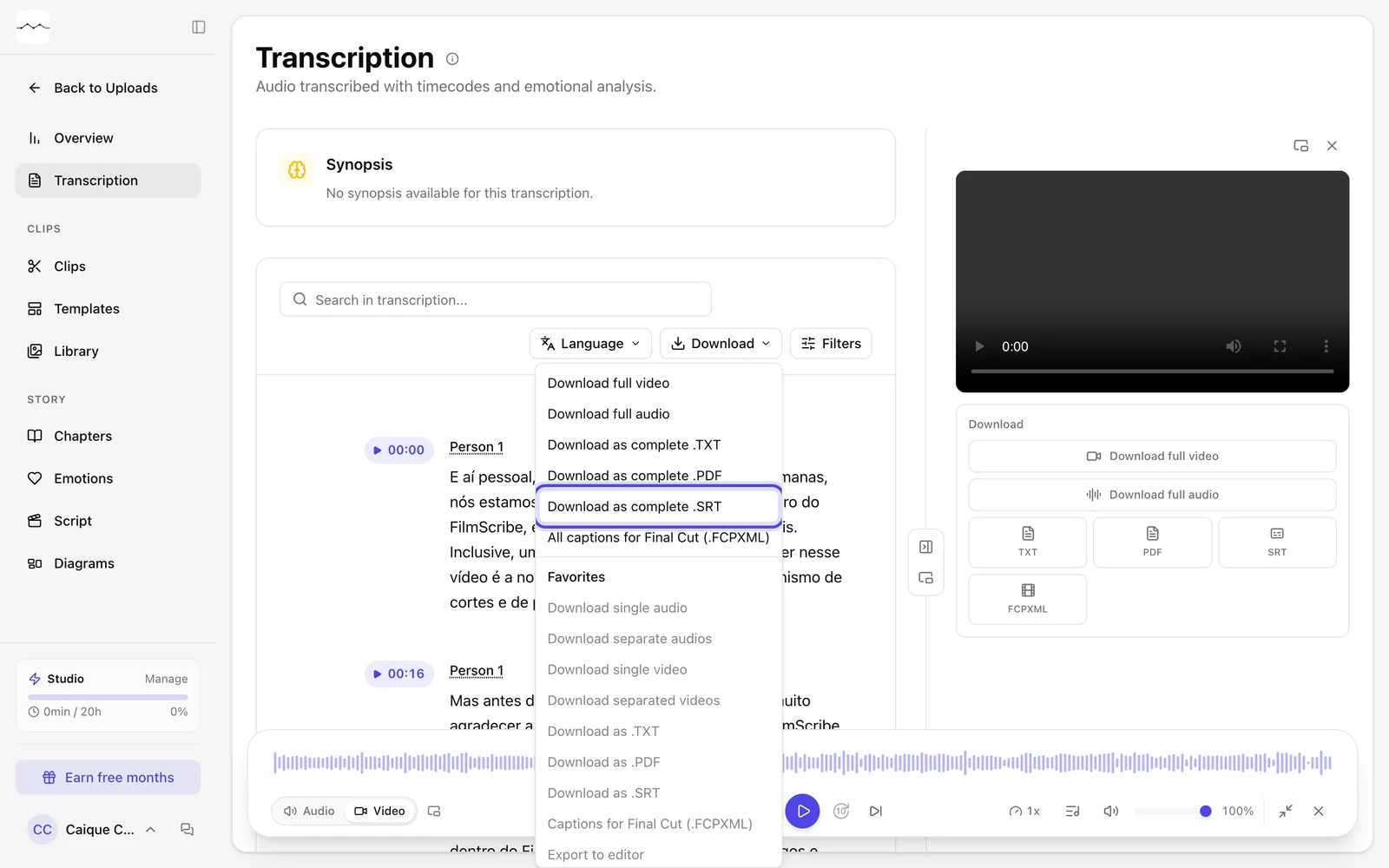
App screenshot The Download menu, with the SRT captions. -
Step 2: Adjust and download
In the Export Subtitle (.SRT) window, choose the Split mode (By characters or By words), a Preset, the Max lines per subtitle and the Frames per second. Check the preview and download.
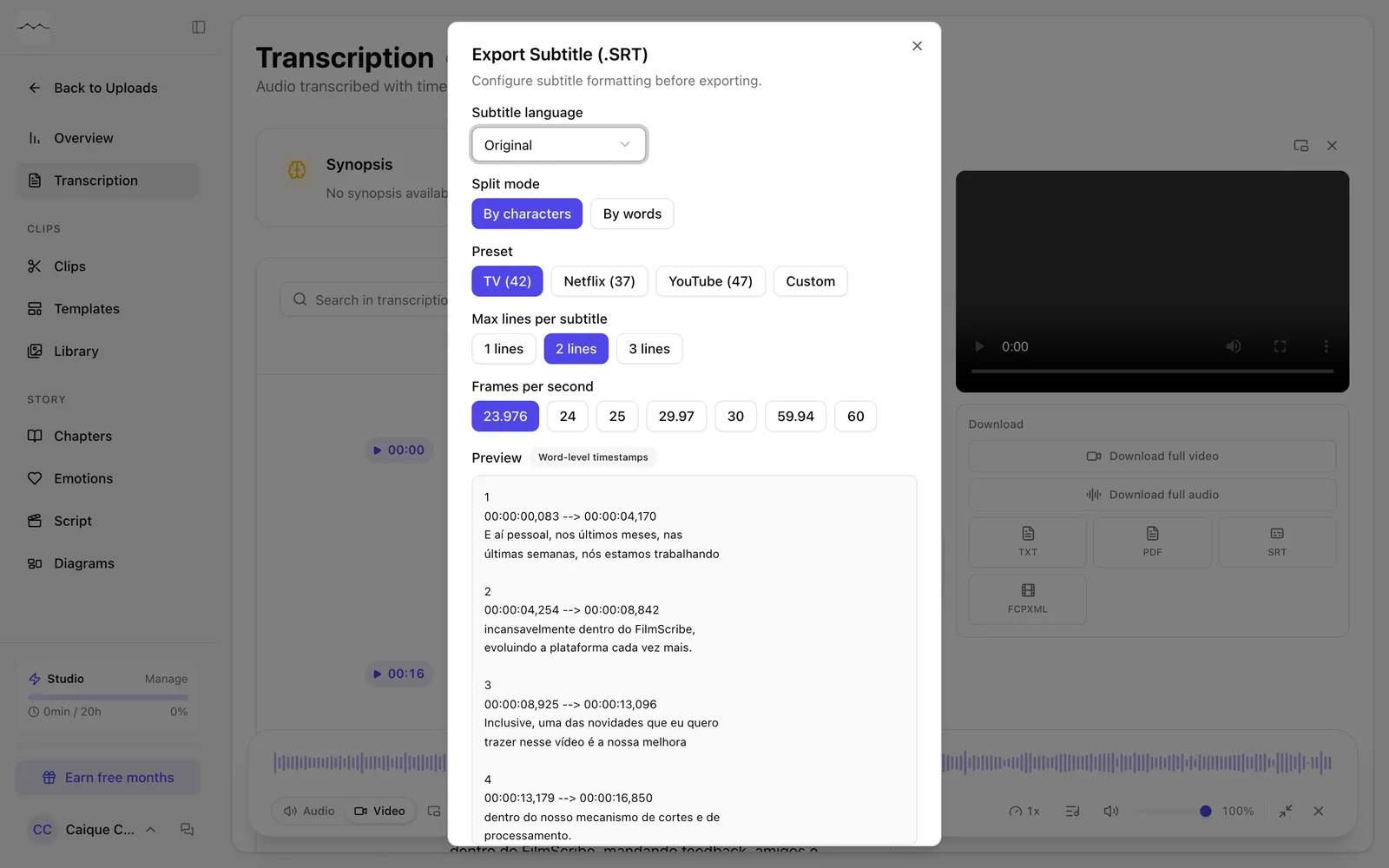
App screenshot The Export Subtitle (.SRT) window, with the preview.
Optional steps
You don't need these steps to finish the task. Use them if you want.
-
OptionalDownload captions for Final Cut
In the same menu, All captions for Final Cut (.FCPXML) creates the captions in Final Cut's format, as titles or as captions.
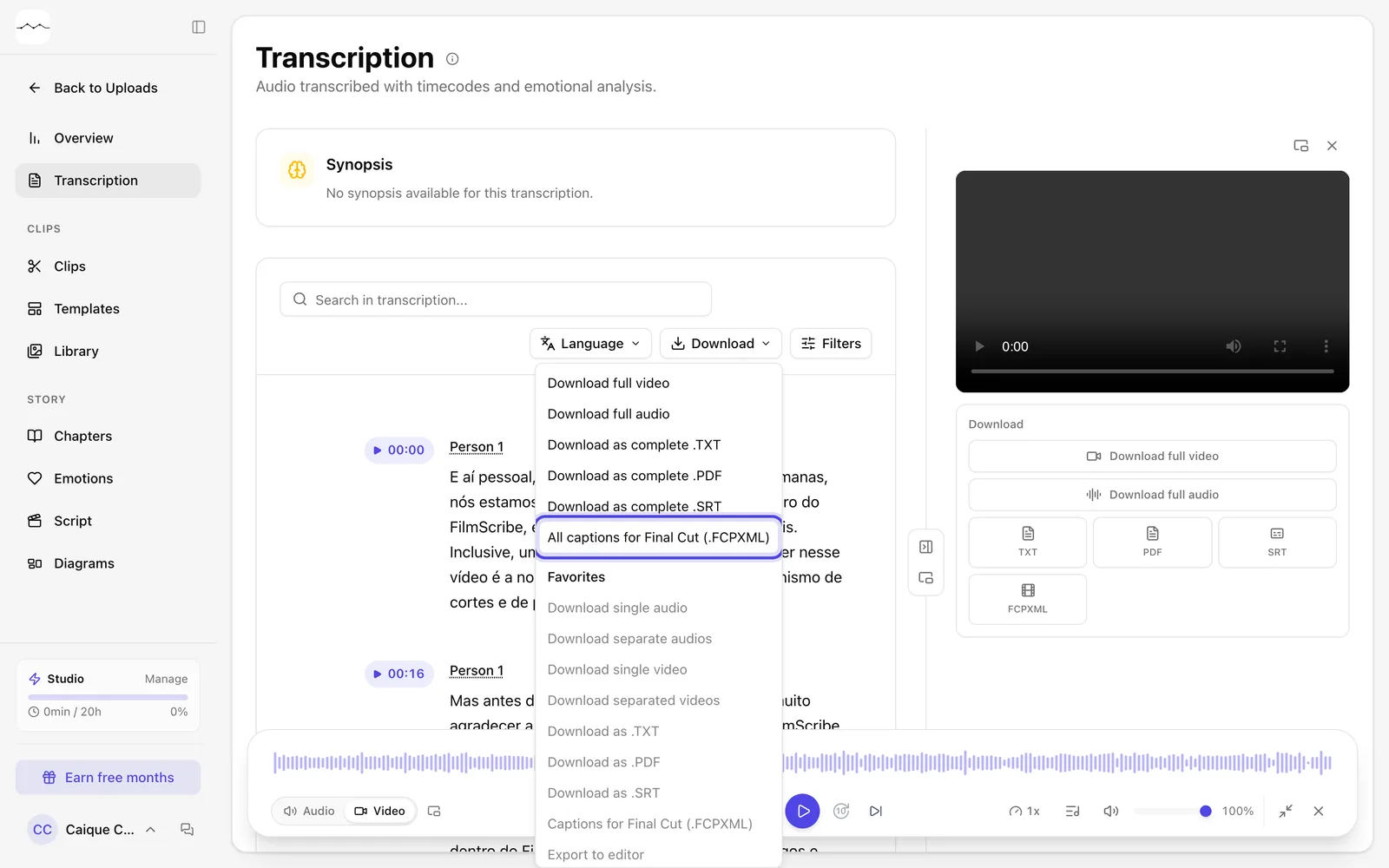
App screenshot All captions for Final Cut (.FCPXML), in the Download menu. -
OptionalDownload the captions of one passage
Each passage's download button has Subtitle SRT for that passage only.
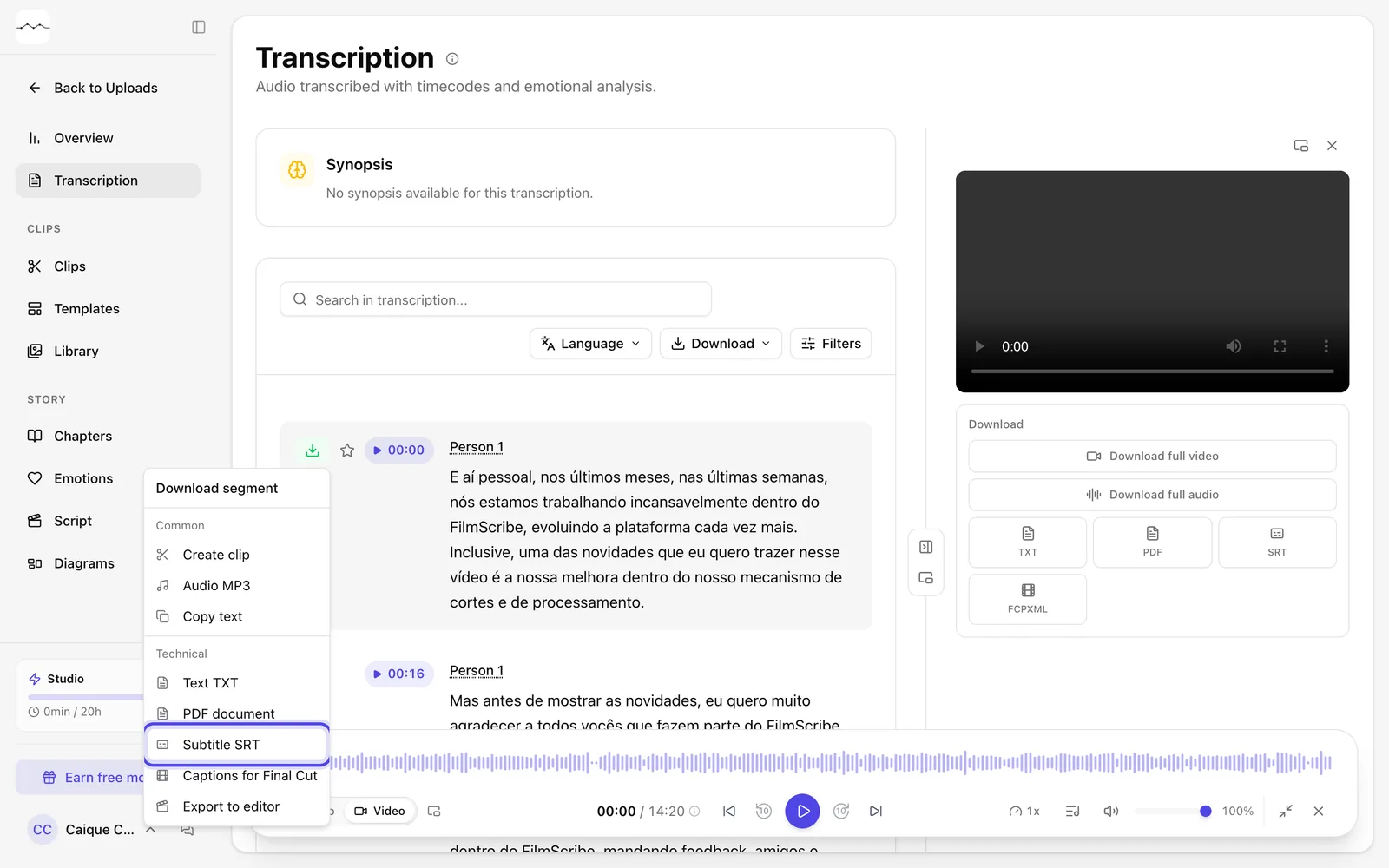
App screenshot Subtitle SRT, in a passage's download menu.