
How to use your brand's font in captions

Inside a video, open Library in the menu, go to Fonts and click Add font to upload a TTF or OTF file. The font stays saved in your account and shows up in every caption font picker, in the Your Fonts group. Only use fonts you're licensed to use.
Step by step
-
Step 1: Open the Library
Inside the video, click Library in the left menu and open the Fonts tab.
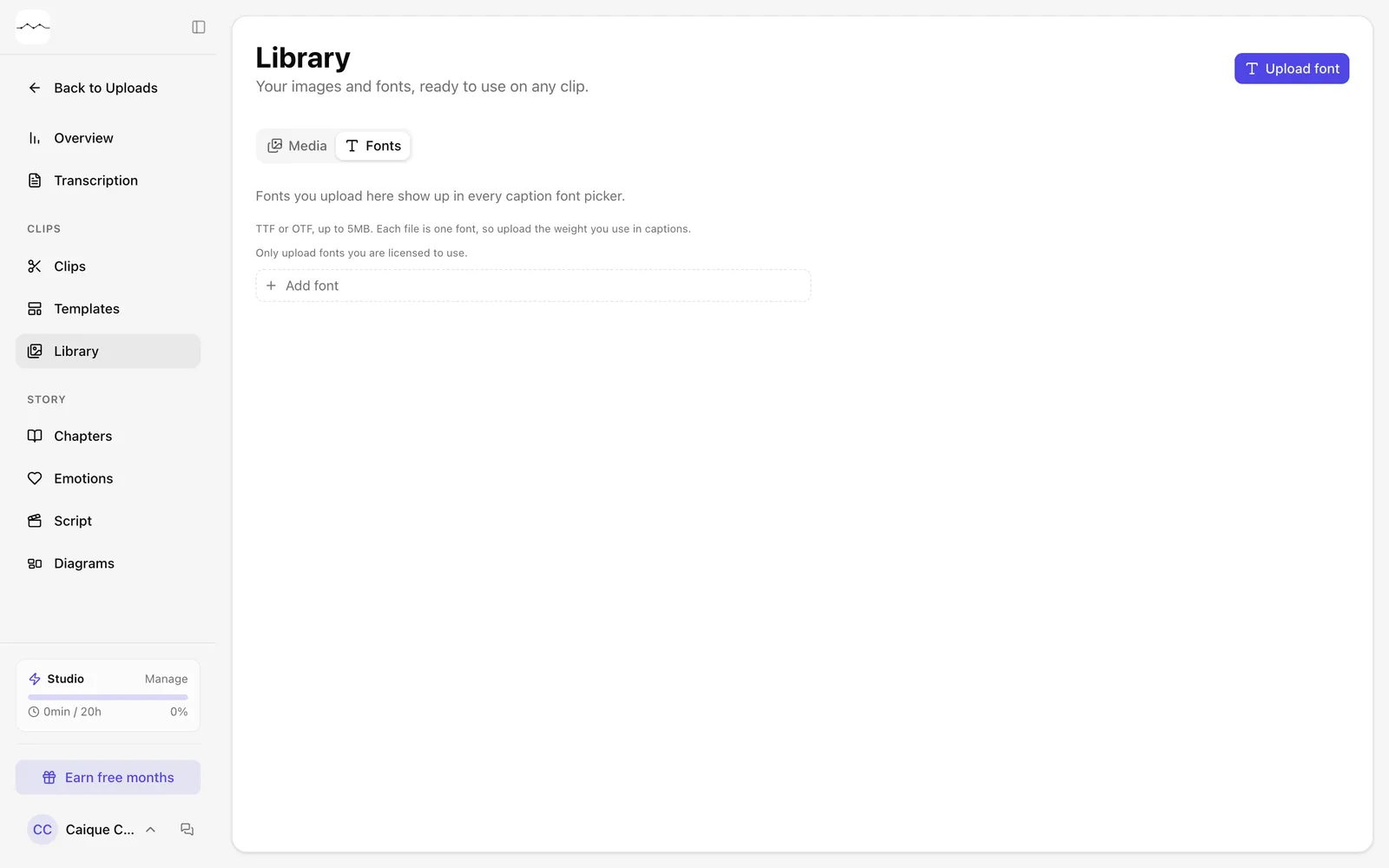
App screenshot The Library, on the Fonts tab. -
Step 2: Upload the font
Click Add font and choose the TTF or OTF file. Each file is one font, so upload the weight you use in your captions.
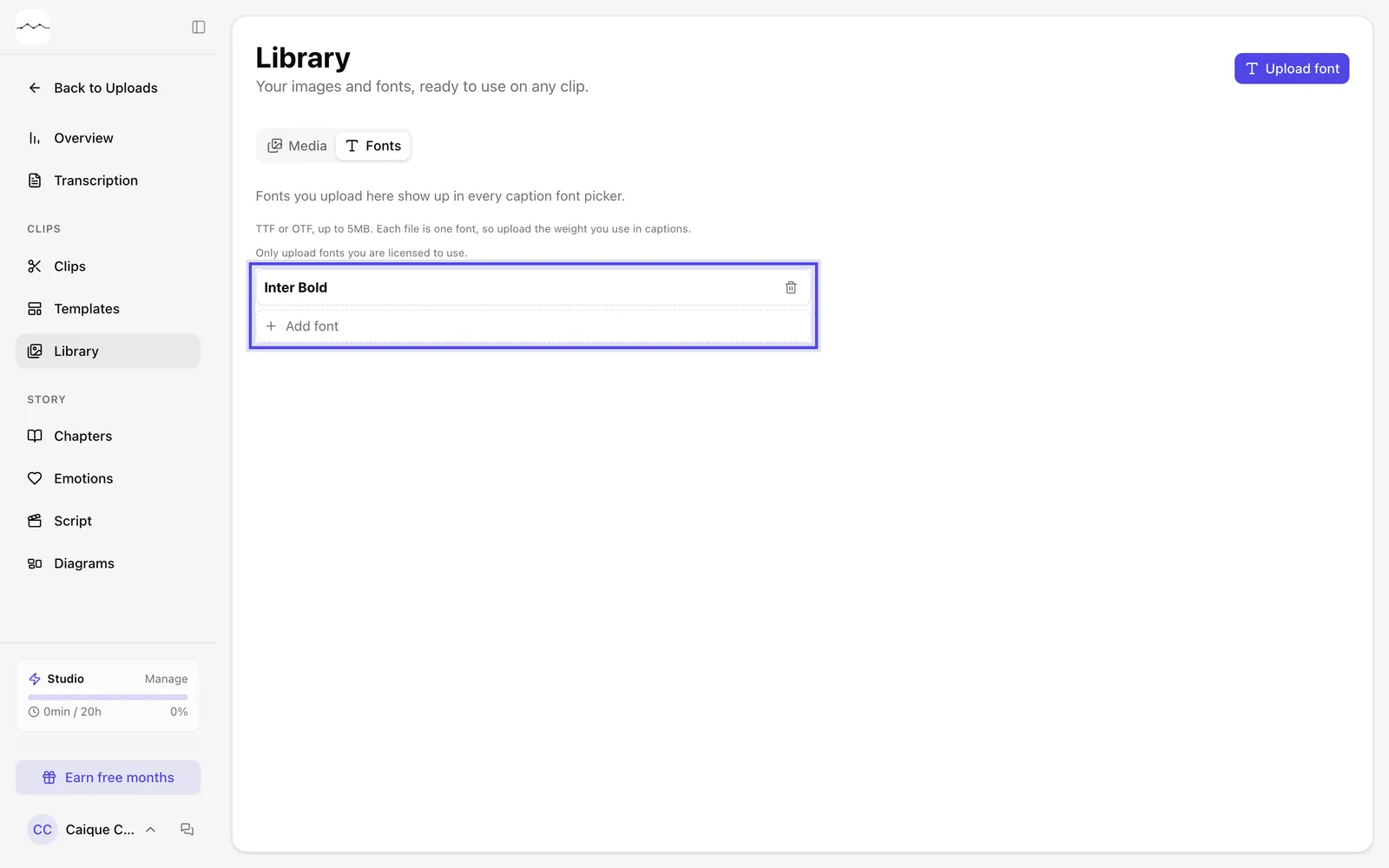
App screenshot A font uploaded to the Library (example data). -
Step 3: Use the font in the captions
In the Download clip window, under Captions, on the Font tab, choose the font in Your Fonts.

App screenshot The uploaded font under Your Fonts, in the caption font picker.
Optional steps
You don't need these steps to finish the task. Use them if you want.
-
OptionalUpload straight from the clip
Next to the caption font picker, the + (Manage fonts) opens the Your fonts window, with the ones you already uploaded. There, Add font does the same upload without leaving the clip.
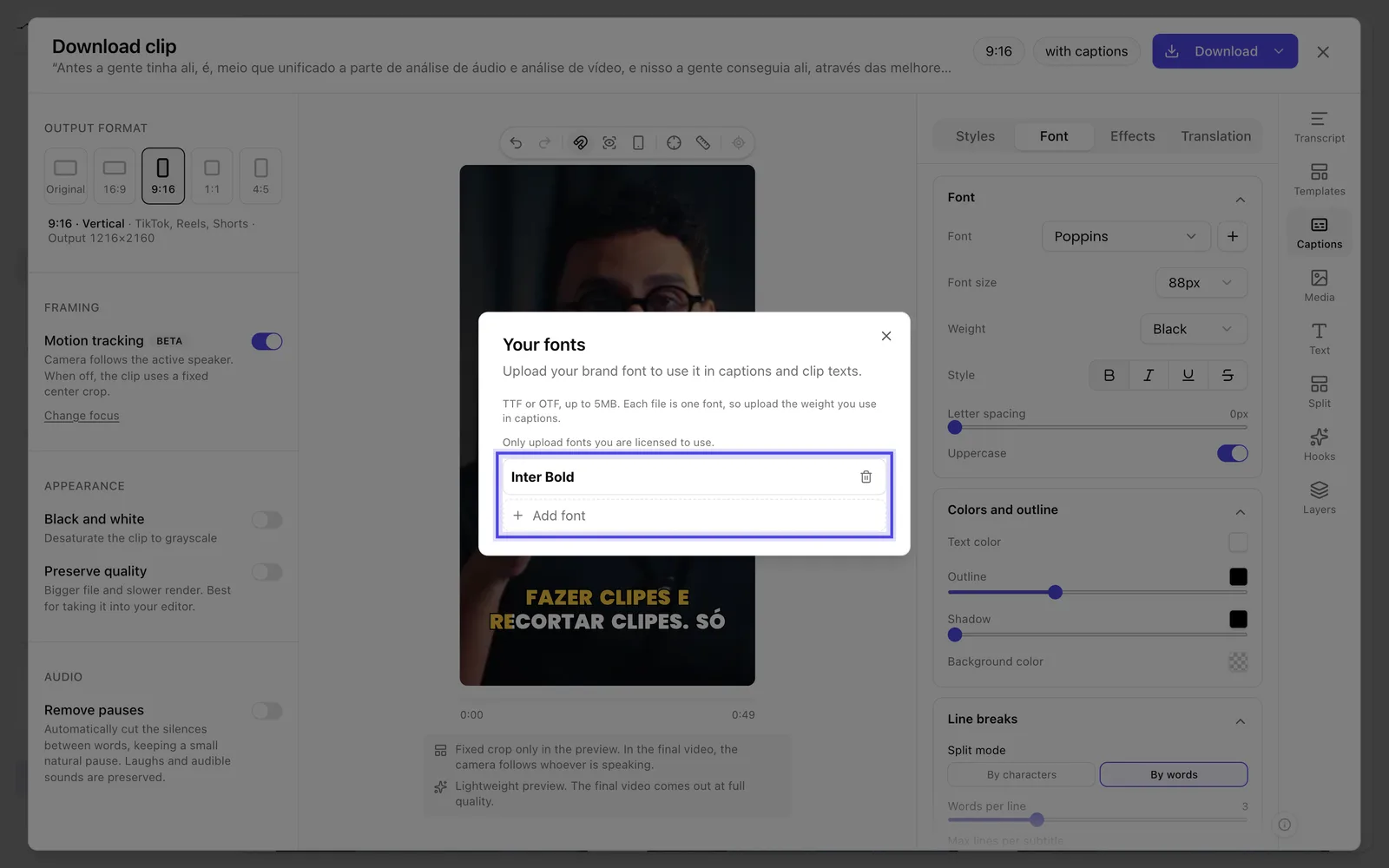
App screenshot The Your fonts window, opened by the + of the font picker.