
How to add a logo, text and backgrounds to a clip

In the Download clip window, use the right menu. Text adds text over the clip. Hooks brings ready-made backgrounds and text hooks. Media adds your logo or another image, uploaded once and kept in your library. Drag to position each element and set when it shows up.
Step by step
-
Step 1: Add text
In the Download clip window, open Text in the right menu and click Add text. Drag the text in the preview to position it, resize it and set when it shows up.
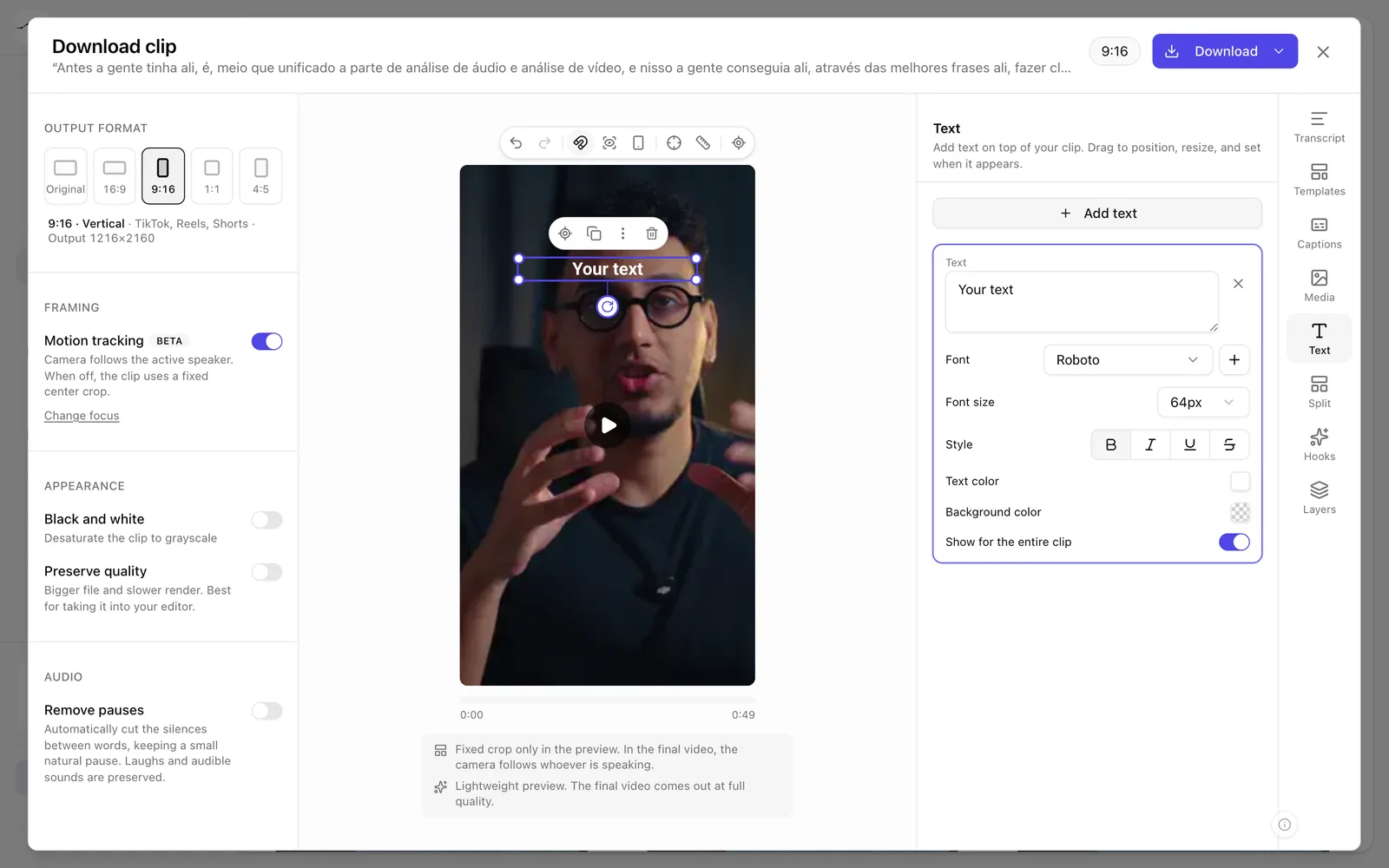
App screenshot Text added to the clip, with the options in the Text panel. -
Step 2: Use backgrounds and text hooks
Open Hooks. In Text hooks, choose a ready-made hook; further down, choose the background's shape in Shape and its color in Backgrounds. They're good for filling the split screen or grabbing attention at the start.
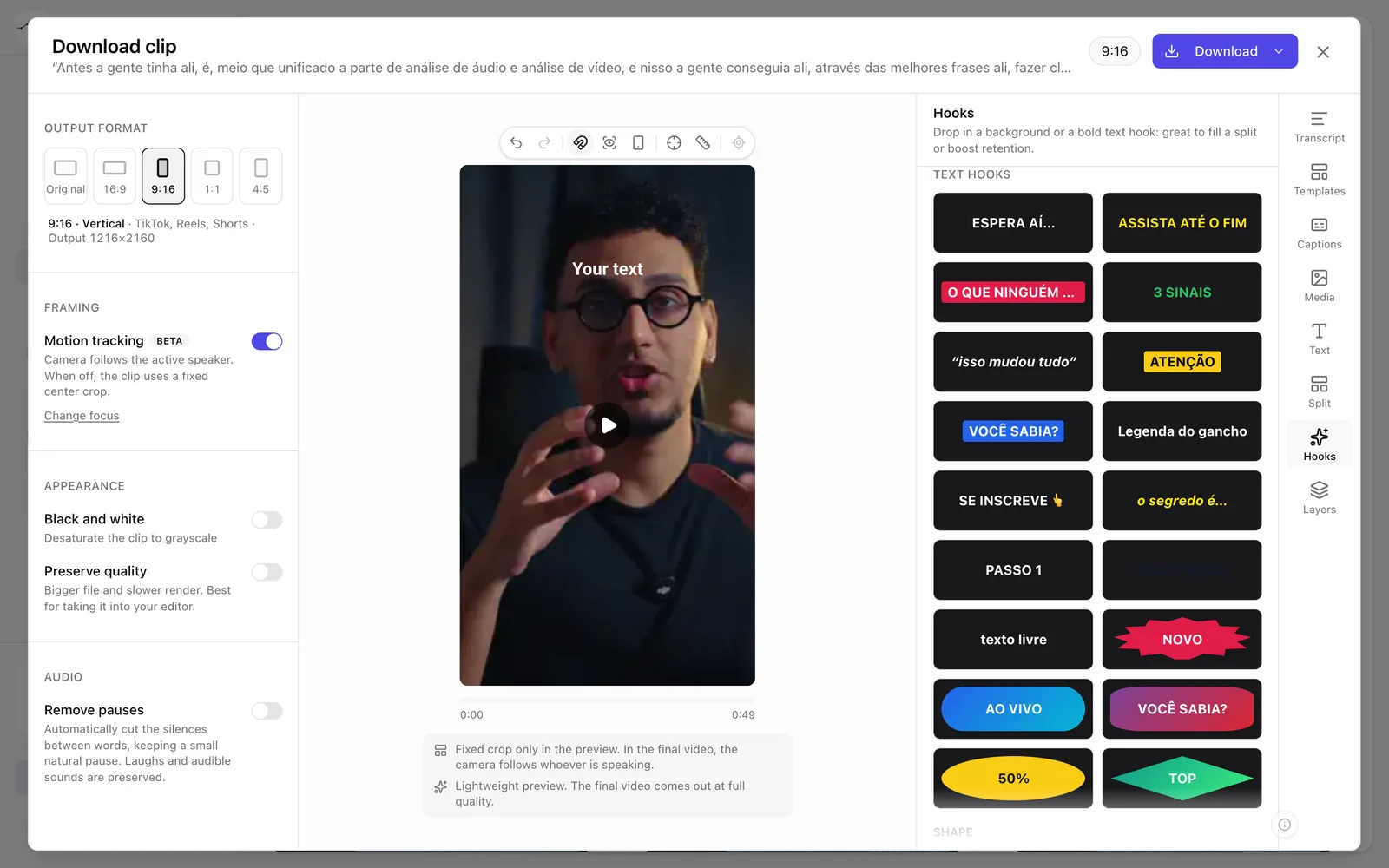
App screenshot The Hooks panel, with the ready-made text hooks. 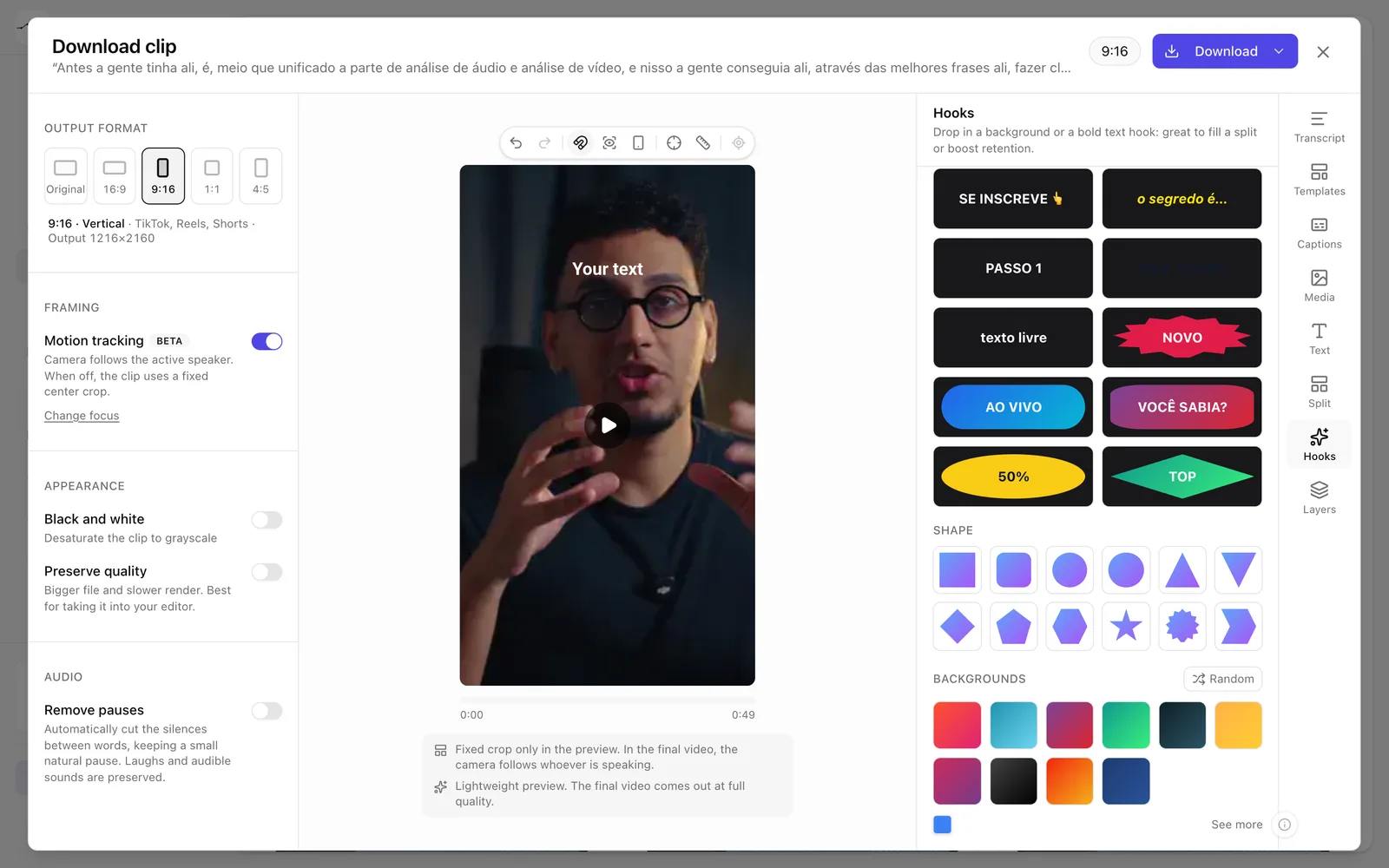
App screenshot Further down the Hooks panel: Shape and Backgrounds. -
Step 3: Add your logo
Open Media and click Add image to upload the logo. It stays in your library for future clips. Click Add to the clip and adjust the position, size, opacity and when the image shows up.
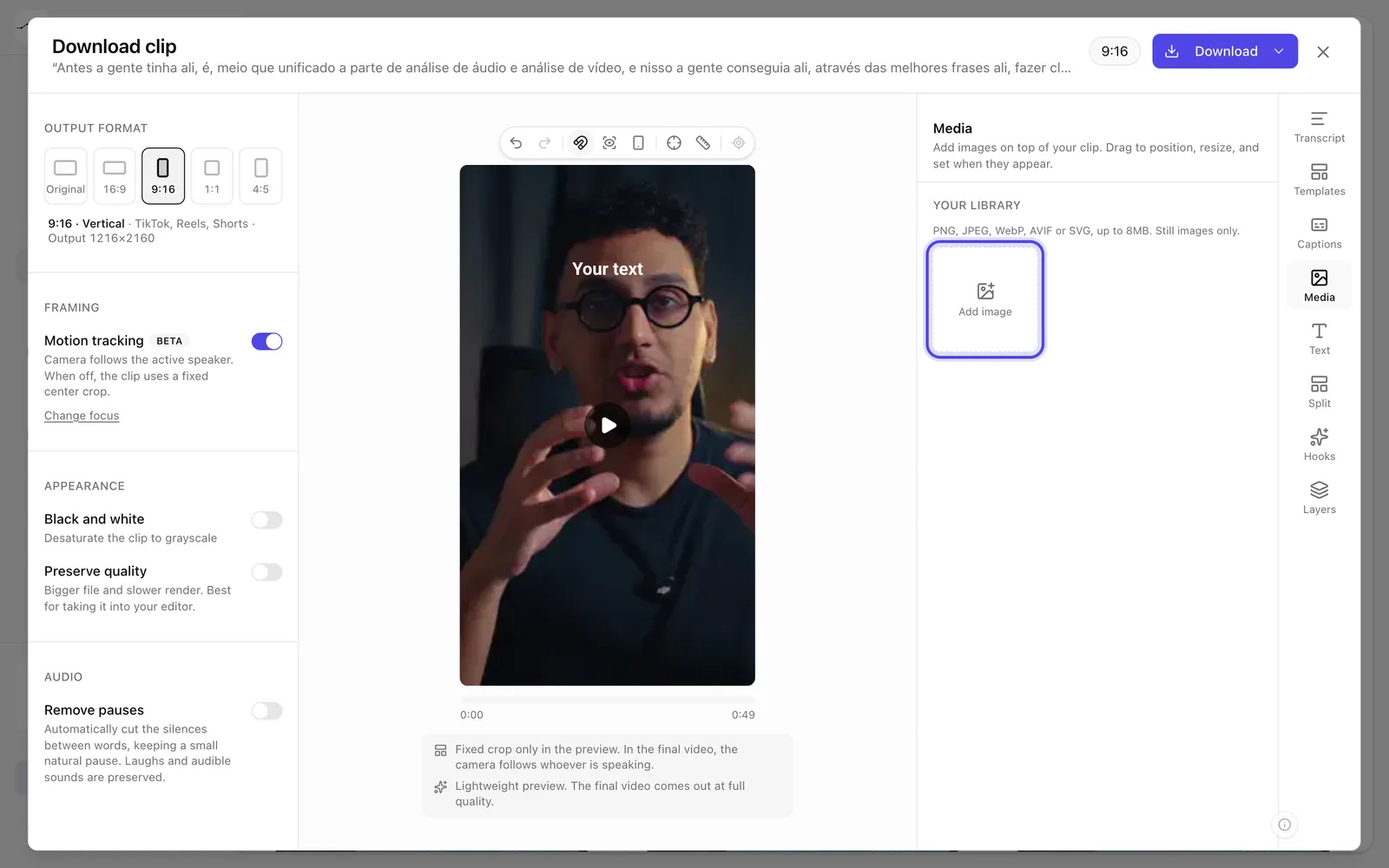
App screenshot The Media panel, with your image library.