
Clips
How to split the clip's screen

Short answer
In the Download clip window, choose 9:16, 1:1 or 4:5 and open Split in the right menu. Turn on Enable split, choose the orientation, the video side and its size. The other part of the screen is free for images or text, from the Media and Text panels.
Available on Pro, Studio and Agency (every plan)
Step by step
-
Step 1: Choose a format that allows a split
In the Download clip window, under Output format, choose 9:16, 1:1 or 4:5. In the other formats, Split stays off.
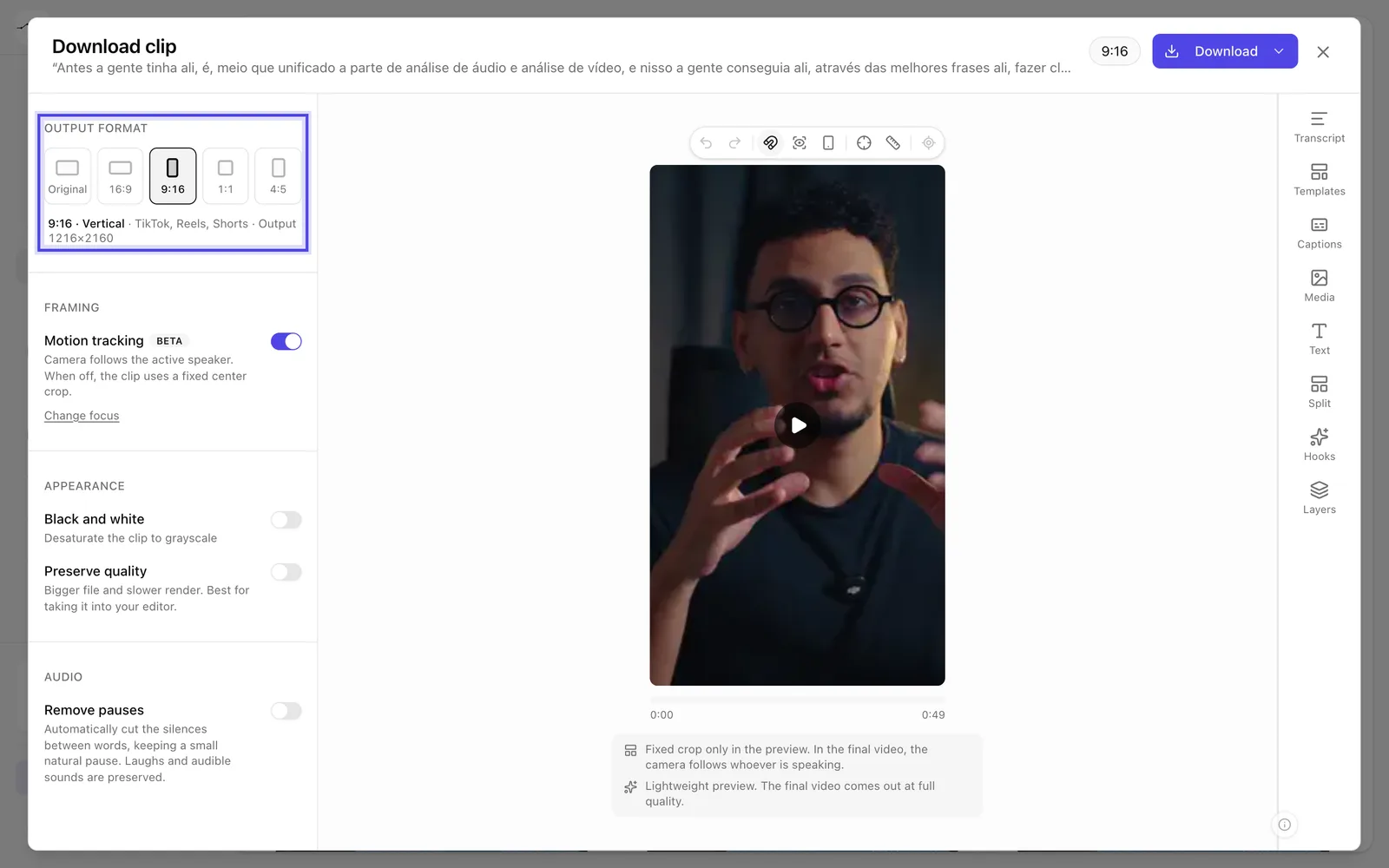
App screenshot Output format with 9:16 chosen. -
Step 2: Turn on the split
Open Split in the right menu and turn on Enable split. In Orientation, choose top and bottom or side by side; in Video side, where the video goes; in Video size, how much of the screen it takes up.
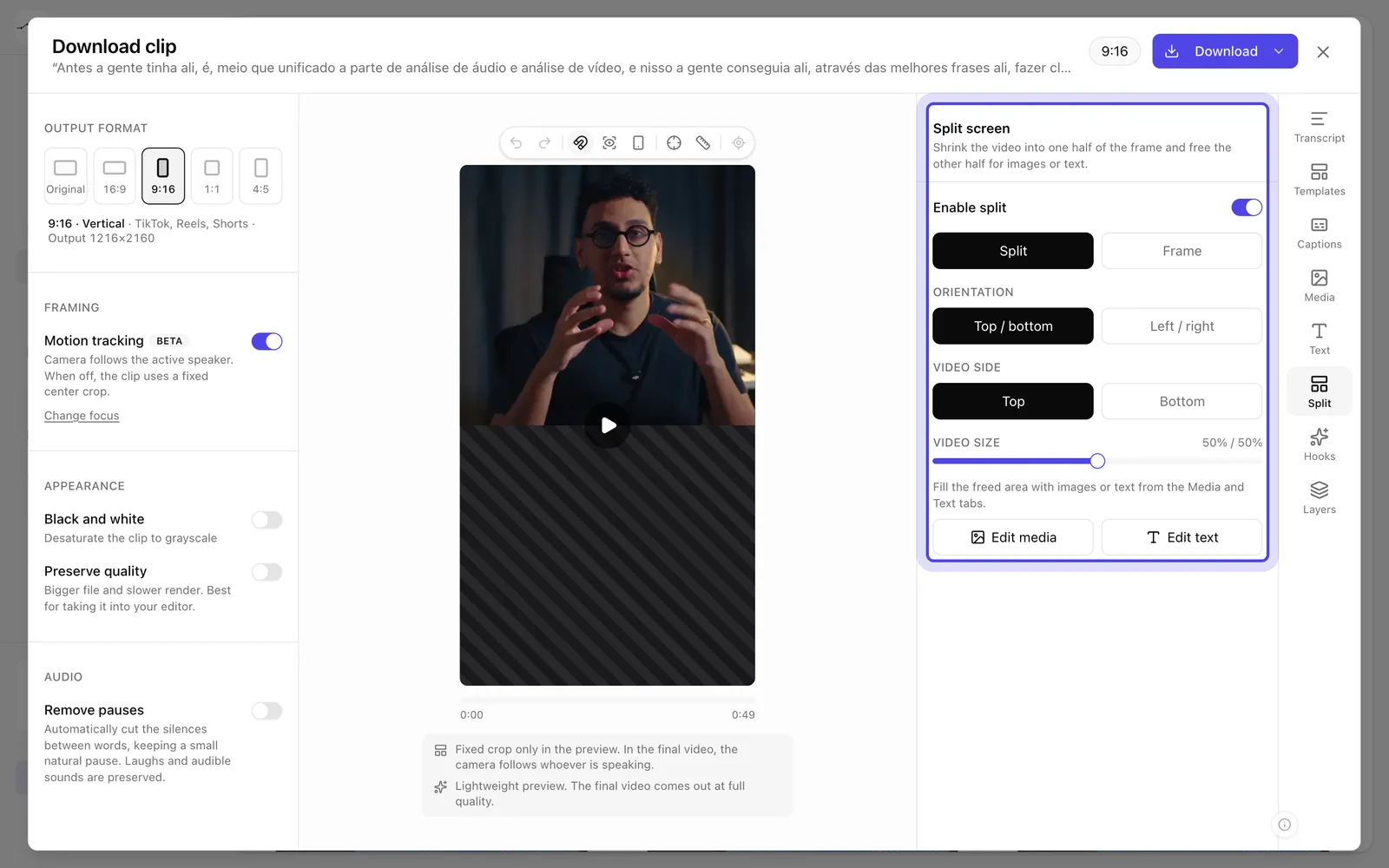
App screenshot The Split screen panel, with the split turned on. -
Step 3: Fill the other part
Use Media and Text to put images or text in the free area.
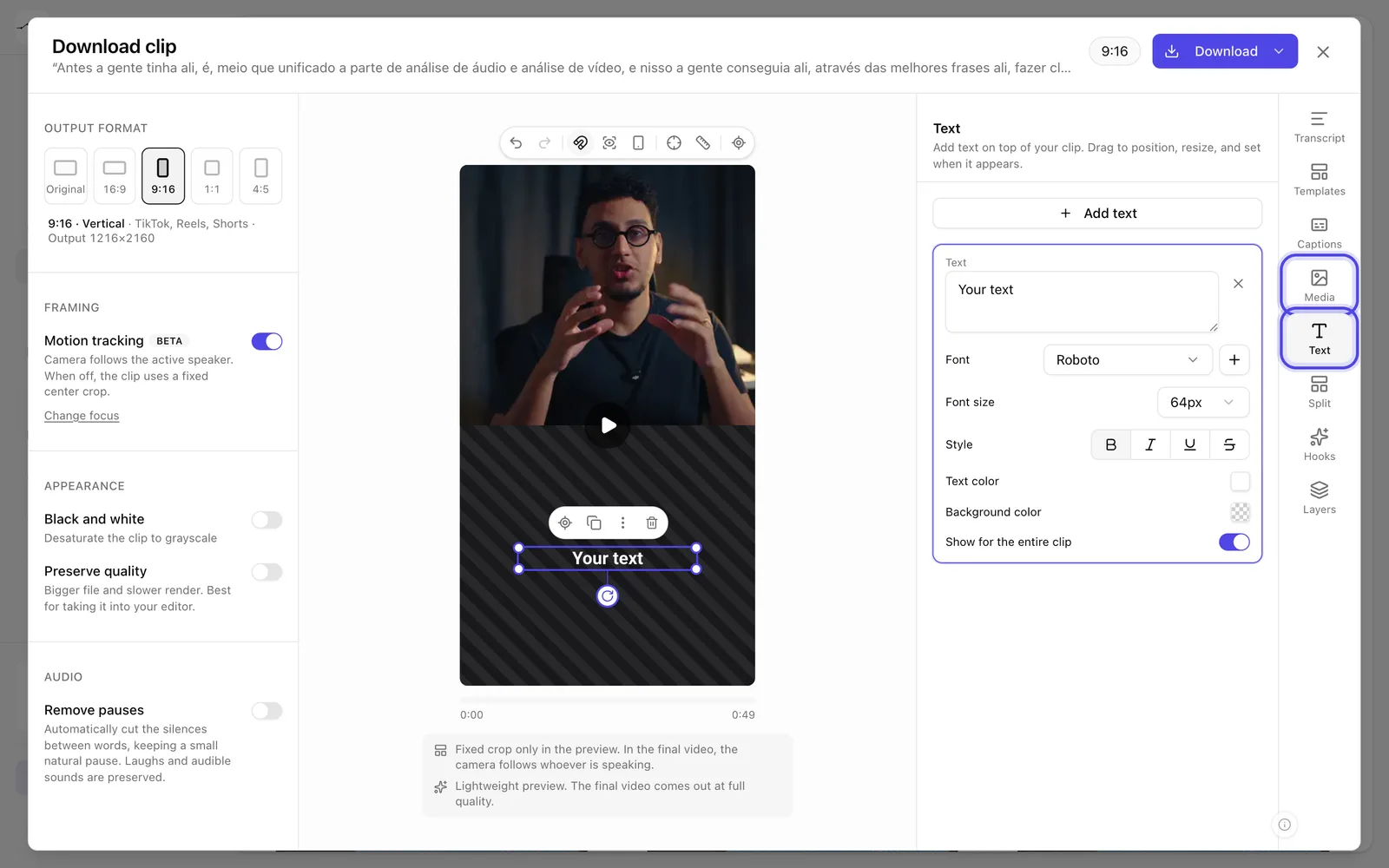
App screenshot Text in the freed-up area; Media and Text, in the right-hand menu.