
Clips
How to use clip templates

Short answer
A template saves captions, split screen, images, texts and shapes together. On the file's Templates page, use a ready-made template or create your own with New template. Then, in the Download clip window, open Templates in the right menu and apply the look to the clip with one click.
Available on Pro, Studio and Agency (every plan)
Step by step
-
Step 1: Open the Templates page
Inside the file, click Templates in the left menu. My templates holds yours; click New template to create one.
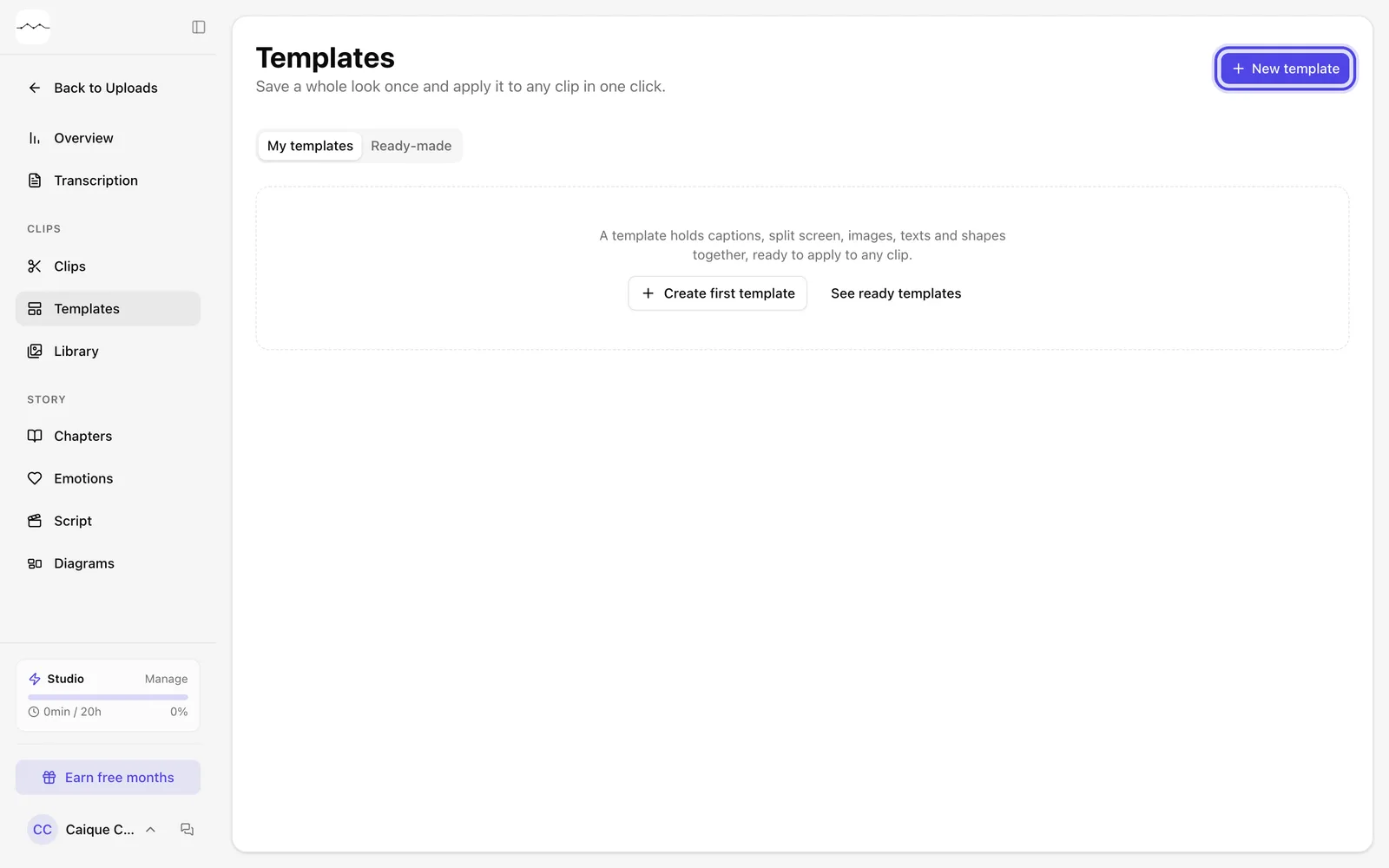
App screenshot The Templates page, with My templates and Ready-made. -
Step 2: Or start from a ready-made one
The Ready-made tab shows the ready-made templates. They already show up in the clip window; click Duplicate to my account to keep a copy and edit it.
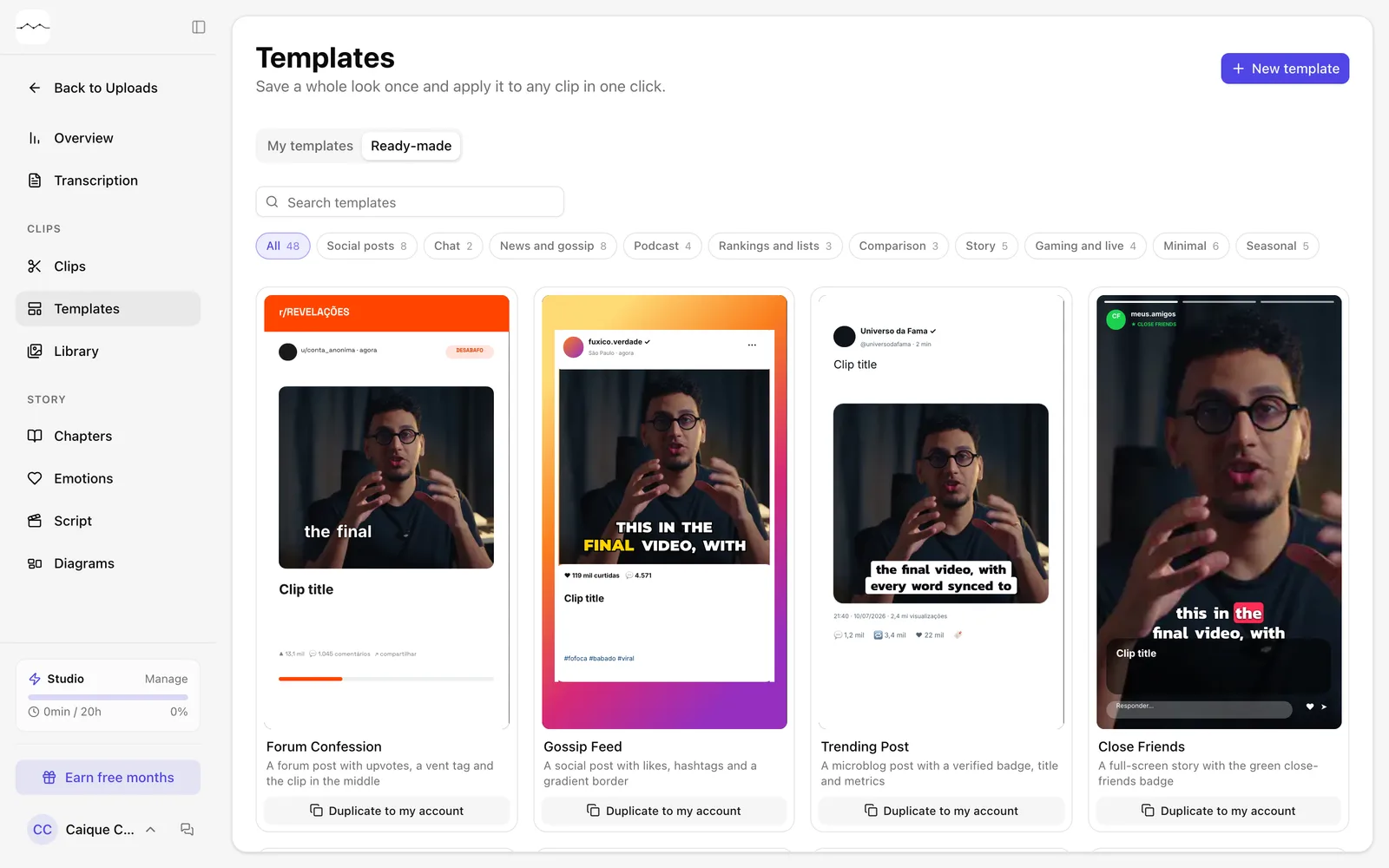
App screenshot The ready-made templates. -
Step 3: Apply it to the clip
In the Download clip window, open Templates in the right menu and click the template to apply its saved look to that clip.
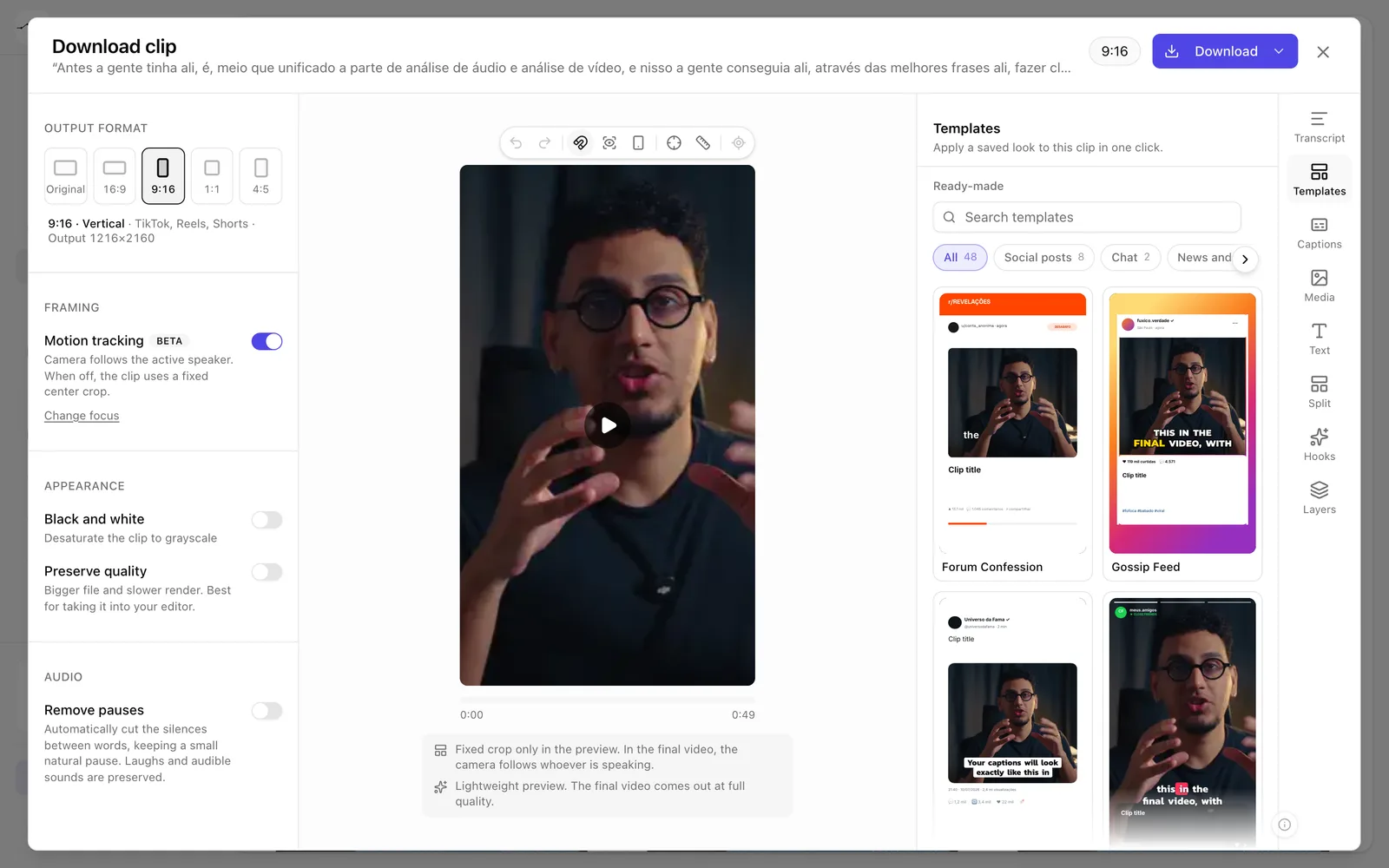
App screenshot The Templates panel inside the Download clip window.