
How to adjust a clip

On the clip's card, click the scissors (Adjust). In the Transcript panel, click a word to change where the clip starts or ends, or use the slider. If you like, turn on Remove words to take words out of the final captions or Edit text to fix what's written.
Step by step
-
Step 1: Click Adjust
On the Clips page, click the scissors on the card (Adjust).
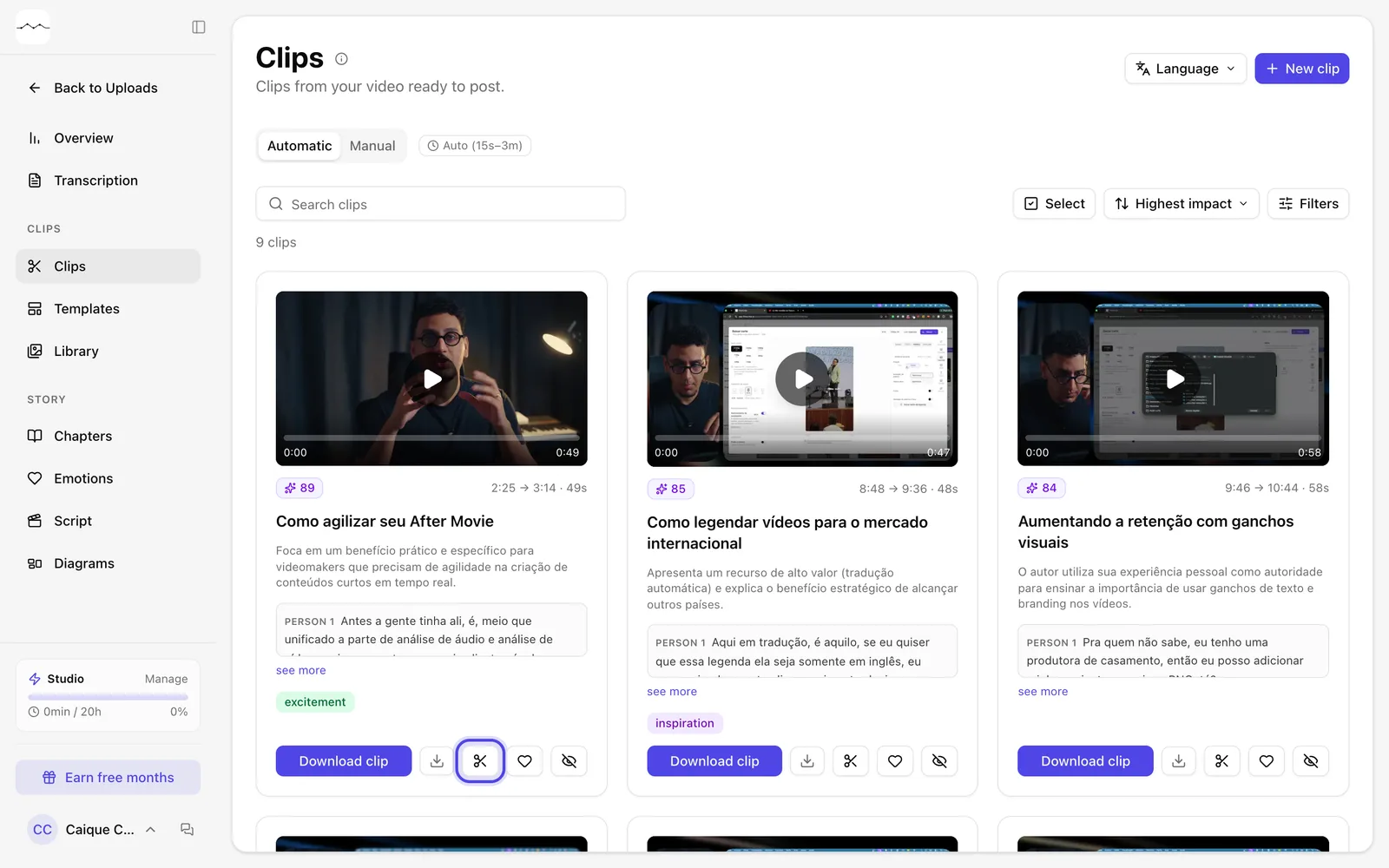
App screenshot The Adjust scissors on the clip's card. -
Step 2: Change the range
In the Transcript panel, under Clip range, click a word to set where the clip starts or ends, or use the slider. Start and End show the chosen time.
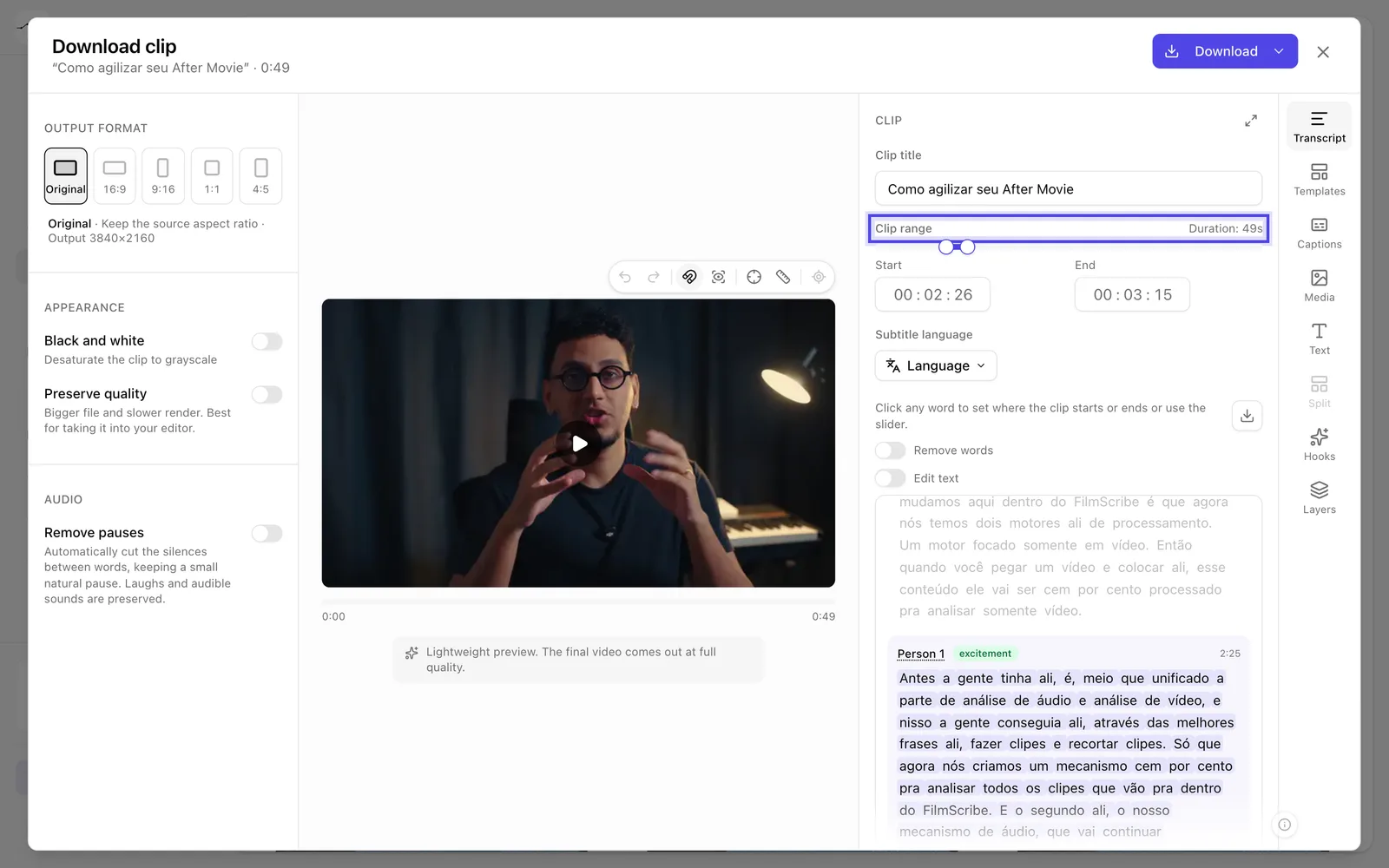
App screenshot The clip range, with the start, the end and the slider. -
Step 3: Download the adjusted clip
Click Download to make the clip with the new range.
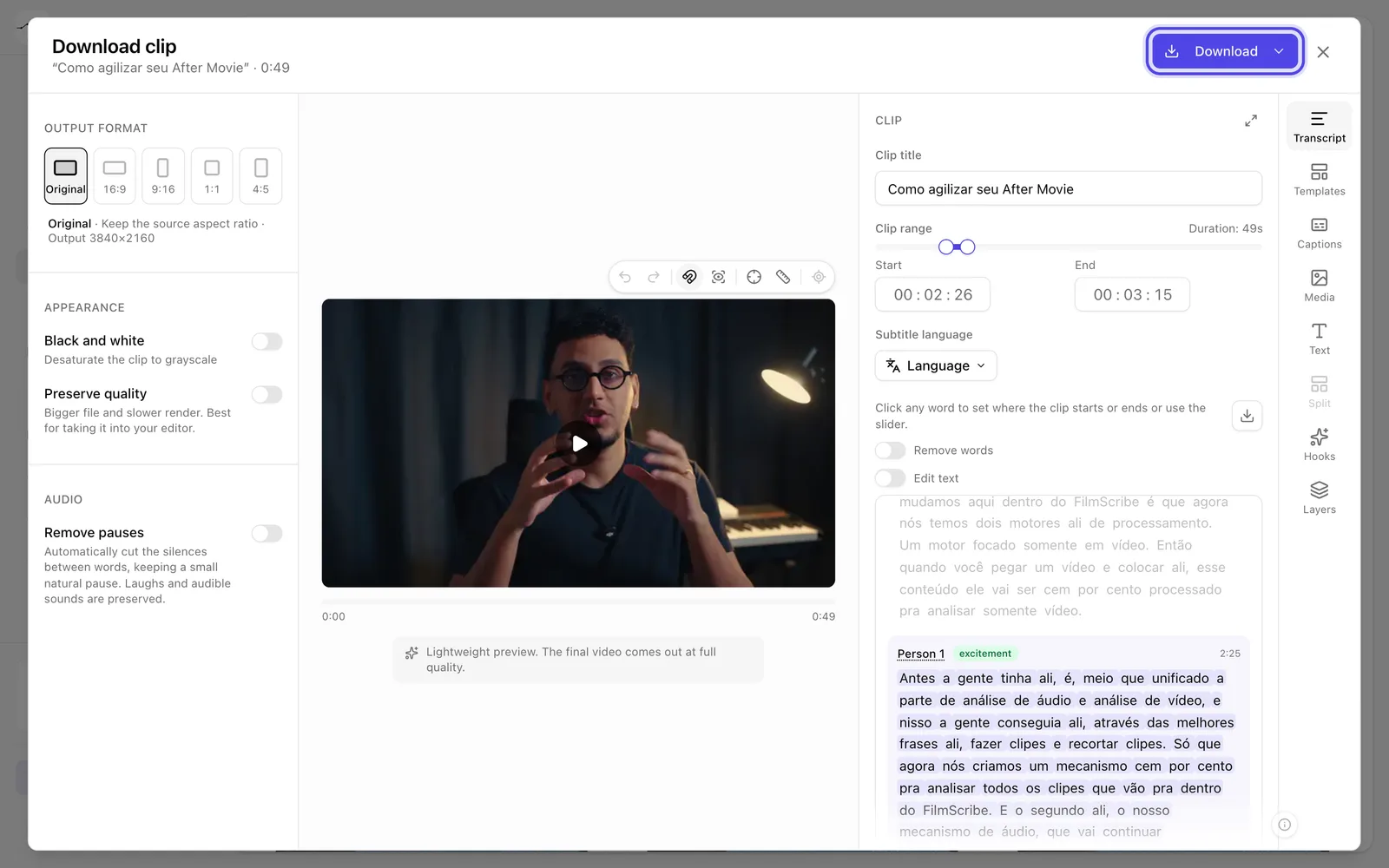
App screenshot The Download button, at the top of the clip window.
Optional steps
You don't need these steps to finish the task. Use them if you want.
-
OptionalTake words out of the captions
Turn on Remove words and click the words that should leave the final captions. To change the range again, turn this mode off.
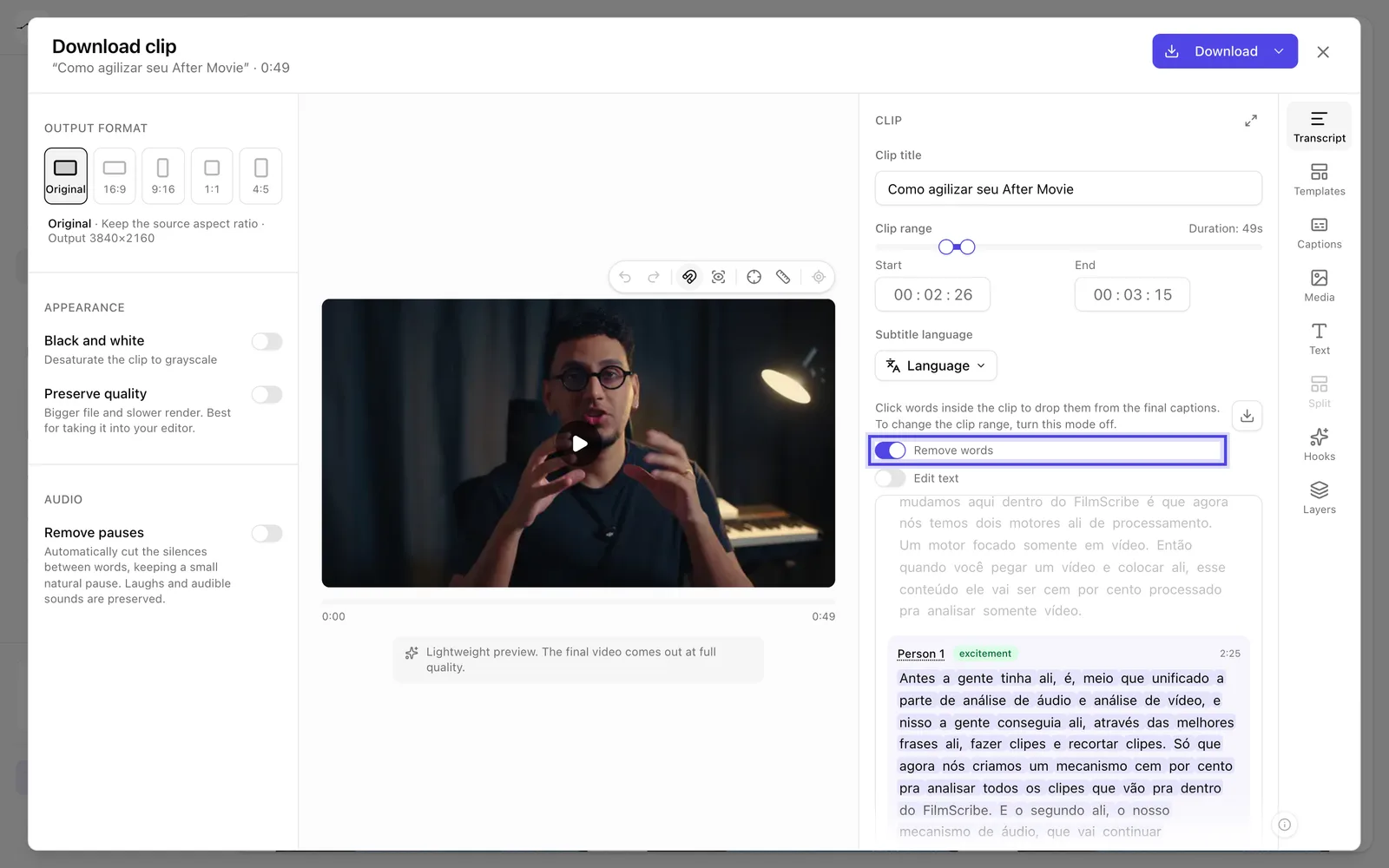
App screenshot Remove words mode turned on. -
OptionalFix the text
Turn on Edit text to fix a misspelled word. The audio doesn't change, only the text on screen, the captions and the exports.
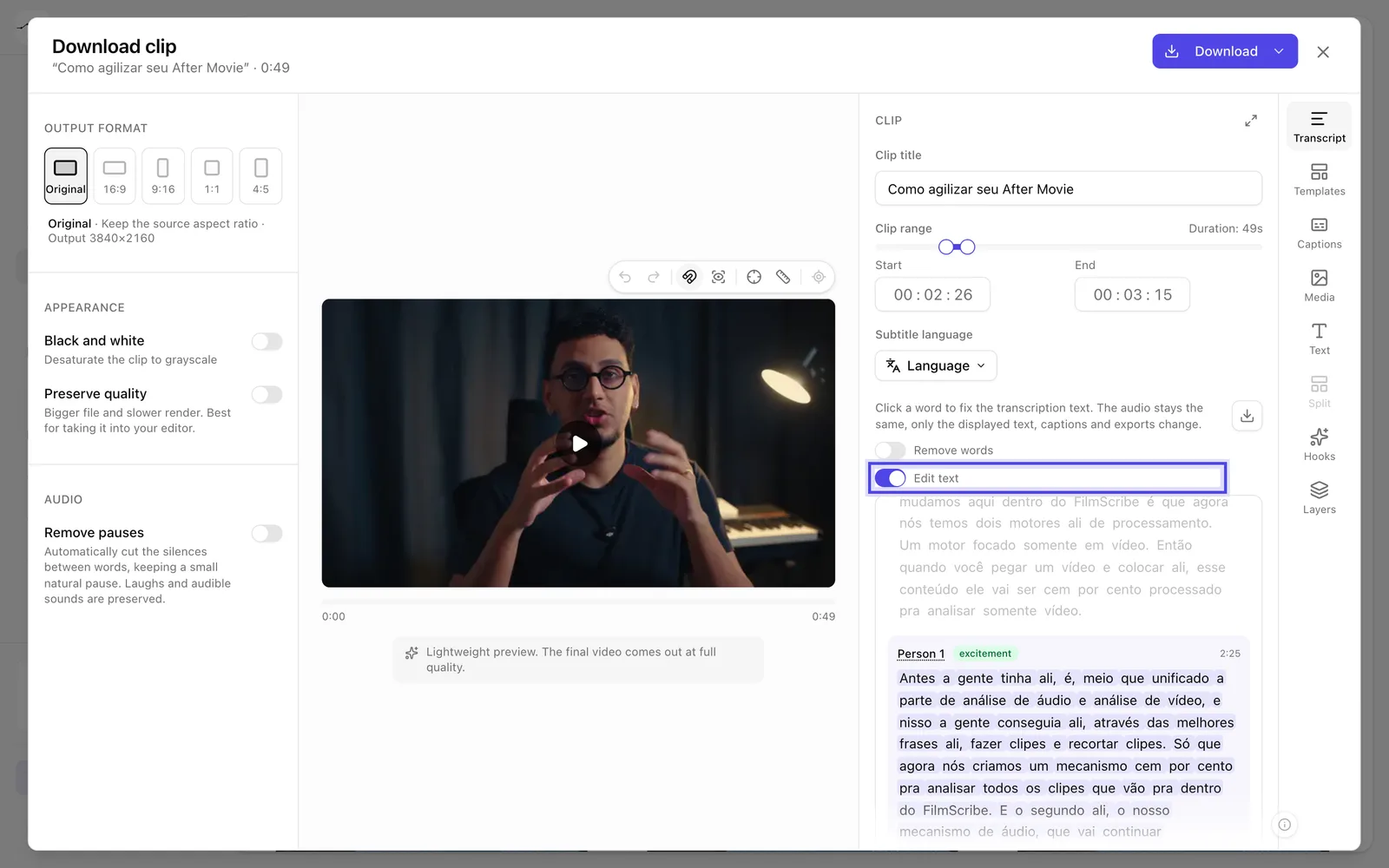
App screenshot Edit text turned on: the clip's words become editable.