
Transcription
How to fix a word in the transcript

Short answer
On the Transcription page, select the wrong words of a passage with your mouse. In the menu that appears, click Edit text, fix it and click Save. The fix applies to the text on screen, the clip captions and the exports. The audio stays the same, and you can restore the original text whenever you want.
Available on Pro, Studio and Agency (every plan)
Step by step
-
Step 1: Select the words
On the Transcription page, select the words you want to fix with your mouse, within a single passage. A menu appears over the selection; click the pencil, Edit text.
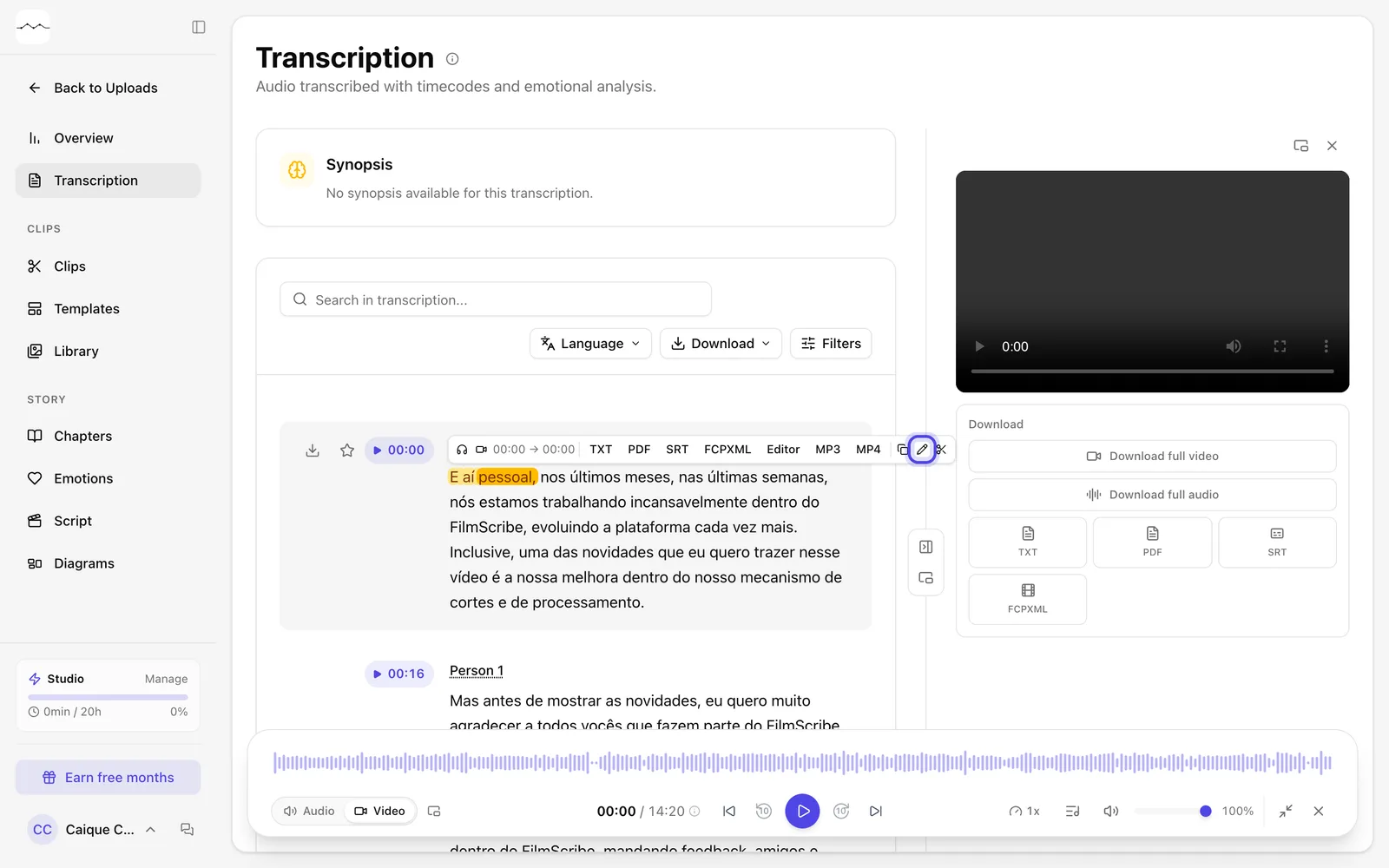
App screenshot Selected words and the Edit text pencil in the menu. -
Step 2: Fix it and save
In the Edit transcription window, type the right text and click Save.
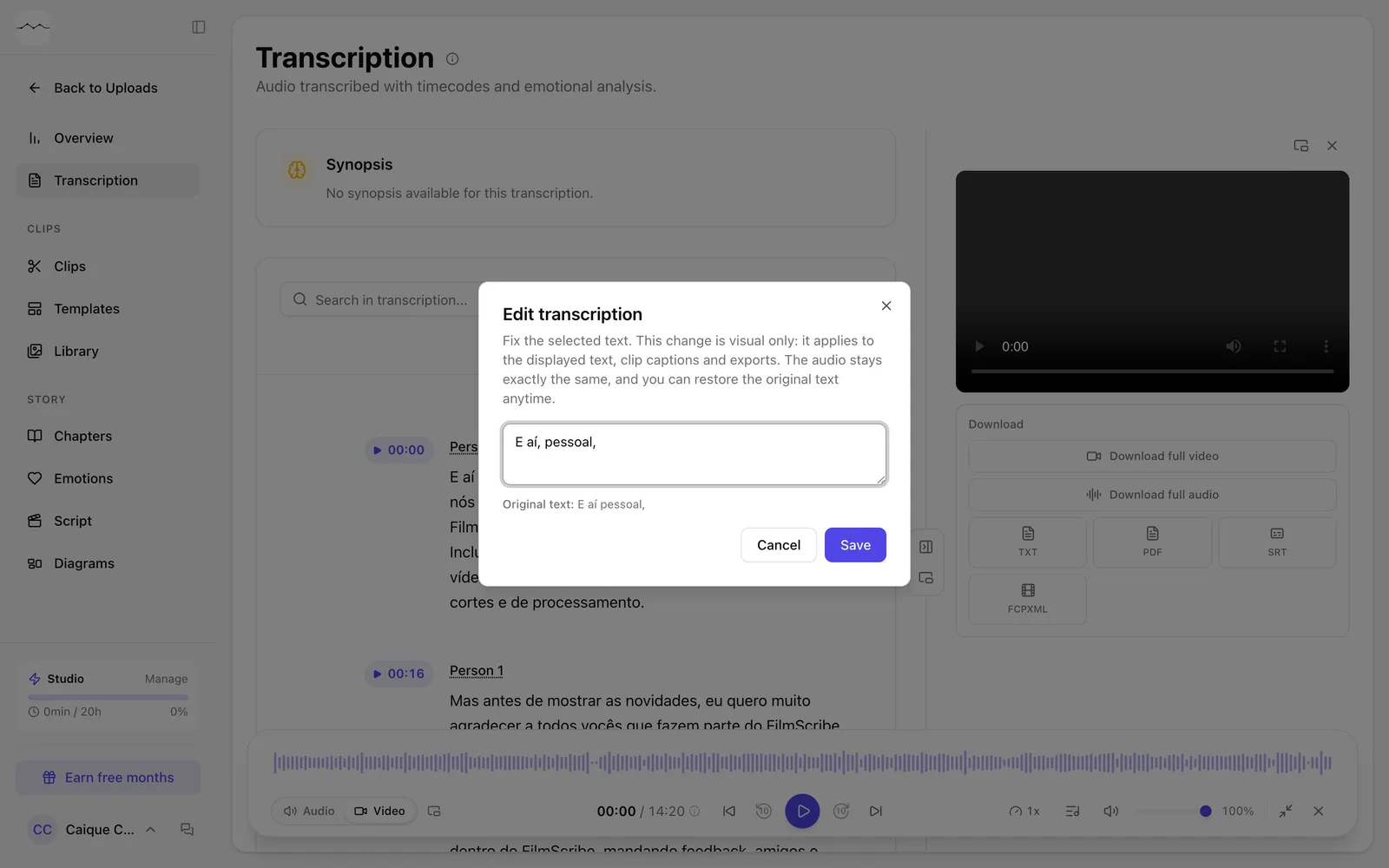
App screenshot The Edit transcription window, with the fix typed and the original text below it.
Optional steps
You don't need these steps to finish the task. Use them if you want.
-
OptionalGo back to the original text
Open the same window and click Restore original.
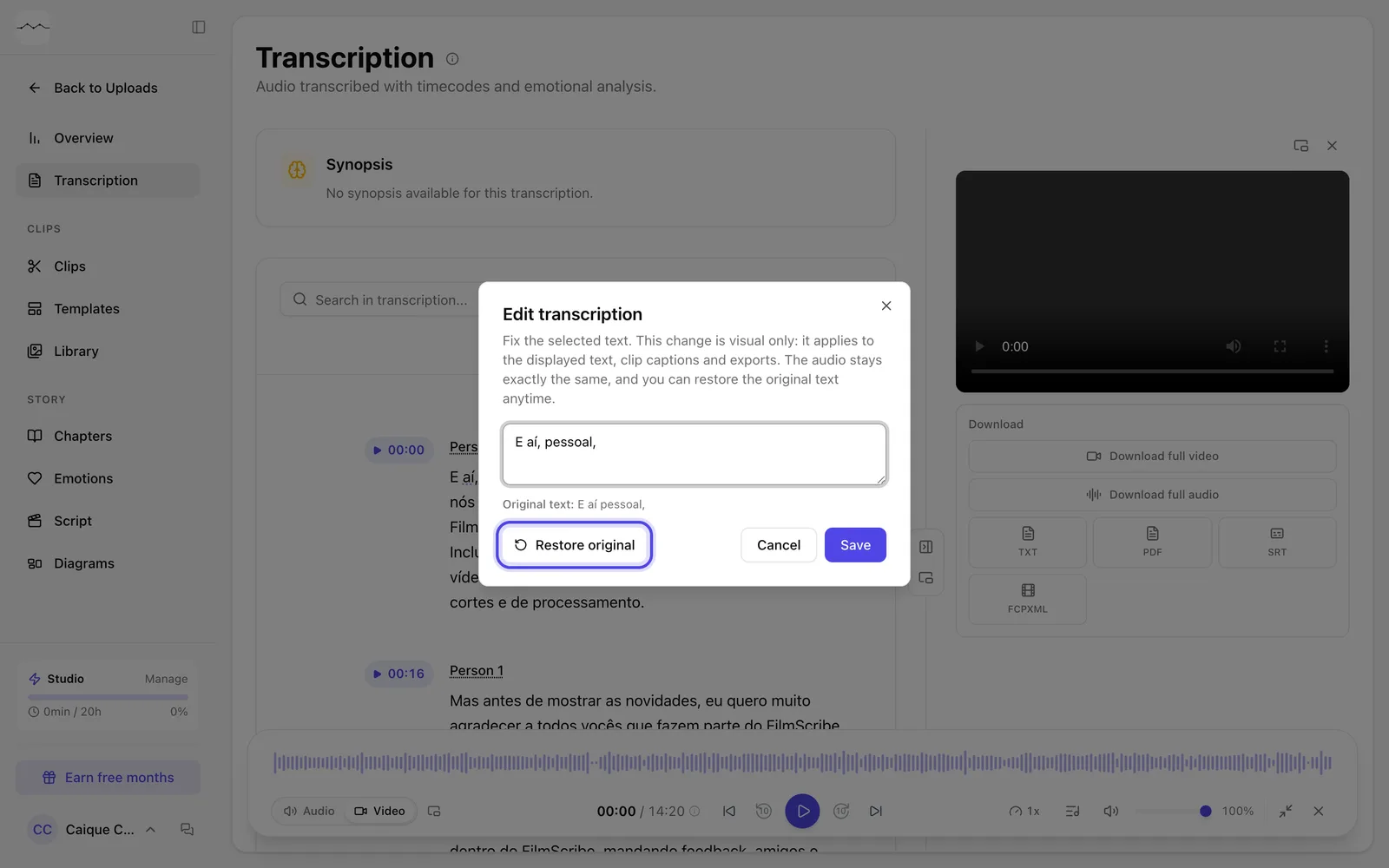
App screenshot Restore original, in the window of words already fixed.