Skip to content
Plan and account

How to choose your notifications and emails

Updated

Short answer

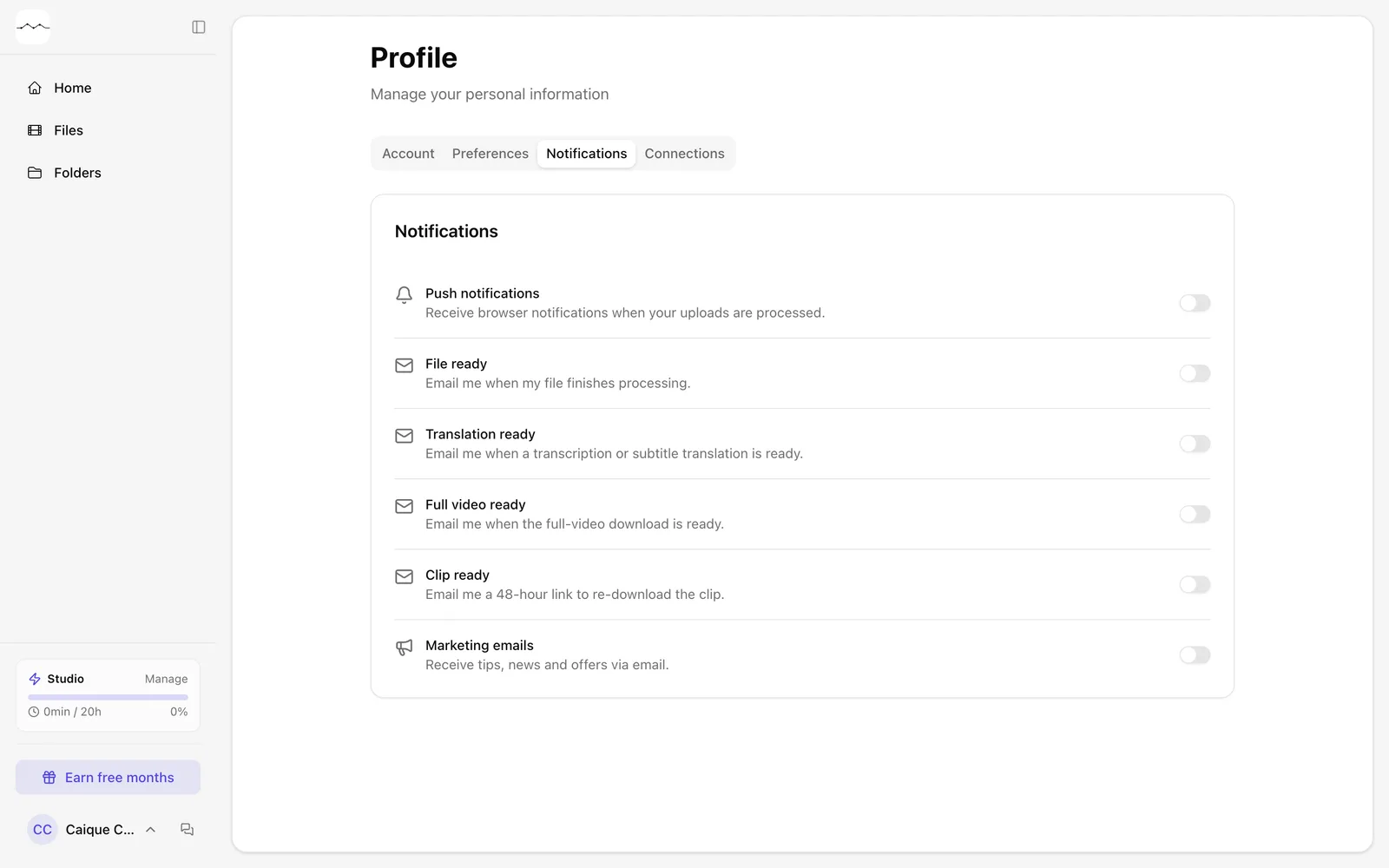
In Profile, open the Notifications tab. Each alert has its own switch: Push notifications (in the browser), File ready, Translation ready, Full video ready, Clip ready and Marketing emails. Turn each one on or off as you like.
Step by step

  1. Step 1: Open Notifications

    In Profile, open the Notifications tab.

    The Notifications tab of the Profile.
    App screenshot The Notifications tab of the Profile.
  2. Step 2: Turn each alert on or off

    Use each one's switch: Push notifications, File ready, Translation ready, Full video ready, Clip ready and Marketing emails.
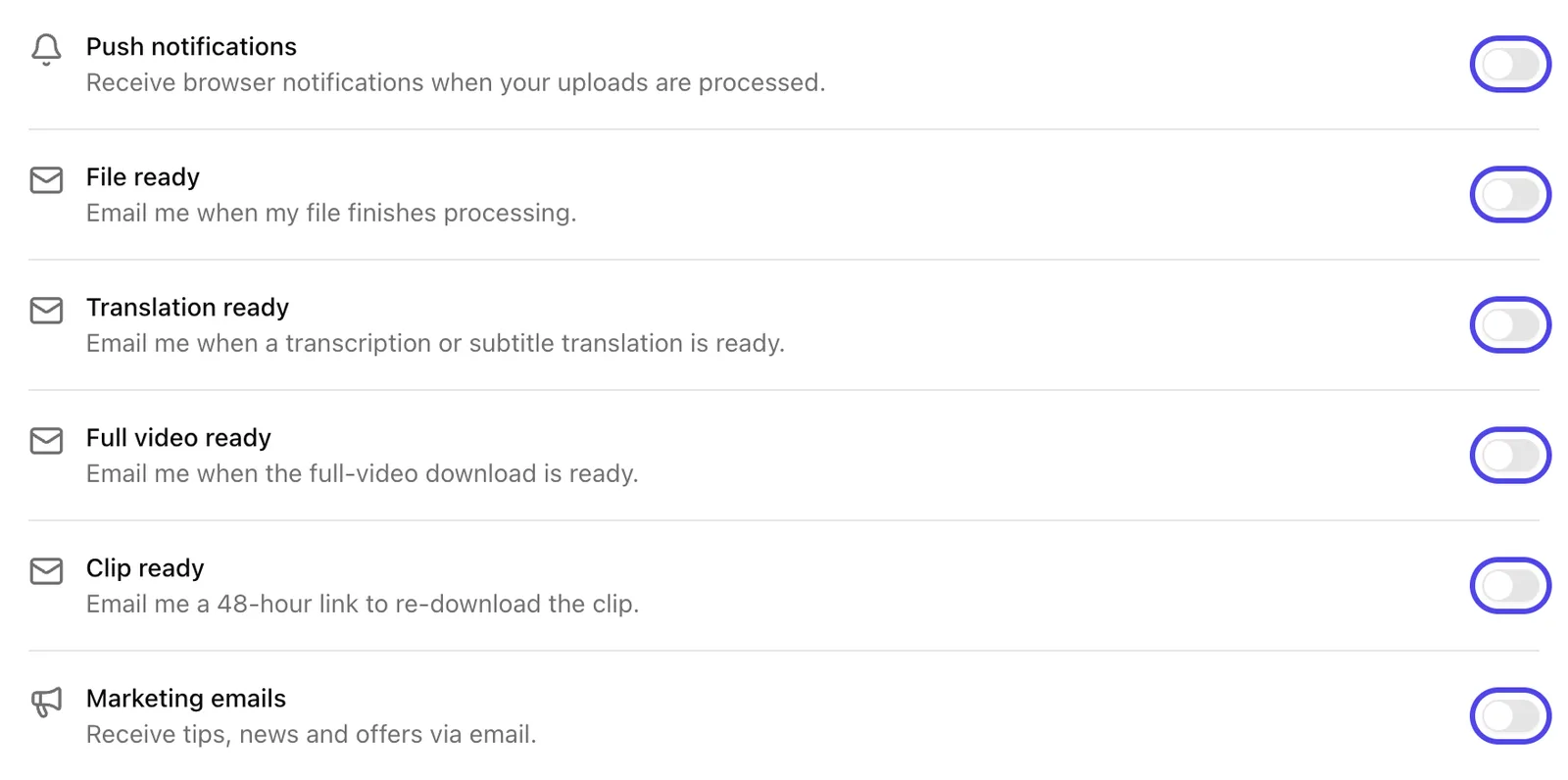
    The switch for each notice, on the Notifications tab.
    App screenshot The switch for each notice, on the Notifications tab.

Frequently asked questions

What's a push notification?

A browser notification when your file finishes processing.

Push won't turn on. What do I do?

If your browser blocked notifications, allow them in your browser settings and try again.

What's the Clip ready email for?

It has a link to download the clip again, valid for 3 days.

Still need help?

Talk to us. We answer on WhatsApp and by email.

Your next story is already waiting.

Upload a file or paste a YouTube link and see the transcript, chapters and clips from your own recording.