
How to use your files in ChatGPT, Claude and Gemini

In FilmScribe, open the Connections tab of your Profile and copy the connector address. In the assistant, add a connector with that address, sign in to your account and click Allow. By default the assistant only reads your files; if you check the option, it also creates, edits and deletes what you ask for.
Step by step
-
Step 1: Open Connections
In FilmScribe, open Profile and the Connections tab. Copy the Connector address with Copy. The address shows up only here, inside your account.
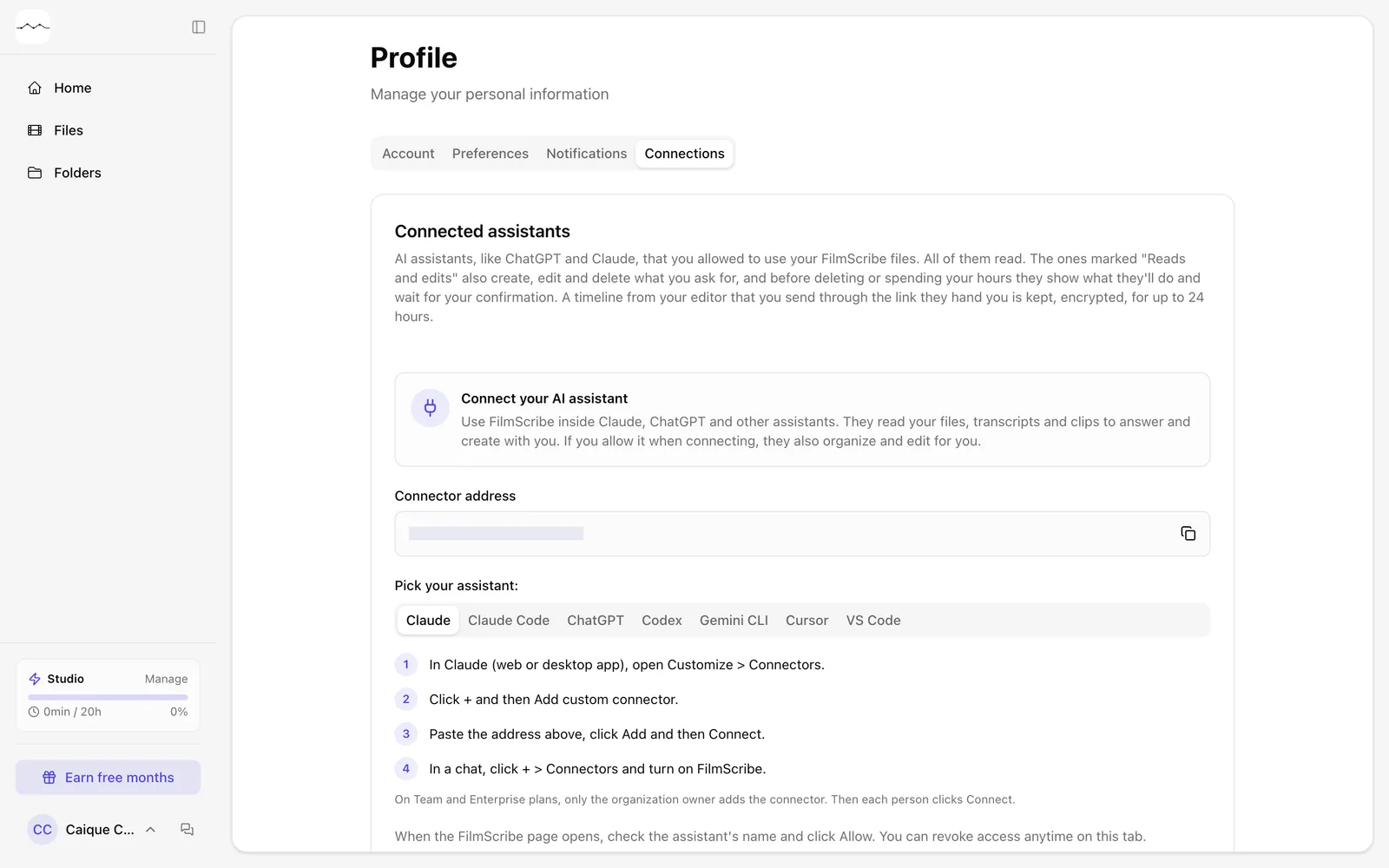
App screenshot The Connections tab, with the connector address covered in this screenshot. -
Step 2: Follow your assistant's steps
Right below the address, open your assistant's tab: Claude, ChatGPT, Gemini CLI and others. Follow the steps to add the connector with the address you copied.
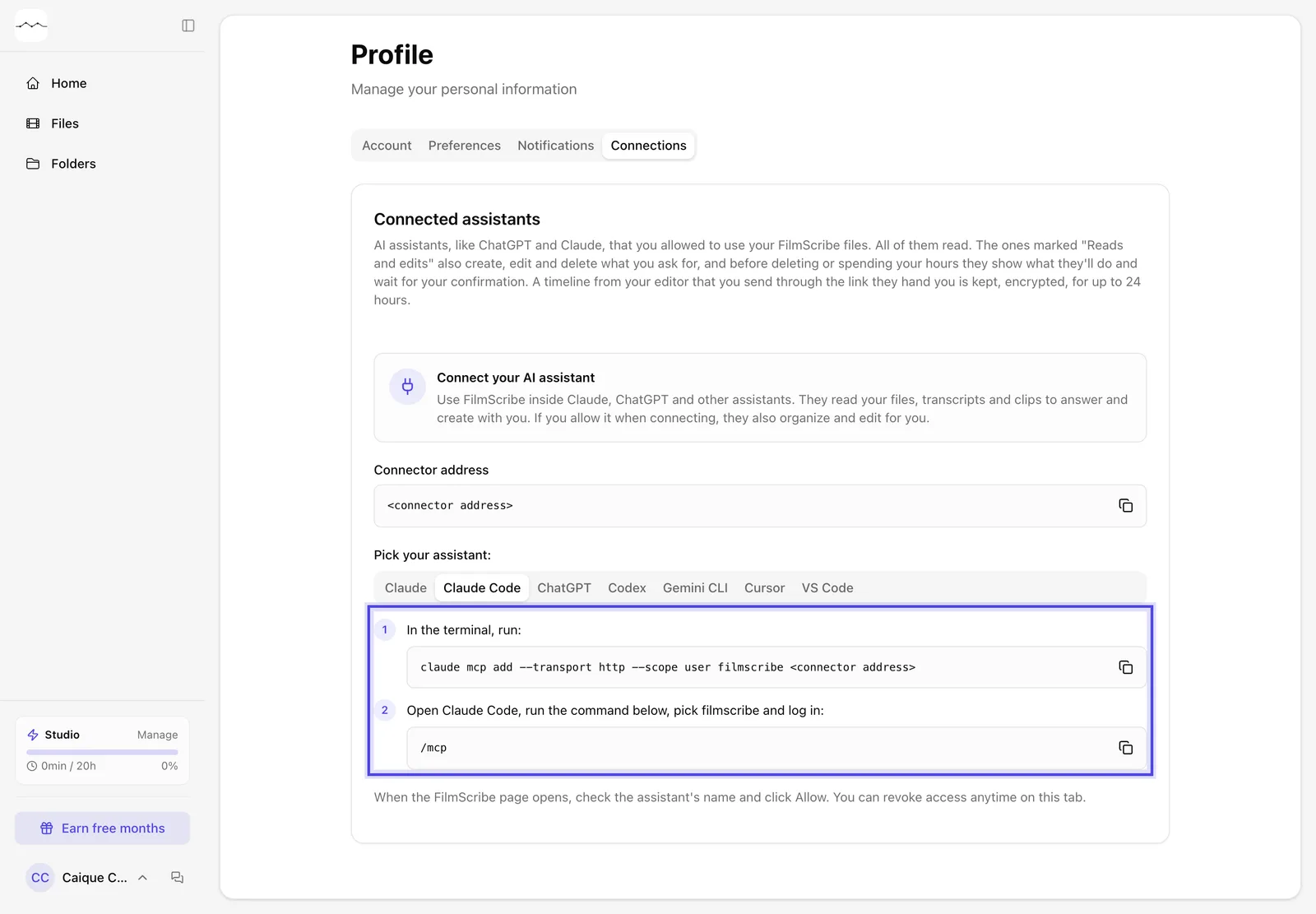
App screenshot Claude Code's steps, with the address replaced by a placeholder in this screenshot. 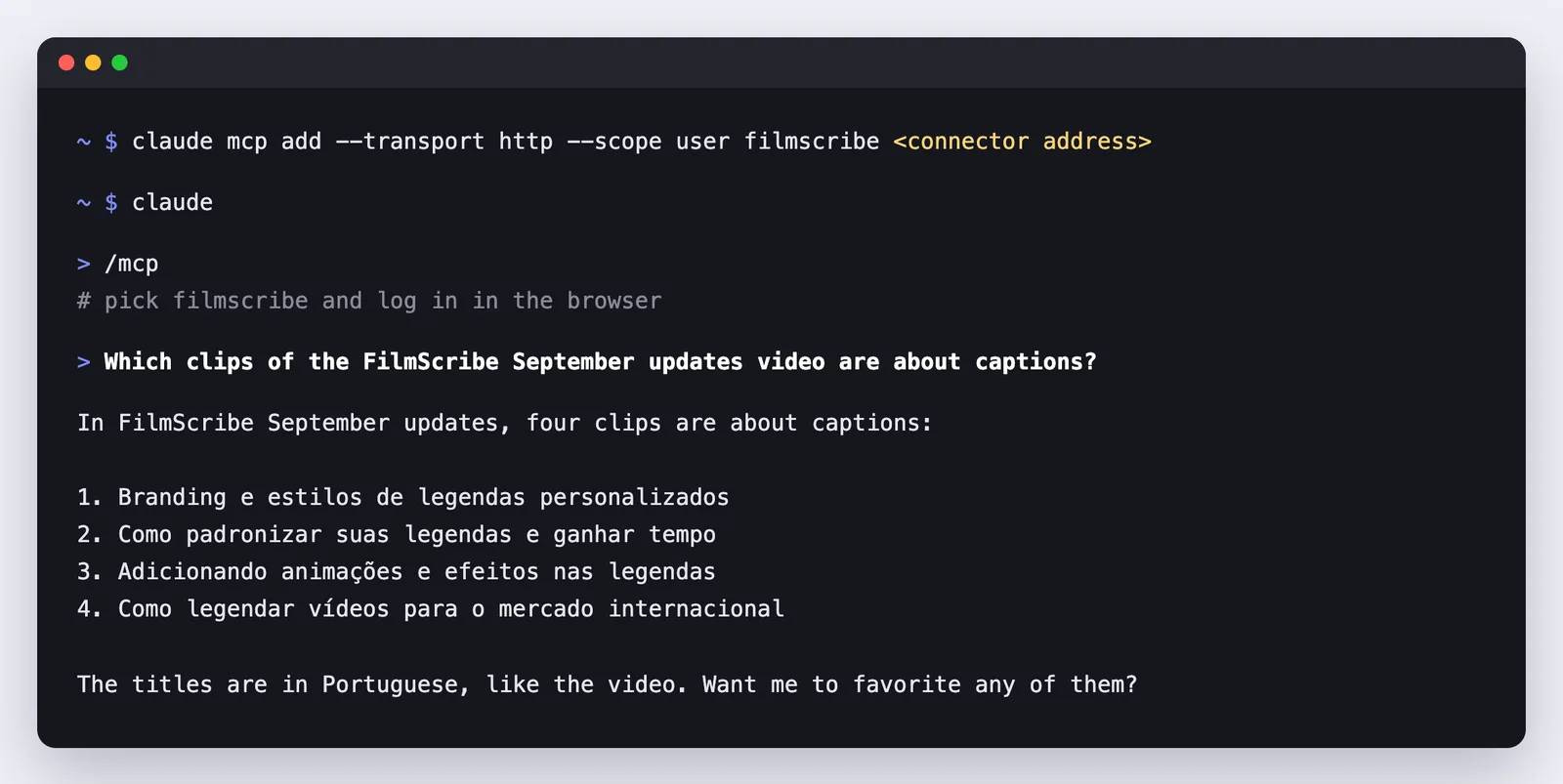
Example Example: the connector added in the terminal, logging in and a question about a video's clips. -
Step 3: Allow access
When the FilmScribe page opens, check the assistant's name and click Allow.
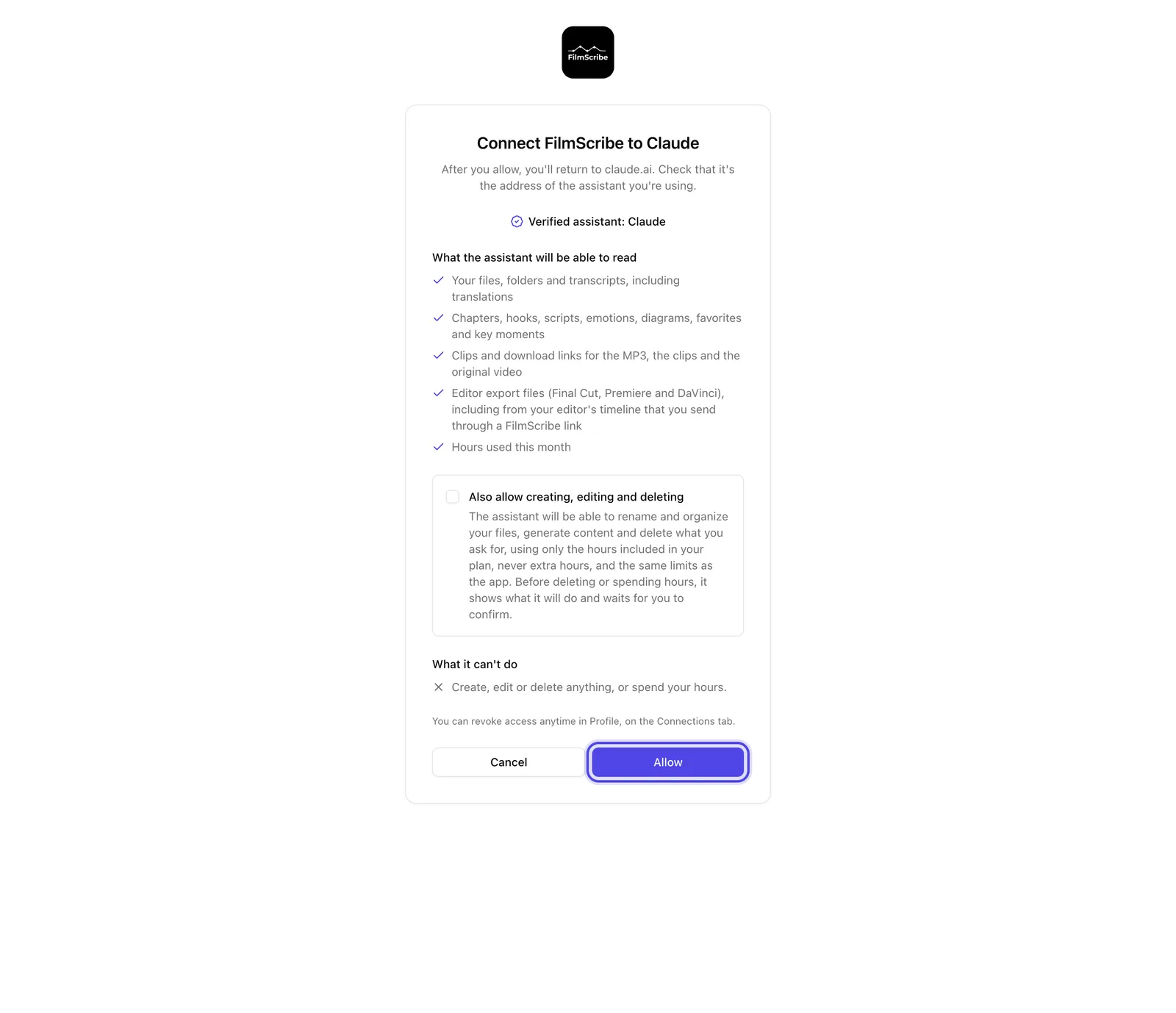
App screenshot The permission page, with the verified assistant and Allow.
Optional steps
You don't need these steps to finish the task. Use them if you want.
-
OptionalLet the assistant organize and create
On the permission page, check Also allow creating, editing and deleting. The assistant can then organize your files and generate content, using only the hours included in your plan, and shows what it will do before deleting anything or using hours.
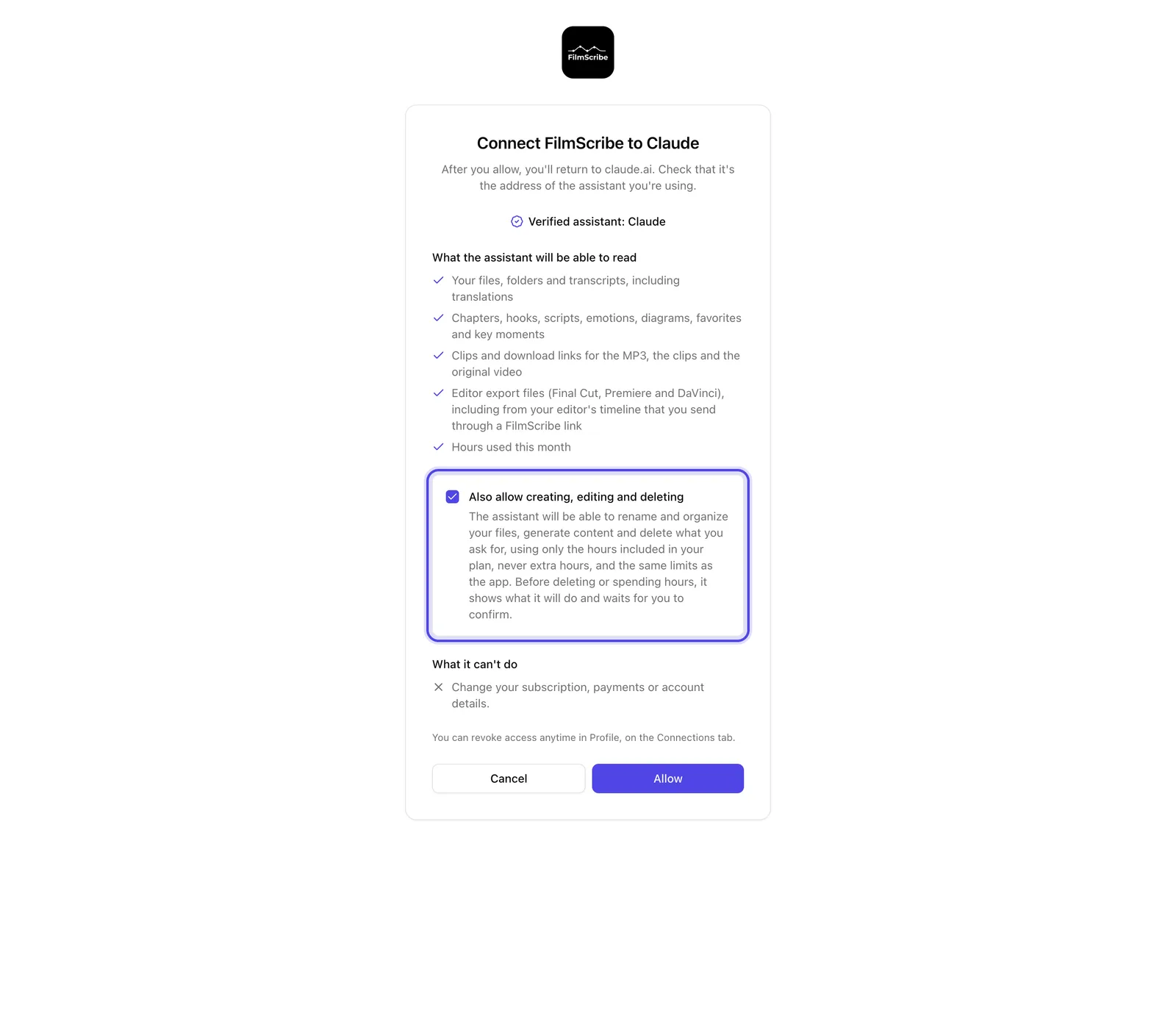
App screenshot Also allow creating, editing and deleting, checked. -
OptionalSee what was done and revoke
In Connections, What assistants changed lists the changes they made. To remove access, click Revoke.
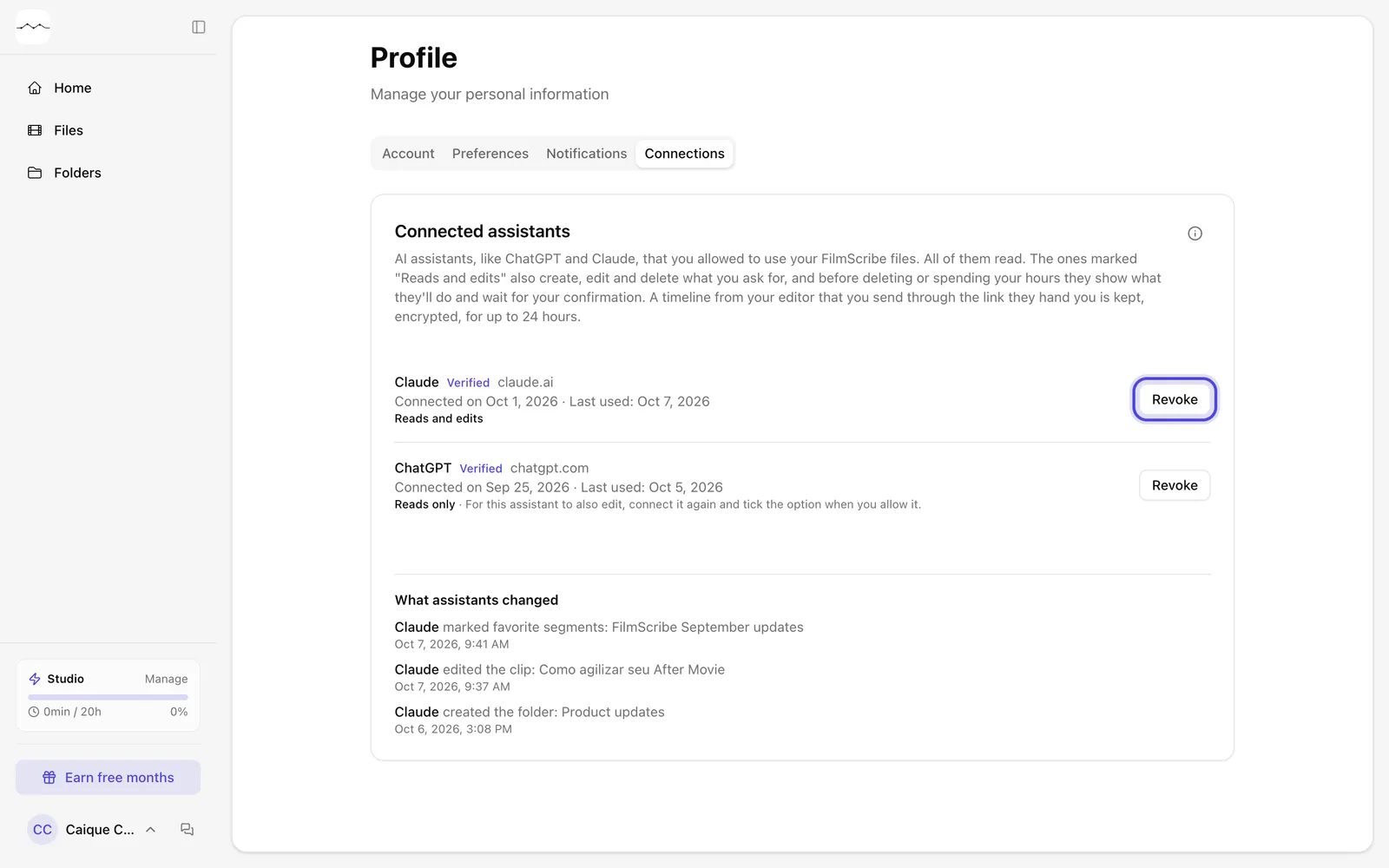
App screenshot Two connected assistants, what they changed and Revoke.